
To find the largest folders using PowerShell, add up the file sizes in each folder with Measure-Object and sort the results. Windows doesn’t store folder sizes, so you have to calculate them:
Get-ChildItem -Path C:\Data -Directory | ForEach-Object {
    $bytes = (Get-ChildItem -Path $_.FullName -Recurse -File -Force |
              Measure-Object -Property Length -Sum).Sum
    [pscustomobject]@{
        Folder = $_.Name
        SizeMB = [math]::Round([double]$bytes / 1MB, 2)
    }
} | Sort-Object -Property SizeMB -Descending
Below I run it on a sample folder, show the top folders in friendly units, search every subfolder level and list the largest files. I also cover speed and access-denied errors.
Get the size of each folder
I created a Data folder with five subfolders and files of known sizes. The script above sums every file under each subfolder:
Get-ChildItem -Path .\Data -Directory | ForEach-Object {
    $bytes = (Get-ChildItem -Path $_.FullName -Recurse -File -Force |
              Measure-Object -Property Length -Sum).Sum
    [pscustomobject]@{
        Folder = $_.Name
        SizeMB = [math]::Round([double]$bytes / 1MB, 2)
    }
} | Sort-Object -Property SizeMB -Descending
Output:
Folder  SizeMB
------  ------
Videos   5.000
Backups  3.000
Reports  0.500
Logs     0.060
Temp     0.000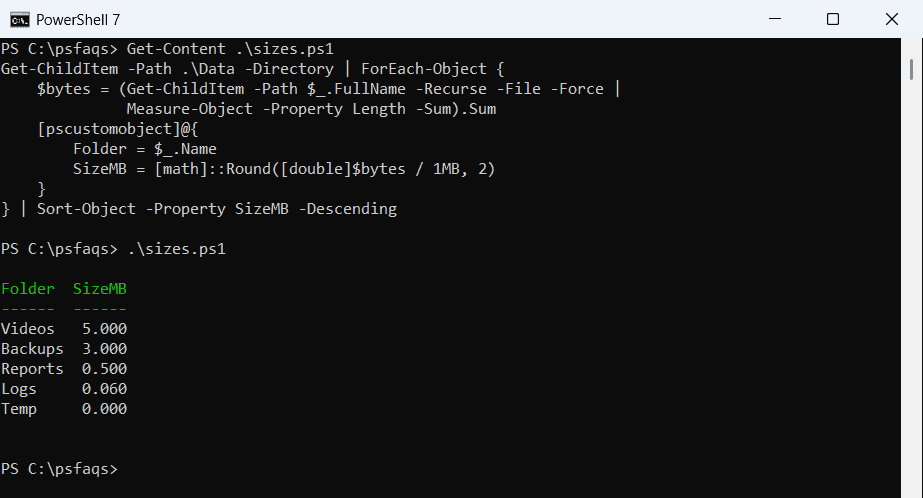
PowerShell 7 lines up the decimals in tables, so 5 shows as 5.000. Windows PowerShell 5.1 shows the same numbers as 5, 3, 0.5, 0.06 and 0.
-Recurse counts files in subfolders too, which is why Backups includes its 2026-09 folder. -Force adds hidden and system files, which can be large. For one folder at a time, see getting the size of a folder.
Temp is empty, so Measure-Object returns nothing and [double] turns that into 0. Without the cast, empty folders cause errors in the division.
Show only the top folders
For a quick report, keep the bytes for sorting and format them only for display. -First limits the list:
$folders = foreach ($dir in Get-ChildItem -Path .\Data -Directory) {
    $sum = (Get-ChildItem -Path $dir.FullName -Recurse -File -Force | Measure-Object -Property Length -Sum).Sum
    [pscustomobject]@{ Folder = $dir.Name; Bytes = [long]$sum }
}
$folders | Sort-Object -Property Bytes -Descending | Select-Object -First 2 |
    ForEach-Object { '{0,-8} {1,8:N1} MB' -f $_.Folder, ($_.Bytes / 1MB) }
Output:
Videos        5.0 MB
Backups       3.0 MB
The {1,8:N1} format adds thousands separators and one decimal place. Swap 1MB for 1GB on real drives.
Search every level of subfolders
The first script only looks at the top level. Add -Recurse to the outer Get-ChildItem to rank every folder at every depth:
Get-ChildItem -Path .\Data -Directory -Recurse | ForEach-Object {
    $sum = (Get-ChildItem -Path $_.FullName -Recurse -File -Force | Measure-Object -Property Length -Sum).Sum
    [pscustomobject]@{
        Folder = $_.FullName.Substring((Resolve-Path -Path .\Data).Path.Length + 1)
        SizeKB = [long]([double]$sum / 1KB)
    }
} | Sort-Object -Property SizeKB -Descending | Select-Object -First 4
Output:
Folder          SizeKB
------          ------
Videos            5120
Backups           3072
Backups\2026-09   1024
Reports            512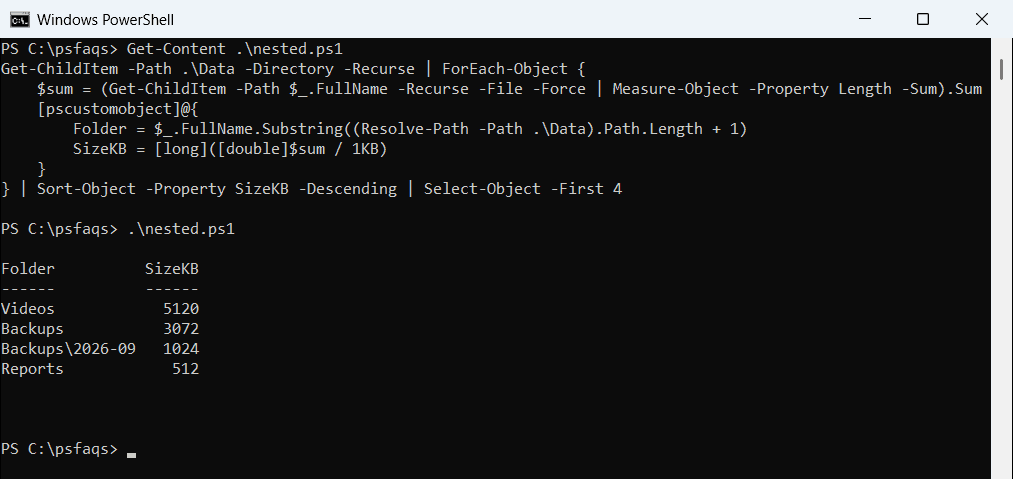
Parent folders include their children, so Backups and Backups\2026-09 both show up. On a big drive this checks every folder separately, so limit it with -Depth 2.
Find the largest files
Sometimes a single file is the problem. Sorting files by Length finds them quickly:
Get-ChildItem -Path .\Data -Recurse -File |
    Sort-Object -Property Length -Descending |
    Select-Object -First 3 -Property Name, @{ Name = 'SizeKB'; Expression = { [long]($_.Length / 1KB) } }
Output:
Name              SizeKB
----              ------
training-2026.mp4   5120
db-2026-10-01.bak   2048
db-2026-09-30.bak   1024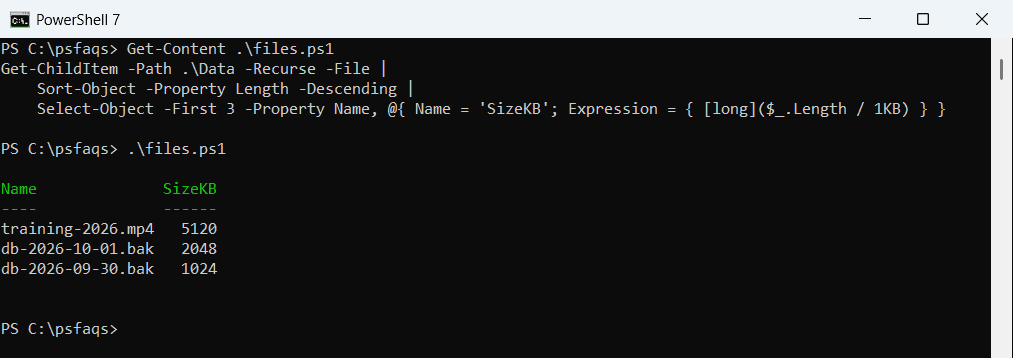
For more on file sizes, see getting the size of a file in PowerShell.
If you want every file above a set size, such as 100 MB, read how to find files larger than a specific size.
Run it on a real drive
System folders such as C:\Windows have files you can’t read. Add -ErrorAction SilentlyContinue so the scan keeps going, and run it as administrator for complete totals:
Get-ChildItem -Path C:\Users -Directory | ForEach-Object {
    $bytes = (Get-ChildItem -Path $_.FullName -Recurse -File -Force -ErrorAction SilentlyContinue |
              Measure-Object -Property Length -Sum).Sum
    [pscustomobject]@{ Folder = $_.Name; SizeGB = [math]::Round([double]$bytes / 1GB, 2) }
} | Sort-Object -Property SizeGB -Descending
Scanning a whole drive can take several minutes. Start with one level, then drill into the largest folder. To check free space first, see checking hard drive space with PowerShell.
Details on summing values are in the Measure-Object reference, and the file options in the Get-ChildItem reference.
Frequently Asked Questions
How do I find the largest folders with PowerShell?
Sum each folder’s files with Get-ChildItem -Recurse -File | Measure-Object -Property Length -Sum, then sort by the total.
Why doesn’t Get-ChildItem show folder sizes?
Windows doesn’t store folder sizes. You have to add up the Length of the files inside each folder.
How do I show folder sizes in GB?
Divide the bytes by 1GB and round: [math]::Round($bytes / 1GB, 2).
How do I skip access denied errors when scanning a drive?
Add -ErrorAction SilentlyContinue to Get-ChildItem, and run PowerShell as administrator for full totals.
How do I find the largest files instead of folders?
Run Get-ChildItem -Recurse -File | Sort-Object Length -Descending | Select-Object -First 10.
Cleaning up disk space? These help too: