
To check hard drive space using PowerShell, run Get-Volume. It shows the free space (SizeRemaining) and total size of each drive, and it works without admin rights in Windows PowerShell 5.1 and PowerShell 7:
Get-Volume -DriveLetter C | Select-Object DriveLetter, SizeRemaining, SizeOutput:
DriveLetter SizeRemaining          Size
----------- -------------          ----
          C  375963209728 1022815629312
For a report you can reuse, including free space in GB, percent free and remote servers, query Win32_LogicalDisk. I’ll build that below.
I tested every command on Windows 11 in both PowerShell versions, and I’ll call out the few places where they differ.
Check free disk space with Get-PSDrive
Get-PSDrive is the quickest way to see used and free space. The default view already rounds both to GB:
Get-PSDrive -PSProvider FileSystemOutput:
Name           Used (GB)     Free (GB) Provider      Root                                               CurrentLocation
----           ---------     --------- --------      ----                                               ---------------
C                 602.43        350.14 FileSystem    C:\                                                         psfaqs
Temp              602.43        350.14 FileSystem    C:\Users\alice\AppData\Local\Temp\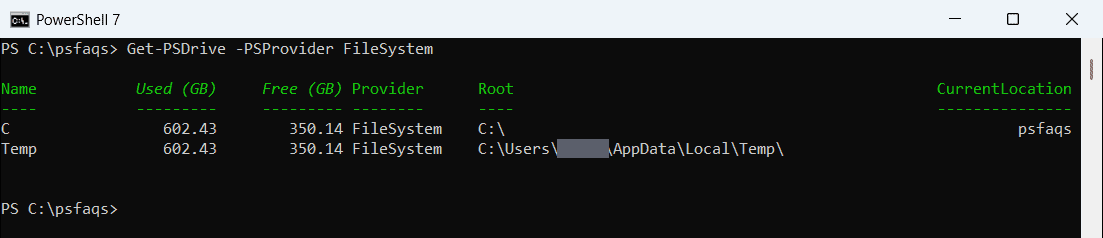
Notice the Temp row. PowerShell 7.4 added a Temp: drive that points to your temp folder, so it repeats the numbers of drive C. Windows PowerShell 5.1 doesn’t have it.
To work with the numbers, select the drive and convert the raw bytes yourself:
Get-PSDrive -Name C | Select-Object Name,
    @{ Name = 'UsedGB'; Expression = { [math]::Round($_.Used / 1GB, 2) } },
    @{ Name = 'FreeGB'; Expression = { [math]::Round($_.Free / 1GB, 2) } }
Output:
Name  UsedGB  FreeGB
----  ------  ------
C    602.430 350.140
To find what’s using the space, see getting the size of a folder.
Get free disk space in GB with Get-Volume
Get-Volume adds the file system, volume label and health status. Here’s a cleaner table with the space in GB:
Get-Volume | Where-Object DriveType -eq 'Fixed' |
    Select-Object DriveLetter, FileSystemLabel, FileSystem, HealthStatus,
        @{ Name = 'FreeGB'; Expression = { [math]::Round($_.SizeRemaining / 1GB, 2) } },
        @{ Name = 'SizeGB'; Expression = { [math]::Round($_.Size / 1GB, 2) } } |
    Format-Table -AutoSize
Output:
DriveLetter FileSystemLabel FileSystem HealthStatus  FreeGB  SizeGB
----------- --------------- ---------- ------------  ------  ------
                            NTFS       Healthy        0.110   1.020
C           Windows         NTFS       Healthy      350.140 952.570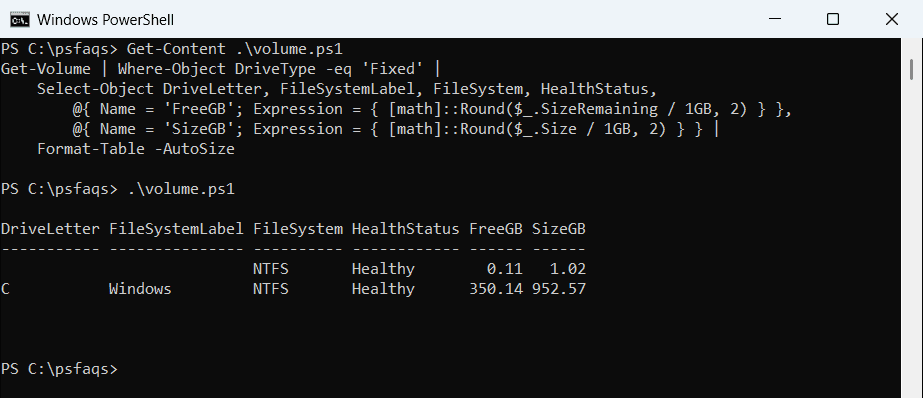
The row without a drive letter is the Windows recovery partition. Add Where-Object DriveLetter if you only want lettered drives.
The Get-Volume documentation lists every property it returns.
Check disk space with Win32_LogicalDisk
For scripts, I prefer the Win32_LogicalDisk CIM class. It works on any Windows version, it takes a -ComputerName parameter, and DriveType = 3 keeps only local hard drives.
This function returns size, free space and percent free for each drive:
function Get-DiskSpace {
    [CmdletBinding()]
    param([string[]]$ComputerName)

    $cim = @{ ClassName = 'Win32_LogicalDisk'; Filter = 'DriveType = 3' }
    if ($ComputerName) { $cim.ComputerName = $ComputerName }    # remote PCs only (uses WinRM)

    Get-CimInstance @cim |
        Select-Object @{ Name = 'Computer';  Expression = { $_.SystemName } },
                      @{ Name = 'Drive';     Expression = { $_.DeviceID } },
                      @{ Name = 'SizeGB';    Expression = { [math]::Round($_.Size / 1GB, 2) } },
                      @{ Name = 'FreeGB';    Expression = { [math]::Round($_.FreeSpace / 1GB, 2) } },
                      @{ Name = 'PercentFree'; Expression = { [math]::Round($_.FreeSpace / $_.Size * 100, 1) } }
}

Get-DiskSpace | Format-Table -AutoSize
Output:
Computer Drive  SizeGB  FreeGB PercentFree
-------- -----  ------  ------ -----------
PC-01    C:    952.570 350.140      36.800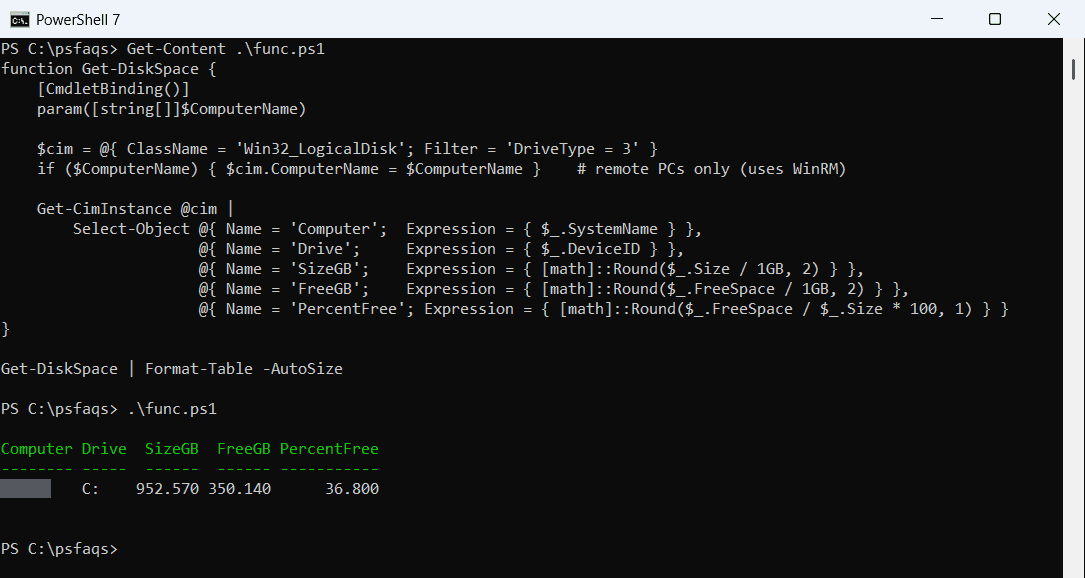
Many older scripts use Get-WmiObject Win32_LogicalDisk. That cmdlet was removed in PowerShell 7, so use Get-CimInstance instead. The properties are the same.
How do I alert when a drive is low on space?
Once you have PercentFree, a threshold check is a few lines. This prints a warning for any drive under 15% free:
# Get-DiskSpace from the previous section must be loaded first
$threshold = 15    # percent

Get-DiskSpace | ForEach-Object {
    if ($_.PercentFree -lt $threshold) {
        Write-Warning "$($_.Computer) $($_.Drive) is low on space: $($_.FreeGB) GB free ($($_.PercentFree)%)"
    }
    else {
        "$($_.Computer) $($_.Drive) is OK: $($_.FreeGB) GB free ($($_.PercentFree)%)"
    }
}
Output:
PC-01 C: is OK: 350.14 GB free (36.8%)Schedule it with Task Scheduler, or send the warning by email or to Teams instead of the console.
Check disk space on a remote computer
Get-DiskSpace passes -ComputerName straight to Get-CimInstance, so you can check several servers at once:
Get-DiskSpace -ComputerName 'SRV01', 'SRV02', 'SQL01' |
    Sort-Object PercentFree |
    Format-Table -AutoSize

# save a report
Get-DiskSpace -ComputerName (Get-Content .\servers.txt) |
    Export-Csv .\disk-space-report.csv -NoTy