Recently, I was working with a client in New York who needed to automate their file cleanup process. Their server was quickly running out of space due to daily logs and backup files accumulating over months. The solution? A PowerShell script to automatically delete files older than 30 days.
In this tutorial, I’ll walk you through several proven methods to create a PowerShell script that removes files older than 30 days. You can use these methods to delete files and recover valuable disk space with minimal effort.
Method 1: Basic PowerShell Command to Delete Files Older Than 30 Days
The simplest approach uses a combination of Get-ChildItem to locate files and Where-Object to filter them by age:
Get-ChildItem -Path "C:\Reports" -Recurse | Where-Object {($_.LastWriteTime -lt (Get-Date).AddDays(-30))} | Remove-Item -ForceLet’s break down this command:
Get-ChildItem -Path "C:\Reports" -Recurse– This gets all files in the specified directory, including subdirectoriesWhere-Object {($_.LastWriteTime -lt (Get-Date).AddDays(-30))}– This filters for files last modified more than 30 days agoRemove-Item -Force– This deletes the filtered files, including read-only files
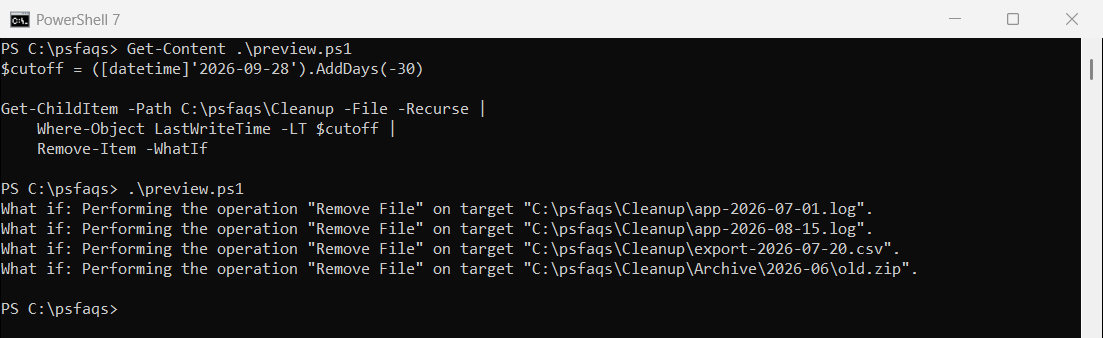
I executed the above PowerShell script, and you can see the exact output in the screenshot below:

I’ve used this exact command for a healthcare client in Chicago who needed to purge automatically old patient reports while maintaining compliance with retention policies.
Method 2: Delete Files with Error Handling and Logging
When working with critical systems, I always recommend adding error handling and logging. Here’s a more robust PowerShell script that will delete files older than 30 days.
# Set parameters
$folderPath = "D:\LogFiles"
$daysToKeep = 30
$logFile = "C:\Logs\file_cleanup_log.txt"
# Create log file if it doesn't exist
if (-not (Test-Path $logFile)) {
New-Item -Path $logFile -ItemType File -Force
}
# Add timestamp to log
Add-Content -Path $logFile -Value "------------------------------"
Add-Content -Path $logFile -Value "Script ran at $(Get-Date)"
try {
# Get files older than specified days
$oldFiles = Get-ChildItem -Path $folderPath -Recurse -File |
Where-Object {($_.LastWriteTime -lt (Get-Date).AddDays(-$daysToKeep))}
# Log number of files found
Add-Content -Path $logFile -Value "Found $($oldFiles.Count) files older than $daysToKeep days"
# Delete files and count
$deletedCount = 0
foreach ($file in $oldFiles) {
try {
Remove-Item $file.FullName -Force
$deletedCount++
Add-Content -Path $logFile -Value "Deleted: $($file.FullName)"
}
catch {
Add-Content -Path $logFile -Value "ERROR deleting $($file.FullName): $($_.Exception.Message)"
}
}
# Log summary
Add-Content -Path $logFile -Value "Successfully deleted $deletedCount files"
}
catch {
Add-Content -Path $logFile -Value "ERROR: $($_.Exception.Message)"
}This script creates a detailed log of all actions, which is invaluable for auditing purposes. I implemented a similar solution for a financial services firm in Boston that needed documentation of all deleted files for compliance reasons.
Check out Create a Folder with Today’s Date and Copy Files to it using PowerShell
Method 3: Delete Files by Extension
Sometimes you only want to delete specific file types that are older than 30 days using PowerShell. For example, a marketing agency needed to keep their design files but remove old temporary files; you can use the PowerShell script below.
# File extensions to delete
$extensionsToDelete = @(".tmp", ".log", ".bak")
# Path to search
$folderPath = "E:\ProjectFiles"
# Get files older than 30 days with specific extensions
Get-ChildItem -Path $folderPath -Recurse -File |
Where-Object {
($_.LastWriteTime -lt (Get-Date).AddDays(-30)) -and
($extensionsToDelete -contains $_.Extension)
} |
Remove-Item -Force -VerboseThis script specifically targets temporary, log, and backup files while leaving important work files untouched.
Check out Get All Files in a Directory Using PowerShell
PowerShell Get Files Older Than 30 Days (Without Deleting)
Sometimes you need to review what files would be deleted before actually removing them. This PowerShell script lists files older than 30 days without deleting them:
# Set path
$folderPath = "C:\ImportantData"
# Get files older than 30 days
$oldFiles = Get-ChildItem -Path $folderPath -Recurse -File |
Where-Object {($_.LastWriteTime -lt (Get-Date).AddDays(-30))}
# Display files in a table format
$oldFiles | Select-Object Name, LastWriteTime,
@{Name="SizeMB"; Expression={[math]::Round($_.Length / 1MB, 2)}},
FullName |
Format-Table -AutoSize
# Output total size
$totalSizeMB = [math]::Round(($oldFiles | Measure-Object -Property Length -Sum).Sum / 1MB, 2)
Write-Host "Total size of files older than 30 days: $totalSizeMB MB" -ForegroundColor YellowThis script provides a complete inventory of old files along with their sizes, which helps in capacity planning. I used this approach with a law firm in Washington DC to help them identify which document types were consuming the most space.
Check out Find Files Modified Between Dates Using PowerShell
Method 4: Scheduled Task for Automatic Cleanup
For true automation, you’ll want to schedule your script to run regularly. Here’s how I set this up:
- Save your script as
CleanupOldFiles.ps1 - Create a scheduled task with PowerShell:
# Create a scheduled task
$action = New-ScheduledTaskAction -Execute "PowerShell.exe" -Argument "-NoProfile -ExecutionPolicy Bypass -File C:\Scripts\CleanupOldFiles.ps1"
$trigger = New-ScheduledTaskTrigger -Daily -At 3AM
$settings = New-ScheduledTaskSettingsSet -StartWhenAvailable -DontStopOnIdleEnd
$task = Register-ScheduledTask -TaskName "Delete Old Files" -Action $action -Trigger $trigger -Settings $settings -RunLevel Highest -Description "Deletes files older than 30 days"This scheduled task will run your cleanup script every day at 3 AM, ensuring your systems never accumulate too many old files.
Method 5: Delete Files and Empty Folders
One issue I often encounter is empty folders left behind after files are deleted using a PowerShell script. The below PowerShell script removes empty directories as well:
# Parameters
$folderPath = "F:\SharedDocuments"
$daysToKeep = 30
# Delete files older than 30 days
Get-ChildItem -Path $folderPath -Recurse -File |
Where-Object {($_.LastWriteTime -lt (Get-Date).AddDays(-$daysToKeep))} |
Remove-Item -Force
# Remove empty folders (with multiple passes to handle nested empty folders)
for ($i=0; $i -lt 3; $i++) {
Get-ChildItem -Path $folderPath -Recurse -Directory |
Where-Object {(Get-ChildItem -Path $_.FullName -Recurse -File) -eq $null} |
Remove-Item -Force -Recurse
}The multiple passes ensure that nested empty folders get removed properly.
Check out Show Progress When Copying Files with PowerShell Copy-Item
Comparison of Methods
Here’s a quick comparison table of the different methods:
| Method | Advantages | Best For |
|---|---|---|
| Basic Command | Simple, easy to implement | Quick, one-time cleanup |
| Error Handling & Logging | Detailed tracking, safer | Production environments |
| By Extension | Selective cleaning | Mixed-content directories |
| List Without Deleting | Safe review before action | Initial assessment |
| With Empty Folder Removal | Complete cleanup | Deep directory structures |
Best Practices
After implementing these scripts for numerous clients, I’ve developed these best practices:
- Always test on a non-production directory first
- Start with the “list only” script before deleting
- Include logging for any automated deletion process
- Use the
-WhatIfparameter during testing - Consider file access patterns before setting age thresholds
For example, a retail client in Miami found that 45 days worked better than 30 for their sales reports, while a manufacturing firm in Detroit needed only a 7-day retention for their machine logs.
Read Delete User Profiles Older Than 30 Days Using PowerShell
Complete PowerShell Script to Delete Files Older than 30 Days
Now, I am providing you with a complete PowerShell script that you can use in an enterprise environment. Here is the script to delete files older than 30 days using PowerShell.
param (
[string]$Path = "G:\EnterpriseData",
[int]$DaysToKeep = 30,
[string]$LogPath = "C:\Logs",
[string[]]$ExcludeFolders = @("Critical", "DoNotDelete"),
[switch]$WhatIf
)
# Setup logging
$logFile = Join-Path $LogPath "FileCleanup_$(Get-Date -Format 'yyyyMMdd_HHmmss').log"
New-Item -Path $logFile -ItemType File -Force | Out-Null
function Write-Log {
param([string]$Message)
$timestamp = Get-Date -Format "yyyy-MM-dd HH:mm:ss"
"$timestamp - $Message" | Out-File -FilePath $logFile -Append
Write-Output $Message
}
Write-Log "Starting cleanup of files older than $DaysToKeep days in $Path"
# Calculate cutoff date
$cutoffDate = (Get-Date).AddDays(-$DaysToKeep)
Write-Log "Cutoff date: $cutoffDate"
# Get all files recursively, excluding specified folders
$filesToDelete = Get-ChildItem -Path $Path -Recurse -File |
Where-Object {
($_.LastWriteTime -lt $cutoffDate) -and
($null -eq ($ExcludeFolders | Where-Object {$_.FullName -like "*\$_\*"}))
}
Write-Log "Found $($filesToDelete.Count) files to process"
# Delete files
$deletedCount = 0
$errorCount = 0
$totalSizeMB = 0
foreach ($file in $filesToDelete) {
try {
$sizeMB = [math]::Round($file.Length / 1MB, 2)
$totalSizeMB += $sizeMB
if ($WhatIf) {
Write-Log "WHATIF: Would delete $($file.FullName) ($sizeMB MB)"
}
else {
Remove-Item $file.FullName -Force
Write-Log "Deleted: $($file.FullName) ($sizeMB MB)"
$deletedCount++
}
}
catch {
Write-Log "ERROR deleting $($file.FullName): $($_.Exception.Message)"
$errorCount++
}
}
# Clean empty folders
$emptyFoldersRemoved = 0
if (-not $WhatIf) {
for ($i=0; $i -lt 3; $i++) {
$emptyFolders = Get-ChildItem -Path $Path -Recurse -Directory |
Where-Object {
(Get-ChildItem -Path $_.FullName -Recurse -File) -eq $null -and
($null -eq ($ExcludeFolders | Where-Object {$_.FullName -like "*\$_\*"}))
}
foreach ($folder in $emptyFolders) {
try {
Remove-Item $folder.FullName -Force -Recurse
Write-Log "Removed empty folder: $($folder.FullName)"
$emptyFoldersRemoved++
}
catch {
Write-Log "ERROR removing folder $($folder.FullName): $($_.Exception.Message)"
}
}
}
}
# Summary
Write-Log "-------- Cleanup Summary --------"
Write-Log "Total files processed: $($filesToDelete.Count)"
if ($WhatIf) {
Write-Log "Files that would be deleted: $($filesToDelete.Count)"
Write-Log "Total space that would be freed: $totalSizeMB MB"
}
else {
Write-Log "Files successfully deleted: $deletedCount"
Write-Log "Empty folders removed: $emptyFoldersRemoved"
Write-Log "Errors encountered: $errorCount"
Write-Log "Total space freed: $totalSizeMB MB"
}
Write-Log "Cleanup completed at $(Get-Date)"This enterprise-grade script includes:
- Parameter customization for different environments
- Detailed logging with timestamps
- Folder exclusion capability
- WhatIf parameter for safe testing
- Space savings calculation
- Comprehensive error handling
I developed this script for a major retailer with locations across the United States.
Check out Create Files with Content Using PowerShell
Troubleshooting Common Issues
After implementing these scripts across various organizations, I’ve encountered several common issues that I feel you should know:
1. Permission Denied Errors
If you see “Access to the path is denied” errors:
# Run PowerShell as administrator
# Or add this to your script to elevate permissions
if (-not ([Security.Principal.WindowsPrincipal][Security.Principal.WindowsIdentity]::GetCurrent()).IsInRole([Security.Principal.WindowsBuiltInRole]::Administrator)) {
Start-Process PowerShell -ArgumentList "-NoProfile -ExecutionPolicy Bypass -File `"$PSCommandPath`"" -Verb RunAs
exit
}2. Files in Use
For files that may be locked by processes:
# Add a try-catch block with specific handling for "file in use" errors
try {
Remove-Item $file.FullName -Force
}
catch [System.IO.IOException] {
Write-Log "File in use: $($file.FullName) - will retry later"
$lockedFiles += $file.FullName
}3. ExecutionPolicy Restrictions
If you encounter script execution restrictions:
# Temporarily change execution policy
Set-ExecutionPolicy -ExecutionPolicy Bypass -Scope ProcessConclusion
In this tutorial, we explored various methods for deleting files older than 30 days using a PowerShell script. Please let me know if you face any issues or still have questions.
You may also like the following tutorials:
- Read a Text File in PowerShell and Skip the First Line
- Create a File in the Current Directory Using PowerShell
- Remove the Last Line from a File Using PowerShell
Bijay Kumar is an esteemed author and the mind behind PowerShellFAQs.com, where he shares his extensive knowledge and expertise in PowerShell, with a particular focus on SharePoint projects. Recognized for his contributions to the tech community, Bijay has been honored with the prestigious Microsoft MVP award. With over 15 years of experience in the software industry, he has a rich professional background, having worked with industry giants such as HP and TCS. His insights and guidance have made him a respected figure in the world of software development and administration. Read more.