
To count files in a folder using PowerShell, get only the files with Get-ChildItem -File and read the Count property. Add -Recurse to include every subfolder:
(Get-ChildItem -Path $folder -File).Count
(Get-ChildItem -Path $folder -File -Recurse).Count
That’s the short answer. The count can still be wrong, though: hidden files are skipped, -Filter behaves differently in Windows PowerShell 5.1, and -Exclude doesn’t skip folders. I ran every example below in PowerShell 7 and 5.1 against a small Reports folder.
My sample folder has a few files at the top, three city subfolders (Austin, Denver, Seattle), an Archive folder inside Denver, one hidden file and one hidden system file.
Count files in a folder (top level only)
Without -File, Get-ChildItem returns folders too, so the number is usually higher than you expect. Here’s the difference on the same folder:
$folder = 'C:\psfaqs\t\countfiles\Reports'

"Files:             $((Get-ChildItem -Path $folder -File).Count)"
"Folders:           $((Get-ChildItem -Path $folder -Directory).Count)"
"Files and folders: $((Get-ChildItem -Path $folder).Count)"
Output:
Files:             2
Folders:           3
Files and folders: 5
Only 2 of the 5 items are files. -File and -Directory work only in the FileSystem provider, and both exist in 5.1 and 7. The Get-ChildItem cmdlet guide covers its other parameters.
Count files in a folder and subfolders
Add -Recurse to walk the whole tree. Swap -File for -Directory to count the subfolders, and use -Depth to stop after a certain number of levels:
$folder = 'C:\psfaqs\t\countfiles\Reports'

$files   = Get-ChildItem -Path $folder -File -Recurse
$folders = Get-ChildItem -Path $folder -Directory -Recurse

"Files in folder and subfolders: $($files.Count)"
"Subfolders:                     $($folders.Count)"
"Files one level deep (-Depth 1): $((Get-ChildItem -Path $folder -File -Recurse -Depth 1).Count)"
Output:
Files in folder and subfolders: 12
Subfolders:                     4
Files one level deep (-Depth 1): 10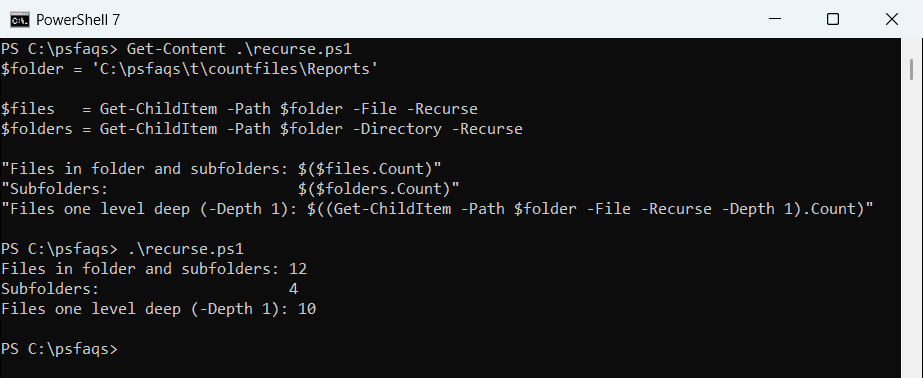
-Depth 1 means the folder itself plus one level of subfolders, so the two files in Denver\Archive aren’t counted. To list the files instead of counting them, see getting all files in a directory.
Why does PowerShell count fewer files than File Explorer?
Get-ChildItem skips hidden and system files unless you add -Force. If File Explorer shows hidden items, its number will be higher. -Hidden returns only the hidden ones:
$folder = 'C:\psfaqs\t\countfiles\Reports'

"Without -Force: $((Get-ChildItem -Path $folder -File -Recurse).Count)"
"With -Force:    $((Get-ChildItem -Path $folder -File -Recurse -Force).Count)"

Get-ChildItem -Path $folder -File -Recurse -Hidden | ForEach-Object {
    '{0,-12} {1}' -f $_.Name, $_.Attributes
}
Output:
Without -Force: 12
With -Force:    14
desktop.ini  Hidden, System
.cache       Hidden
The two missing files are a hidden .cache file and a desktop.ini marked hidden and system. Use -Force when you need the real total. More on that in listing hidden files in PowerShell.
Count files of a specific type (-Filter vs -Include)
To count one file type, -Filter is the fastest option because the file system does the matching. In Windows PowerShell 5.1, though, it can also match longer extensions:
$folder = 'C:\psfaqs\t\countfiles\Reports'

$byFilter  = Get-ChildItem -Path $folder -File -Recurse -Filter *.xls
$byInclude = Get-ChildItem -Path $folder -File -Recurse -Include *.xls

"-Filter *.xls  ($($byFilter.Count)): $($byFilter.Name -join ', ')"
"-Include *.xls ($($byInclude.Count)): $($byInclude.Name -join ', ')"
Output:
-Filter *.xls  (1): legacy.xls
-Include *.xls (1): legacy.xls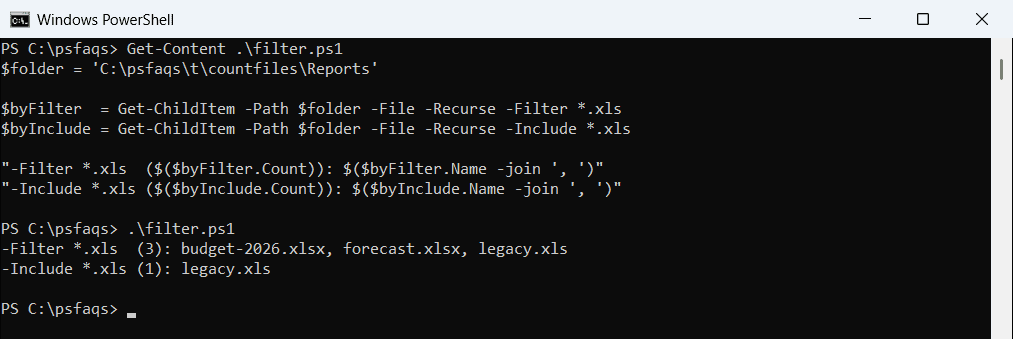
The output above is from PowerShell 7, where both commands return only legacy.xls. In 5.1, -Filter *.xls returned 3 files: budget-2026.xlsx, forecast.xlsx and legacy.xls.
That happens because a three-letter extension pattern also matches the Windows 8.3 short file names. -Include is applied by PowerShell after the files are read, so it matched exactly in both. The Get-ChildItem -Filter guide has more patterns.
To count every file type at once, group by the Extension property. I sort by count, then by name, because Sort-Object in 5.1 isn’t stable:
$folder = 'C:\psfaqs\t\countfiles\Reports'

Get-ChildItem -Path $folder -File -Recurse |
    Group-Object -Property Extension |
    Sort-Object -Property @{ Expression = 'Count'; Descending = $true }, Name |
    ForEach-Object { '{0,-6} {1}' -f $_.Name, $_.Count }
Output:
.csv   4
.txt   3
.xlsx  2
.docx  1
.mp4   1
.xls   1
To work with the matching files after counting them, see finding files with a specific extension.
Count files in each subfolder
For a per-folder report, loop through the subfolders and count each one twice: the files directly inside it and the files in its whole branch:
$folder = 'C:\psfaqs\t\countfiles\Reports'

Get-ChildItem -Path $folder -Directory -Recurse | Sort-Object FullName | ForEach-Object {
    $here  = @(Get-ChildItem -Path $_.FullName -File).Count
    $total = @(Get-ChildItem -Path $_.FullName -File -Recurse).Count
    '{0,-15} {1} here, {2} with subfolders' -f $_.FullName.Substring($folder.Length + 1), $here, $total
}
Output:
Austin          4 here, 4 with subfolders
Denver          2 here, 4 with subfolders
Denver\Archive  2 here, 2 with subfolders
Seattle         2 here, 2 with subfolders
Denver shows 2 files of its own and 4 with its Archive folder. The @() wrapper makes the count work even for a folder with a single file. The same loop pattern is explained in looping through f