
If you’ve ever had to deal with an XML file and needed to make sense of its data quickly, you probably know how messy it can look at first glance. Nested tags, attributes everywhere, and no clear rows or columns.
The good news? PowerShell makes it surprisingly easy to pull that data out and display it as a clean, readable table — whether you want to see it in your console or export it as a CSV.
In this tutorial, I’ll walk you through four practical methods to convert XML to a table in PowerShell, with real examples you can follow along with. No fluff, just working code and clear explanations.
Here, in this tutorial, I will explain the following things:
- What we’re working with (sample XML)
- Method 1: Using
[xml]cast +Format-Table - Method 2: Using
Select-Objectto build a clean table - Method 3: Exporting XML to a CSV table
- Method 4: Using
System.Data.DataSetfor complex XML - Tips to handle XML with attributes vs. elements
- Common mistakes to avoid
The Sample XML We’ll Use
Before jumping into the methods, let me set up a sample XML file we’ll use throughout this tutorial. This makes it easier to follow along.
Save the following as employees.xml on your machine (I’ll use C:\Temp\employees.xml):
<?xml version="1.0" encoding="UTF-8"?>
<employees>
  <employee>
    <id>1</id>
    <name>Sarah Johnson</name>
    <department>HR</department>
    <salary>55000</salary>
  </employee>
  <employee>
    <id>2</id>
    <name>Mike Chen</name>
    <department>IT</department>
    <salary>75000</salary>
  </employee>
  <employee>
    <id>3</id>
    <name>Priya Sharma</name>
    <department>Finance</department>
    <salary>68000</salary>
  </employee>
</employees>
This is a pretty typical structure — a root element, repeating child elements, and simple text nodes inside each one. Let’s work with this.
Method 1: Using [xml] Cast + Format-Table
This is the quickest way to get XML data into a table view in PowerShell. The trick is casting the file content as [xml], which instantly gives you a structured object you can navigate with dot notation.
# Load and cast the XML file
$xml = [xml](Get-Content "C:\Temp\employees.xml")

# Display as a table
$xml.employees.employee | Format-Table -AutoSize
What this does:
[xml]converts the raw text into an XML document object.employees.employeedrills into the nested structure using dot notationFormat-Table -AutoSizedisplays the result as a table with auto-adjusted column widths
When you run this, your output will look like:
id name          department salary
-- ----          ---------- ------
1  Sarah Johnson HR         55000
2  Mike Chen     IT         75000
3  Priya Sharma  Finance    68000
Here is the exact output in the screenshot below for your reference.
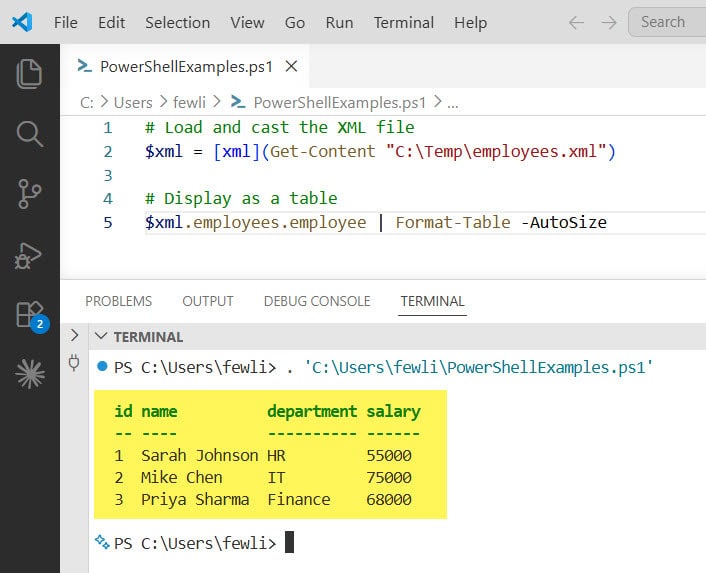
Clean and readable — right in the console.
When to use this: Use this method when you just want to quickly inspect or verify XML data in the terminal. It’s fast and needs no extra steps.
Method 2: Using Select-Object to Build a Custom Table
Sometimes you don’t want all the fields. Or you want to rename the columns. Select-Object gives you full control over what ends up in your table.
$xml = [xml](Get-Content "C:\Temp\employees.xml")

$xml.employees.employee | Select-Object name, department, salary | Format-Table -AutoSize
This picks only the three columns you care about and ignores everything else.
You can also create calculated columns with custom names like this:
$xml = [xml](Get-Content "C:\Temp\employees.xml")

$xml.employees.employee | Select-Object `
    @{Name="Employee Name"; Expression={$_.name}},
    @{Name="Dept"; Expression={$_.department}},
    @{Name="Annual Salary"; Expression={[int]$_.salary}} |
    Format-Table -AutoSize
Output:
Employee Name Dept    Annual Salary
------------- ----    -------------
Sarah Johnson HR              55000
Mike Chen     IT              75000
Priya Sharma  Finance         68000
You can also see the exact output in the screenshot below:
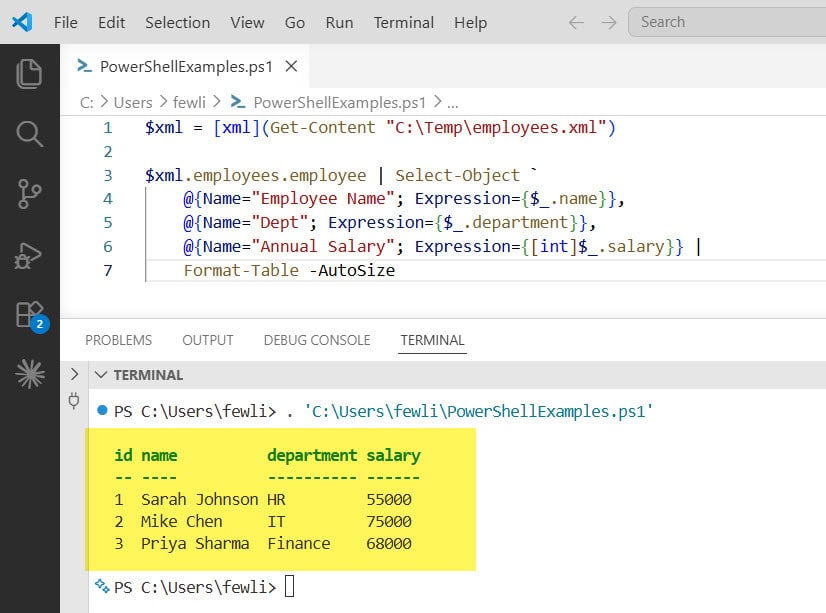
The @{Name="..."; Expression={...}} syntax is a calculated property. You give the column a new name and define what value it should show. You can also cast values — notice I used [int]$_.salary to make the salary a number instead of a string.
When to use this: Perfect when you need to display specific fields with friendly column names, or when you want to do light transformations on the data.
Method 3: Export XML to a CSV Table
This is probably the most useful method in real-world scenarios. Instead of just printing a table to the console, you export the data to a CSV file — which you can open in Excel, import into a database, or share with someone who doesn’t use PowerShell.
$xml = [xml](Get-Content "C:\Temp\employees.xml")

$xml.employees.employee | Select-Object id, name, department, salary |
    Export-Csv -Path "C:\Temp\employees.csv" -NoTypeInformation
The -NoTypeInformation flag removes the ugly #TYPE comment that PowerShell adds to the top of CSV files by default. Always include this unless you specifically need type metadata.
After running this, open employees.csv and you’ll see:
"id","name","department","salary"
"1","Sarah Johnson","HR","55000"
"2","Mike Chen","IT","75000"
"3","Priya Sharma","Finance","68000"
A perfectly clean CSV table.
Bonus — verify the output without opening the file:
Import-Csv "C:\Temp\employees.csv" | Format-Table -AutoSize
This reads the CSV back and displays it as a table, so you can confirm everything looks right.
When to use this: Use this when you need to share data, load it into Excel, or feed it into another tool. It’s the go-to method for reporting and data extraction tasks.
Method 4: Using System.Data.DataSet for Complex XML
The three methods above work great for flat, simple XML. But what if your XML is more complex — with multiple nested levels or you need something closer to a real database table structure?
That’s where System.Data.DataSet comes in. It’s a .NET class that can read XML and automatically figure out the table structure from it.
Let me update the sample XML slightly to make this more interesting. Save this as orders.xml:
<?xml version="1.0" encoding="UTF-8"?>
<orders>
  <order>
    <orderid>101</orderid>
    <customer>Alice</customer>
    <product>Laptop</product>
    <quantity>2</quantity>
    <total>2400</total>
  </order>
  <order>
    <orderid>102</orderid>
    <customer>Bob</customer>
    <product>Monitor</product>
    <quantity>1</quantity>
    <total>350</total>
  </order>
  <order>
    <orderid>103</orderid>
    <customer>Carol</customer>
    <product>Keyboard</product>
    <quantity>3</quantity>
    <total>120</total>
  </order>
</orders>
Now use DataSet to read and display it:
# Create a DataSet object
$dataset = New-Object System.Data.DataSet

# Read the XML file into the DataSet
$dataset.ReadXml("C:\Temp\orders.xml")

# Display the first table as a PowerShell table
$dataset.Tables[0] | Format-Table -AutoSize
Output:
orderid customer product  quantity total
------- -------- -------  -------- -----
101     Alice    Laptop   2        2400
102     Bob      Monitor  1        350
103     Carol    Keyboard 3        120
The DataSet reads the XML and maps the structure into a Tables collection. For simple XML like above, there’s usually just one table at index [0]. For XML with multiple node types or parent-child relationships, you might get multiple tables that are linked by keys.
You can also export this directly to CSV:
$dataset = New-Object System.Data.DataSet
$dataset.ReadXml("C:\Temp\orders.xml")

$dataset.Tables[0] | Export-Csv "C:\Temp\orders.csv" -NoTypeInformation
When to use this: Use DataSet when your XML comes from a database export, a SOAP response, or any source with a structured schema. It handles the mapping automatically and is more robust than manual dot notation for deeply nested XML.
Working With XML That Uses Attributes
Up to now, all the examples used elements (text inside tags). But a lot of real-world XML uses attributes instead:
<employees>
  <employee id="1" name="Sarah Johnson" department="HR" salary="55000" />
  <employee id="2" name="Mike Chen" department="IT" salary="75000" />
</employees>
The syntax to read attributes is basically the same — dot notation still works:
$xml = [xml](Get-Content "C:\Temp\employees_attr.xml")

$xml.employees.employee | Select-Object id, name, department, salary | Format-Table -AutoSize
PowerShell’s XML type adapter treats both attributes and child elements the same way when you use dot notation. So whether the data is in <name>Sarah</name> or name="Sarah", you access it with $_.name either way.
Important Mistakes to Avoid
A few things that trip people up when working with XML in PowerShell:
- Forgetting the
[xml]cast — If you just doGet-Content file.xmlwithout casting, you get an array of strings, not a structured XML object. Always cast it:[xml](Get-Content "file.xml"). - Case sensitivity — XML element names are case-sensitive. If your XML has
<Name>but you write$xml.employees.employee.name(lowercase), it will return nothing. Match the case exactly. - Namespace issues — Some XML files have namespace declarations like
xmlns="...". These can break simple dot notation. One quick workaround is to strip the namespace before parsing:powershell$content = (Get-Content "C:\Temp\file.xml") -replace 'xmlns[^"]*"[^"]*"', '' $xml = [xml]$content - Single vs. multiple nodes — If your XML has only one child element (e.g., one
<employee>node), PowerShell returns an object instead of an array.Format-Tablemay not display it correctly. Wrap it in@()to force it into an array:powershell@($xml.employees.employee) | Format-Table -AutoSize - Large XML files — Loading a huge XML file with
[xml](Get-Content ...)reads the whole file into memory. For large files, consider usingSystem.Xml.XmlReaderfor streaming, or pre-filter the data before loading.
Quick Reference — Which Method Should You Use?
Here’s a simple way to decide:
- Just want to see the data in the console? → Method 1 (
[xml]+Format-Table) - Need specific columns or custom names? → Method 2 (
Select-Object) - Need to export to CSV or Excel? → Method 3 (
Export-Csv) - Complex XML or database-style XML? → Method 4 (
System.Data.DataSet)
Conclusion
In this tutorial, I explained how to convert XML to a table in PowerShell using various methods. The [xml] cast does most of the heavy lifting, and once you have that structured object, the rest is just standard PowerShell piping.
Start with Method 1 to explore your XML quickly. Use Method 3 when you need to export and share the data. And reach for the DataSet approach when the structure gets more complex.
Once you get comfortable with these patterns, you’ll find yourself using them regularly — whether you’re parsing config files, processing API responses, or automating data extraction tasks.
Do let me know in the comment box if there are any questions.
You may also like:
- How to Convert Excel Files to CSV Using PowerShell
- PowerShell Find File by Name Wildcard Examples
- Find the Most Recent File in a Directory with PowerShell

Bijay Kumar is an esteemed author and the mind behind PowerShellFAQs.com, where he shares his extensive knowledge and expertise in PowerShell, with a particular focus on SharePoint projects. Recognized for his contributions to the tech community, Bijay has been honored with the prestigious Microsoft MVP award. With over 15 years of experience in the software industry, he has a rich professional background, having worked with industry giants such as HP and TCS. His insights and guidance have made him a respected figure in the world of software development and administration. Read more.