
To create an HTML table in PowerShell, pipe objects to ConvertTo-Html. Use -Property to pick the columns and -Fragment to get just the table:
$orders = @(
    [pscustomobject]@{ Id = 1001; Customer = 'Alice Johnson'; Total = 250.00; Status = 'Shipped' }
    [pscustomobject]@{ Id = 1002; Customer = 'Bob Smith';     Total = 980.50; Status = 'Overdue' }
)

$orders | ConvertTo-Html -Property Id, Customer, Total, Status -Fragment
Output:
<table>
<colgroup><col/><col/><col/><col/></colgroup>
<tr><th>Id</th><th>Customer</th><th>Total</th><th>Status</th></tr>
<tr><td>1001</td><td>Alice Johnson</td><td>250</td><td>Shipped</td></tr>
<tr><td>1002</td><td>Bob Smith</td><td>980.5</td><td>Overdue</td></tr>
</table>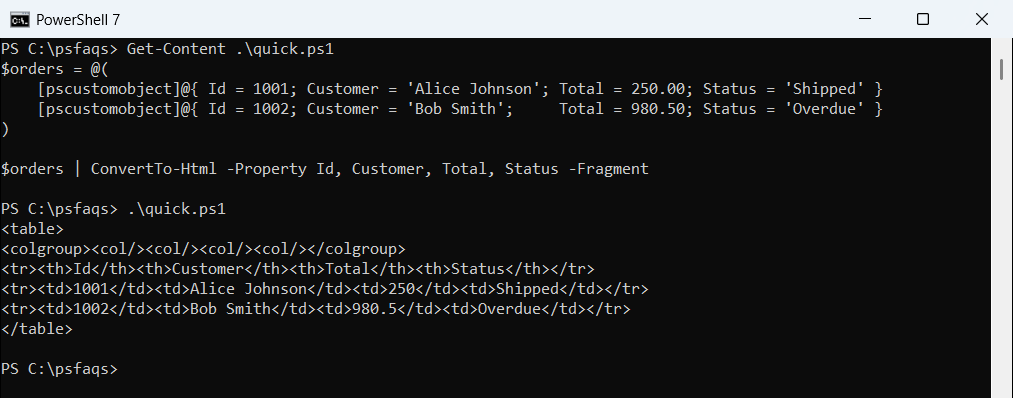
Each object becomes a row and each property a column. I ran every example in PowerShell 7.6 and Windows PowerShell 5.1 and point out where the output differs.
Arrays of strings become a table of lengths
ConvertTo-Html shows properties, and the only property a string has is Length. So a plain array of names turns into a column of numbers:
$cities = 'Austin', 'Denver'
$cities | ConvertTo-Html -Fragment
Output in PowerShell 7:
<table>
<colgroup><col/></colgroup>
<tr><th>Length</th></tr>
<tr><td>6</td></tr>
<tr><td>6</td></tr>
</table>
Output in Windows PowerShell 5.1:
<table>
<colgroup><col/></colgroup>
<tr><th>*</th></tr>
<tr><td>6</td></tr>
<tr><td>6</td></tr>
</table>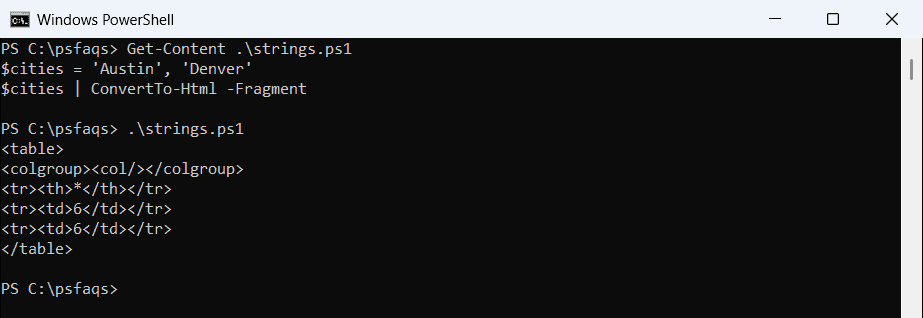
Wrap each string in an object with a named property, and name it in -Property. That also fixes the * header that 5.1 uses for single-column tables:
$cities = 'Austin', 'Denver'
$cities | ForEach-Object { [pscustomobject]@{ City = $_ } } | ConvertTo-Html -Property City -Fragment
Output:
<table>
<colgroup><col/></colgroup>
<tr><th>City</th></tr>
<tr><td>Austin</td></tr>
<tr><td>Denver</td></tr>
</table>
Create an HTML table from variables or a hashtable
For values in separate variables or a hashtable, build objects first. GetEnumerator turns each key and value into a row:
$capitals = [ordered]@{ Texas = 'Austin'; Colorado = 'Denver' }

$capitals.GetEnumerator() |
    Select-Object -Property @{ Name = 'State'; Expression = { $_.Key } }, @{ Name = 'Capital'; Expression = { $_.Value } } |
    ConvertTo-Html -Fragment
Output:
<table>
<colgroup><col/><col/></colgroup>
<tr><th>State</th><th>Capital</th></tr>
<tr><td>Texas</td><td>Austin</td></tr>
<tr><td>Colorado</td><td>Denver</td></tr>
</table>
Piping the hashtable itself doesn’t work: 5.1 makes columns from its internal properties like Keys and Count. Hashtables and dictionaries explains why.
Build a full HTML report with CSS
Without -Fragment, ConvertTo-Html writes a complete page. Add styles with -Head, a title with -Title, and extra HTML with -PreContent and -PostContent:
$orders = @(
    [pscustomobject]@{ Id = 1001; Customer = 'Alice Johnson'; Total = 250.00; Status = 'Shipped' }
    [pscustomobject]@{ Id = 1002; Customer = 'Bob Smith';     Total = 980.50; Status = 'Overdue' }
)

$css = @'
<style>
  body  { font-family: Segoe UI, Arial, sans-serif; }
  table { border-collapse: collapse; }
  th, td { border: 1px solid #ccc; padding: 6px 10px; }
  th    { background: #1f4e79; color: #fff; }
  .late { background: #fde2e2; }
</style>
'@

$total = @{ Label = 'Total'; Expression = { '{0:C}' -f $_.Total } }
$html = $orders | ConvertTo-Html -Property Id, Customer, $total, Status -Head $css -Title 'Order report' `
    -PreContent '<h1>Open orders, September 2026</h1>' -PostContent '<p>Generated by PowerShell</p>'
$html = $html -replace '<td>Overdue</td>', '<td class="late">Overdue</td>'
$html | Out-File -FilePath C:\psfaqs\Html\orders.html -Encoding utf8

"Lines written: $($html.Count)"
Select-String -Path C:\psfaqs\Html\orders.html -Pattern 'late|<h1>' | ForEach-Object { $_.Line.Trim() }
Output:
Lines written: 14
.late { background: #fde2e2; }
<h1>Open orders, September 2026</h1>
<tr><td>1002</td><td>Bob Smith</td><td>$980.50</td><td class="late">Overdue</td></tr>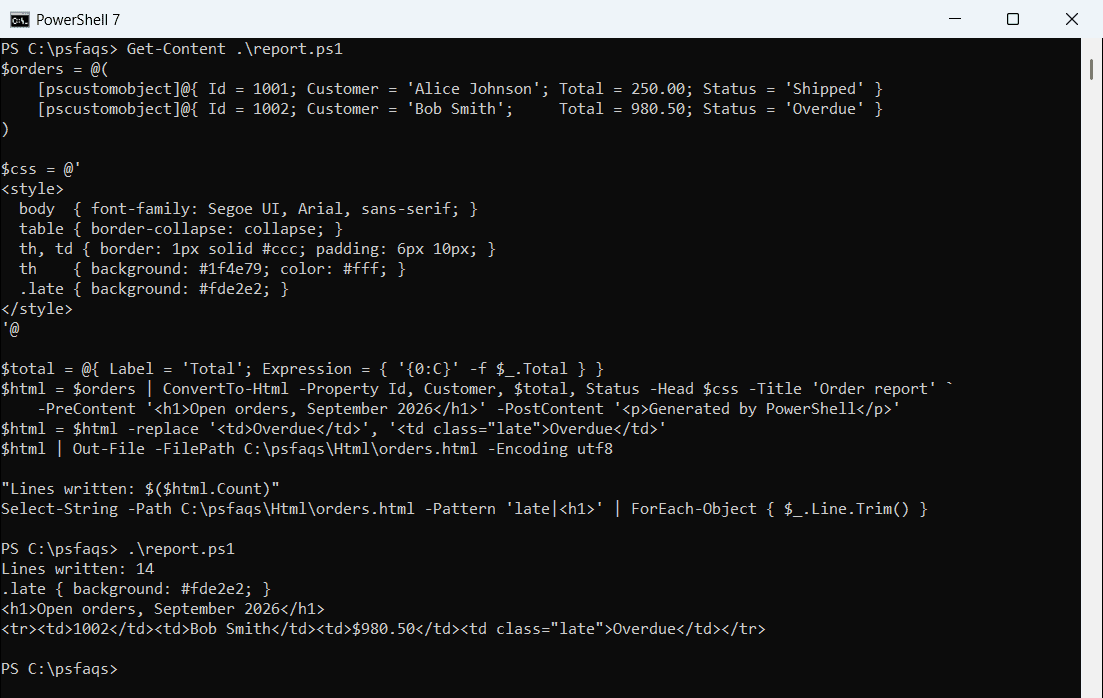
ConvertTo-Html returns lines of text, so you can adjust them with -replace before saving, which is how the Overdue cell gets its class. The calculated Total column formats the amounts as dollars. Note that ConvertTo-Html wants Label in that hashtable, not Name.
Values are HTML-encoded
ConvertTo-Html escapes characters like < and &, so data can’t break your page. It also means HTML inside a value shows up as text:
[pscustomobject]@{ Team = 'R&D <West>' } | ConvertTo-Html -Property Team -FragmentOutput:
<table>
<colgroup><col/></colgroup>
<tr><th>Team</th></tr>
<tr><td>R&D <West></td></tr>
</table>To add links or bold text, insert placeholders and swap them with -replace afterward. For your own strings, WebUtility.HtmlEncode does the same escaping.
Convert a CSV file to an HTML table
Import-Csv already gives you objects, so the CSV header becomes the table header:
Import-Csv -Path C:\psfaqs\Html\stores.csv |
    ConvertTo-Html -Property Store, City, State, Sales -Fragment
Output:
<table>
<colgroup><col/><col/><col/><col/></colgroup>
<tr><th>Store</th><th>City</th><th>State</th><th>Sales</th></tr>
<tr><td>101</td><td>Austin</td><td>TX</td><td>18250</td></tr>
<tr><td>102</td><td>Denver</td><td>CO</td><td>12400</td></tr>
<tr><td>103</td><td>Miami</td><td>FL</td><td>