
You’re working on your computer, and a program freezes. Or maybe you need to stop a process before running a script. Whatever the reason, you would like to know how to kill a process in PowerShell if it is running.
I’ll walk you through everything you need to know about killing processes in PowerShell if it is running. We’ll cover multiple methods, when to use each one, and include real examples you can copy and use right away.
You can use PowerShell to kill running processes as it allows to:
- Kill processes by name, ID, or other properties
- Stop multiple processes at once
- Build scripts that check if a process is running before killing it
- Handle processes that don’t show up in Task Manager
- Automate process management tasks
Now let’s get into the actual methods.
Method 1: Using Stop-Process with Process Name
This is the most straightforward way to kill a process. If you know the process name, you can stop it with one simple command.
Basic Syntax
Here is the syntax of using the Stop-Process cmdlet.
Stop-Process -Name "ProcessName"Example
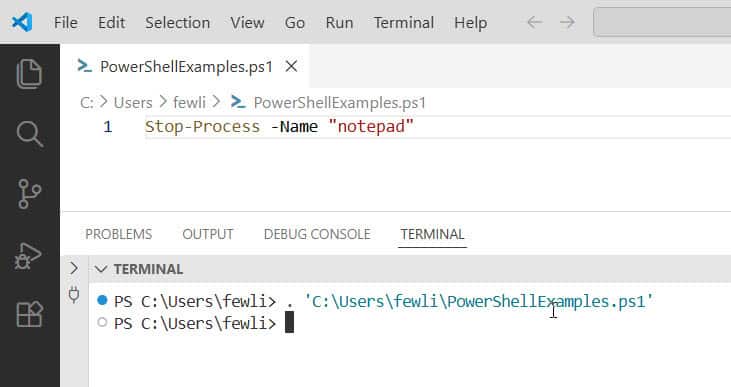
Let’s say you want to close Notepad. Here’s how:
Stop-Process -Name "notepad"That’s it. PowerShell will find any running Notepad processes and stop them immediately.
Important Notes
- You don’t need to include “.exe” at the end of the process name
- Process names are not case-sensitive
- If multiple instances are running, this command stops all of them
What If the Process Won’t Close?
Sometimes a process is stubborn and won’t close gracefully. Add the -Force parameter:
Stop-Process -Name "notepad" -ForceThe -Force parameter doesn’t ask nicely. It terminates the process immediately, even if it has unsaved data.
Check out Find and Remove Stale Computer Objects in Active Directory with PowerShell
Method 2: Using Stop-Process with Process ID
Every running process has a unique ID number. If you know the Process ID (PID), you can target that specific instance.
Basic Syntax
Here is the syntax:
Stop-Process -Id 1234How to Find the Process ID
First, you need to find the PID. Use Get-Process:
Get-Process -Name "notepad"This shows you all Notepad processes with their IDs. The output looks something like this:
Handles  NPM(K)    PM(K)      WS(K)     CPU(s)     Id  SI ProcessName
-------  ------    -----      -----     ------     --  -- -----------
    234      12     2456       5432       0.34   7892   1 notepad
See that number under “Id”? That’s the Process ID. Now you can kill that specific process:
Stop-Process -Id 7892Why Use PID Instead of Name?
Let’s say you have three Chrome windows open, but you only want to close one specific instance. Using the PID lets you target exactly the one you want.
Read Find OU of a Computer Using PowerShell
Method 3: Kill Process Only If It’s Running (The Smart Way)
Here’s where things get practical. You don’t want your script to throw errors if the process isn’t running. Let’s check first.
Basic Check Before Kill
if (Get-Process -Name "notepad" -ErrorAction SilentlyContinue) {
    Stop-Process -Name "notepad"
    Write-Host "Notepad was running and has been closed."
} else {
    Write-Host "Notepad is not running."
}
This script checks if Notepad is running. If it is, PowerShell stops it. If not, it simply tells you.
The -ErrorAction SilentlyContinue part prevents PowerShell from throwing an error if the process doesn’t exist.
One-Line Version
If you prefer a shorter version:
Get-Process -Name "notepad" -ErrorAction SilentlyContinue | Stop-ProcessThis uses the pipeline. If Get-Process finds Notepad, it passes the result to Stop-Process. If Notepad isn’t running, nothing happens.
Check out Add a Computer to a Domain Using PowerShell
Method 4: Killing Multiple Processes at Once
Need to stop several processes? You have options.
Method A: Multiple Names
Stop-Process -Name "notepad", "calculator", "mspaint"This stops all three applications in one command.
Method B: Using Wildcards
Stop-Process -Name "chrome*" -ForceThis stops any process that starts with “chrome”. Be careful with wildcards—you might stop more than you intended.
Method C: Kill All Instances of Multiple Apps
"notepad", "calc", "mspaint" | ForEach-Object {
    Get-Process -Name $_ -ErrorAction SilentlyContinue | Stop-Process -Force
}
This loops through each app name, checks if it’s running, and stops it if found.
Check out Rename a Windows Computer Using PowerShell
Method 5: Kill Processes Based on Other Criteria
You can get fancy and stop processes based on things like CPU usage or memory consumption.
Stop Processes Using Too Much Memory
Get-Process | Where-Object {$_.WorkingSet -gt 500MB} | Stop-Process -ForceThis finds any process using more than 500MB of RAM and kills it. Use this carefully—you might stop something important.
Stop Processes by Company Name
Get-Process | Where-Object {$_.Company -like "*Adobe*"} | Stop-ProcessThis stops all processes from Adobe.
Check out Disable Local User Computer Accounts Using PowerShell
Method 6: Using taskkill Command
PowerShell can also use the traditional Windows taskkill command. Some people prefer this because it’s what they’re used to.
Basic Syntax
Here is the basic syntax:
taskkill /IM "notepad.exe" /F/IMstands for “image name” (the process name)/Fmeans force (same as-Forcein Stop-Process)
Kill by Process ID
Here is an example.
taskkill /PID 7892 /FWhy Use taskkill Instead of Stop-Process?
Honestly, Stop-Process is more “PowerShell-like” and fits better in scripts. But if you’re more comfortable with taskkill, it works just fine.
Check out Get Computer Information Using PowerShell
Practical Script Example
Here’s a complete script you might actually use. This one checks if Chrome is running, and if it is, it gives you a choice to close it.
$processName = "chrome"

$process = Get-Process -Name $processName -ErrorAction SilentlyContinue

if ($process) {
    Write-Host "$processName is currently running."
    $response = Read-Host "Do you want to close it? (Y/N)"

    if ($response -eq "Y") {
        Stop-Process -Name $processName -Force
        Write-Host "$processName has been closed."
    } else {
        Write-Host "Process was not closed."
    }
} else {
    Write-Host "$processName is not running."
}
This script is interactive. It checks, asks, and then acts based on your input.
Common Mistakes to Avoid
Now, let me suggest you some mistakes that you should avoid while working on these cmdlets.
Using the wrong process name
Make sure you’re using the actual process name, not the application name. Chrome’s process name is “chrome”, not “Google Chrome”.
Not using -Force when needed
Some processes won’t close without the -Force parameter. If your command isn’t working, try adding it.
Forgetting -ErrorAction
If you don’t include -ErrorAction SilentlyContinue, your script will show error messages when a process isn’t running. That’s fine for testing but annoying in production scripts.
Killing system processes
Be very careful about which processes you stop. Killing certain system processes can crash Windows or cause data loss.
Check out How to Rename a Computer Using PowerShell?
Checking if a Process Stopped Successfully
After killing a process, you might want to confirm it’s actually gone:
Stop-Process -Name "notepad" -Force
Start-Sleep -Seconds 2

if (Get-Process -Name "notepad" -ErrorAction SilentlyContinue) {
    Write-Host "Process is still running."
} else {
    Write-Host "Process successfully stopped."
}
The Start-Sleep gives the system time to actually stop the process before checking.
Quick Reference Table
| What You Want | Command |
|---|---|
| Kill by name | Stop-Process -Name "notepad" |
| Kill by ID | Stop-Process -Id 1234 |
| Kill with force | Stop-Process -Name "notepad" -Force |
| Check then kill | Get-Process -Name "notepad" -EA SilentlyContinue | Stop-Process |
| Kill multiple | Stop-Process -Name "app1", "app2" |
Wrapping Up
Killing processes in PowerShell is straightforward once you know the basic commands. Start with Stop-Process, add -Force when you need it, and always check if the process exists first in your scripts.
The methods I’ve shown you here will handle 99% of situations where you need to stop a process. Practice with safe applications like Notepad or Calculator before you start killing processes in production environments.
You may also like:
- Get Computer Name in PowerShell
- How to Clear PowerShell History
- How to Check if a Port is Open Using PowerShell?

Bijay Kumar is an esteemed author and the mind behind PowerShellFAQs.com, where he shares his extensive knowledge and expertise in PowerShell, with a particular focus on SharePoint projects. Recognized for his contributions to the tech community, Bijay has been honored with the prestigious Microsoft MVP award. With over 15 years of experience in the software industry, he has a rich professional background, having worked with industry giants such as HP and TCS. His insights and guidance have made him a respected figure in the world of software development and administration. Read more.
