
To get BIOS information using PowerShell, query the Win32_BIOS class with Get-CimInstance. It shows the manufacturer, BIOS version, release date and serial number without a restart:
Get-CimInstance -ClassName Win32_BIOSIt works without admin rights in PowerShell 7 and 5.1. Below I pick the useful properties, check UEFI and Secure Boot, query remote PCs and build an inventory report.
Get the BIOS version and serial number
Format-List with the four properties most people need gives a clean view:
Get-CimInstance -ClassName Win32_BIOS |
    Format-List -Property Manufacturer, SMBIOSBIOSVersion, ReleaseDate, SerialNumber
Output:
Manufacturer      : (manufacturer)
SMBIOSBIOSVersion : (BIOS version)
ReleaseDate       : (release date)
SerialNumber      : (serial number)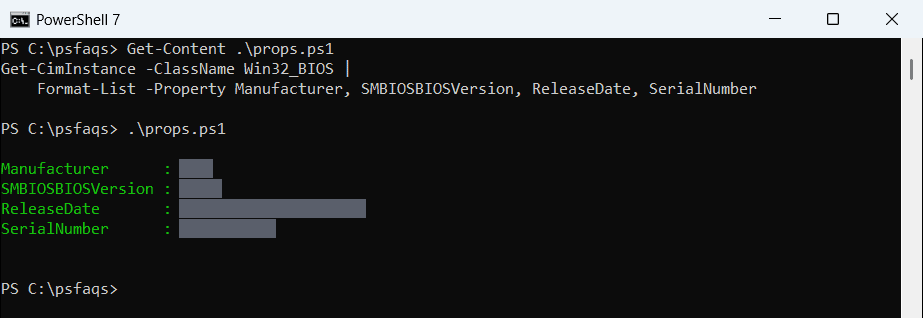
I hid my own values, because a serial number and BIOS version identify a specific computer. On your PC you’ll see the real ones. SMBIOSBIOSVersion is the number to compare with your manufacturer’s latest BIOS release.
SerialNumber is the same serial that’s on the sticker, so it’s handy for warranty lookups. Be careful where you paste it.
See every BIOS property
Win32_BIOS has more than those four. Get-Member lists them all:
$bios = Get-CimInstance -ClassName Win32_BIOS
($bios | Get-Member -MemberType Property |
    Where-Object Name -notlike '__*' | Select-Object -ExpandProperty Name) -join ', '
Output:
BiosCharacteristics, BIOSVersion, BuildNumber, Caption, CodeSet, CurrentLanguage, Description, EmbeddedControllerMajorVersion, EmbeddedControllerMinorVersion, IdentificationCode, InstallableLanguages, InstallDate, LanguageEdition, ListOfLanguages, Manufacturer, Name, OtherTargetOS, PrimaryBIOS, PSComputerName, ReleaseDate, SerialNumber, SMBIOSBIOSVersion, SMBIOSMajorVersion, SMBIOSMinorVersion, SMBIOSPresent, SoftwareElementID, SoftwareElementState, Status, SystemBiosMajorVersion, SystemBiosMinorVersion, TargetOperatingSystem, VersionBIOSVersion, SMBIOSMajorVersion and EmbeddedControllerMajorVersion help with deeper troubleshooting. For a general way to explore objects, see getting all properties of an object.
Check if the PC uses UEFI or legacy BIOS
Windows 11 requires UEFI. Two quick ways to check, and neither needs admin rights:
"Firmware type (environment): $env:firmware_type"
"Firmware type (ComputerInfo): $((Get-ComputerInfo -Property BiosFirmwareType).BiosFirmwareType)"
Output:
Firmware type (environment): UEFI
Firmware type (ComputerInfo): Uefi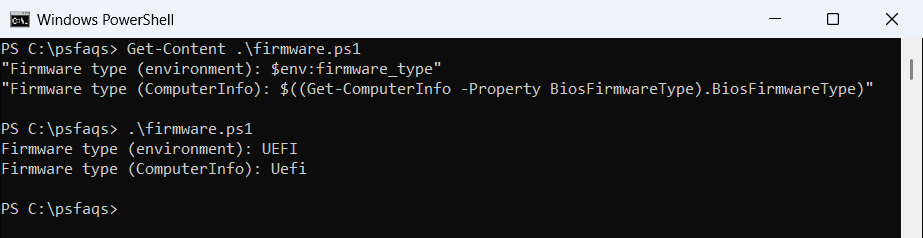
A legacy PC shows Legacy or Bios instead. Get-ComputerInfo collects a lot of data, so it takes a few seconds.
Check Secure Boot
Confirm-SecureBootUEFI returns True when Secure Boot is on. It needs an elevated window, and this is what you get without one:
try { Confirm-SecureBootUEFI -ErrorAction Stop }
catch { "Failed. $($_.Exception.Message)" }
Output:
Failed. Unable to set proper privileges. Access was denied.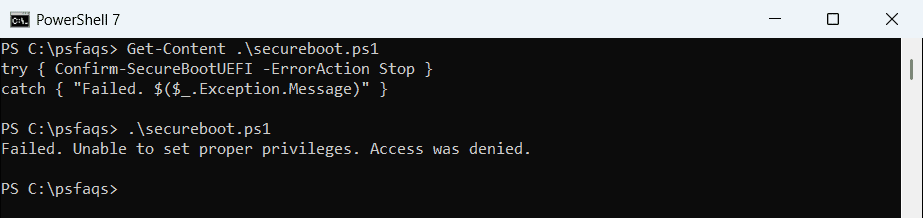
Run it again as administrator to get True or False. On a legacy BIOS PC it reports that the platform isn’t supported.
Get BIOS information from remote computers
Get-CimInstance accepts -ComputerName, so one command checks a whole list of PCs:
Get-CimInstance -ComputerName 'NYC-PC01', 'DAL-PC02' -ClassName Win32_BIOS |
    Select-Object -Property PSComputerName, Manufacturer, SMBIOSBIOSVersion, ReleaseDate
WinRM must be enabled on the remote PCs. Older scripts use Get-WmiObject, which only works in PowerShell 7 through Windows PowerShell compatibility, so use Get-CimInstance.
Build a BIOS inventory report
For an audit, add the model from Win32_ComputerSystem and export everything to CSV:
$computers = 'NYC-PC01', 'DAL-PC02', 'SEA-PC03'
$report = foreach ($pc in $computers) {
    $bios = Get-CimInstance -ComputerName $pc -ClassName Win32_BIOS
    $cs   = Get-CimInstance -ComputerName $pc -ClassName Win32_ComputerSystem
    [pscustomobject]@{
        Computer    = $pc
        Model       = $cs.Model
        BIOSVersion = $bios.SMBIOSBIOSVersion
        ReleaseDate = $bios.ReleaseDate
    }
}
$report | Export-Csv -Path C:\Reports\bios-inventory-2026-10.csv -NoTypeInformation
Sort by ReleaseDate to find the PCs with the oldest firmware first. More export options are in PowerShell Export-Csv.
Frequently Asked Questions
How do I check the BIOS version with PowerShell?
Run (Get-CimInstance -ClassName Win32_BIOS).SMBIOSBIOSVersion. It doesn’t need admin rights.
How do I get the computer serial number with PowerShell?
Run (Get-CimInstance -ClassName Win32_BIOS).SerialNumber. It matches the serial on the device sticker.
How do I check if my PC uses UEFI with PowerShell?
Read $env:firmware_type, or run (Get-ComputerInfo -Property BiosFirmwareType).BiosFirmwareType.
Why does Confirm-SecureBootUEFI say access was denied?
It needs administrator rights. Open PowerShell with Run as administrator and run it again.
Should I use Get-WmiObject or Get-CimInstance for BIOS info?
Get-CimInstance. Get-WmiObject only runs in PowerShell 7 through Windows PowerShell compatibility. See Microsoft’s Win32_BIOS class refe