
To get window titles using PowerShell, read the MainWindowTitle property of each process and keep the ones that aren’t empty:
Get-Process | Where-Object MainWindowTitle | Select-Object ProcessName, MainWindowTitleThat lists one title per app. For my screenshots I opened two test windows and filtered to them, so none of my own apps show. Everything below ran in PowerShell 7 and Windows PowerShell 5.1.
List window titles with Get-Process
I started two minimized PowerShell windows with Contoso titles. Filtering on the title keeps the output to those two:
Get-Process |
    Where-Object { $_.MainWindowTitle -like 'Contoso*' } |
    Sort-Object MainWindowTitle |
    Format-Table ProcessName, MainWindowTitle -AutoSize
Output:
ProcessName MainWindowTitle
----------- ---------------
powershell  Contoso Inventory Sync
powershell  Contoso Sales Report - Q3 2026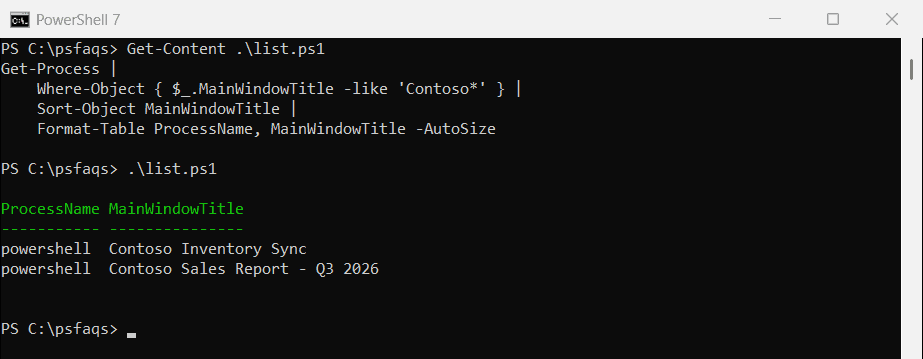
Remove the -like filter to see every app with a window. The Get-Process guide covers the other process properties you can show next to the title.
Find a window by part of its title
Use -match to find a window when you only know a word from its title. It’s a regex, so special characters need escaping:
$window = Get-Process | Where-Object MainWindowTitle -match 'Sales Report'

if ($window) { "Found '$($window.MainWindowTitle)' in $($window.ProcessName)" }
else { 'No window with that title is open' }

$none = Get-Process | Where-Object MainWindowTitle -match 'Payroll 2026'
"Payroll window open: $([bool]$none)"
Output:
Found 'Contoso Sales Report - Q3 2026' in powershell
Payroll window open: False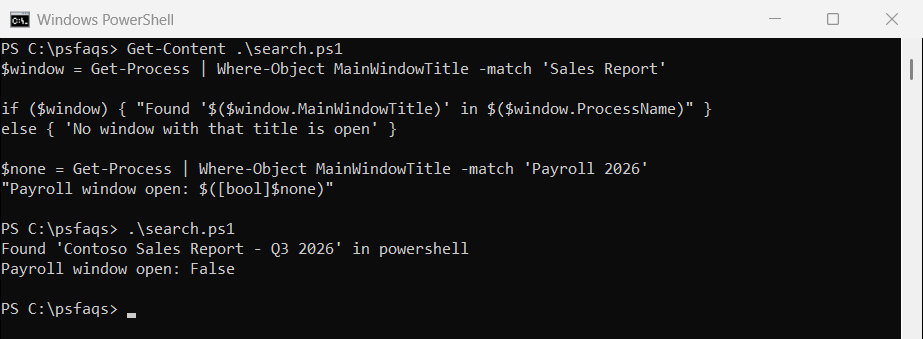
This is handy before automation steps, like waiting until a report window opens. To wait for the app itself, see checking if a process is running.
Why is MainWindowTitle empty?
Background processes and services have no window, so their title is an empty string. A script started in the background, like my automated test run here, gets an empty title too:
$p = Get-Process -Id $PID
"This script runs in $($p.ProcessName) (PID $PID)"
"Its MainWindowTitle is empty: $($p.MainWindowTitle -eq '')"
Output:
This script runs in pwsh (PID 68148)
Its MainWindowTitle is empty: True
Microsoft also notes that the main window is the one with focus, which might not be the app’s primary window. Call Refresh() on a process object you’ve stored before reading the title again, because the value is cached.
Get all window titles, not just one per app
MainWindowTitle gives one title per process. Apps with several windows, like Explorer or Excel, need the Windows EnumWindows API. This C# helper lists every visible top-level window:
if (-not ('WindowList' -as [type])) {
    Add-Type -TypeDefinition @'
using System;
using System.Collections.Generic;
using System.Runtime.InteropServices;
using System.Text;

public static class WindowList
{
    delegate bool EnumProc(IntPtr hWnd, IntPtr lParam);
    [DllImport("user32.dll")] static extern bool EnumWindows(EnumProc callback, IntPtr lParam);
    [DllImport("user32.dll")] static extern bool IsWindowVisible(IntPtr hWnd);
    [DllImport("user32.dll", CharSet = CharSet.Unicode)]
    static extern int GetWindowText(IntPtr hWnd, StringBuilder text, int max);

    public static List<string> Titles()
    {
        var titles = new List<string>();
        EnumWindows(delegate (IntPtr h, IntPtr p) {
            var sb = new StringBuilder(512);
            if (IsWindowVisible(h) && GetWindowText(h, sb, sb.Capacity) > 0) { titles.Add(sb.ToString()); }
            return true;
        }, IntPtr.Zero);
        return titles;
    }
}
'@
}

[WindowList]::Titles() | Where-Object { $_ -like 'Contoso*' } | Sort-Object
Output:
Contoso Inventory Sync
Contoso Sales Report - Q3 2026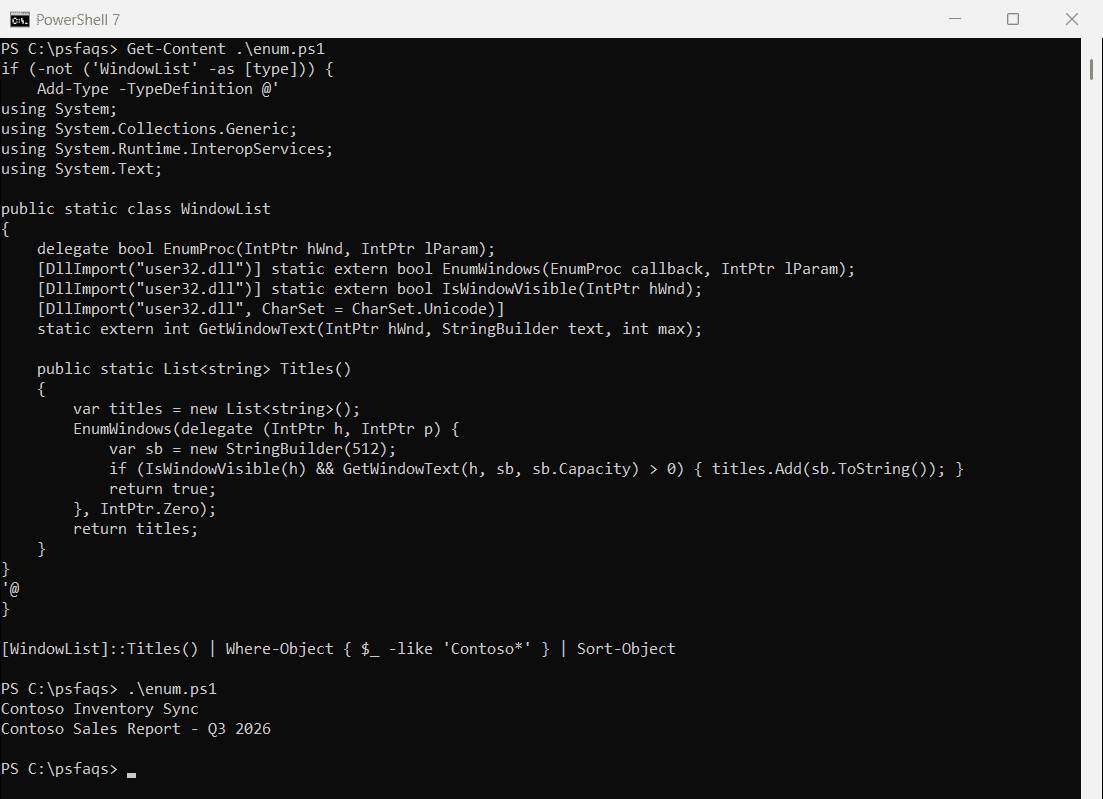
The same helper compiles in both versions. Drop the Contoso filter to see every window, including hidden helper windows that have a title. Finding the process locking a file uses the same Add-Type technique for another Windows API.
Bring a window to the front by title
Visual Basic’s AppActivate switches to a window by its title, and it works from PowerShell in both versions:
Add-Type -AssemblyName Microsoft.VisualBasic
[Microsoft.VisualBasic.Interaction]::AppActivate('Contoso Sales Report - Q3 2026')
I didn’t run it for this post, because it would steal focus on my desktop. Wrap it in try and catch in case the window has already closed.
Log window titles over time
To see which windows were open during the day, record the titles every minute into a CSV file:
while ($true) {
    Get-Process | Where-Object MainWindowTitle |
        Select-Object @{ n = 'Time'; e = { Get-Date -Format 'yyyy-MM-dd HH:mm' } }, ProcessName, MainWindowTitle |
        Export-Csv -Path C:\Logs\windows.csv -Append -NoTypeInformation
    Start-Sleep -Seconds 60
}
Only log your own PC or with the user’s consent, since window titles often contain document names. Stop the loop with Ctrl+C. Export-Csv explains -Append.
Frequently Asked Questions
How do I get all window titles in PowerShell?
Run Get-Process | Where-Object MainWindowTitle | Select-Object ProcessName, MainWindowTitle. For every window of an app, use the EnumWindows API.
Why is MainWindowTitle empty for some processes?
Processes without a visible main window return an empty string. Microsoft explains this in Process.MainWindowTitle.