
To disable Windows Firewall using PowerShell, open PowerShell as administrator and set all three firewall profiles to False:
Set-NetFirewallProfile -Profile Domain, Public, Private -Enabled FalseThat leaves the PC unprotected, so turn it back on as soon as you’re done. Below I check the status, preview the change with -WhatIf, re-enable it, and show the safer option of changing one rule. My own firewall stayed on the whole time.
Check the firewall status first
Get-NetFirewallProfile shows each profile and whether it’s on. It doesn’t need admin rights:
Get-NetFirewallProfile |
    ForEach-Object { '{0,-8} Enabled: {1}' -f $_.Name, $_.Enabled }
Output:
Domain   Enabled: True
Private  Enabled: True
Public   Enabled: True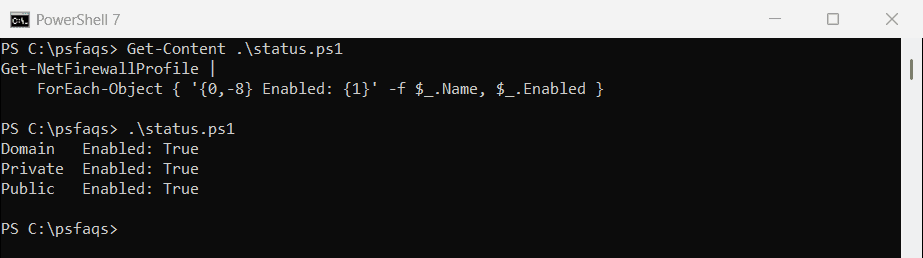
Windows applies one profile per network connection. Domain is for your work network, Private for home and Public for coffee shops and airports.
Before you turn the firewall off, check whether the port is the real problem with checking if a port is open.
Preview the change with -WhatIf
Set-NetFirewallProfile supports -WhatIf, so you can see exactly which profiles would change before touching anything:
Set-NetFirewallProfile -Profile Domain, Public, Private -Enabled False -WhatIfOutput:
What if: Set-NetFirewallProfile DisplayName: Domain
What if: Set-NetFirewallProfile DisplayName: Private
What if: Set-NetFirewallProfile DisplayName: Public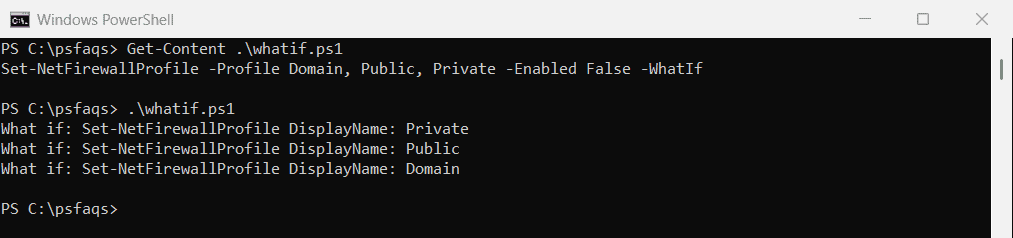
Remove -WhatIf in an elevated window to make the change. Without admin rights, you get an Access is denied error.
Disable only one profile
To turn off just the Public profile, name it alone. The -All switch is a shortcut for all three:
Set-NetFirewallProfile -Profile Public -Enabled False
Set-NetFirewallProfile -All -Enabled False
Turn Windows Firewall back on
Set the profiles to True again, then rerun Get-NetFirewallProfile to confirm:
Set-NetFirewallProfile -Profile Domain, Public, Private -Enabled TrueNotConfigured is a third value, used in Group Policy objects. On a single PC, stick with True or False.
Disable one firewall rule instead
Usually you only need one thing through, such as ping. Windows has a built-in rule for that, and here’s its current state:
Get-NetFirewallRule -DisplayName 'File and Printer Sharing (Echo Request - ICMPv4-In)' |
    ForEach-Object { '{0,-26} Enabled: {1,-5} Profile: {2}' -f $_.Name, $_.Enabled, $_.Profile }
Output:
FPS-ICMP4-ERQ-In           Enabled: False Profile: Private, Public
FPS-ICMP4-ERQ-In-NoScope   Enabled: False Profile: Domain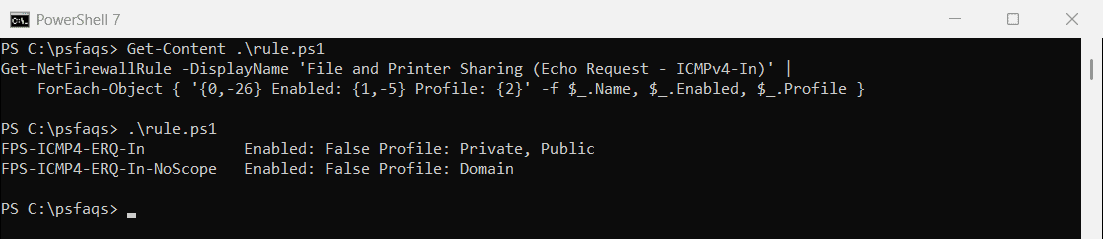
Enable-NetFirewallRule and Disable-NetFirewallRule switch a rule on or off, and both support -WhatIf:
Disable-NetFirewallRule -DisplayName 'File and Printer Sharing (Echo Request - ICMPv4-In)' -WhatIfOutput:
What if: Disable-NetFirewallRule DisplayName: FPS-ICMP4-ERQ-In-NoScope
What if: Disable-NetFirewallRule DisplayName: FPS-ICMP4-ERQ-In
The Disable-NetFirewallRule reference covers filtering by group and profile.
Open one port with a new rule
For an app on a custom port, add an allow rule instead of dropping the whole firewall:
New-NetFirewallRule -DisplayName 'Allow TCP 8080' -Direction Inbound `
    -Protocol TCP -LocalPort 8080 -Action Allow
Remove it later with Remove-NetFirewallRule -DisplayName 'Allow TCP 8080'.
Use netsh advfirewall
The older netsh tool still works in any shell, including Command Prompt. This shows the state of each profile:
netsh advfirewall show allprofiles stateOutput:
Domain Profile Settings:
----------------------------------------------------------------------
State                                 ON

Private Profile Settings:
----------------------------------------------------------------------
State                                 ON

Public Profile Settings:
----------------------------------------------------------------------
State                                 ON
Ok.
To turn it off or on with netsh, run one of these in an elevated window:
netsh advfirewall set allprofiles state off
netsh advfirewall set allprofiles state on
Disable the firewall on remote computers
The NetSecurity cmdlets accept -CimSession, so you can change a remote PC over WinRM with admin rights on it:
Set-NetFirewallProfile -CimSession PC-SALES-07, PC-SALES-08 -Profile Domain -Enabled FalseEnabling WinRM helps if the connection fails.
Why the firewall turns itself back on
On company PCs, Group Policy or Intune usually controls the firewall and overrides local changes. This shows the settings your policy applies:
Get-NetFirewallProfile -PolicyStore RSOPIf profiles show up there, change the policy instead, or ask whoever manages it.
Frequently Asked Questions
How do I disable Windows Firewall with PowerShell?
Run