Fix “PowerShell Running Scripts is Disabled on This System” Error

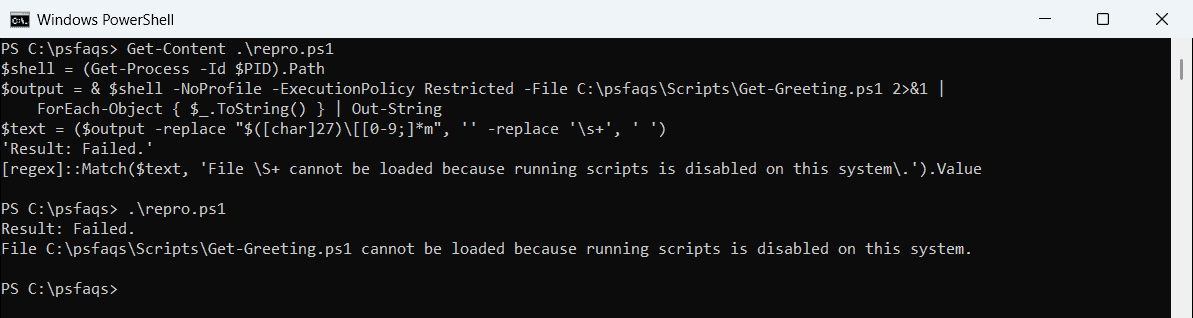
Have you ever encountered the frustrating “running scripts is disabled on this system” error when trying to execute a PowerShell script? Don’t worry – this is one of the most common PowerShell issues, and I’m here to tell you that fixing it is simpler than you might think.

The solution involves understanding PowerShell’s execution policies and knowing exactly which method to use for your specific situation. In this tutorial, I will explain five different approaches to resolve the error “PowerShell running scripts is disabled on this system.
PowerShell Execution Policies

Before diving into the solutions, let me explain what’s actually happening when you see this error. PowerShell uses execution policies as a security feature to prevent unauthorized scripts from running on your system. These policies act as a safety net, protecting your computer from potentially malicious code.

The execution policy determines which PowerShell scripts can run on your system and under what conditions. By default, Windows sets this to “Restricted,” which blocks all script execution – even scripts you’ve written yourself.

Current Execution Policy Levels

Policy LevelDescriptionUse Case
RestrictedNo scripts allowed (default)Maximum security
RemoteSignedLocal scripts run freely, remote scripts need signaturesBalanced security
UnrestrictedAll scripts run with promptsDevelopment environments
BypassNo restrictions or promptsAutomation scenarios
AllSignedAll scripts must be signedHigh-security environments

Method 1: Check Your Current Execution Policy

Before making any changes, I always recommend checking your current execution policy. This provides a baseline understanding of your system’s current security posture, enabling you to select the most suitable solution.

Open PowerShell as an administrator and run the following command:

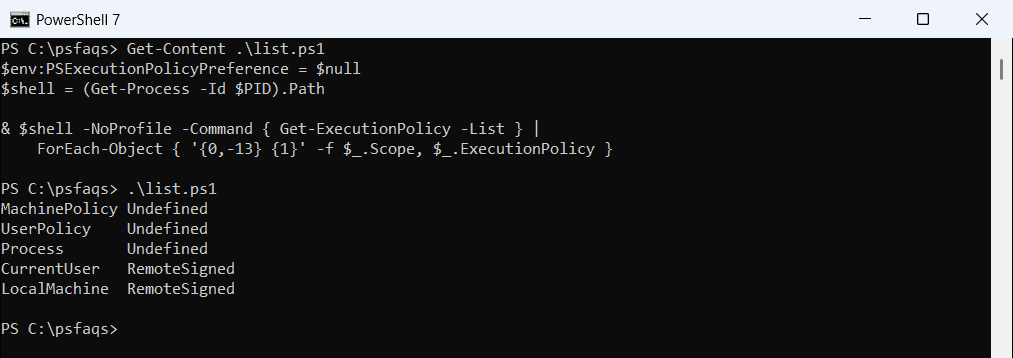
Get-ExecutionPolicy -List

This command displays all execution policies for different scopes on your system. You’ll see output showing policies for MachinePolicy, UserPolicy, Process, CurrentUser, and LocalMachine scopes.

You can see the screenshot below, it is from my local system.

PowerShell Running Scripts is Disabled on This System

Read Run PowerShell Script From Command Line With Parameters

Method 2: Set RemoteSigned Policy (Recommended for Most Users)

In my experience, the RemoteSigned policy offers the best balance between security and functionality. This policy allows locally created scripts to run while still requiring digital signatures for scripts downloaded from the internet.

Here’s how to implement this policy:

Set-ExecutionPolicy -ExecutionPolicy RemoteSigned -Scope CurrentUser

This command changes the execution policy only for the current user, which means it won’t affect other users on the same computer. The RemoteSigned policy is particularly effective because it addresses the most common scenario where you’re trying to run scripts you’ve written yourself while maintaining protection against potentially harmful downloaded scripts.

Method 3: Bypass Policy for Single Session

Sometimes you need to run a script just once without permanently changing your system’s security settings. During my consulting work with various enterprises, I’ve found this approach invaluable for one-time administrative tasks or testing scenarios.

To temporarily bypass the execution policy for your current PowerShell session:

Set-ExecutionPolicy -ExecutionPolicy Bypass -Scope Process

This method sets the execution policy to Bypass only for the current PowerShell process. Once you close PowerShell, the original execution policy automatically returns. This approach is perfect when you need to run a specific script without making permanent system changes.

Check out PowerShell Array vs ArrayList

Method 4: Unblock Individual Files

When working with scripts downloaded from the internet or received via email, Windows often marks them as “blocked.” I’ve encountered this frequently when sharing scripts between team members at various firms where I’ve consulted.

You can unblock specific script files using this approach:

Unblock-File -Path "C:\Scripts\MyScript.ps1"

After unblocking the file, you can run it even with restrictive execution policies. This method works because it removes the “Zone.Identifier” alternate data stream that Windows uses to track files from untrusted sources. It’s particularly useful when you trust the script source but don’t want to lower your overall system security.

Check out Read Excel Files into an Array in PowerShell

Method 5: Run Scripts with Bypass Parameter

For advanced users who need maximum flexibility, you can bypass execution policies on a per-command basis. This technique has been incredibly useful during my work with startups, where rapid prototyping and testing are essential.

Execute your script with the bypass parameter:

powershell.exe -ExecutionPolicy Bypass -File "C:\Scripts\MyScript.ps1"

This approach runs PowerShell with a bypassed execution policy specifically for that single command. The system’s overall execution policy remains unchanged, maintaining your security settings while allowing the specific script to execute.

Method 6: Using Group Policy (Enterprise Environments)

In enterprise environments, execution policies are often controlled through Group Policy. During my tenure managing IT infrastructure for a Fortune 500 company, we used this method to maintain consistent security policies across thousands of workstations.

Steps to Modify Group Policy:

  1. Open gpedit.msc (Local Group Policy Editor)
  2. Navigate to: Computer Configuration > Administrative Templates > Windows Components > Windows PowerShell
  3. Double-click “Turn on Script Execution”
  4. Select “Enabled” and choose your desired policy level

This method is particularly powerful in domain environments where administrators need centralized control over PowerShell execution policies across multiple machines.

Check out PowerShell Naming Conventions & Best Practices

Best Practices I Recommend

  • Always use the least permissive policy that meets your needs
  • Regularly audit your execution policies using Get-ExecutionPolicy -List
  • Consider using code signing for production scripts in enterprise environments
  • Document policy changes for compliance and audit purposes
  • Test scripts in isolated environments before production deployment

Security Implications by Method

MethodSecurity LevelBest Used For
RemoteSignedHighDaily development work
Bypass (Process)MediumOne-time script execution
Unblock-FileHighTrusted downloaded scripts
UnrestrictedLowDevelopment/testing only

Read PowerShell Where-Object

Advanced PowerShell Script Execution Techniques

For power users, there are additional techniques I’ve developed while working with complex automation scenarios at various Seattle tech companies.

Using PowerShell Profiles

You can modify your PowerShell profile to automatically set execution policies:

# Add this to your PowerShell profile
if ((Get-ExecutionPolicy) -eq "Restricted") {
    Set-ExecutionPolicy -ExecutionPolicy RemoteSigned -Scope CurrentUser -Force
}

Registry-Based Solutions

Advanced users can modify execution policies directly through the Windows Registry, though I recommend this only for experienced administrators.

Testing Your Configuration

After implementing any of these methods, I always recommend testing your configuration with a simple script. Create a test file named TestScript.ps1:

# TestScript.ps1
Write-Host "PowerShell execution policy is working correctly!"
Write-Host "Current execution policy: $(Get-ExecutionPolicy)"
Write-Host "Script executed successfully on $(Get-Date)"

Run this script to verify your execution policy changes are working correctly.

In this tutorial, I explained various methods to fix the error “running scripts is disabled on this system” in PowerShell.

You may also like:

Leave a Comment

100 PowerShell cmdlets download free

100 POWERSHELL CMDLETS E-BOOK

FREE Download an eBook that contains 100 PowerShell cmdlets with complete script and examples.