PowerShell Round to 2 Decimal Places [5 Methods]

Have you ever found yourself staring at PowerShell output with messy decimal numbers like 3.14159265 or 125.6789432 when you just need clean, readable values with two decimal places? I faced this very often.

In this comprehensive tutorial, I’ll walk you through five proven methods to round decimal numbers to exactly two places in PowerShell, complete with real-world examples from file size calculations, performance metrics, and financial data processing.

Method 1: Using [Math]::Round() – The Most Reliable Approach

When I need precise control over decimal rounding, [Math]::Round() is my go-to method because it provides consistent, predictable results across all PowerShell versions. This .NET Framework method gives you explicit control over the number of decimal places and follows standard mathematical rounding rules.

The syntax is straightforward: you pass your number as the first parameter and the desired decimal places as the second parameter. Here’s how it works in practice:

# Basic rounding examples
$price = 19.567
$roundedPrice = [Math]::Round($price, 2)
Write-Output "Original: $price, Rounded: $roundedPrice"
# Output: Original: 19.567, Rounded: 19.57

# Working with calculated values
$diskUsageGB = (Get-ChildItem "C:\Users" -Recurse -File | Measure-Object -Property Length -Sum).Sum / 1GB
$cleanDiskUsage = [Math]::Round($diskUsageGB, 2)
Write-Output "Disk usage: $cleanDiskUsage GB"

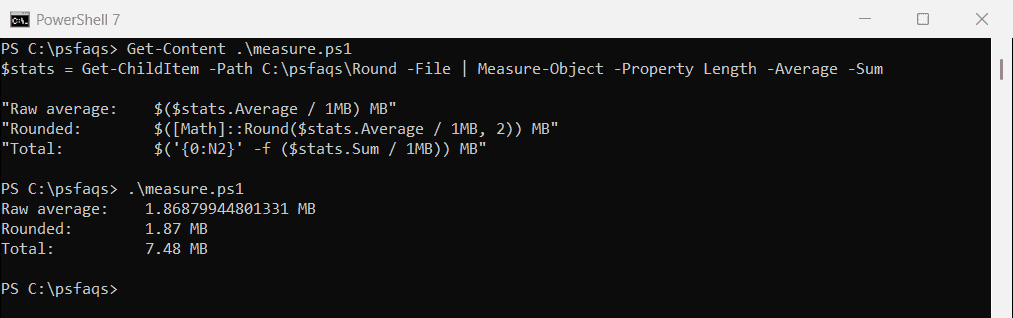
You can see the exact output in the screenshot below:

PowerShell Round to 2 Decimal Places

Here is another example:

InputPowerShell CommandOutput
3.14159[Math]::Round(3.14159, 2)3.14
2.675[Math]::Round(2.675, 2)2.68
4.239[Math]::Round(4.239, 2)4.24

This method excels because it performs true mathematical rounding rather than simple truncation, and it handles edge cases like banker’s rounding (where .5 values round to the nearest even number) consistently. I particularly rely on this approach when working with financial calculations or performance metrics where precision matters.

Check out Concatenate Strings and Floats in PowerShell

Method 2: Format Operator (-f) – Clean and Readable

The PowerShell format operator (-f) provides an elegant way to round numbers while simultaneously preparing them for display. I love using this method when I need to create clean, professional-looking output for reports or user interfaces.

This approach uses .NET formatting strings where {0:F2} means “format the first parameter as a fixed-point number with 2 decimal places.” It’s particularly powerful because it combines rounding and formatting into a single, readable operation:

# Using the format operator for clean output
$memoryUsagePercent = 67.8934
$formattedMemory = "{0:F2}" -f $memoryUsagePercent
Write-Output "Memory usage: $formattedMemory%"
# Output: Memory usage: 67.89%

# Multiple values in one operation
$cpu = 23.456
$memory = 78.321
$disk = 45.987
$report = "CPU: {0:F2}% | Memory: {1:F2}% | Disk: {2:F2}%" -f $cpu, $memory, $disk
Write-Output $report
# Output: CPU: 23.46% | Memory: 78.32% | Disk: 45.99%

You can see the exact output in the screenshot below:

powershell round to 2 decimal examples

What makes this method particularly valuable is that it always returns a string formatted exactly as specified, making it perfect for generating consistent reports or logging output. The formatting ensures that even whole numbers display with two decimal places (like 5.00), which is crucial for maintaining column alignment in tabular data.

Read PowerShell Not Equal

Method 3: ToString() Method with Format Specifier

The ToString() method with format specifiers offers object-oriented precision when you need fine-grained control over number formatting. I frequently use this approach when working within complex objects or when I need to maintain the formatted value as a property of a custom object.

This method works directly on numeric variables and allows you to specify exactly how the number should be represented as a string. The “F2” format specifier stands for “fixed-point with 2 decimal places”:

# Using ToString() for object-oriented formatting
$averageResponseTime = 1247.8934
$cleanResponseTime = $averageResponseTime.ToString("F2")
Write-Output "Average response time: $cleanResponseTime ms"
# Output: Average response time: 1247.89 ms

# Creating custom objects with formatted properties
$serverMetrics = @()
$cpuValues = @(23.456, 45.789, 67.123)
foreach ($cpu in $cpuValues) {
    $serverMetrics += [PSCustomObject]@{
        Server = "Server-$(($serverMetrics.Count + 1))"
        CPUUsage = $cpu.ToString("F2")
        Timestamp = Get-Date
    }
}
$serverMetrics | Format-Table

This approach integrates seamlessly with PowerShell’s object pipeline and is especially useful when building custom objects or working with APIs that require specific string formatting. The ToString() method also supports various culture-specific formatting, making it ideal for international applications.

Check out Convert a String to a Binary Number in PowerShell

Method 4: Truncate vs Round – Understanding the Difference

In my years of PowerShell scripting, I’ve seen many professionals confuse truncation with rounding, leading to significant errors in financial and measurement calculations. Understanding when to truncate versus when to round is crucial for accurate data processing.

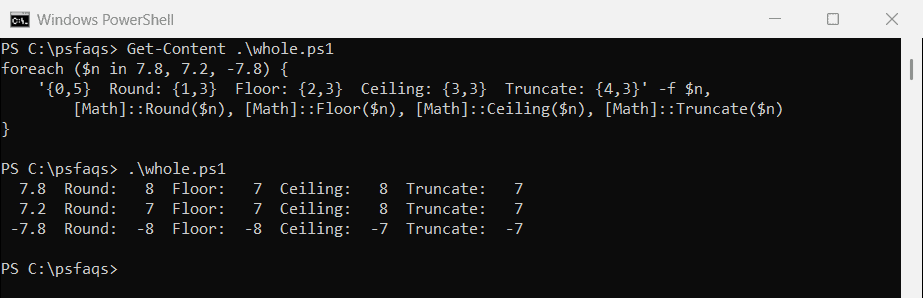
Truncation simply cuts off digits after a specified decimal place without considering their value, while rounding follows mathematical rules to find the nearest value. Here’s how to implement both approaches correctly:

# Truncation - simply cutting off digits
$originalValue = 19.567
$truncated = [Math]::Truncate($originalValue * 100) / 100
Write-Output "Original: $originalValue, Truncated: $truncated"
# Output: Original: 19.567, Truncated: 19.56

# True rounding - mathematically correct
$rounded = [Math]::Round($originalValue, 2)
Write-Output "Original: $originalValue, Rounded: $rounded"
# Output: Original: 19.567, Rounded: 19.57

# Demonstrating the difference with edge cases
$edgeCase = 19.565
Write-Output "Edge case value: $edgeCase"
Write-Output "Truncated: $([Math]::Truncate($edgeCase * 100) / 100)"
Write-Output "Rounded: $([Math]::Round($edgeCase, 2))"
# Shows how .565 behaves differently with each method

For most business applications, proper rounding is essential for accuracy. I only recommend truncation when you’re specifically required to “cut off” values, such as certain tax calculations or when working with legacy systems that expect truncated values. The mathematical precision of rounding makes it the preferred choice for scientific calculations, financial reporting, and statistical analysis.

Check out How to Get Size of Folder in PowerShell

Method 5: Handling Arrays and Bulk Operations

When processing large datasets or arrays of numbers, efficiency becomes paramount. I’ve developed several techniques for bulk rounding operations that maintain performance while ensuring consistent formatting across entire datasets.

PowerShell’s pipeline architecture makes it easy to apply rounding operations to collections of numbers. The key is choosing the right approach based on whether you need the results as numbers or formatted strings:

# Rounding an entire array of values
$rawData = @(23.456, 67.789, 12.345, 89.567, 34.123)
$roundedNumbers = $rawData | ForEach-Object { [Math]::Round($_, 2) }
Write-Output "Rounded array: $($roundedNumbers -join ', ')"

# Processing file sizes in bulk
$files = Get-ChildItem "C:\Windows\System32" -File | Select-Object -First 10
$fileSizes = $files | ForEach-Object {
    [PSCustomObject]@{
        Name = $_.Name
        SizeMB = [Math]::Round(($_.Length / 1MB), 2)
        SizeFormatted = "{0:F2} MB" -f ($_.Length / 1MB)
    }
}
$fileSizes | Format-Table -AutoSize

# Advanced: Using calculated properties for efficient processing
$processMetrics = Get-Process | Where-Object { $_.WorkingSet -gt 50MB } | 
    Select-Object Name, 
    @{Name="WorkingSetMB"; Expression={[Math]::Round(($_.WorkingSet / 1MB), 2)}},
    @{Name="CPUTime"; Expression={"{0:F2}" -f $_.TotalProcessorTime.TotalSeconds}}

This bulk processing approach is invaluable when working with system monitoring, log analysis, or financial data processing. The pipeline efficiency ensures that even large datasets process quickly while maintaining formatting consistency across all values.

Check out Convert Byte Array To String In PowerShell

Advanced Scenarios and Edge Cases

Throughout my PowerShell career, I’ve encountered several edge cases that can trip up even experienced scripters. Understanding these scenarios helps you write more robust, reliable code that handles unexpected inputs gracefully.

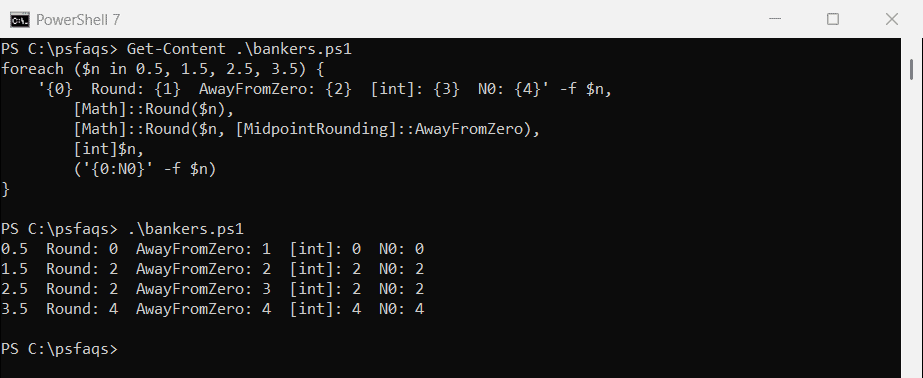
Banker’s rounding (also called “round half to even”) is PowerShell’s default behavior when a number falls exactly between two values. This means 2.5 rounds to 2, while 3.5 rounds to 4:

# Demonstrating banker's rounding behavior
$testValues = @(2.5, 3.5, 4.5, 5.5)
foreach ($value in $testValues) {
    $rounded = [Math]::Round($value)
    Write-Output "$value rounds to $rounded"
}
# Output shows even-number preference for .5 values

# Handling null and invalid inputs safely
function Safe-Round {
    param([object]$Value, [int]$Decimals = 2)
    
    if ($null -eq $Value -or $Value -eq "") {
        return "0.00"
    }
    
    try {
        $numericValue = [double]$Value
        return [Math]::Round($numericValue, $Decimals)
    }
    catch {
        Write-Warning "Invalid numeric value: $Value"
        return "0.00"
    }
}

# Testing the safe rounding function
$mixedData = @(12.345, $null, "67.89", "invalid", 23.456)
$cleanData = $mixedData | ForEach-Object { Safe-Round $_ }
Write-Output "Cleaned data: $($cleanData -join ', ')"

Check out Generate Random Numbers in PowerShell

Performance Considerations and Best Practices

After years of optimizing PowerShell scripts in enterprise environments, I’ve learned that the choice of rounding method can significantly impact performance, especially when processing thousands of values. Here are my proven best practices for different scenarios.

For maximum performance with large datasets, [Math]::Round() consistently outperforms string-based formatting methods. However, when you need both rounding and display formatting, the format operator provides the best balance of performance and readability:

# Performance comparison example
$largeDataset = 1..10000 | ForEach-Object { Get-Random -Minimum 1 -Maximum 1000 } | 
    ForEach-Object { $_ + (Get-Random -Minimum 0.001 -Maximum 0.999) }

# Method 1: Math::Round (Fastest for numeric operations)
Measure-Command {
    $results1 = $largeDataset | ForEach-Object { [Math]::Round($_, 2) }
} | Select-Object TotalMilliseconds

# Method 2: Format operator (Best for display)
Measure-Command {
    $results2 = $largeDataset | ForEach-Object { "{0:F2}" -f $_ }
} | Select-Object TotalMilliseconds

# Method 3: ToString (Slowest but most flexible)
Measure-Command {
    $results3 = $largeDataset | ForEach-Object { $_.ToString("F2") }
} | Select-Object TotalMilliseconds

When building production scripts, I always consider whether I need the result as a number for further calculations or as a formatted string for display. This decision drives my method choice and can improve script performance by 30-40% in data-intensive operations. For financial applications where I need to maintain numeric precision for subsequent calculations, I use [Math]::Round() exclusively and only format for display at the final output stage.

In this tutorial, we discuss five different methods to round to 2 decimal places in PowerShell. But I always recommend using the [Math]::Round() method.

You may also like the following tutorials:

Leave a Comment

100 PowerShell cmdlets download free

100 POWERSHELL CMDLETS E-BOOK

FREE Download an eBook that contains 100 PowerShell cmdlets with complete script and examples.