
To pass variables to a PowerShell script, declare them in a param() block at the top of the script, then pass values by name when you run it:
.\Send-Report.ps1 -City 'Austin' -Days 30Every example below uses one sample script, so you can copy it and follow along. I tested each call in PowerShell 7 and Windows PowerShell 5.1.
Declare parameters with a param() block
Here’s Send-Report.ps1. The param() block must be the first code in the file, before anything else except comments:
param(
    [Parameter(Mandatory)]
    [string]$City,

    [ValidateRange(1, 90)]
    [int]$Days = 7,

    [string[]]$Recipients = @('ops@contoso.com'),

    [switch]$Detailed
)

"Report for $City, last $Days days"
"Send to: $($Recipients -join ', ')"
if ($Detailed) { 'Detailed mode: on' }
City is mandatory, and Days defaults to 7 and only accepts 1 to 90. Recipients takes one or more strings, and Detailed is a switch that’s either present or not.
Pass values by name
Named parameters are the clearest way to call a script, and the order doesn’t matter:
.\Send-Report.ps1 -City 'Austin' -Days 30Output:
Report for Austin, last 30 days
Send to: ops@contoso.com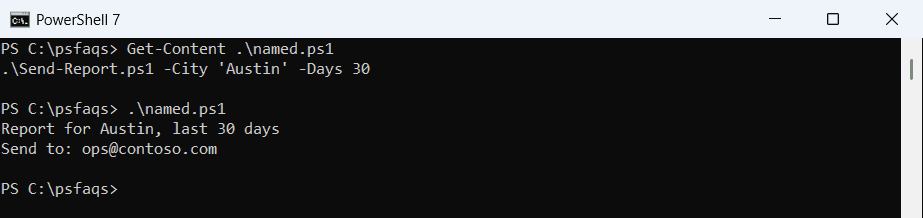
Recipients wasn’t passed, so it used its default. You only type as much of a parameter name as you need to make it unique, but full names are easier to read later.
Pass values by position
You can drop the names. Values fill the parameters in the order they’re declared:
.\Send-Report.ps1 'Dallas'Output:
Report for Dallas, last 7 days
Send to: ops@contoso.com
Dallas went into City and Days kept its default. This is fine at the prompt, but I always use names in scripts that other people read.
Pass variables, arrays and switches
Variables work exactly like literal values. For an array parameter, pass a comma-separated list. For a switch, just add its name:
$city = 'Denver'
$team = 'amy@contoso.com', 'dan@contoso.com'
.\Send-Report.ps1 -City $city -Recipients $team -Detailed
Output:
Report for Denver, last 7 days
Send to: amy@contoso.com, dan@contoso.com
Detailed mode: on
To turn a switch off on purpose, pass -Detailed:$false. More in the PowerShell switch parameter and array parameters.
Pass many values at once with splatting
When a call gets long, put the values in a hashtable and pass it with @ instead of $. The keys must match the parameter names:
$params = @{
    City     = 'Seattle'
    Days     = 14
    Detailed = $true
}
.\Send-Report.ps1 @params
Output:
Report for Seattle, last 14 days
Send to: ops@contoso.com
Detailed mode: on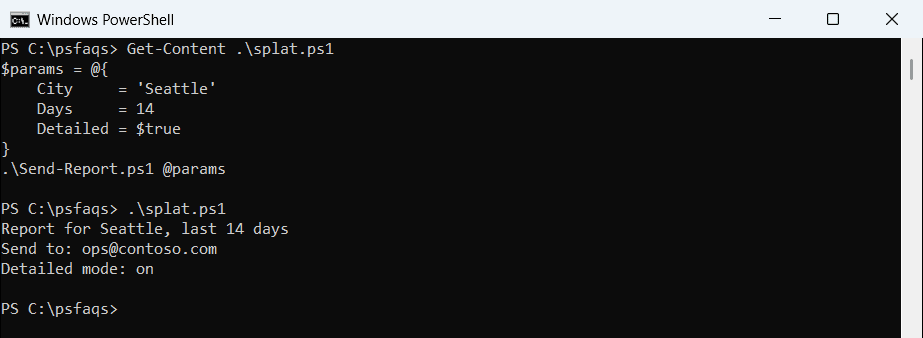
For a switch, set the key to $true. Splatting also lets you build the hashtable step by step, for example adding a key only when a condition is met.
Read unnamed arguments with $args
A script without a param() block still receives everything you pass in the automatic $args array. Here’s Show-Args.ps1:
"Got $($args.Count) arguments"
foreach ($item in $args) { "- $item" }
.\Show-Args.ps1 Austin 30 'New York'Output:
Got 3 arguments
- Austin
- 30
- New York
Quotes keep New York as one argument. $args has no names, types or validation, so I only use it for quick throwaway scripts. It’s described in about_Automatic_Variables.
Validate the values you receive
Validation attributes reject bad input before your script runs a single line. Days only allows 1 to 90, so 120 fails:
try { .\Send-Report.ps1 -City 'Austin' -Days 120 }
catch { "Failed. $($_.Exception.Message)" }
Output:
Failed. Cannot validate argument on parameter 'Days'. The 120 argument is greater than the maximum allowed range of 90. Supply an argument that is less than or equal to 90 and then try the command again.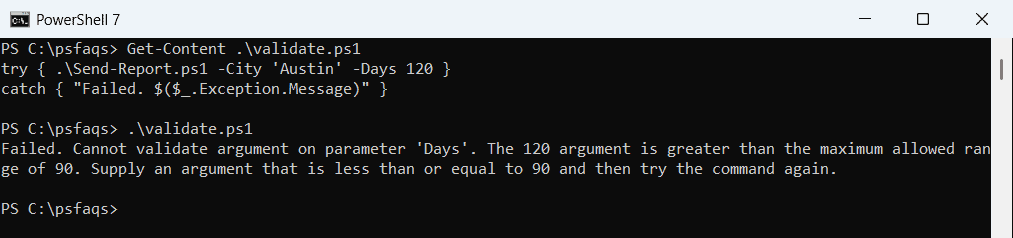
If you leave out a mandatory parameter like City, PowerShell prompts for it. In a scheduled task, where nobody can answer, the run fails instead, so pass every mandatory value.
Pass a value through an environment variable
Environment variables reach every script and program started from the same session. That’s handy when a CI pipeline sets values for you. Get-EnvCity.ps1 just reads one:
"City from the environment: $env:REPORT_CITY"$env:REPORT_CITY = 'Boston' # this PowerShell process only
.\Get-EnvCity.ps1Output:
City from the environment: BostonSetting $env:REPORT_CITY this way lasts only until you close the window. For more, see setting and getting environment variables.
Pass parameters from cmd or another PowerShell version
Outside PowerShell, start the engine with -File and put the parameters after the script path. This works from cmd, Task Scheduler or another PowerShell window:
powershell.