
To get the last reboot time with PowerShell, read LastBootUpTime from Win32_OperatingSystem. Subtract it from the current time to get the uptime:
$boot = (Get-CimInstance -ClassName Win32_OperatingSystem).LastBootUpTime
$uptime = (Get-Date) - $boot

"Last reboot: $($boot.ToString('yyyy-MM-dd HH:mm'))"
"Uptime:      $($uptime.Days) days, $($uptime.Hours) hours"
Output:
Last reboot: 2026-09-23 07:20
Uptime:      7 days, 1 hours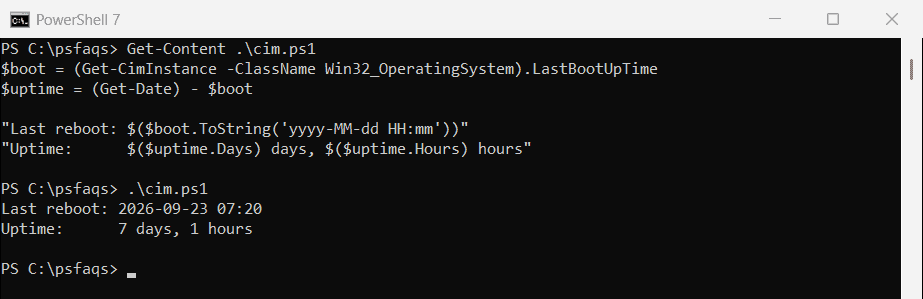
Get-CimInstance returns a normal DateTime, so no conversion is needed. Below I show the shorter PowerShell 7 cmdlet, the reboot history from the event log, remote PCs and one Fast Startup catch.
Use Get-Uptime in PowerShell 7
PowerShell 7 has Get-Uptime. -Since returns the boot time, and without it you get a TimeSpan:
"Up since: $((Get-Uptime -Since).ToString('yyyy-MM-dd HH:mm'))"
$u = Get-Uptime
"Uptime:   $($u.Days) days, $($u.Hours) hours"
Output:
Up since: 2026-09-23 07:20
Uptime:   7 days, 1 hours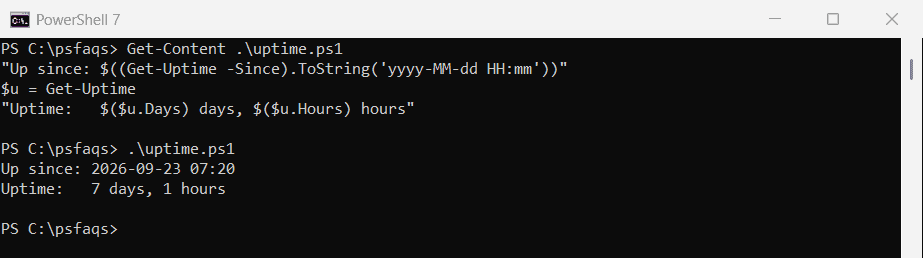
It isn’t in Windows PowerShell 5.1, so use the CIM method there.
To restart a PC from PowerShell, see restarting a computer with PowerShell.
See the reboot history in the event log
The System log records every start, shutdown and crash. This lists the latest ones by event ID:
$meaning = @{
    12   = 'Windows started'
    13   = 'Windows shut down'
    41   = 'Restarted without a clean shutdown'
    1074 = 'Restart or shutdown was requested'
    6008 = 'Previous shutdown was unexpected'
}
$filter = @{
    LogName      = 'System'
    ProviderName = 'Microsoft-Windows-Kernel-General', 'Microsoft-Windows-Kernel-Power', 'User32', 'EventLog'
    Id           = 12, 13, 41, 1074, 6008
}
Get-WinEvent -FilterHashtable $filter -MaxEvents 6 |
    ForEach-Object { '{0:yyyy-MM-dd HH:mm}  {1,4}  {2}' -f $_.TimeCreated, $_.Id, $meaning[$_.Id] }
Output:
2026-09-23 07:21    12  Windows started
2026-09-23 07:20    13  Windows shut down
2026-09-23 07:20  1074  Restart or shutdown was requested
2026-09-13 16:41    41  Restarted without a clean shutdown
2026-09-13 16:42  6008  Previous shutdown was unexpected
2026-09-13 16:41    12  Windows started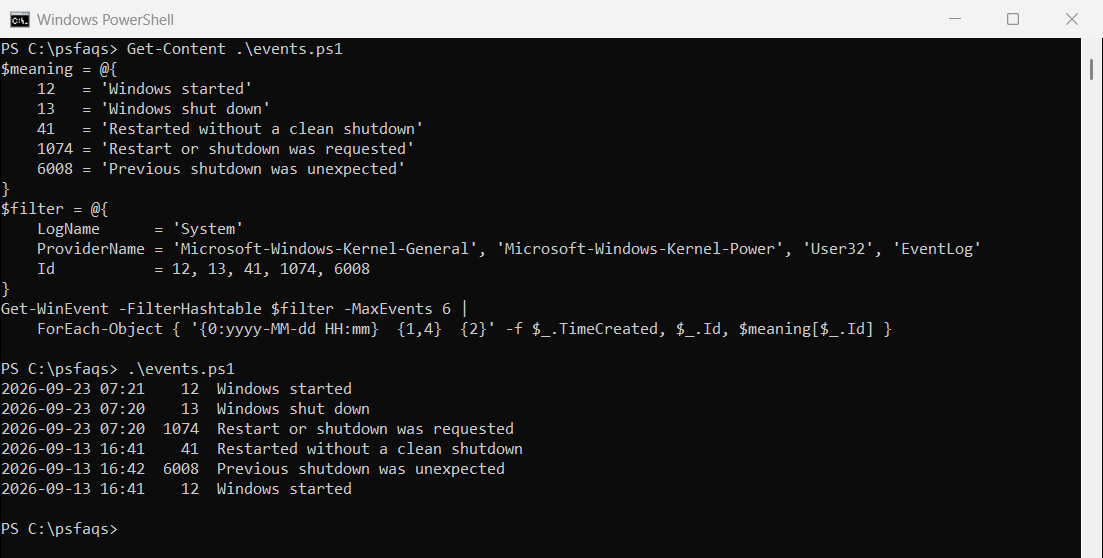
I print only the time and ID because event 1074’s message includes the user and PC name. Event 41 means Windows restarted without shutting down cleanly, usually from a crash or power loss.
Find out who restarted the PC
Event 1074 records the account and program that asked for the restart. Read its message to see them:
Get-WinEvent -FilterHashtable @{ LogName = 'System'; Id = 1074 } -MaxEvents 5 |
    Select-Object -Property TimeCreated, Message
Why the reboot time looks too old
With Fast Startup on, Shut down doesn’t fully restart Windows, so LastBootUpTime stays the same. Only Restart resets it. Fast Startup is on by default on most PCs.
Use event 13 and event 12 to see shutdowns and starts that LastBootUpTime misses. The Win32_OperatingSystem reference documents LastBootUpTime.
If the time looks off by a few hours, compare it in UTC with Get-Date in UTC.
Get the last reboot time of remote computers
Add -ComputerName, and PSComputerName shows which result is which. You need admin rights and WinRM on those PCs:
Get-CimInstance -ClassName Win32_OperatingSystem -ComputerName PC-SALES-07, PC-SALES-08 |
    Select-Object -Property PSComputerName, LastBootUpTime
Restarting a computer shows how to restart th