
Are you working with the Get-Date PowerShell cmdlet? I will show you how to work with the AddDays(0) method in PowerShell. In this tutorial, we’ll explore everything you need to know about using (Get-Date).AddDays(0) with various examples.
Understanding Get-Date in PowerShell
The Get-Date cmdlet returns a DateTime object that represents the current date and time or a specified date. This DateTime object comes with numerous built-in methods, including AddDays().
Basic Syntax
Get-Date
(Get-Date).AddDays(0)
Both commands above will return the current date and time, but there’s a subtle yet important difference we’ll explore.
Check out PowerShell Get-Date Format ISO 8601
What Does AddDays(0) Actually Do?
When you use (Get-Date).AddDays(0), you’re adding zero days to the current date, which mathematically returns the same date.
.AddDays() is a method available on PowerShell DateTime objects. It can:
- Add days (positive integer or decimal) to a given date.
- Subtract days (negative values).
- Add zero days (returns original date).
- Allow chaining with other methods (like
.AddHours(),.AddMonths()).
For example:
(Get-Date).AddDays(10)  # Adds 10 days
(Get-Date).AddDays(-5)  # Subtracts 5 days
(Get-Date).AddDays(0)   # Returns today's date
1. DateTime Object Consistency
Here is how it works.
# Standard Get-Date
$date1 = Get-Date
Write-Output "Type: $($date1.GetType().Name)"

# Using AddDays(0)
$date2 = (Get-Date).AddDays(0)
Write-Output "Type: $($date2.GetType().Name)"
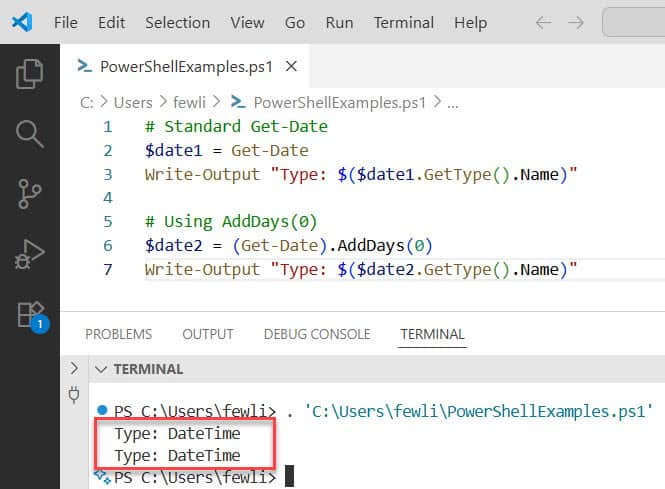
Both return DateTime objects, but the AddDays method ensures you’re working with a consistent DateTime manipulation pattern.
Here is the exact output in the screenshot below:
2. Baseline for Date Calculations
# Creating a baseline date for calculations
$baseDate = (Get-Date).AddDays(0)
$tomorrow = $baseDate.AddDays(1)
$yesterday = $baseDate.AddDays(-1)
$nextWeek = $baseDate.AddDays(7)

Write-Output "Base Date: $baseDate"
Write-Output "Tomorrow: $tomorrow"
Write-Output "Yesterday: $yesterday"
Write-Output "Next Week: $nextWeek"PowerShell (Get-Date).AddDays(0) Examples
Now, let me show you a few examples on how to work with PowerShell (Get-Date).AddDays(0).
Example 1: Log File Management
This example demonstrates how establishing a baseline date ensures all log-related operations use the same timestamp reference, preventing edge cases where logs might be created with slightly different dates due to script execution time.
# Get current date as baseline
$currentDate = (Get-Date).AddDays(0)

# Calculate dates for log rotation
$sevenDaysAgo = $currentDate.AddDays(-7)
$thirtyDaysAgo = $currentDate.AddDays(-30)

# Format dates for log file naming
$logDate = $currentDate.ToString("yyyy-MM-dd")
$logFile = "application_$logDate.log"

Write-Output "Today's log file: $logFile"
Write-Output "Delete logs older than: $sevenDaysAgo"
Example 2: Report Generation
Here, the baseline date ensures that all report periods are calculated from the same exact moment, which is crucial for accurate reporting boundaries and consistent data analysis across different time ranges.
# Establish baseline date
$reportDate = (Get-Date).AddDays(0)

# Generate date ranges for different report periods
$weeklyStart = $reportDate.AddDays(-7)
$monthlyStart = $reportDate.AddDays(-30)
$quarterlyStart = $reportDate.AddDays(-90)

Write-Output "Weekly Report Period: $weeklyStart to $reportDate"
Write-Output "Monthly Report Period: $monthlyStart to $reportDate"
Write-Output "Quarterly Report Period: $quarterlyStart to $reportDate"
Example 3: Backup Scheduling
This example shows how using a baseline date helps coordinate multiple backup schedules and ensures all backup timestamps are synchronized, which is essential for backup management and disaster recovery planning.
# Current date baseline
$today = (Get-Date).AddDays(0)

# Calculate backup schedules
$dailyBackup = $today.AddDays(1)
$weeklyBackup = $today.AddDays(7)
$monthlyBackup = $today.AddDays(30)

# Format for scheduling systems
$dailySchedule = $dailyBackup.ToString("MM/dd/yyyy HH:mm")
$weeklySchedule = $weeklyBackup.ToString("MM/dd/yyyy HH:mm")

Write-Output "Next daily backup: $dailySchedule"
Write-Output "Next weekly backup: $weeklySchedule"
Check out PowerShell Get-Date Minus 1 Day
Advanced Date Formatting with AddDays(0)
The AddDays() method returns a DateTime object that supports extensive formatting options.
Common Format Patterns
$baseDate = (Get-Date).AddDays(0)

# Various formatting options
Write-Output "Short Date: $($baseDate.ToShortDateString())"
Write-Output "Long Date: $($baseDate.ToLongDateString())"
Write-Output "ISO Format: $($baseDate.ToString('yyyy-MM-dd'))"
Write-Output "US Format: $($baseDate.ToString('MM/dd/yyyy'))"
Write-Output "Timestamp: $($baseDate.ToString('yyyy-MM-dd HH:mm:ss'))"
Custom Formatting for Different Scenarios
$currentDate = (Get-Date).AddDays(0)

# Database-friendly formats
$sqlDate = $currentDate.ToString("yyyy-MM-dd HH:mm:ss")
$oracleDate = $currentDate.ToString("dd-MMM-yyyy")

# File naming formats
$fileDate = $currentDate.ToString("yyyyMMdd_HHmmss")
$logDate = $currentDate.ToString("yyyy-MM-dd")

Write-Output "SQL Server format: $sqlDate"
Write-Output "Oracle format: $oracleDate"
Write-Output "File naming: backup_$fileDate.bak"
Write-Output "Log naming: app_$logDate.log"
Check out PowerShell Get-ChildItem Files Only
Error Handling and Best Practices
Here are some error handling and best practices to follow when using (Get-Date).AddDays(0).
Robust Date Handling
function Get-SafeBaseDate {
    try {
        $baseDate = (Get-Date).AddDays(0)
        return $baseDate
    }
    catch {
        Write-Error "Failed to get base date: $($_.Exception.Message)"
        return $null
    }
}

# Usage example
$safeDate = Get-SafeBaseDate
if ($safeDate) {
    $futureDate = $safeDate.AddDays(30)
    Write-Output "30 days from now: $futureDate"
}
Input Validation
function Add-DaysToCurrentDate {
    param(
        [Parameter(Mandatory=$true)]
        [int]$DaysToAdd
    )

    try {
        $baseDate = (Get-Date).AddDays(0)
        $resultDate = $baseDate.AddDays($DaysToAdd)
        return $resultDate
    }
    catch {
        Write-Error "Error calculating date: $($_.Exception.Message)"
        return $null
    }
}

# Examples
$nextWeek = Add-DaysToCurrentDate -DaysToAdd 7
$lastMonth = Add-DaysToCurrentDate -DaysToAdd -30
Working with Time Zones
When using (Get-Date).AddDays(0), be aware that it uses the local system time zone:
# Local time zone
$localDate = (Get-Date).AddDays(0)
Write-Output "Local time: $localDate"

# UTC time zone
$utcDate = (Get-Date).ToUniversalTime().AddDays(0)
Write-Output "UTC time: $utcDate"

# Convert to specific time zone (example: Eastern Time)
$easternZone = [System.TimeZoneInfo]::FindSystemTimeZoneById("Eastern Standard Time")
$easternDate = [System.TimeZoneInfo]::ConvertTime($localDate, $easternZone)
Write-Output "Eastern time: $easternDate"
In this tutorial, I explained how to use (Get-Date).AddDays(0) in PowerShell with a few real examples.
You may also like the following tutorials:
- PowerShell Get-ChildItem Filter Examples
- PowerShell Round to 2 Decimal Places
- Add-Content in PowerShell

Bijay Kumar is an esteemed author and the mind behind PowerShellFAQs.com, where he shares his extensive knowledge and expertise in PowerShell, with a particular focus on SharePoint projects. Recognized for his contributions to the tech community, Bijay has been honored with the prestigious Microsoft MVP award. With over 15 years of experience in the software industry, he has a rich professional background, having worked with industry giants such as HP and TCS. His insights and guidance have made him a respected figure in the world of software development and administration. Read more.