
To filter files with Get-ChildItem, pass a wildcard pattern to -Filter. Add -Recurse to search subfolders too:
Get-ChildItem -Path C:\psfaqs\Reports -Filter '*.csv' -Recurse |
    Sort-Object -Property FullName |
    ForEach-Object { $_.FullName.Replace('C:\psfaqs\Reports\', '') }
Output:
Archive\sales-2026-01.csv
Q3\draft-summary.csv
Q3\summary.csv
sales-2026-07.csv
sales-2026-08.csv
sales-2026-09.csv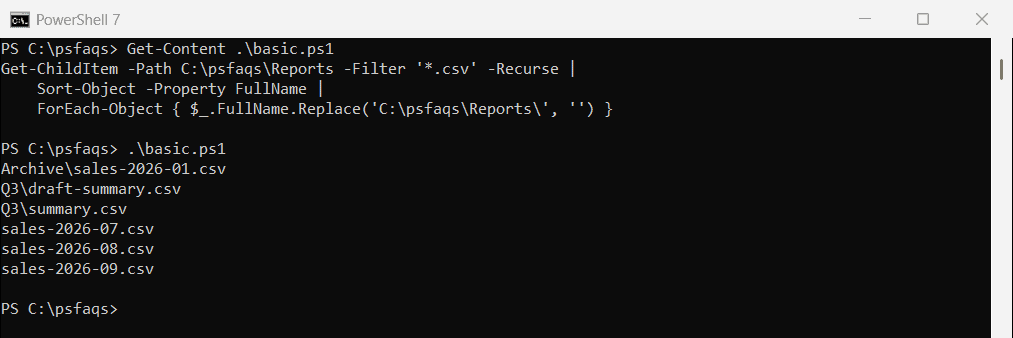
-Filter is the fastest option because the file system does the matching. Below I compare it with -Include and -Exclude, show a gotcha that returns nothing, and filter by date and size. All of it runs in PowerShell 7.6 and 5.1.
-Filter vs. -Include and -Exclude
| Parameter | Patterns | Speed | Notes |
|---|---|---|---|
| -Filter | One | Fastest | Matching is done by the file system |
| -Include | Several | Slower | Needs -Recurse or a path ending in \* |
| -Exclude | Several | Slower | Removes matches from the results |
Use -Filter for a single pattern. Switch to -Include and -Exclude when you need several patterns or want to leave some files out. Microsoft covers all three in the Get-ChildItem reference.
Why -Include returns nothing
This catches almost everyone. -Include only works when the path ends in \* or you add -Recurse:
$a = Get-ChildItem -Path C:\psfaqs\Reports -Include '*.xlsx'
$b = Get-ChildItem -Path C:\psfaqs\Reports\* -Include '*.xlsx'
$c = Get-ChildItem -Path C:\psfaqs\Reports -Include '*.xlsx' -Recurse

"-Include, plain path:    $(@($a).Count) files"
"-Include, path with \*:  $(@($b).Count) files"
"-Include with -Recurse:  $(@($c).Count) files"
Output:
-Include, plain path:    0 files
-Include, path with \*:  2 files
-Include with -Recurse:  2 files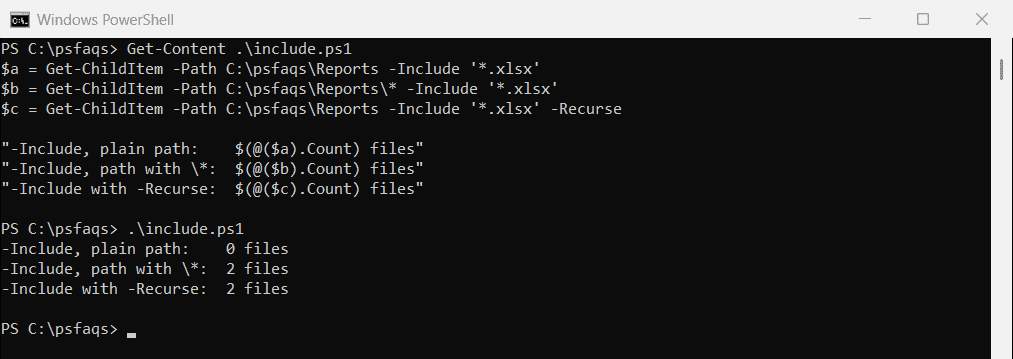
Without either one, -Include looks at the folder itself rather than its contents, so nothing matches. -Filter doesn’t have this problem.
Filter several file types and exclude some
-Include takes a list of patterns, and -Exclude drops anything that matches. Here I get CSV and Excel files but skip drafts:
Get-ChildItem -Path C:\psfaqs\Reports -Include '*.csv', '*.xlsx' -Exclude '*draft*' -Recurse |
    Sort-Object -Property Name |
    ForEach-Object { $_.Name }
Output:
budget.xlsx
sales-2026-01.csv
sales-2026-07.csv
sales-2026-08.csv
sales-2026-09.csv
summary.csv
Patterns use * for any characters and ? for one character. about_Wildcards lists the rest, including [a-c] ranges. Finding files by extension has more examples.
Filter by date and size with Where-Object
-Filter only matches names. For dates, sizes and other properties, pipe to Where-Object. This finds files changed since September 1, 2026 that are over 3 KB:
Get-ChildItem -Path C:\psfaqs\Reports -File -Recurse |
    Where-Object { $_.LastWriteTime -ge [datetime]'2026-09-01' -and $_.Length -gt 3KB } |
    Sort-Object -Property LastWriteTime |
    ForEach-Object { '{0,-18} {1:yyyy-MM-dd}  {2,5} bytes' -f $_.Name, $_.LastWriteTime, $_.Length }
Output:
budget.xlsx        2026-09-15   7902 bytes
budget-draft.xlsx  2026-09-22   3102 bytes
draft-summary.csv  2026-09-28   5202 bytes
sales-2026-09.csv  2026-09-29   3102 bytes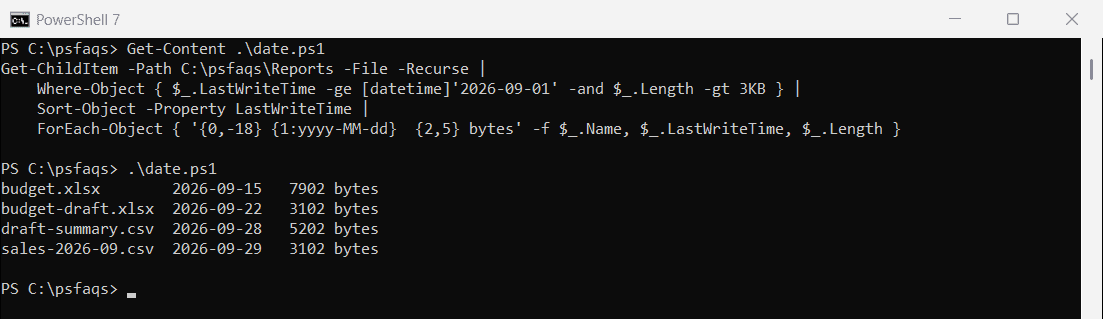
Use -File first so folders don’t get in the way.