
Need the current time in UTC? In PowerShell 7.1 and later, Get-Date -AsUTC returns it directly. Windows PowerShell 5.1 doesn’t have that switch, so use [datetime]::UtcNow there, which works in every version:
Get-Date -AsUTC          # PowerShell 7.1+
[datetime]::UtcNow       # any version
Both return a DateTime whose Kind is Utc. Below I’ll format UTC values, convert them to and from US time zones, parse UTC strings, handle Unix time and JSON, and point out where PowerShell 7 and 5.1 behave differently.
Get the current UTC time with Get-Date -AsUTC
The -AsUTC switch converts the date Get-Date would return into its UTC equivalent. I wrapped it in try/catch so the same script runs in both shells:
try {
    $now = Get-Date -AsUTC -ErrorAction Stop
    "Kind:     $($now.Kind)"
    "UTC date: $($now.ToString('yyyy-MM-dd'))"
    "ISO ends with Z: $($now.ToString('o').EndsWith('Z'))"
}
catch {
    "Failed. $($_.Exception.Message)"
}
Output:
Kind:     Utc
UTC date: 2026-10-10
ISO ends with Z: True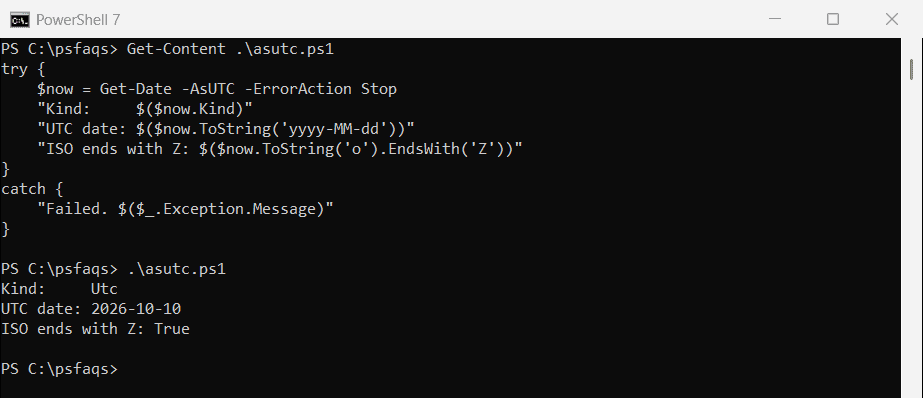
Kind Utc is the part that matters. Format strings and conversion methods read it to decide whether to add a Z or shift the clock. For the basics of the type itself, see working with DateTime in PowerShell.
Now the same script in Windows PowerShell 5.1:
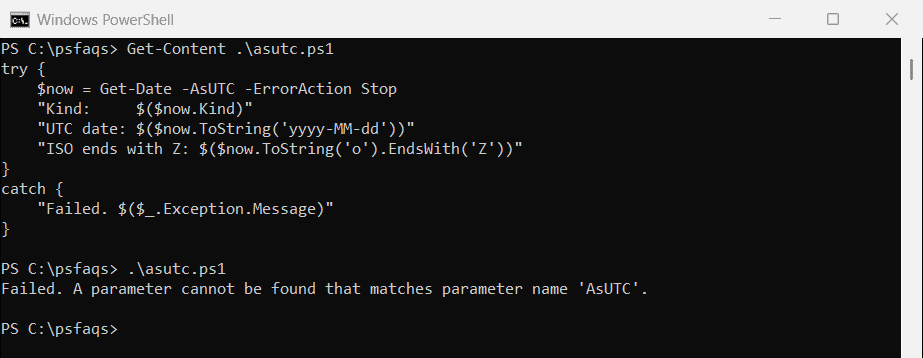
The error reads: A parameter cannot be found that matches parameter name ‘AsUTC’. The switch arrived in PowerShell 7.1, so scripts that also run on Windows PowerShell need another approach.
How to get UTC time in Windows PowerShell 5.1
You have three options that work in 5.1 and 7 alike: call ToUniversalTime() on Get-Date, read [datetime]::UtcNow, or use [DateTimeOffset]::UtcNow when you also want the offset stored with the value. The small Get-UtcNow function picks -AsUTC only when it’s available:
function Get-UtcNow {
    if ($PSVersionTable.PSVersion -ge [version]'7.1') { Get-Date -AsUTC }
    else { [datetime]::UtcNow }
}

"ToUniversalTime():  $((Get-Date).ToUniversalTime().Kind)"
"[datetime]::UtcNow: $([datetime]::UtcNow.Kind)"
"Get-UtcNow:         $((Get-UtcNow).Kind)"
"DateTimeOffset:     offset $([DateTimeOffset]::UtcNow.Offset)"
Output:
ToUniversalTime():  Utc
[datetime]::UtcNow: Utc
Get-UtcNow:         Utc
DateTimeOffset:     offset 00:00:00
All three report Kind Utc, and the DateTimeOffset carries an offset of zero. I reach for [datetime]::UtcNow in shared scripts because it skips the local-time step entirely.
PowerShell binds parameters when a command runs, not when the script is parsed, so the -AsUTC branch never errors in 5.1. It just never executes there.
What does DateTime Kind mean for UTC values?
A DateTime doesn’t store a time zone. It stores a clock reading plus a Kind flag: Utc, Local or Unspecified. A date typed as a plain string, like ‘2026-10-10 14:30’, comes back Unspecified:
$d = [datetime]::SpecifyKind([datetime]'2026-10-10 14:30:00', 'Utc')
$plain = [datetime]'2026-10-10 14:30:00'

"UTC value kind:    $($d.Kind)"
"Plain string kind: $($plain.Kind)"
"UTC converted again: $($d.ToUniversalTime().ToString('u'))"
"After SpecifyKind:   $([datetime]::SpecifyKind($plain, 'Utc').Kind)"
"Same clock, -eq:     $($d -eq [datetime]::SpecifyKind($plain, 'Local'))"
Output:
UTC value kind:    Utc
Plain string kind: Unspecified
UTC converted again: 2026-10-10 14:30:00Z
After SpecifyKind:   Utc
Same clock, -eq:     True
Calling ToUniversalTime() on a Utc value changes nothing, so converting twice is safe. On an Unspecified value, though, .NET assumes it’s local time and shifts it by the computer’s offset, which is rarely what you want for a date read from a file.
SpecifyKind relabels a value without moving the clock. That’s the right fix when you know a string already holds UTC.
Notice the last line, too. -eq compares only the clock reading and ignores Kind, so a Utc and a Local value look equal when they’re hours apart. The date comparison guide covers more of those traps.
Format a UTC date in PowerShell
Get-Date -Format accepts .NET standard format strings, custom patterns and four file-friendly names. Here’s one fixed UTC time, 2:30 PM on October 10, 2026, in each format I actually use:
$d = [datetime]::SpecifyKind([datetime]'2026-10-10 14:30:00', 'Utc')

foreach ($f in 'o', 'u', 's', 'R', 'yyyy-MM-ddTHH:mm:ssK', 'FileDateUniversal', 'FileDateTimeUniversal') {
    '{0,-22} {1}' -f $f, (Get-Date -Date $d -Format $f)
}
Output:
o                      2026-10-10T14:30:00.0000000Z
u                      2026-10-10 14:30:00Z
s                      2026-10-10T14:30:00
R                      Sat, 10 Oct 2026 14:30:00 GMT
yyyy-MM-ddTHH:mm:ssK   2026-10-10T14:30:00Z
FileDateUniversal      20261010Z
FileDateTimeUniversal  20261010T1430000000Z
The o (round-trip) format is my default for logs and APIs because it keeps the fractional seconds and the Z. The u format is easier to read, and R gives the GMT style that HTTP headers use.
The K specifier writes Z for Utc values, an offset for Local ones and nothing for Unspecified ones.
FileDateUniversal and FileDateTimeUniversal, both added in PowerShell 5.0, convert to UTC for you and are safe in file names. The ISO 8601 format guide goes deeper on o and s, and there are many more patterns in formatting dates in PowerShell.
Why does the u format show the wrong UTC time?
The u and R formats print a UTC-style string, but they don’t convert the value first. Microsoft’s format documentation says so plainly, and it’s easy to miss:
$eastern = [datetime]'2026-10-10 10:30:00'   # 10:30 AM in New York, Kind Unspecified
$tz = [TimeZoneInfo]::FindSystemTimeZoneById('Eastern Standard Time')

"Wrong, 'u' only adds Z: $($eastern.ToString('u'))"
"Right, converted first: $([TimeZoneInfo]::ConvertTimeToUtc($eastern, $tz).ToString('u'))"
Output:
Wrong, 'u' only adds Z: 2026-10-10 10:30:00Z
Right, converted first: 2026-10-10 14:30:00Z
10:30 AM in New York is 14:30 UTC in October, yet u happily labeled 10:30 with a Z. Convert first, then format. The same applies to a hand-written pattern like ‘yyyy-MM-ddTHH:mm:ssZ’, where the Z is just a literal letter.