
To append text to a file in PowerShell, use Add-Content with the file path and the text. It adds the text as a new line at the end, and leaves everything already in the file alone:
Add-Content -Path C:\psfaqs\Logs\backup.log -Value '2026-09-28 09:14 Backup finished'

Get-Content -Path C:\psfaqs\Logs\backup.log
Output:
2026-09-28 09:00 Backup started
2026-09-28 09:14 Backup finished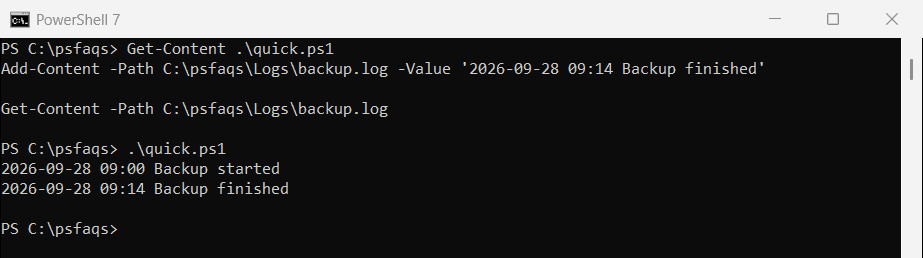
I ran every example in PowerShell 7.6 and Windows PowerShell 5.1. Most behave the same, but mixing Add-Content with Out-File breaks files in 5.1, which I show below.
Add-Content creates the file, but not the folder
If the file doesn’t exist, Add-Content creates it. If the folder doesn’t exist, the command fails:
Add-Content -Path C:\psfaqs\Logs\new-log.txt -Value 'First entry'
"new-log.txt created: $(Test-Path -Path C:\psfaqs\Logs\new-log.txt)"

try {
    Add-Content -Path C:\psfaqs\Logs\2026\october.txt -Value 'First entry' -ErrorAction Stop
}
catch {
    "Missing folder: $($_.Exception.GetType().Name)"
}
Output:
new-log.txt created: True
Missing folder: DirectoryNotFoundException
Create the folder first with New-Item -ItemType Directory -Force, which doesn’t complain if it’s already there.
To create the folder first, use PowerShell New-Item.
Append several lines at once
Pass an array to -Value and each item goes on its own line:
$servers = 'WEB01', 'WEB02', 'SQL01'
Add-Content -Path C:\psfaqs\Logs\servers.txt -Value $servers

"Lines in servers.txt: $((Get-Content -Path C:\psfaqs\Logs\servers.txt).Count)"
Output:
Lines in servers.txt: 3Why did my text end up on the same line?
Add-Content writes the new text right after the last character in the file. If the file doesn’t end with a line break, the new text is glued onto the last line:
Set-Content -Path C:\psfaqs\Logs\notes.txt -Value 'Line one' -NoNewline
Add-Content -Path C:\psfaqs\Logs\notes.txt -Value 'Line two'
"Without a newline first: $((Get-Content -Path C:\psfaqs\Logs\notes.txt) -join ' | ')"

Set-Content -Path C:\psfaqs\Logs\notes.txt -Value 'Line one' -NoNewline
Add-Content -Path C:\psfaqs\Logs\notes.txt -Value "`r`nLine two"
"With a newline added:    $((Get-Content -Path C:\psfaqs\Logs\notes.txt) -join ' | ')"
Output:
Without a newline first: Line oneLine two
With a newline added:    Line one | Line two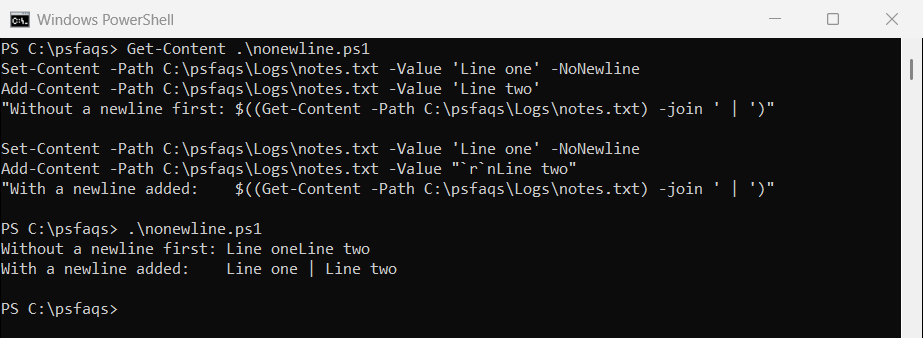
Files saved by some editors and tools don’t end with a line break. Starting the new text with `r`n fixes it. Add -NoNewline to Add-Content when you don’t want it to add a line break after your text either.
Append to several files at once
-Path accepts wildcards, so one command can add the same line to many files:
Set-Content -Path C:\psfaqs\Logs\q1.txt -Value 'Q1 report'
Set-Content -Path C:\psfaqs\Logs\q2.txt -Value 'Q2 report'

Add-Content -Path C:\psfaqs\Logs\q*.txt -Value 'Reviewed on 2026-09-28'

Get-ChildItem -Path C:\psfaqs\Logs\q*.txt | ForEach-Object {
    "$($_.Name): $((Get-Content -Path $_.FullName) -join ' | ')"
}
Output:
q1.txt: Q1 report | Reviewed on 2026-09-28
q2.txt: Q2 report | Reviewed on 2026-09-28
That’s handy for footers and notes, but check the wildcard with Get-ChildItem first, so you don’t append to files you didn’t mean to.
Don’t mix Add-Content and Out-File -Append in 5.1
Add-Content, Out-File and the >> operator all append, but in Windows PowerShell 5.1 they use different encodings. Here the same two commands run in both versions:
$log = 'C:\psfaqs\Logs\mixed.log'

Add-Content -Path $log -Value 'Started'
'Finished' | Out-File -FilePath $log -Append

$bytes = [System.IO.File]::ReadAllBytes($log)
"First bytes of line 2: $(($bytes[9..14]) -join ' ')"
"Select-String found 'Finished': $(@(Select-String -Path $log -Pattern 'Finished').Count) time(s)"
Output in PowerShell 7:
First bytes of line 2: 70 105 110 105 115 104
Select-String found 'Finished': 1 time(s)
Output in Windows PowerShell 5.1:
First bytes of line 2: 70 0 105 0 110 0
Select-String found 'Finished': 0 time(s)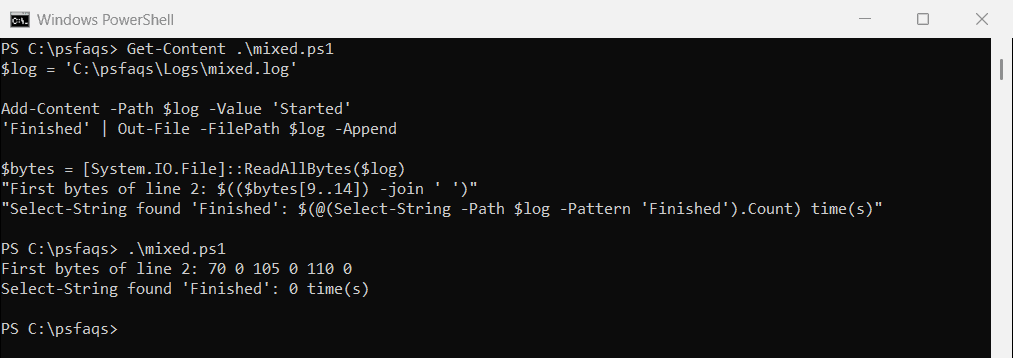
In 5.1, Out-File added the second line in UTF-16 (the zeros between the letters) to a file Add-Content started in the default Windows encoding. The text looks fine in Notepad, but searching it fails.
Stick to one cmdlet per file, or pass the same -Encoding to both. The Add-Content documentation lists the encodings each version supports.
Append rows to a CSV file
For CSV files, don’t build lines by hand. Export-Csv -Append adds rows and matches the existing columns:
$order = [pscustomobject]@{ Id = 1042; Customer = 'Alice Johnson'; Total = 149 }
$order | Export-Csv -Path C:\psfaqs\Logs\orders.csv -NoTypeInformation

$next = [pscustomobject]@{ Id = 1043; Customer = 'Bob Smith'; Total = 310 }
$next | Export-Csv -Path C:\psfaqs\Logs\orders.csv -NoTypeInformation -Append

Get-Content -Path C:\psfaqs\Logs\orders.csv
Output:
"Id","Customer","Total"
"1042","Alice Johnson","149"
"1043","Bob Smith","310"
The header is written only once. See PowerShell Export-Csv for more options, and how to write output to a file and the console for logging with Tee-Object.
Frequently Asked Questions
How do I append text to a file in PowerShell?
Use Add-Content -Path C:\Logs\app.log -Value 'Your text'. The text is added as a new line at the end of the file.