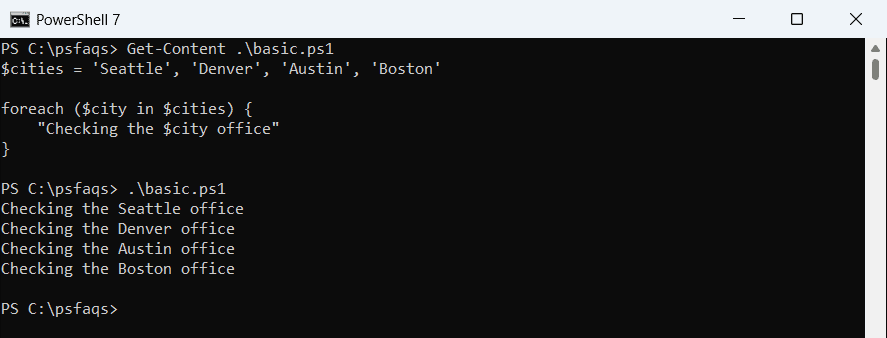
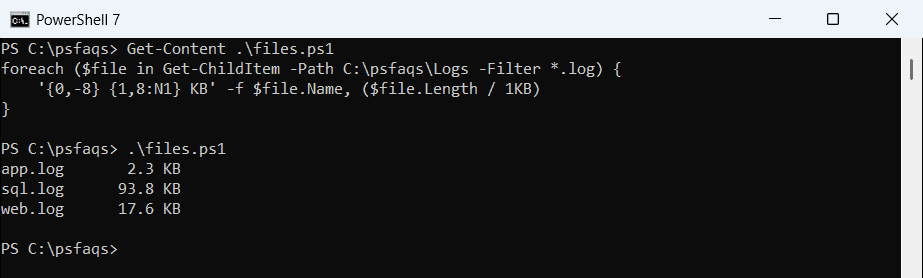
PowerShell ForEach [Looping Through Collections]

PowerShell’s foreach is a looping structure that helps automate repetitive tasks when working with collections of data. It comes in two forms: the foreach statement (a language construct) and ForEach-Object (a cmdlet often aliased as %). Both allow you to iterate through items in a collection and perform operations on each element, but they work in slightly different ways.

The foreach loop in PowerShell enables you to process multiple items one by one without having to write repetitive code for each element.

I will explain everything about PowerShell foreach in this tutorial with various examples.

Understanding PowerShell foreach

PowerShell offers different looping mechanisms to process collections of data. The foreach construct automates repetitive tasks by processing multiple items sequentially.

What Is foreach in PowerShell

Foreach in PowerShell is a language construct that lets you iterate through items in a collection. It processes each element one by one, allowing you to perform operations on each item separately.

Collections can be arrays, hash tables, or any group of objects that PowerShell recognizes. When you have multiple files to process or a list of servers to check, foreach becomes invaluable.

The basic purpose of foreach is to eliminate repetitive code. Instead of writing the same commands multiple times, you write them once and let foreach apply them to each item in your collection.

Check out PowerShell ForEach-Object

Differences Between foreach Statement and foreach-Object Cmdlet

PowerShell has two similar but distinct foreach mechanisms: the foreach statement and the ForEach-Object cmdlet (often aliased as %).

The foreach statement is a language construct that works within script blocks. It loads the entire collection into memory first, making it faster for processing complete datasets. This approach works well for smaller collections where memory isn’t a concern.

foreach ($item in $collection) {
    # Process $item
}

The ForEach-Object cmdlet works in the pipeline and processes items one at a time. It’s more memory-efficient because it doesn’t load everything at once. This makes it better for large datasets.

$collection | ForEach-Object {
    # Process $_
}

Check out PowerShell ForEach-Object vs ForEach

Syntax of PowerShell foreach

The foreach statement in PowerShell follows a straightforward syntax pattern. It requires a temporary variable to hold each item and the collection to iterate through.

foreach ($item in $collection) {
    # Commands to process $item
}

Here’s a simple example that displays each name in an array:

$names = "John", "Jane", "Mike"
foreach ($name in $names) {
    Write-Host "Hello, $name!"
}

You can perform more complex operations inside the loop. For instance, you might check conditions, modify values, or call other functions.

Here is the exact output in the screenshot below:

PowerShell ForEach

The ForEach-Object cmdlet uses the pipeline and refers to the current item with the $_ variable:

Get-Service | ForEach-Object {
    Write-Host "Service: $($_.Name) - Status: $($_.Status)"
}

Check out PowerShell ForEach Loop

Using foreach Statement in PowerShell

The foreach statement is a powerful loop construct in PowerShell that lets you iterate through items in a collection. It provides a simple way to process arrays, lists, and other collection types with a clear syntax that makes your code more readable and maintainable.

Iterating Over Collections

The basic syntax of the foreach loop uses the format foreach ($item in $collection) { commands }. This structure allows you to process each element in a collection individually.

$fruits = @("Apple", "Banana", "Cherry")
foreach ($fruit in $fruits) {
    Write-Host "Processing $fruit"
}

You can iterate through many types of collections, including:

  • Arrays and lists
  • Hash tables (using .Keys or .Values)
  • CSV data
  • Output from cmdlets

The loop automatically creates the variable specified in parentheses for each iteration. This variable contains the current item from the collection, allowing you to manipulate it within the script block.

Using Script Blocks Within foreach

Script blocks are the code sections enclosed in curly braces that run for each item in the collection. These blocks can contain multiple commands and complex logic.

$numbers = 1..5
foreach ($num in $numbers) {
    $squared = $num * $num
    $cubed = $squared * $num
    
    Write-Host "$num squared is $squared and cubed is $cubed"
}

Variables created outside the loop remain accessible inside the script block. Similarly, variables created or modified inside the loop remain accessible afterward.

Here is the exact output you can see in the screenshot below:

foreach Statement in PowerShell

You can use functions, conditionals, and even nested loops within the script block. This flexibility makes foreach powerful for complex data processing tasks.

Control Loop Execution with break and continue

PowerShell provides keywords to control the execution flow within foreach loops.

The break statement immediately exits the loop completely:

foreach ($service in Get-Service) {
    if ($service.Name -eq "Spooler") {
        Write-Host "Found the print spooler!"
        break
    }
}

The continue statement skips to the next iteration of the loop:

foreach ($process in Get-Process) {
    if ($process.WorkingSet -lt 10MB) {
        continue
    }
    Write-Host "$($process.Name) is using significant memory"
}

These control statements help manage complex iteration logic efficiently. They allow you to exit loops early or skip certain items based on conditions within your data.

Check out PowerShell Foreach File in Folder

Working with the foreach-Object Cmdlet

The foreach-Object cmdlet processes each item in a collection. It handles pipeline input efficiently and can transform data through script blocks that define operations to perform on each item.

Pipelining Data to foreach-Object

The foreach-Object cmdlet works seamlessly with PowerShell’s pipeline system. Data flows through the pipeline and foreach-Object processes each item individually.

Get-Service | foreach-Object { $_.Name }

This example pipes all services to foreach-Object, which extracts just the name property from each service object. The $_ automatic variable represents the current pipeline object.

You can use multiple script blocks with foreach-Object. The first block processes before any objects arrive, the middle block processes each object, and the final block runs after all objects have been processed.

1..5 | foreach-Object -Begin {$sum = 0} -Process {$sum += $_} -End {Write-Output "Total: $sum"}

Performance Considerations

The foreach-Object cmdlet is convenient but may not always provide optimal performance. For large data sets, the native foreach statement is typically faster.

# More efficient for large collections
foreach ($item in $collection) {
    # Process $item
}

PowerShell 7 introduced the -Parallel parameter for foreach-Object. This enables parallel processing of objects, significantly improving performance for independent operations.

1..10 | foreach-Object -Parallel {
    # This runs in parallel threads
    Write-Output "Processing $_"
    Start-Sleep -Seconds 1
} -ThrottleLimit 5

The ThrottleLimit parameter controls how many parallel operations run simultaneously. Setting appropriate limits prevents system overload and effectively manages resource consumption.

Check out PowerShell foreach where-object example

Practical foreach Use Cases in PowerShell

Foreach loops shine when working with collections of data in PowerShell. These practical examples show how foreach can make your scripts more efficient and powerful when handling files, directories, and filtering objects.

Processing Files and Directories With Get-ChildItem

The Get-ChildItem cmdlet (also aliased as dir or ls) paired with foreach creates a powerful combination for file management. This pattern allows you to process multiple files in a single operation:

$logFiles = Get-ChildItem -Path C:\Logs -Filter *.log
foreach ($file in $logFiles) {
    $content = Get-Content $file.FullName
    Write-Host "File $($file.Name) contains $($content.Count) lines"
}

You can also modify files in batch operations:

Get-ChildItem -Path C:\Reports -Filter *.txt | ForEach-Object {
    $newName = "Archive_" + $_.Name
    Rename-Item -Path $_.FullName -NewName $newName
}

This approach works great for more complex operations like moving files to different locations based on their properties or content.

Filter Objects Using where-object

Foreach loops work well with Where-Object to filter and process specific items from collections:

$processes = Get-Process
foreach ($process in $processes) {
    if ($process.WorkingSet -gt 100MB) {
        Write-Host "$($process.Name) is using $([math]::Round($process.WorkingSet/1MB, 2)) MB of memory"
    }
}

The same operation can be written using pipeline style:

Get-Process | Where-Object { $_.WorkingSet -gt 100MB } | ForEach-Object {
    Write-Host "$($_.Name) is using $([math]::Round($_.WorkingSet/1MB, 2)) MB of memory"
}

This filtering pattern is valuable when working with services, event logs, or any collection where you need to process only items that meet specific criteria.

Foreach in Scripting and Functions in PowerShell

Foreach loops become even more powerful when incorporated into PowerShell functions and scripts. They allow for efficient handling of multiple objects while enabling complex operations through conditional logic and custom parameters.

Integrate foreach in Functions

Functions in PowerShell can use foreach loops to process collections of items passed as parameters. When building a function, you can create parameters that accept arrays or collections, then process each item individually.

function Get-LogFiles {
    param (
        [string[]]$Servers
    )
    
    foreach ($server in $Servers) {
        Write-Output "Collecting logs from $server"
        # Code to collect logs from each server
    }
}

This pattern is especially useful for administrative tasks that need to run against multiple systems. The function above accepts an array of server names and processes each one through the foreach loop.

When working with large datasets, foreach can be placed inside helper functions that get called by main functions, creating modular code.

Conditional Statements Within foreach

Foreach loops work seamlessly with conditional statements to filter or process items differently based on their properties.

foreach ($item in $collection) {
    if ($item.Status -eq "Critical") {
        Write-Host "$item requires immediate attention" -ForegroundColor Red
    } elseif ($item.Status -eq "Warning") {
        Write-Host "$item requires monitoring" -ForegroundColor Yellow
    } else {
        Write-Host "$item is functioning normally" -ForegroundColor Green
    }
}

You can nest if statements inside foreach loops to create branching logic for different scenarios. This combination enables powerful filtering capabilities.

Switch statements can also be used within foreach for more complex conditional processing:

foreach ($event in $events) {
    switch ($event.Type) {
        "Error"   { Write-Error $event.Message }
        "Warning" { Write-Warning $event.Message }
        "Info"    { Write-Information $event.Message }
    }
}

foreach Loop Alternatives in PowerShell

PowerShell offers several alternatives to the traditional foreach loop that can improve performance and readability in different scenarios. Each alternative has specific strengths that make them suitable for particular tasks.

Comparing foreach to For and While Loops

The standard foreach loop is excellent for iterating through collections, but it’s not always the fastest option. The For loop offers better performance when you need precise control over the iteration process. It works well when you need to track the index or skip elements.

# For loop example
for ($i = 0; $i -lt $array.Count; $i++) {
    $array[$i]
}

The ForEach-Object cmdlet (alias %) is pipeline-friendly but typically slower than other methods for large datasets. For better performance with large collections, consider using Invoke-Command with the -AsJob parameter.

The While loop continues execution as long as a condition remains true, making it useful when the number of iterations isn’t known beforehand.

Using Switch and do-while Statements

The Switch statement offers an elegant alternative to complex if-else chains when working with multiple conditions. It can also iterate through collections similar to foreach.

# Switch as a loop
switch ($collection) {
    {$_ -gt 5} { "Greater than 5: $_"; continue }
    {$_ -lt 0} { "Negative: $_"; continue }
    default { "Other: $_" }
}

The Do-While loop executes code at least once before checking its condition, while Do-Until runs until a condition becomes true. These loops are valuable when you need to ensure code executes at least once.

# Do-Until example
$i = 0
do {
    $i++
} until ($i -eq 5)

Check out How to Use Wildcards in PowerShell Switch?

Advanced PowerShell foreach Techniques

PowerShell’s foreach functionality offers powerful capabilities beyond basic iteration. You can significantly enhance script performance and readability by leveraging parallel processing and aliases.

Running foreach Loops in Parallel

PowerShell allows you to run foreach loops in parallel, which can dramatically reduce execution time when processing large data sets. The ForEach-Object -Parallel parameter, available in PowerShell 7 and later, enables this functionality.

$Servers = "Server1", "Server2", "Server3", "Server4"
$Servers | ForEach-Object -Parallel {
    Get-Service -ComputerName $_ -Name "Spooler"
} -ThrottleLimit 4

The -ThrottleLimit parameter controls how many parallel operations run simultaneously. For I/O-bound operations like network queries, higher limits work well. For CPU-intensive tasks, setting the limit to match processor core count is recommended.

Be cautious with shared resources in parallel loops. Variables from the parent scope aren’t automatically available inside the parallel script block.

Using Aliases With foreach

PowerShell provides several aliases for foreach to improve code readability and efficiency. The most common alias is %, which serves as a shorthand for ForEach-Object.

# Standard foreach syntax
Get-Process | ForEach-Object { $_.Name }

# Using the % alias
Get-Process | % { $_.Name }

In script blocks, you can use the automatic variable $_ or $PSItem to reference the current item being processed. Both variables are equivalent.

For simple property access, you can use an even more concise syntax:

# Property access shorthand
Get-Process | % Name

This shorthand doesn’t work for complex operations, but it’s perfect for quick property extraction.

Read PowerShell Switch Case with Regex

PowerShell Best Practices and Troubleshooting

Now, let me tell you a few best practices that you should follow while using foreach in PowerShell.

Common foreach Errors and Solutions

One frequent error in foreach loops is trying to modify the collection you’re iterating through. This can cause unpredictable results or errors. Instead, create a new collection to store modified values.

# Wrong approach
$numbers = 1..5
foreach ($number in $numbers) {
    $numbers[$number-1] = $number * 2  # Will cause issues
}

# Better approach
$numbers = 1..5
$newNumbers = @()
foreach ($number in $numbers) {
    $newNumbers += $number * 2
}

Another common issue is slow performance with large data sets. Using the pipeline with ForEach-Object can be slower than the foreach statement. Use the foreach statement rather than the pipeline for better performance with large collections.

Variable scope problems also occur frequently. Variables created inside foreach loops persist after the loop completes, which may cause confusion.

Leverage Get-Help for foreach

The Get-Help cmdlet is valuable when learning about foreach loops. It provides syntax examples and detailed explanations of how foreach works in PowerShell.

Get-Help about_Foreach

This command displays comprehensive documentation about the foreach statement, including syntax, examples, and notes on usage.

You can also use Get-Help with the -Examples parameter to see practical implementations:

Get-Help about_Foreach -Examples

For performance questions, use Measure-Command to compare different loop approaches:

Measure-Command { foreach ($i in 1..1000) { $i * 2 } }

This helps determine which loop method works best for your specific scenario.

Conclusion

The PowerShell foreach loop provides a powerful way to process collections of data. Its simple syntax makes it accessible for both beginners and experienced scripters.

As a PowerShell developer, you should also understand the difference between the foreach statement and ForEach-Object cmdlet. The statement loads all items into memory at once, offering better performance for local collections. The cmdlet processes items one at a time through the pipeline, making it ideal for large datasets.

Both methods support early termination with break and continue keywords, though these work differently in each context. Remember that break within ForEach-Object affects the entire script, not just the loop.

PowerShell’s foreach capabilities shine when processing arrays, lists, and other collections. They enable automation of repetitive tasks and complex data transformations with minimal code.

In this tutorial, I have explained how to work with PowerShell foreach with examples. Let me know in the comments below if you have any questions.

You may also like:

100 PowerShell cmdlets download free

100 POWERSHELL CMDLETS E-BOOK

FREE Download an eBook that contains 100 PowerShell cmdlets with complete script and examples.