
The PowerShell switch statement compares a value against a list of conditions and runs the script block of every condition that matches. It’s a cleaner replacement for a long chain of if/elseif statements.
Here’s the basic form, with a default block for anything that doesn’t match:
$state = 'TX'

switch ($state) {
    'CA'    { 'California' }
    'TX'    { 'Texas' }
    'WA'    { 'Washington' }
    default { 'Unknown state' }
}
Output:
TexasIn this guide, I’ll cover multiple conditions, greater than and less than checks, wildcards, regex, case sensitivity and arrays. I’ll also show the difference between break and continue, which trips up almost everyone.
I ran every example in PowerShell 7.6 and Windows PowerShell 5.1, and the switch statement behaves the same in both.
Store the result of a switch in a variable
A switch statement outputs whatever its script blocks output, so you can assign it directly:
$code = 404

$message = switch ($code) {
    200     { 'OK' }
    404     { 'Not Found' }
    500     { 'Server Error' }
    default { "Unexpected status $code" }
}

"Status ${code}: $message"
Output:
Status 404: Not FoundFor just two or three branches, if-else statements can be simpler.
Why does PowerShell switch run more than one case?
PowerShell doesn’t stop at the first match. It checks every condition and runs each one that matches:
$score = 92

switch ($score) {
    { $_ -ge 90 } { 'Grade A' }
    { $_ -ge 80 } { 'Grade B' }
    { $_ -ge 70 } { 'Grade C' }
}
Output:
Grade A
Grade B
Grade C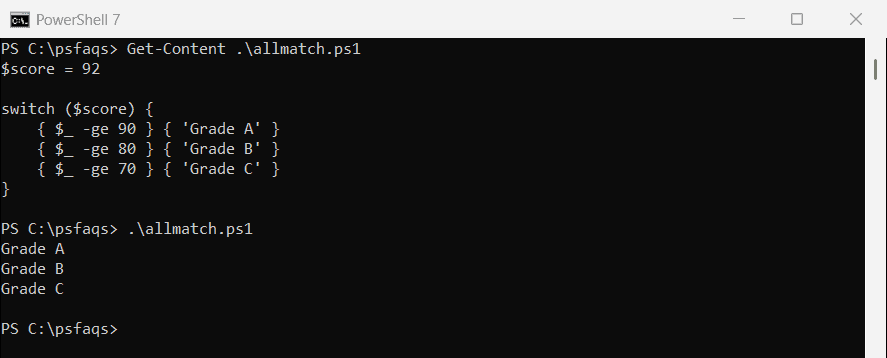
Add break to stop after the first match. This is the pattern you want for ranges like grades:
$score = 92

switch ($score) {
    { $_ -ge 90 } { 'Grade A'; break }
    { $_ -ge 80 } { 'Grade B'; break }
    { $_ -ge 70 } { 'Grade C'; break }
    default       { 'Grade F' }
}
Output:
Grade ASwitch with greater than and less than conditions
A condition can be a script block. PowerShell runs it with the current value in $_ and treats a $true result as a match:
$ages = 12, 25, 47, 70

foreach ($age in $ages) {
    $group = switch ($age) {
        { $_ -lt 18 }                 { 'Minor'; break }
        { $_ -ge 18 -and $_ -lt 35 }  { 'Young adult'; break }
        { $_ -ge 35 -and $_ -lt 65 }  { 'Adult'; break }
        default                       { 'Senior' }
    }
    "$age -> $group"
}
Output:
12 -> Minor
25 -> Young adult
47 -> Adult
70 -> Senior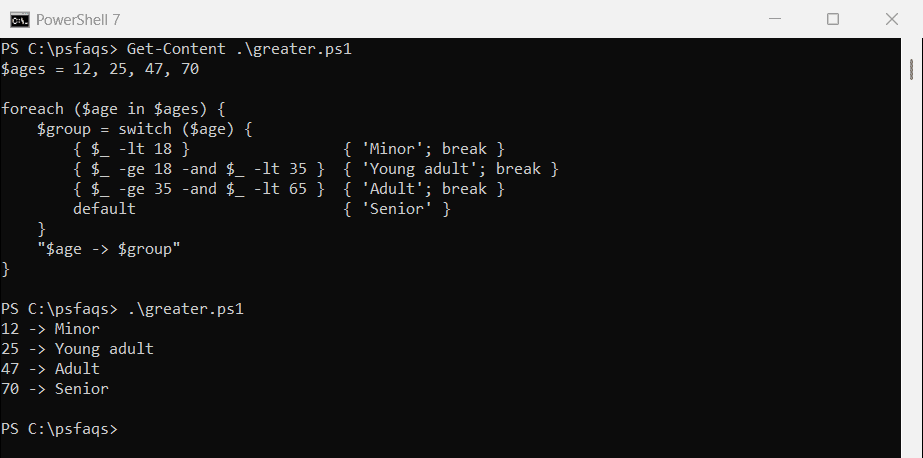
Because each range has break, an age matches only one group even if later conditions would also be true.
Switch with multiple conditions for one action
To run the same code for several values, use -in inside a script block condition:
$day = 'Saturday'

switch ($day) {
    { $_ -in 'Saturday', 'Sunday' } { 'Weekend'; break }
    { $_ -in 'Monday', 'Friday' }   { 'Long meeting day'; break }
    default                         { 'Regular workday' }
}
Output:
WeekendYou might expect to write the values as a comma-separated list. That’s a syntax error in PowerShell:
switch ('b') {
    'a', 'b' { 'Matched a or b' }
}
Output:
ParserError: C:\psfaqs\comma.ps1:2
Line |
   2 |      'a', 'b' { 'Matched a or b' }
     |         ~
     | Missing statement block in switch statement clause.
A regex alternation such as switch -Regex ($day) { '^(Saturday|Sunday)$' { 'Weekend' } } also works if you prefer patterns.
Use wildcards in a switch statement
Add -Wildcard to match with * and ?, just like the -like operator:
$files = 'report-2026.xlsx', 'backup.ps1', 'notes.txt', 'Q3-report.pdf'

foreach ($file in $files) {
    switch -Wildcard ($file) {
        '*.ps1'    { "$file is a script" }
        '*report*' { "$file is a report" }
        '*.txt'    { "$file is plain text" }
    }
}
Output:
report-2026.xlsx is a report
backup.ps1 is a script
notes.txt is plain text
Q3-report.pdf is a report
Each file matched one pattern here. A name like report.txt would match two patterns, and both blocks would run.
Some articles suggest putting an array of patterns in one condition. It doesn’t work, because PowerShell doesn’t compare against each element:
switch -Wildcard ('banana') {
    @('apple', 'banana') { 'Matched the array' }
    default              { 'No match' }
}
Output:
No matchCheck if a string contains text
For a “contains” check, wrap the text in * wildcards. Wildcard matching is case-insensitive too:
$subject = 'URGENT: Server SRV01 is down'

switch -Wildcard ($subject) {
    '*urgent*' { 'Flag as high priority' }
    '*down*'   { 'Open an incident' }
}
Output:
Flag as high priority
Open an incident
Use regex in a switch statement
-Regex treats each condition as a regular expression. Capture groups land in the automatic $Matches variable, so you can pull values out of each line:
$lines = 'ERROR 404 on /login', 'WARN disk at 91%', 'INFO user signed in'

foreach ($line in $lines) {
    switch -Regex ($line) {
        '^ERROR (\d+)'   { "Error code: $($Matches[1])" }
        '^WARN .* (\d+)%' { "Warning at $($Matches[1]) percent&quo