
To loop through each file in a folder in PowerShell, get the files with Get-ChildItem -File and process them in a foreach loop:
foreach ($file in Get-ChildItem -Path C:\Invoices -File) {
    $file.Name
}
Each $file is a full file object with Name, Length, LastWriteTime and more. Below I use a sample Invoices folder to show the pipeline version, filtering, subfolders, counters, renaming and parallel processing.
Loop through files with foreach
-File skips folders, so the Archive subfolder doesn’t show up here. The format string lines up the names and sizes:
foreach ($file in Get-ChildItem -Path .\Invoices -File) {
    '{0,-14} {1,3} bytes' -f $file.Name, $file.Length
}
Output:
inv-1001.txt    15 bytes
inv-1002.txt    17 bytes
summary.csv     12 bytes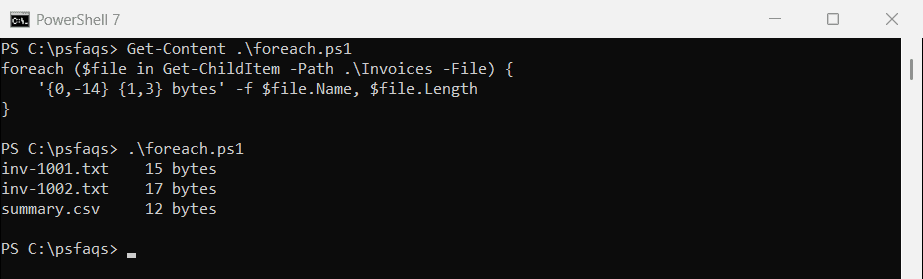
If the folder is empty, the loop simply runs zero times, so you don’t need a separate check.
Use ForEach-Object in a pipeline
ForEach-Object processes files as they arrive, and $_ is the current file. It’s handy at the end of a longer pipeline:
Get-ChildItem -Path .\Invoices -File | ForEach-Object {
    "$($_.BaseName) was last changed $($_.LastWriteTime.ToString('yyyy'))"
}
Output:
inv-1001 was last changed 2026
inv-1002 was last changed 2026
summary was last changed 2026
The foreach statement is usually faster because it doesn’t use the pipeline. ForEach-Object uses less memory on huge folders, because it doesn’t need the whole list first.
Filter by type and include subfolders
-Filter limits the loop to one extension, and -Recurse goes into every subfolder. This reads the first line of each .txt file:
foreach ($file in Get-ChildItem -Path .\Invoices -Filter *.txt -File -Recurse) {
    $first = Get-Content -Path $file.FullName -TotalCount 1
    '{0,-12} -> {1}' -f $file.Name, $first
}
Output:
inv-1001.txt -> Austin, $249.99
inv-1002.txt -> Denver, $1,200.00
inv-0950.txt -> Dallas, $89.50
inv-0950.txt comes from the Archive subfolder. Use $file.FullName with other cmdlets so the path is always complete. For more filters, see the Get-ChildItem filter guide.
Show progress with a counter
Wrap Get-ChildItem in @() to get a count up front, then increase a counter inside the loop:
$files = @(Get-ChildItem -Path .\Invoices -File -Recurse)
$i = 0
foreach ($file in $files) {
    $i++
    "[$i of $($files.Count)] $($file.Name)"
}
Output:
[1 of 4] inv-1001.txt
[2 of 4] inv-1002.txt
[3 of 4] summary.csv
[4 of 4] inv-0950.txt
For long jobs, you can pass the same numbers to Write-Progress to show a progress bar.
Rename every file safely
Changing files in a loop is where mistakes hurt. Add -WhatIf to preview the result first:
Get-ChildItem -Path .\Invoices -Filter 'inv-*.txt' -File | ForEach-Object {
    $newName = $_.Name.ToUpper().Replace('.TXT', '-2026.txt')
    Rename-Item -Path $_.FullName -NewName $newName -WhatIf
}
Output:
What if: Performing the operation "Rename File" on target "Item: C:\psfaqs\Invoices\inv-1001.txt Destination: C:\psfaqs\Invoices\INV-1001-2026.txt".
What if: Performing the operation "Rename File" on target "Item: C:\psfaqs\Invoices\inv-1002.txt Destination: C:\psfaqs\Invoices\INV-1002-2026.txt".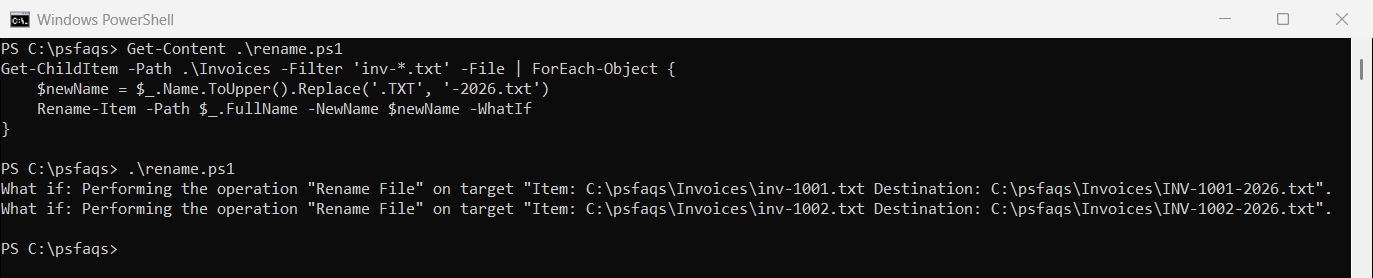
Only the two inv- files match. Remove -WhatIf to rename them for real. More patterns are in copying and renaming files and renaming files with a date.
Process files in parallel in PowerShell 7
ForEach-Object -Parallel runs several files at once, which speeds up slow work such as uploads or hashing. -ThrottleLimit sets how many run together:
Get-ChildItem -Path .\Invoices -File -Recurse |
    ForEach-Object -Parallel { "$($_.Name): $($_.Length) bytes" } -ThrottleLimit 4 |
    Sort-Object
Output:
inv-0950.txt: 14 bytes
inv-1001.txt: 15 bytes
inv-1002.txt: 17 bytes
summary.csv: 12 bytes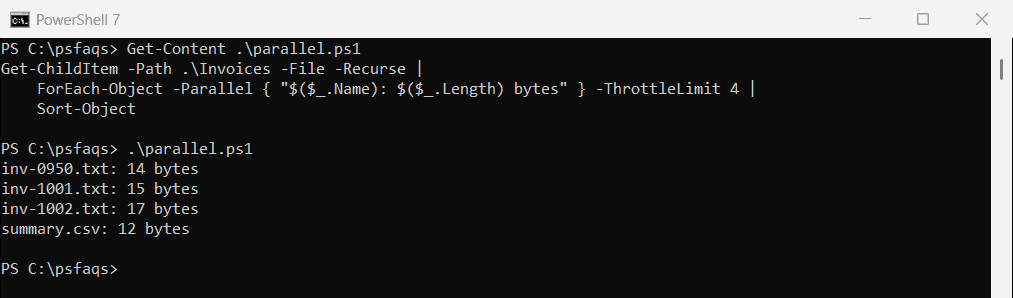
-Parallel needs PowerShell 7 and runs each block in its own runspace, so outside variables need $using:. It only pays off when each file takes real time. See the ForEach-Object reference.
Frequently Asked Questions
How do I loop through files in a folder in PowerShell?
Use foreach ($file in Get-ChildItem -Path C:\Folder -File) { ... }. Inside the loop, $file is the file object.
How do I include subfolders?
Add -Recurse to Get-ChildItem: Get-ChildItem -Path C:\Folder -File -Recurse.
What is the difference between foreach and ForEach-Object?
foreach is a language statement that’s usually faster. ForEach-Object works in the pipeline and handles items one at a time.
How do I loop through only certain file types?
Use -Filter, as in Get-ChildItem -Path C:\Folder -Filter *.csv -File.
Can I process files in parallel in PowerShell?
Yes, in PowerShell 7 with ForEach-Object -Parallel. Windows PowerShell 5.1 doesn’t support it.
If you automate file tasks, these are useful too: