
To remove the last line from a file with PowerShell, read the lines with Get-Content, drop the last one with Select-Object -SkipLast 1, and write the rest back with Set-Content:
$path = 'C:\psfaqs\Files\report.csv'

$lines = Get-Content -Path $path | Select-Object -SkipLast 1
Set-Content -Path $path -Value $lines

Get-Content -Path $path
Output:
Region,Total
West,1250
South,980
Reading into a variable first matters, as the next section shows. I ran every example in PowerShell 7.6 and Windows PowerShell 5.1, with the same results.
Don’t read and write the same file in one pipeline
The one-liner everyone tries fails. Get-Content still has the file open when Set-Content starts writing to it:
$path = 'C:\psfaqs\Files\report.csv'

try {
    Get-Content -Path $path | Select-Object -SkipLast 1 | Set-Content -Path $path -ErrorAction Stop
    "File now has $((Get-Content -Path $path).Count) lines"
}
catch { 'Failed. The file is still open for reading while Set-Content tries to write it' }
Output:
Failed. The file is still open for reading while Set-Content tries to write it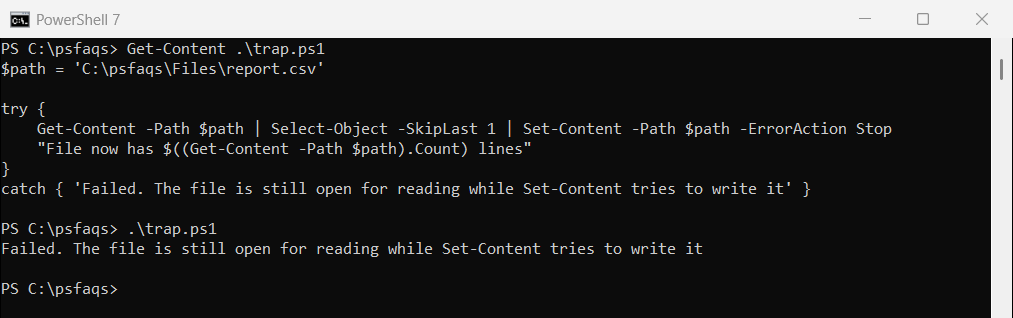
Wrap Get-Content in parentheses. PowerShell then reads the whole file before anything goes down the pipeline, so the one-liner works:
$path = 'C:\psfaqs\Files\report.csv'

(Get-Content -Path $path) | Select-Object -SkipLast 1 | Set-Content -Path $path
"Lines left: $((Get-Content -Path $path) -join ' | ')"
Output:
Lines left: Region,Total | West,1250 | South,980Test on a copy first, since Set-Content replaces the file. Reading a file line by line covers Get-Content in more detail.
Why not use an index slice?
Many scripts use $lines[0..($lines.Count – 2)]. It breaks on a one-line file, because Get-Content then returns a single string, and the slice picks characters instead of lines:
$lines = Get-Content -Path C:\psfaqs\Files\single.txt
"Lines in file: $($lines.Count)"

"Index slice [0..(Count-2)]: $($lines[0..($lines.Count - 2)] -join ' | ')"
"Select-Object -SkipLast 1:  '$((Get-Content -Path C:\psfaqs\Files\single.txt | Select-Object -SkipLast 1) -join ' | ')'"
Output:
Lines in file: 1
Index slice [0..(Count-2)]: O | e
Select-Object -SkipLast 1:  ''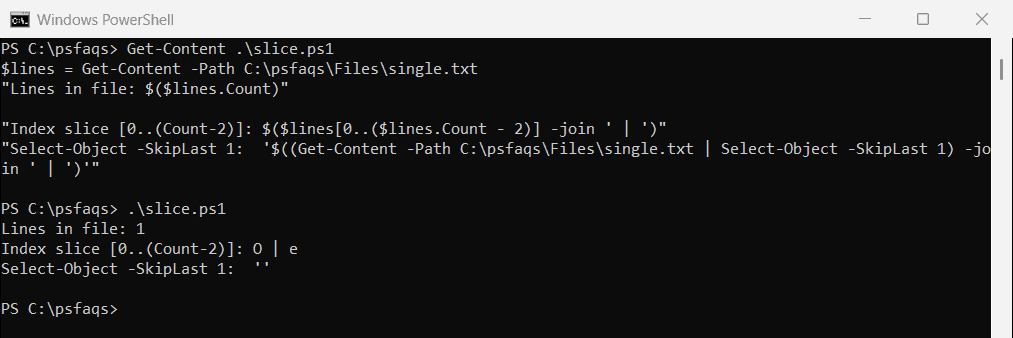
-SkipLast handles one-line and empty files correctly. If you do use a slice, wrap Get-Content in @() so you always get an array.
Remove the first and last lines
Chain -Skip 1 and -SkipLast 1 to drop a header and a footer at once, which is common in exported reports:
$path = 'C:\psfaqs\Files\export.txt'

(Get-Content -Path $path) | Select-Object -Skip 1 | Select-Object -SkipLast 1 | Set-Content -Path $path
Get-Content -Path $path
Output:
web01
web02
sql01
Change the numbers to drop more lines, like -Skip 3 for a three-line header.
Remove trailing empty lines
Blank or space-only lines at the end of a file are easy to miss. Load the lines into a list and remove them from the end until you reach real text:
$path = 'C:\psfaqs\Files\notes.txt'
"Before: $((Get-Content -Path $path).Count) lines"

$lines = [System.Collections.Generic.List[string]](Get-Content -Path $path)
while ($lines.Count -gt 0 -and [string]::IsNullOrWhiteSpace($lines[$lines.Count - 1])) {
    $lines.RemoveAt($lines.Count - 1)
}
Set-Content -Path $path -Value $lines

"After:  $((Get-Content -Path $path).Count) lines: $((Get-Content -Path $path) -join ' | ')"
Output:
Before: 4 lines
After:  2 lines: Line one | Line two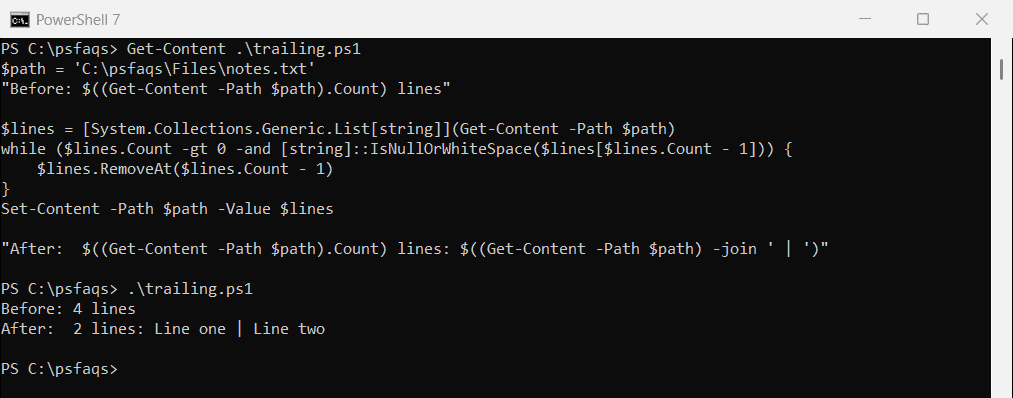
IsNullOrWhiteSpace treats lines with only spaces as empty too. Blank lines in the middle of the file stay where they are.
Blank lines in the middle can be removed too, as shown in removing blank lines from an array.
Remove the final line break
Set-Content always ends the file with a line break. Some tools treat that as an extra empty line. Join the lines yourself and add -NoNewline to leave it off:
$path = 'C:\psfaqs\Files\report.csv'
$bytes = [System.IO.File]::ReadAllBytes($path)
"Ends with a line break: $($bytes[-2] -eq 13 -and $bytes[-1] -eq 10)"

$text = (Get-Content -Path $path) -join "`r`n"
Set-Content -Path $path -Value $text -NoNewline
$bytes = [System.IO.File]::ReadAllBytes($path)
"After -NoNewline:       $($bytes[-2] -eq 13 -and $bytes[-1] -eq 10), last character: '$([char]$bytes[-1])'"
Output:
Ends with a line break: True
After -NoNewline:       False, last character: '0'
The file now ends with the last character of the text. Set-Content’s default encoding differs between versions, so add -Encoding utf8 when the file must match exactly. The Set-Content documentation has the details.
Frequently Asked Questions
How do I remove the last line of a file in PowerShell?
Run (Get-Content -Path $path) | Select-Object -SkipLast 1 | Set-Content -Path $path. The parentheses make it safe to write to the same file.
How do I remove the first and last lines of a file?
Add both: (Get-Content $path) | Select-Object -Skip 1 | Select-Object -SkipLast 1 | Set-Content $path.
How do I remove empty lines at the end of a file?
Load the lines into a List and call RemoveAt on the last item while it’s empty, then write the list back.