
To delete user profiles older than 30 days with PowerShell, find them with Win32_UserProfile, skip system and loaded profiles, and remove each one with Remove-CimInstance. Run it as administrator, with -WhatIf first:
$cutoff = (Get-Date).AddDays(-30)
Get-CimInstance -ClassName Win32_UserProfile |
    Where-Object { -not $_.Special -and -not $_.Loaded -and $_.LastUseTime -lt $cutoff } |
    Remove-CimInstance -WhatIf
Remove-CimInstance deletes the profile folder and its registry entry together. Below I explain each filter, test it on sample data, and cover remote PCs and the Group Policy alternative.
I didn’t delete anything on my PC, and its real profiles would show account names. The examples use the built-in system profiles and sample data, and the removal is shown as code.
What Win32_UserProfile tells you
Every profile on the PC is a Win32_UserProfile object. These are the properties that matter for cleanup:
$names = (Get-CimInstance -ClassName Win32_UserProfile | Get-Member -MemberType Property).Name
($names | Where-Object { $_ -in 'LocalPath', 'LastUseTime', 'Loaded', 'Special', 'SID', 'RoamingConfigured' }) -join ', '
Output:
LastUseTime, Loaded, LocalPath, RoamingConfigured, SID, Special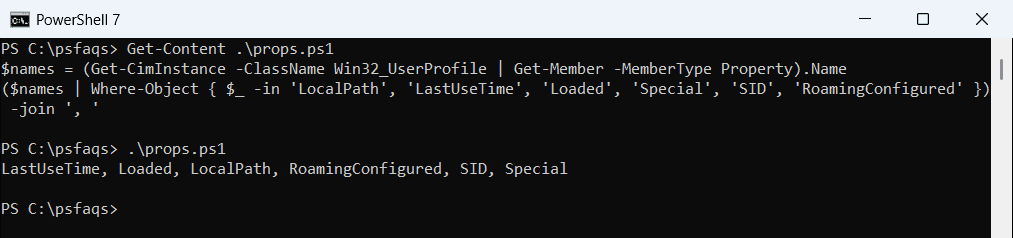
| Property | What it means |
|---|---|
| LocalPath | The profile folder, such as C:\Users\jsmith |
| LastUseTime | When Windows last recorded the profile as used |
| Loaded | True if the user is signed in or a process has it open |
| Special | True for system profiles that must never be deleted |
| SID | The account’s security identifier |
To remove a single profile by name, see deleting user profiles on Windows 11.
Always skip special profiles
Windows has system profiles for its own services. Special is True for them, and deleting one can break Windows:
Get-CimInstance -ClassName Win32_UserProfile -Filter 'Special = True' |
    Sort-Object -Property LocalPath |
    Select-Object -Property LocalPath, Special, Loaded
Output:
LocalPath                                 Special Loaded
---------                                 ------- ------
C:\WINDOWS\ServiceProfiles\LocalService      True   True
C:\WINDOWS\ServiceProfiles\NetworkService    True   True
C:\WINDOWS\system32\config\systemprofile     True   True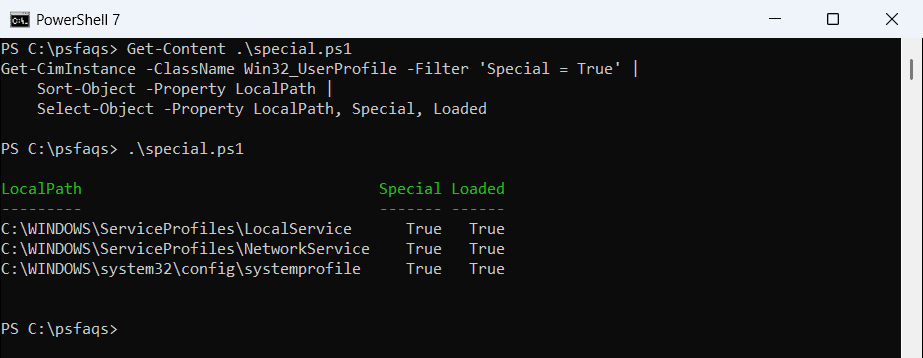
The filter -not $_.Special keeps them out. Loaded profiles are skipped too, because Windows can’t remove a profile while it’s in use.
Test the 30-day filter safely
Before pointing the filter at real profiles, I tried it on sample objects with the same properties and a fixed date of October 4, 2026:
$today  = Get-Date -Date '2026-10-04'
$cutoff = $today.AddDays(-30)
$profiles = @(
    [pscustomobject]@{ LocalPath = 'C:\Users\jsmith';  LastUseTime = [datetime]'2026-08-12'; Loaded = $false; Special = $false }
    [pscustomobject]@{ LocalPath = 'C:\Users\amiller'; LastUseTime = [datetime]'2026-10-01'; Loaded = $false; Special = $false }
    [pscustomobject]@{ LocalPath = 'C:\Users\dbrooks'; LastUseTime = [datetime]'2026-07-20'; Loaded = $true;  Special = $false }
    [pscustomobject]@{ LocalPath = 'C:\Users\temp.kiosk'; LastUseTime = [datetime]'2026-06-30'; Loaded = $false; Special = $false }
)

$profiles |
    Where-Object { -not $_.Special -and -not $_.Loaded -and $_.LastUseTime -lt $cutoff } |
    Select-Object -Property LocalPath, @{ Name = 'DaysUnused'; Expression = { ($today - $_.LastUseTime).Days } }
Output:
LocalPath           DaysUnused
---------           ----------
C:\Users\jsmith             53
C:\Users\temp.kiosk         96