
To get all files in a directory with PowerShell, run Get-ChildItem with the folder path and -File. -File leaves out the subfolders:
Get-ChildItem -Path C:\psfaqs\Projects -File | Select-Object -Property Name, Length, LastWriteTimeOutput:
Name              Length LastWriteTime
----              ------ -------------
budget-2026.xlsx    1026 9/20/2026 12:00:00 AM
legacy-report.xls   1026 12/1/2025 12:00:00 AM
q3-sales.csv        1026 9/26/2026 12:00:00 AM
readme.txt          1026 7/4/2026 12:00:00 AM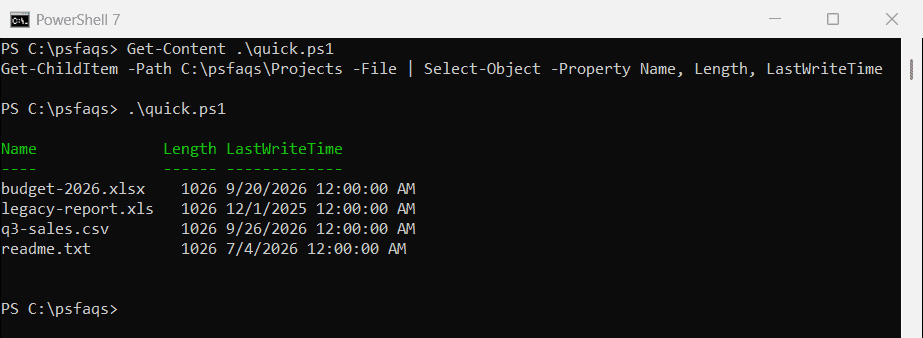
Without -File, you’d get the Archive and node_modules folders in the list too. Use -Directory when you want only folders. I ran every example in PowerShell 7.6 and Windows PowerShell 5.1.
Include hidden files
Get-ChildItem skips hidden and system files unless you add -Force:
"Without -Force: $((Get-ChildItem -Path C:\psfaqs\Projects -File).Count) files"
"With -Force:    $((Get-ChildItem -Path C:\psfaqs\Projects -File -Force).Count) files"
Output:
Without -Force: 4 files
With -Force:    5 files
The extra file here is .env, which is hidden. Configuration files like it are easy to miss in an audit without -Force.
Get files in subfolders too
-Recurse goes through every subfolder, and -Depth limits how many levels down it goes. -Name returns short paths relative to the starting folder:
Get-ChildItem -Path C:\psfaqs\Projects -Filter *.csv -Recurse -Name

'--- Only one level down ---'
Get-ChildItem -Path C:\psfaqs\Projects -Filter *.csv -Recurse -Depth 1 -Name
Output:
q3-sales.csv
Archive\q2-sales.csv
Archive\2025\q4-sales.csv
node_modules\lib\package.csv
--- Only one level down ---
q3-sales.csv
Archive\q2-sales.csv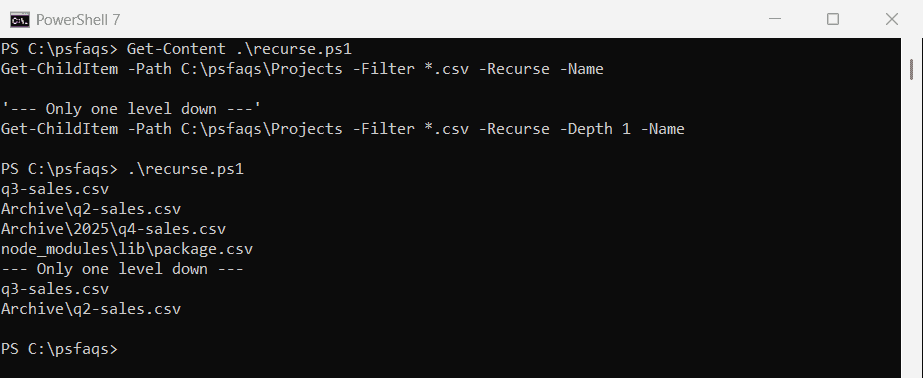
-Filter vs -Include: why you got no files
Both filter by name, but -Include has a catch, and -Filter has one in Windows PowerShell 5.1:
"-Include alone:        [$((Get-ChildItem -Path C:\psfaqs\Projects -Include *.csv).Name -join ', ')]"
"-Include with \*:      [$((Get-ChildItem -Path C:\psfaqs\Projects\* -Include *.csv, *.txt).Name -join ', ')]"
"-Filter *.xls:         [$((Get-ChildItem -Path C:\psfaqs\Projects -Filter *.xls).Name -join ', ')]"
Output in PowerShell 7:
-Include alone:        []
-Include with \*:      [q3-sales.csv, readme.txt]
-Filter *.xls:         [legacy-report.xls]
Output in Windows PowerShell 5.1:
-Include alone:        []
-Include with \*:      [q3-sales.csv, readme.txt]
-Filter *.xls:         [budget-2026.xlsx, legacy-report.xls]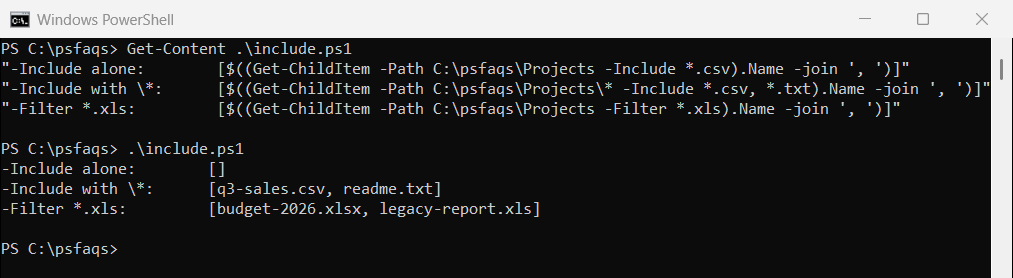
-Include only works when the path ends in \* or you add -Recurse. In 5.1, -Filter *.xls also matched the .xlsx file, because Windows checks the short 8.3 file names too.
When the extension must match exactly, add Where-Object Extension -EQ '.xls'. The Get-ChildItem documentation describes both parameters.
Get the newest (or first) N files
Sort by LastWriteTime and take the top of the list. Keep -File in the command, or folders get sorted in with the files:
Get-ChildItem -Path C:\psfaqs\Projects -File -Recurse |
    Sort-Object -Property LastWriteTime -Descending |
    Select-Object -First 3 -Property Name, LastWriteTime
Output:
Name             LastWriteTime
----             -------------
q3-sales.csv     9/26/2026 12:00:00 AM
budget-2026.xlsx 9/20/2026 12:00:00 AM
package.csv      9/1/2026 12:00:00 AM
Use -Descending for the newest files and leave it out for the oldest.
Skip a folder when searching
-Exclude only matches file and folder names, not paths, so it can’t skip a whole folder tree. Filter on the full path instead:
Get-ChildItem -Path C:\psfaqs\Projects -Filter *.csv -Recurse |
    Where-Object FullName -NotLike '*\node_modules\*' |
    Select-Object -ExpandProperty FullName
Output:
C:\psfaqs\Projects\q3-sales.csv
C:\psfaqs\Projects\Archive\q2-sales.csv
C:\psfaqs\Projects\Archive\2025\q4-sales.csv
Count the files and save the list
$stats = Get-ChildItem -Path C:\psfaqs\Projects -File -Recurse | Measure-Object -Property Length -Sum
"$($stats.Count) files, $([int]($stats.Sum / 1KB)) KB in total"

Get-ChildItem -Path C:\psfaqs\Projects -File -Recurse |
    Select-Object -Property FullName, Length, LastWriteTime |
    Export-Csv -Path C:\psfaqs\file-list.csv -NoTypeInformation
"Saved $((Import-Csv -Path C:\psfaqs\file-list.csv).Count) rows to file-list.csv"
Output:
7 files, 7 KB in total
Saved 7 rows to file-list.csv
The CSV opens in Excel, which is handy when someone asks for a file inventory. See how to get file details for more properties you can add.
Frequently Asked Questions
How do I get all files in a directory with PowerShell?
Use Get-ChildItem -Path C:\Folder -File. Add -Recurse for subfolders and -Force to include hidden files.
How do I list files only, without folders?
Add the -File switch: Get-ChildItem -Path C:\Folder -File. Use -Directory for folders only.
Why does Get-ChildItem -Include return nothing?
-Include only works with -Recurse or when the path ends in \*, like Get-ChildItem C:\Folder\* -Include *.csv.