
To get your IP address using PowerShell, run Get-NetIPConfiguration and read the IPv4 address of the adapter that has a default gateway. That’s the address your PC uses on the network:
(Get-NetIPConfiguration | Where-Object IPv4DefaultGateway).IPv4Address.IPAddressBelow I list every address, get the main one with its gateway, return just the address for scripts, and check remote PCs and your public IP. I’ve masked my real addresses in the output.
List all IPv4 addresses with Get-NetIPAddress
Get-NetIPAddress returns every address on every adapter, including ones you never use:
Get-NetIPAddress -AddressFamily IPv4 |
    Sort-Object -Property InterfaceAlias |
    ForEach-Object { '{0,-28} {1,-16} {2}' -f $_.InterfaceAlias, $_.IPAddress, $_.PrefixOrigin }
Output:
Ethernet 2                   169.254.244.249  WellKnown
Local Area Connection        169.254.49.236   WellKnown
Local Area Connection* 1     169.254.185.61   WellKnown
Local Area Connection* 2     169.254.50.71    WellKnown
Loopback Pseudo-Interface 1  127.0.0.1        WellKnown
Wi-Fi                        192.168.1.25     Dhcp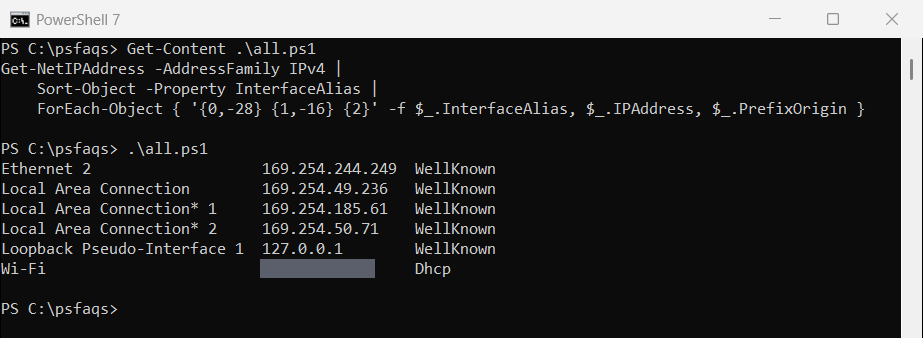
Addresses starting with 169.254 mean the adapter didn’t get an address from DHCP, usually because it’s disconnected. 127.0.0.1 is the loopback address every PC has.
To go from a MAC address to an IP, see finding an IP from a MAC address.
Get the main IP address and gateway
Get-NetIPConfiguration groups the address, gateway and adapter together. Filtering on a default gateway picks the adapter you’re actually using:
$config = Get-NetIPConfiguration | Where-Object IPv4DefaultGateway | Select-Object -First 1

"Adapter:  $($config.InterfaceAlias)"
"IPv4:     $($config.IPv4Address.IPAddress)/$($config.IPv4Address.PrefixLength)"
"Gateway:  $($config.IPv4DefaultGateway.NextHop)"
Output:
Adapter:  Wi-Fi
IPv4:     192.168.1.25/24
Gateway:  192.168.1.1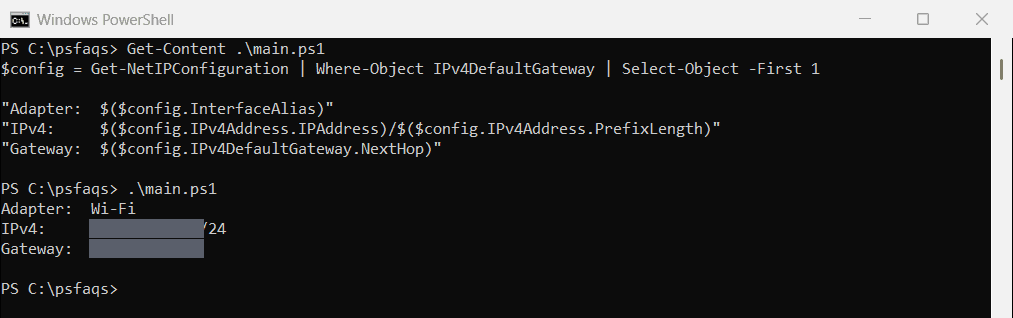
The /24 prefix means the subnet mask is 255.255.255.0.
Get only the IP address as a string
For scripts, filter out the loopback and 169.254 addresses and expand the IPAddress property:
$ip = Get-NetIPAddress -AddressFamily IPv4 |
    Where-Object { $_.PrefixOrigin -in 'Dhcp', 'Manual' -and $_.AddressState -eq 'Preferred' } |
    Select-Object -ExpandProperty IPAddress

"Usable IPv4 address: $ip"
"Type: $($ip.GetType().Name)"
Output:
Usable IPv4 address: 192.168.1.25
Type: String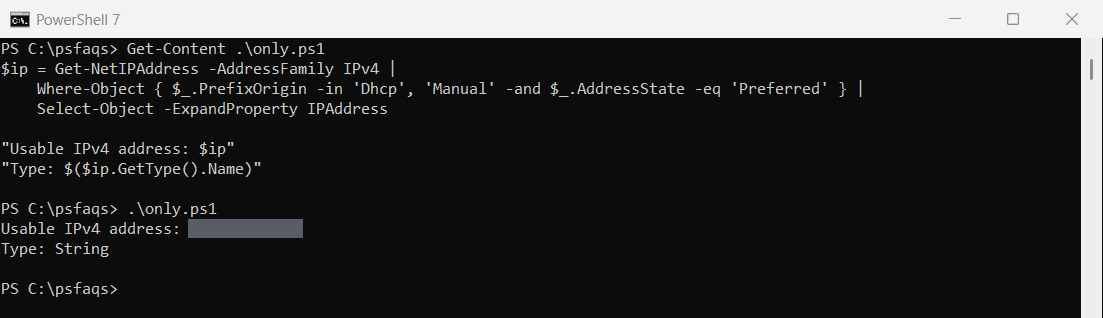
PrefixOrigin tells you where an address came from: Dhcp, Manual, or WellKnown for loopback and 169.254 addresses. The Get-NetIPAddress reference lists every property.
IPv6 addresses
Change -AddressFamily to IPv6 to see IPv6 addresses. Many are temporary, and global ones are visible on the internet, so be careful before you share them.
For more ways to turn objects into plain text, see converting an object to a string.
Get the IP address of a remote computer
Get-NetIPAddress accepts a CIM session, so you can query another PC. You need admin rights and WinRM on the remote PC:
$session = New-CimSession -ComputerName PC-SALES-07
Get-NetIPAddress -CimSession $session -AddressFamily IPv4 |
    Where-Object PrefixOrigin -in 'Dhcp', 'Manual' |
    Select-Object -Property InterfaceAlias, IPAddress
Remove-CimSession -CimSession $session
To look up another PC’s address by name without remoting, use Resolve-DnsName -Name PC-SALES-07 -Type A. Fixing WinRM errors helps if the session fails.
Get your public IP address
Your public IP is the address websites see, usually your router’s. PowerShell can’t read it locally, so it has to ask an outside service:
Invoke-RestMethod -Uri 'https://api.ipify.org'That sends a request to a third-party site, so only use one you trust. Treat your public IP as private information.
Frequently Asked Questions
How do I get my IP address in PowerShell?
Run (Get-NetIPConfiguration | Where-Object IPv4DefaultGateway).IPv4Address.IPAddress. It returns the address of the adapter you’re using.
What is the PowerShell equivalent of ipconfig?
Get-NetIPConfiguration shows the adapter, IP address, gateway and DNS servers, similar to ipconfig.
Why do I see a 169.254 address?
The adapter didn’t get an address from DHCP. It’s usually disconnected, and you can ignore it.
How do I get only the IPv4 address as text?
Use Get-NetIPAddress -AddressFamily IPv4 | Where-Object PrefixOrigin -eq 'Dhcp' | Select-Object -ExpandProperty IPAddress.
How do I find my public IP address with PowerShell?
Ask an external service, for example Invoke-RestMethod -Uri 'https://api.ipify.org'. It can’t be read from your PC’s settings. See Microsoft’s Get-NetIPConfiguration reference.
Keep exploring networking with PowerShell: