
To enable PowerShell logging, turn on Script Block Logging, which records the code of every script and command that runs. For Windows PowerShell 5.1, set this registry value as administrator:
$key = 'HKLM:\SOFTWARE\Policies\Microsoft\Windows\PowerShell\ScriptBlockLogging'
New-Item -Path $key -Force | Out-Null
Set-ItemProperty -Path $key -Name EnableScriptBlockLogging -Value 1
PowerShell 7 uses its own key and log. Below I check what’s already on, explain the three kinds of logging and show how to enable each one for both versions.
I didn’t change the logging settings on my PC. The examples read them and record a transcript in a test folder, and the commands that change policy are shown as code.
The three kinds of PowerShell logging
| Logging | What it records | Where it goes |
|---|---|---|
| Script Block Logging | The text of every script block that runs (event 4104) | Operational event log |
| Module Logging | Pipeline details for the modules you choose (event 4103) | Operational event log |
| Transcription | Everything typed and printed in each session | Text files in a folder |
Security teams usually turn on Script Block Logging first, because it shows exactly what ran, even when a script hides its code.
The logs end up in the event log, which you can read with PowerShell event log commands.
Check the current logging policy
The settings live under the Policies key in the registry. Windows PowerShell and PowerShell 7 each have their own, so check both. Reading them doesn’t need admin rights:
$roots = @{
    'Windows PowerShell' = 'HKLM:\SOFTWARE\Policies\Microsoft\Windows\PowerShell'
    'PowerShell 7'       = 'HKLM:\SOFTWARE\Policies\Microsoft\PowerShellCore'
}
foreach ($setting in 'ScriptBlockLogging', 'ModuleLogging', 'Transcription') {
    [pscustomobject]@{
        Setting           = $setting
        WindowsPowerShell = if (Test-Path "$($roots['Windows PowerShell'])\$setting") { 'Configured' } else { 'Not set' }
        PowerShell7       = if (Test-Path "$($roots['PowerShell 7'])\$setting") { 'Configured' } else { 'Not set' }
    }
}
Output:
Setting            WindowsPowerShell PowerShell7
-------            ----------------- -----------
ScriptBlockLogging Not set           Not set
ModuleLogging      Not set           Not set
Transcription      Not set           Not set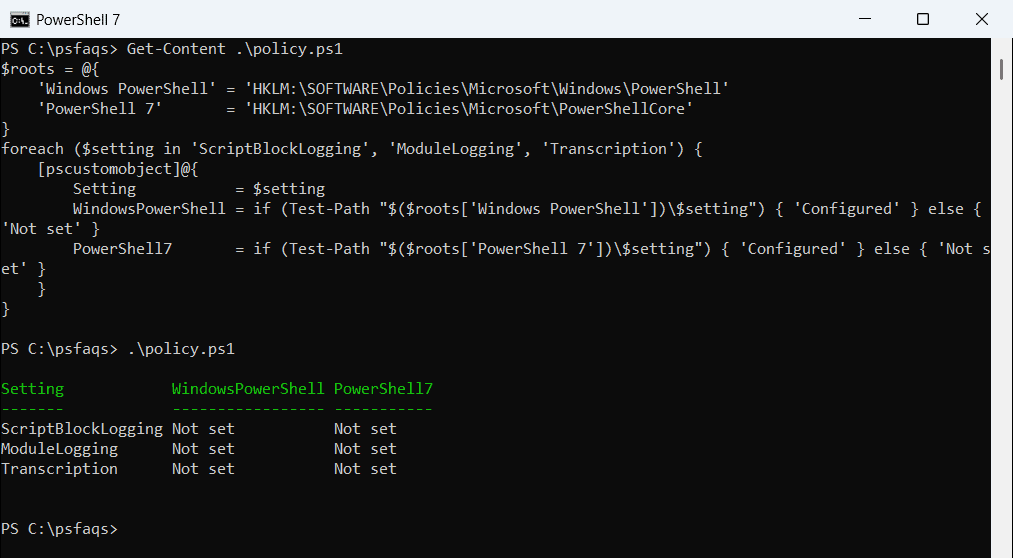
Configured means the key exists. Open it with Get-ItemProperty to see whether the Enable value is 1. Group Policy writes these same keys, so this check works on domain PCs too.
You can read more about checking registry values in PowerShell Get-ItemProperty: registry and file examples.
Check the event logs
Windows PowerShell writes to Microsoft-Windows-PowerShell/Operational. PowerShell 7 writes to PowerShellCore/Operational:
Get-WinEvent -ListLog 'Microsoft-Windows-PowerShell/Operational', 'PowerShellCore/Operational' |
    Select-Object -Property LogName, IsEnabled
Output:
LogName                                  IsEnabled
-------                                  ---------
Microsoft-Windows-PowerShell/Operational      True
PowerShellCore/Operational                    True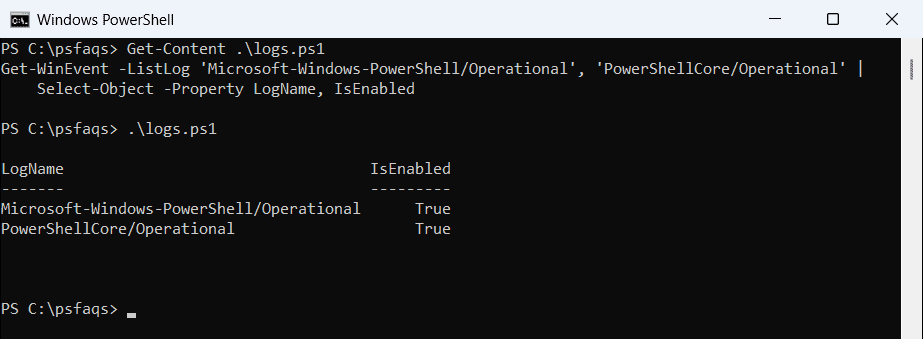
If PowerShellCore/Operational is missing, register the event provider from an elevated window with & $PSHOME\RegisterManifest.ps1.
For more ways to filter these events, see reading Windows event logs.
Enable Script Block Logging for PowerShell 7
Run this as administrator. New PowerShell 7 sessions start logging right away:
$key = 'HKLM:\SOFTWARE\Policies\Microsoft\PowerShellCore\ScriptBlockLogging'
New-Item -Path $key -Force | Out-Null
Set-ItemProperty -Path $key -Name EnableScriptBlockLogging -Value 1
To follow the Windows PowerShell setting instead, set UseWindowsPowerShellPolicySetting to 1 in the same key. On a domain, use Group Policy: Administrative Templates > Windows Components > Windows PowerShell, or the PowerShell Core templates you install with & $PSHOME\InstallPSCorePolicyDefinitions.ps1.
The setting lives in the registry, so creating the registry key if it does not exist avoids errors on a fresh PC.
Enable Module Logging
Module Logging needs two values: the switch itself and a list of module names. An asterisk logs every module:
<