
If you’re managing HP computers in your office or just want to check the BIOS version on your own machine, PowerShell makes this super easy. No need to restart your computer or dig through BIOS menus anymore.
Let me show you exactly how to do this using PowerShell.
Why Would You Want to Check BIOS Version?
Let’s talk about why this matters.
You might need to check your BIOS version when:
- Your IT department needs an inventory of all computers and their BIOS versions
- You’re troubleshooting hardware issues, and HP support asks for this information
- You want to know if a BIOS update is available for your machine
- You’re preparing a report on system configurations
- You’re checking if your machines are vulnerable to specific security issues that affect certain BIOS versions
Now, the old way to check BIOS version meant restarting your computer and pressing F10 or ESC during startup. That’s annoying and time-consuming, especially if you need to check multiple computers.
PowerShell gives you a much better way.
The Quick Method using Get-CimInstance
If you just want the BIOS version right now, here’s the fastest way:
Open PowerShell and type:
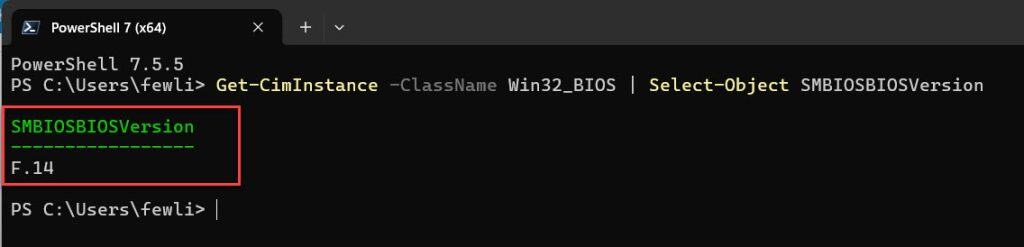
Get-CimInstance -ClassName Win32_BIOS | Select-Object SMBIOSBIOSVersionHit Enter, and you’ll see your BIOS version.
Done. That’s it.
I executed the above cmdlet in my HP laptop, and you can see the exact output in the screenshot below:
But if you want to understand what’s happening, get more information, or check multiple computers, keep reading.
Let’s break down what that command actually does.
- Get-CimInstance is a PowerShell command that retrieves information from your computer’s hardware and software. Think of it as asking Windows to tell you about itself.
- Win32_BIOS is the specific class of information you’re asking for. Windows keeps track of all sorts of system details in different “classes,” and Win32_BIOS is where all the BIOS information lives.
- Select-Object SMBIOSBIOSVersion tells PowerShell to only show you the BIOS version, not all the other BIOS information (and there’s a lot of it).
The pipe symbol | just connects these parts together. It takes the output from the first command and sends it to the second command.
Check out Why Does Windows PowerShell Keep Popping Up?
Getting More BIOS Information
Sometimes you need more than just the version number. Here’s how to see everything about your BIOS:
Get-CimInstance -ClassName Win32_BIOSThis gives you a bunch of information:
- SMBIOSBIOSVersion (the version number)
- Manufacturer (should say “HP” or “Hewlett-Packard”)
- Name (the BIOS name)
- SerialNumber (your computer’s serial number)
- ReleaseDate (when this BIOS version was released)
- Version (system BIOS version information)
This is really useful when you’re filling out support tickets or keeping detailed inventory records.
Making the Output Look Better
Raw PowerShell output isn’t always pretty. Here’s how to make it easier to read:
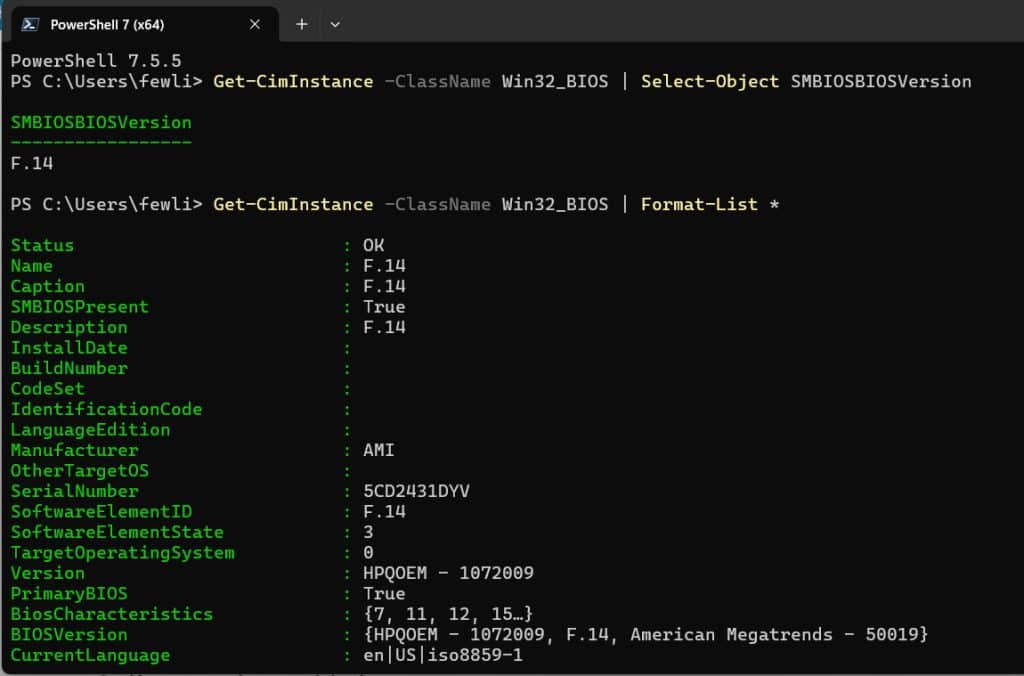
Get-CimInstance -ClassName Win32_BIOS | Format-List *The Format-List command spreads everything out vertically, which is much easier on the eyes. The asterisk (*) means “show me everything.”
Or if you prefer a table format:
Get-CimInstance -ClassName Win32_BIOS | Format-Table -AutoSizePick whichever format works better for your eyes.
Read PowerShell Get-WindowsAutoPilotInfo
Checking BIOS Version on Remote HP Computers
Here’s where PowerShell really shines. You can check BIOS versions on other computers in your network without walking to each desk.
For a single remote computer:
Get-CimInstance -ClassName Win32_BIOS -ComputerName "COMPUTER-NAME" | Select-Object PSComputerName, SMBIOSBIOSVersionReplace “COMPUTER-NAME” with the actual computer name on your network.
Important: You need admin rights on the remote computer for this to work.
For multiple computers, create a list:
$computers = "COMPUTER1", "COMPUTER2", "COMPUTER3"
foreach ($computer in $computers) {
    Get-CimInstance -ClassName Win32_BIOS -ComputerName $computer | Select-Object PSComputerName, SMBIOSBIOSVersion
}
This loops through each computer and displays its BIOS version. Super handy when you manage multiple machines.
Export BIOS Information to a File
If you need to save this information or share it with someone, export it to a CSV file:
Get-CimInstance -ClassName Win32_BIOS | Select-Object Manufacturer, SMBIOSBIOSVersion, SerialNumber, ReleaseDate | Export-Csv -Path "C:\BIOSInfo.csv" -NoTypeInformationThis creates a CSV file on your C drive that you can open in Excel. Perfect for reports or keeping records.
For multiple computers:
$computers = "COMPUTER1", "COMPUTER2", "COMPUTER3"
$results = foreach ($computer in $computers) {
    Get-CimInstance -ClassName Win32_BIOS -ComputerName $computer | Select-Object PSComputerName, Manufacturer, SMBIOSBIOSVersion, SerialNumber
}
$results | Export-Csv -Path "C:\Bijay\AllBIOSInfo.csv" -NoTypeInformation
Now you have a nice spreadsheet with all your computers and their BIOS versions.
Check out Check Who Modified a File Last in Windows Using PowerShell
The Old Way (For Older Systems)
If you’re working with really old computers running Windows 7 or older PowerShell versions, the Get-CimInstance command might not work.
Use this instead:
Get-WmiObject -Class Win32_BIOS | Select-Object SMBIOSBIOSVersionGet-WmiObject is the older version of Get-CimInstance. It does the same thing but uses older technology. Microsoft recommends using Get-CimInstance on newer systems, but Get-WmiObject still works if you need it.
Troubleshooting Common Issues
“Access Denied” Error on Remote Computers
You need administrator privileges on the remote computer. Either:
- Run PowerShell as Administrator on your local machine
- Make sure your account has admin rights on the remote computer
- Check that Windows Firewall isn’t blocking the connection
“RPC Server is Unavailable”
This usually means:
- The remote computer is turned off or not on the network
- The Windows Remote Management service isn’t running
- The firewall is blocking the connection
Try this to test connectivity:
Test-Connection -ComputerName "COMPUTER-NAME" -Count 2If that works, the computer is reachable, and you have a permissions or service issue.
Nothing Happens or Command Not Found
Make sure you’re using PowerShell, not Command Prompt. They look similar, but they’re different. PowerShell has a blue background by default, and the window title says “Windows PowerShell.”
Check out Delete User Profiles Using PowerShell in Windows 11
Create a Reusable Script
If you do this often, save it as a script. Open Notepad and paste this:
# Get HP BIOS Version
Write-Host "Retrieving BIOS Information..." -ForegroundColor Green
$bios = Get-CimInstance -ClassName Win32_BIOS
Write-Host "`nManufacturer: $($bios.Manufacturer)" -ForegroundColor Yellow
Write-Host "BIOS Version: $($bios.SMBIOSBIOSVersion)" -ForegroundColor Yellow
Write-Host "Serial Number: $($bios.SerialNumber)" -ForegroundColor Yellow
Write-Host "Release Date: $($bios.ReleaseDate)" -ForegroundColor Yellow
Save it as “GetBIOSVersion.ps1” on your desktop.
To run it, right-click and choose “Run with PowerShell.”
If Windows blocks it, you might need to change the execution policy first:
Set-ExecutionPolicy -ExecutionPolicy RemoteSigned -Scope CurrentUserThis lets you run scripts you create yourself.
Checking If BIOS Update Is Needed
PowerShell shows you the current version, but how do you know if you need an update?
- Note your current BIOS version from PowerShell
- Get your computer model:
Get-CimInstance -ClassName Win32_ComputerSystem | Select-Object Model - Visit HP’s support website and enter your model number
- Compare the available BIOS version with your current version
If the version on HP’s website is newer, you might want to update (though only update if you’re having issues or there’s a security fix).
Quick Reference
Here are all the commands in one place:
Basic BIOS version:
Get-CimInstance -ClassName Win32_BIOS | Select-Object SMBIOSBIOSVersionAll BIOS info:
Get-CimInstance -ClassName Win32_BIOS | Format-List *Remote computer:
Get-CimInstance -ClassName Win32_BIOS -ComputerName "COMPUTER-NAME" | Select-Object PSComputerName, SMBIOSBIOSVersionExport to CSV:
Get-CimInstance -ClassName Win32_BIOS | Export-Csv -Path "C:\BIOSInfo.csv" -NoTypeInformationComputer model:
Get-CimInstance -ClassName Win32_ComputerSystem | Select-Object ModelWrapping Up
In this tutorial, I have explained how to check BIOS version using PowerShell in an HP computer using several methods. It’s much faster than rebooting and going into BIOS setup, and you can check multiple computers at once.
The basic command covers most situations, but now you know how to get detailed information, check remote computers, and export everything to files for your records.
Save the commands you use most often in a text file for quick reference, or create scripts for tasks you do repeatedly. Do let me know in the comments below if it helps.
You may also like:
- Track User Login History on Windows Using PowerShell
- Set the Default Printer Using PowerShell in Windows
- Set Password for Local User in Windows 11 Using PowerShell

Bijay Kumar is an esteemed author and the mind behind PowerShellFAQs.com, where he shares his extensive knowledge and expertise in PowerShell, with a particular focus on SharePoint projects. Recognized for his contributions to the tech community, Bijay has been honored with the prestigious Microsoft MVP award. With over 15 years of experience in the software industry, he has a rich professional background, having worked with industry giants such as HP and TCS. His insights and guidance have made him a respected figure in the world of software development and administration. Read more.
