
To create a credential object in PowerShell, turn the password into a SecureString and pass it with the user name to [pscredential]::new(). Any cmdlet with a -Credential parameter accepts the result:
$password   = ConvertTo-SecureString 'Demo-Passw0rd!' -AsPlainText -Force
$credential = [pscredential]::new('CONTOSO\svc_backup', $password)

$credential
Output:
UserName                               Password
--------                               --------
CONTOSO\svc_backup System.Security.SecureString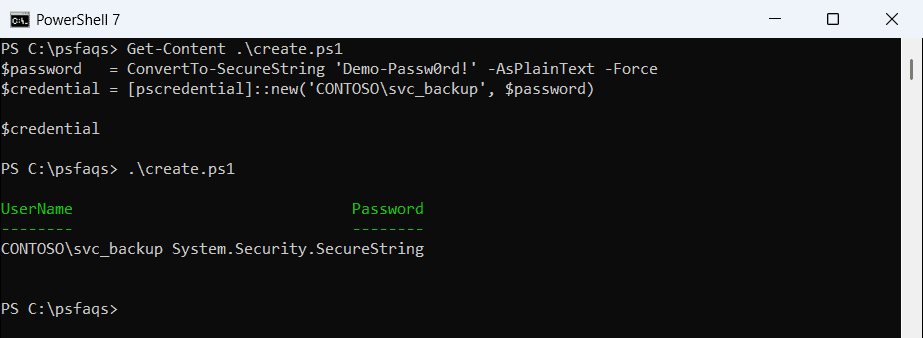
The password above is a throwaway demo value. In a real script, you’d ask for it with Get-Credential or load it from a protected store, both covered below.
I tested every example in PowerShell 7.6 and Windows PowerShell 5.1. A couple of commands behave differently between them, and I’ll show where.
Prompt for a credential with Get-Credential
The simplest and safest way to get a credential is to ask for it. Get-Credential shows a prompt and returns a PSCredential:
$credential = Get-Credential -UserName 'CONTOSO\svc_backup' -Message 'Enter the password for the backup account'Windows PowerShell 5.1 shows a Windows sign-in dialog. PowerShell 7 asks in the console instead, and it adds a -Title parameter that 5.1 doesn’t have.
Nothing is written to disk, so this is the right choice for scripts that a person runs by hand.
To see what’s inside the password property, see converting a secure string to plain text.
Create a credential without a prompt
For automation, you build the object yourself. The first example used [pscredential]::new(). New-Object does the same thing and works in every version:
$password   = ConvertTo-SecureString 'Demo-Passw0rd!' -AsPlainText -Force
$credential = New-Object System.Management.Automation.PSCredential ('CONTOSO\svc_backup', $password)
$credential.UserName
Output:
CONTOSO\svc_backupWhy ConvertTo-SecureString needs -Force in Windows PowerShell 5.1
Windows PowerShell 5.1 refuses to convert plain text unless you add -Force:
ConvertTo-SecureString 'Demo-Passw0rd!' -AsPlainTextOutput in Windows PowerShell 5.1:
ConvertTo-SecureString : The system cannot protect plain text input. To suppress this warning and convert the plain
text to a SecureString, reissue the command specifying the Force parameter. For more information ,type: get-help
ConvertTo-SecureString.
At C:\psfaqs\force51.ps1:1 char:1
+ ConvertTo-SecureString 'Demo-Passw0rd!' -AsPlainText
+ ~~~~~~~~~~~~~~~~~~~~~~~~~~~~~~~~~~~~~~~~~~~~~~~~~~~~
    + CategoryInfo          : InvalidArgument: (:) [ConvertTo-SecureString], ArgumentException
    + FullyQualifiedErrorId : ImportSecureString_ForceRequired,Microsoft.PowerShell.Commands.ConvertToSecureStringComm
   and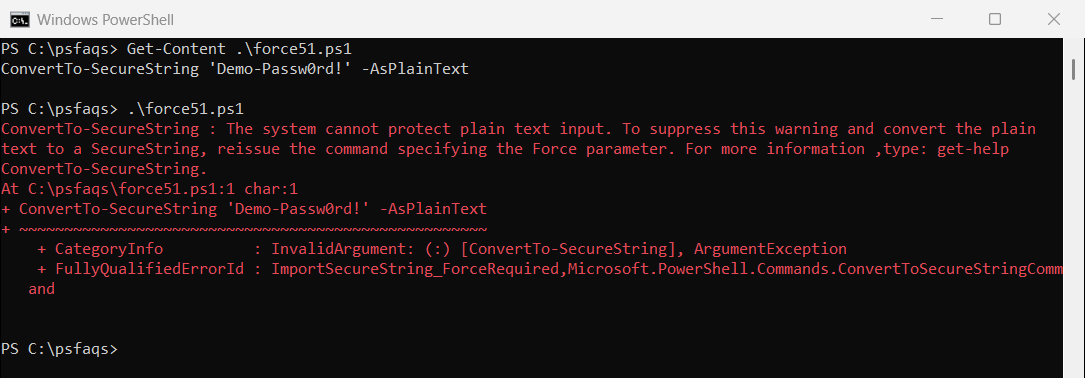
PowerShell 7 dropped that requirement, so the same line works there. Keep -Force in scripts that must run in both.
To see what a secure string holds, see converting a secure string to plain text.
Read the user name and password back
UserName is plain text. Password stays a SecureString. When an API needs the plain password, GetNetworkCredential() returns it along with the split user and domain:
$credential.UserName
$credential.Password
$credential.GetNetworkCredential().UserName
$credential.GetNetworkCredential().Domain
$credential.GetNetworkCredential().Password
Output:
CONTOSO\svc_backup
System.Security.SecureString
svc_backup
CONTOSO
Demo-Passw0rd!
Only unwrap the password at the moment you need it, and never write it to a log.
Credentials are also how you run commands as another account, as shown in running PowerShell as a different user.
Use the credential with other cmdlets
Pass the object to any -Credential parameter. A few common ones:
Invoke-Command -ComputerName SRV01 -Credential $credential -ScriptBlock { Get-Service Spooler }
Enter-PSSession -ComputerName SRV01 -Credential $credential
New-PSDrive -Name Share -PSProvider FileSystem -Root \\FS01\Reports -Credential $credential
Invoke-RestMethod -Uri https://intranet.contoso.com/api/status -Credential $credential
Replace the server names with your own. The credential object is what authenticates each command, so you don’t type the password again.
Save a credential to a file and reuse it
For scheduled tasks, save the credential once with Export-Clixml and load it with Import-Clixml:
$credential | Export-Clixml -Path C:\psfaqs\svc_backup.cred.xml

# later, in another script (same user, same computer)
$saved = Import-Clixml -Path C:\psfaqs\svc_backup.cred.xml
$saved.UserName
$saved.GetNetworkCredential().Password
Output:
CONTOSO\svc_backup
Demo-Passw0rd!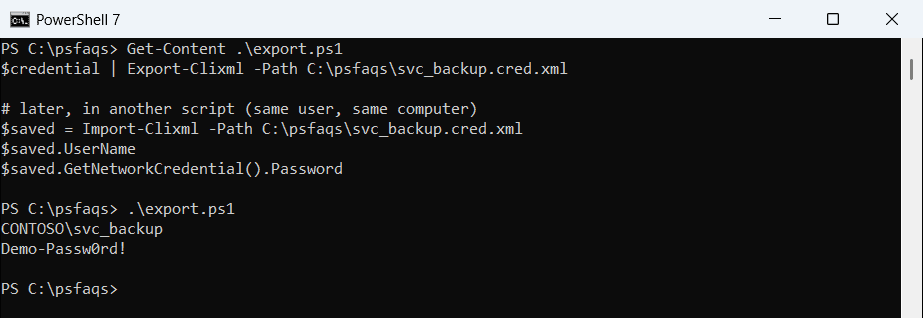
The password in the XML file isn’t plain text. Windows encrypts it with the Data Protection API (DPAPI), tied to your user account and this computer:
Select-String -Path C:\psfaqs\svc_backup.cred.xml -Pattern '<S N="UserName">|<SS N="Password">' |
    ForEach-Object { $_.Line.Trim().Substring(0, [math]::Min(60, $_.Line.Trim().Length)) + '...' }
Output:
<S N="UserName">CONTOSO\svc_backup</S>...
<SS N="Password">01000000d08c9ddf0115d1118c7a00c04fc297eb010...
That’s also the limitation. Only the same user on the same computer can read it back. Save the file while signed in as t