
To create a PowerShell module, save your functions in a .psm1 file inside a folder with the same name, then load it with Import-Module. That’s the whole minimum:
New-Item .\OrderTools -ItemType Directory
Set-Content .\OrderTools\OrderTools.psm1 'function Get-Hello { "Hello" }'
Import-Module .\OrderTools
Below I build a small real module step by step: export rules, a manifest, a Public/Private layout, the right install folder and auto-loading. I ran each step in PowerShell 7 and Windows PowerShell 5.1, and they don’t always agree.
What is a PowerShell module?
A module is a package of commands you load as one unit. The simplest kind is a script module: a plain .psm1 file full of PowerShell functions, plus an optional .psd1 manifest that describes it.
Compared with dot-sourcing a .ps1 file, a module gives you three things. You choose which commands are public, PowerShell can find it by name, and it loads automatically the first time someone calls one of its commands.
The other module types are binary modules (compiled C# DLLs) and manifest modules that only wrap other files. For your own scripts, a script module is almost always the right start.
Create the module folder and .psm1 file
Microsoft’s one hard rule: the .psm1 file and the folder that holds it must use the same name. Here I make an OrderTools folder, write two functions into OrderTools.psm1 and import it by path:
$folder = New-Item -Path .\psmod\OrderTools -ItemType Directory -Force

@'
$TaxRate = 0.0825

function ConvertTo-Usd {
    param([decimal]$Amount)
    $Amount.ToString('C2', [cultureinfo]'en-US')
}

function Get-OrderTotal {
    param([decimal[]]$Price)
    $sum = ($Price | Measure-Object -Sum).Sum
    ConvertTo-Usd ($sum * (1 + $TaxRate))
}
'@ | Set-Content -Path "$folder\OrderTools.psm1"

Import-Module .\psmod\OrderTools
(Get-Command -Module OrderTools).Name
Get-OrderTotal -Price 19.99, 5.01
"TaxRate visible: $([bool](Get-Variable TaxRate -ErrorAction Ignore))"
Output:
ConvertTo-Usd
Get-OrderTotal
$27.06
TaxRate visible: False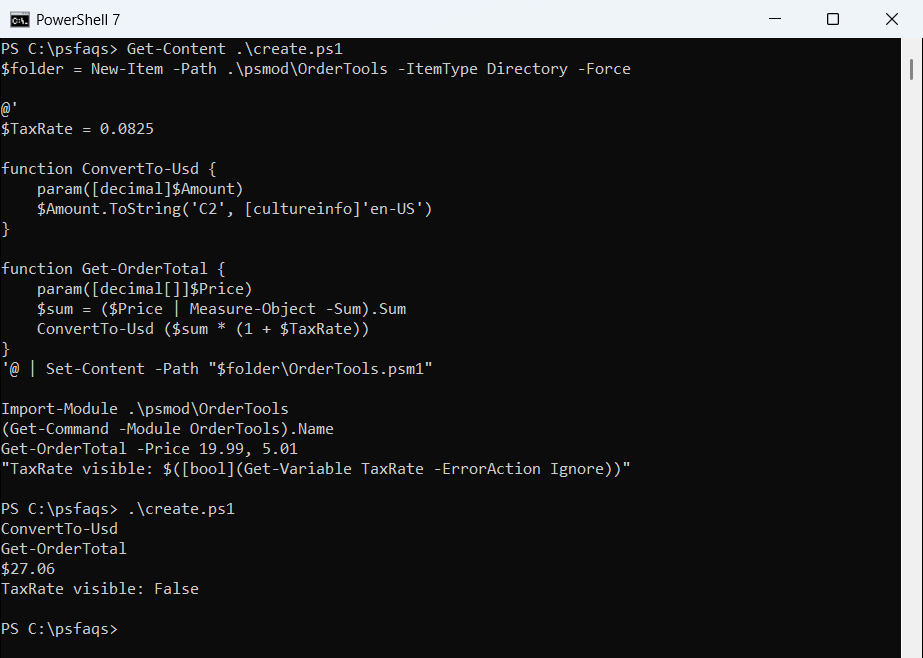
Both functions came through, but the $TaxRate variable didn’t. Microsoft documents that default: when you import a .psm1, every function is accessible and variables aren’t. The output was identical in both shells.
New-Item -Force reuses the folder if it already exists, so the script is safe to rerun. I cover that pattern in creating a folder only if it doesn’t exist.
How does Export-ModuleMember hide helper functions?
ConvertTo-Usd is a helper, so users shouldn’t see it. Add Export-ModuleMember at the end of the .psm1 and list only the public commands:
Add-Content -Path .\psmod\OrderTools\OrderTools.psm1 -Value 'Export-ModuleMember -Function Get-OrderTotal'

Import-Module .\psmod\OrderTools
(Get-Command -Module OrderTools).Name
Get-OrderTotal -Price 19.99, 5.01
try { ConvertTo-Usd -Amount 5 -ErrorAction Stop }
catch { 'Failed. ' + ($_.Exception.Message -split '(?<=program\.)')[0] }
Output in PowerShell 7:
Get-OrderTotal
$27.06
Failed. The term 'ConvertTo-Usd' is not recognized as a name of a cmdlet, function, script file, or executable program.
Get-OrderTotal still uses the hidden helper internally and returns $27.06. Outside the module, ConvertTo-Usd simply doesn’t exist. Windows PowerShell 5.1 printed the same lines, but its error wording is older:
Failed. The term 'ConvertTo-Usd' is not recognized as the name of a cmdlet, function, script file, or operable program.Microsoft recommends calling Export-ModuleMember even when you want every function public. It makes the public surface obvious to the next person who reads the file. The $Price parameter takes a list, which array parameters in PowerShell explains in more depth.
Create a module manifest with New-ModuleManifest
A manifest is a .psd1 file holding a hashtable of metadata: version, author, required PowerShell version and the export lists. It’s optional, but you need one for version numbers, dependencies or publishing. Don’t type it by hand; let New-ModuleManifest generate it:
$params = @{
    Path              = '.\psmod\OrderTools\OrderTools.psd1'
    RootModule        = 'OrderTools.psm1'
    ModuleVersion     = '1.0.0'
    Author            = 'Maria Lopez'
    CompanyName       = 'Contoso'
    Description       = 'Order total helpers for the Austin sales team'
    PowerShellVersion = '5.1'
    FunctionsToExport = @('Get-OrderTotal')
    CmdletsToExport   = @()
    VariablesToExport = @()
    AliasesToExport   = @()
}
New-ModuleManifest @params

$m = Test-ModuleManifest -Path $params.Path
"$($m.Name) $($m.Version) by $($m.Author)"
"Exports: $($m.ExportedFunctions.Keys -join ', ')"
Output:
OrderTools 1.0.0 by Maria Lopez
Exports: Get-OrderTotal
RootModule is the key people forget. Without it, the manifest doesn’t load your .psm1 at all and no commands are exported. Test-ModuleManifest then confirms the file parses and that every path in it exists.
PowerShellVersion = ‘5.1’ blocks the module on anything older. Not sure what a machine runs? Here’s how to check the PowerShell version first.
New-ModuleManifest defaults differ between PowerShell 7 and 5.1
I also ran New-ModuleManifest with only -Path, to see the defaults each version writes. They aren’t the same:
New-ModuleManifest -Path .\psmod\Demo.psd1

Select-String -Path .\psmod\Demo.psd1 -Pattern '^(ModuleVersion|FunctionsToExport)' |
    ForEach-Object Line

$bytes = [IO.File]::ReadAllBytes("$PWD\psmod\Demo.psd1")
'First bytes: {0:X2} {1:X2}' -f $bytes[0], $bytes[1]
Output in PowerShell 7:
ModuleVersion = '0.0.1'
FunctionsToExport = @()
First bytes: 23 0D
Windows PowerShell 5.1 wrote a different version number and saved the file in another encoding:
ModuleVersion = '1.0'
FunctionsToExport = @()
First bytes: FF FE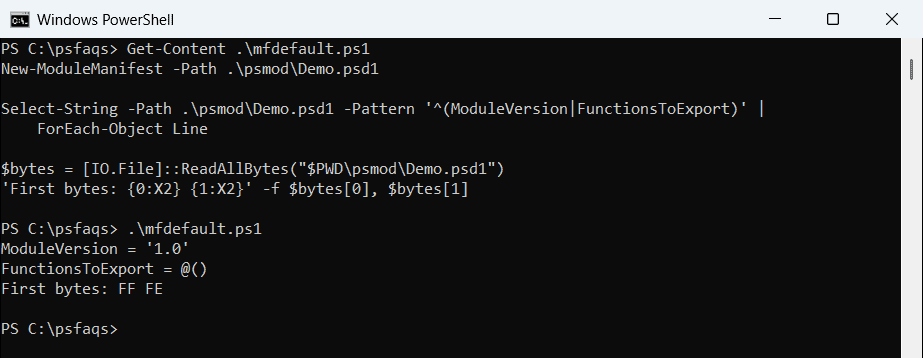
PowerShell 7 starts at 0.0.1 and writes UTF-8 without a BOM (23 is the # of the first comment line). Windows PowerShell 5.1 starts at 1.0 and writes UTF-16 LE, which is what FF FE means.
Both files load fine in either shell, but always pass -ModuleVersion yourself.