
To set a service to automatic using PowerShell, open PowerShell as administrator and run Set-Service with the service name and -StartupType Automatic:
Set-Service -Name BITS -StartupType AutomaticThat one line works in PowerShell 7 and Windows PowerShell 5.1. Delayed start, checking the result and remote servers don’t work the same in both, and that’s where most scripts break.
Find the service name and its current startup type
Set-Service wants the short service name, not the display name you see in services.msc. Get-Service shows both, along with the current StartType:
Get-Service -Name Spooler, W32Time, WSearch, TrkWks |
    Select-Object Name, DisplayName, StartType
Output:
Name    DisplayName                      StartType
----    -----------                      ---------
Spooler Print Spooler                    Automatic
TrkWks  Distributed Link Tracking Client Automatic
W32Time Windows Time                        Manual
WSearch Windows Search                   Automatic
The Name column is what you pass to -Name. Windows Time is W32Time and Print Spooler is Spooler, so copy the name from here rather than guessing it.
If you don’t know which service you’re after, list the running services first and search the DisplayName column with a wildcard.
Set a service to Automatic with Set-Service
Changing a startup type needs an elevated session. Before you run it for real, add -WhatIf to see which service the command would touch:
Set-Service -Name W32Time -StartupType Automatic -WhatIfOutput:
What if: Performing the operation "Set-Service" on target "Windows Time (W32Time)".The What if line confirms the target and changes nothing, so it’s safe on any machine. I kept every real change out of this post; my test PC’s services are exactly as they were.
In an elevated window, drop -WhatIf and add -PassThru so Set-Service returns the updated object you can check:
Set-Service -Name W32Time -StartupType Automatic -PassThru |
    Select-Object Name, StartType, Status
StartType should now read Automatic. Set-Service prints nothing without -PassThru, so pick the properties with Select-Object when you want proof in a log.
Automatic only takes effect at the next boot. To start the service now as well, add -Status Running to the same command, or run Start-Service after it.
How do I set multiple services to Automatic at once?
The -Name parameter takes one service at a time, but Set-Service accepts service objects from the pipeline. Get-Service can pass several:
Get-Service -Name W32Time, BITS | Set-Service -StartupType Automatic -WhatIfOutput:
What if: Performing the operation "Set-Service" on target "Background Intelligent Transfer Service (BITS)".
What if: Performing the operation "Set-Service" on target "Windows Time (W32Time)".
Both services show up in the What if output, sorted by name. Remove -WhatIf in an elevated session and the same pipeline updates them in one go.
For a longer list kept in a file, read the names from a CSV with a Name column and loop through them:
Import-Csv -Path C:\Scripts\services.csv | ForEach-Object {
    Set-Service -Name $_.Name -StartupType Automatic -WhatIf
}
The Import-Csv and ForEach-Object guide covers the CSV side, including headers and blank rows.
Set Automatic (Delayed Start) in PowerShell 7 vs 5.1
Automatic (Delayed Start) starts the service a short while after the other automatic services, which eases the load at boot. Whether Set-Service can do it depends on your shell. I ran the same script in both:
$type = (Get-Command Set-Service).Parameters['StartupType'].ParameterType
"StartupType values: " + ([enum]::GetNames($type) -join ', ')
try {
    Set-Service -Name W32Time -StartupType AutomaticDelayedStart -WhatIf -ErrorAction Stop
} catch {
    "Failed. " + $_.FullyQualifiedErrorId
}
Output:
StartupType values: Automatic, Manual, Disabled, AutomaticDelayedStart, InvalidValue
What if: Performing the operation "Set-Service" on target "Windows Time (W32Time)".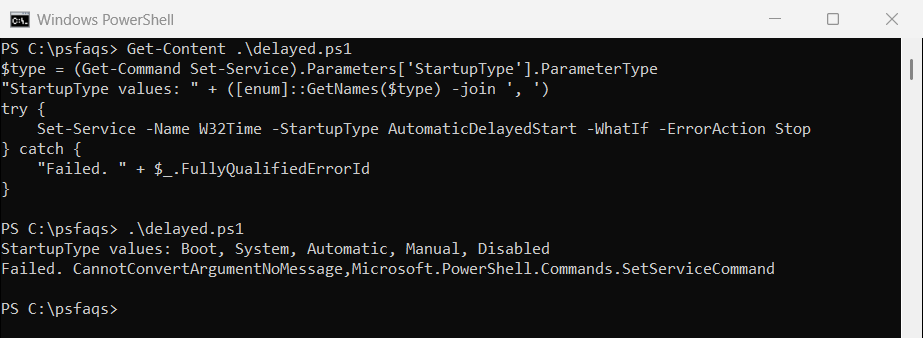
That’s PowerShell 7’s output. It lists AutomaticDelayedStart and accepts it, so the WhatIf line appears. Windows PowerShell 5.1 printed this instead:
StartupType values: Boot, System, Automatic, Manual, Disabled
Failed. CannotConvertArgumentNoMessage,Microsoft.PowerShell.Commands.SetServiceCommand
In 5.1 the parameter uses the older ServiceStartMode type, which has Boot and System (driver-only values) but no delayed option. The value fails before Set-Service even runs.
On 5.1, use sc.exe for delayed start. Type sc.exe, not sc, and keep the space after start=:
sc.exe config W32Time start= delayed-autoPlain Automatic through sc.exe is start= auto. Both need an elevated prompt, just like Set-Service.
Check whether a service is Automatic or delayed
StartType alone can fool you. Here are four services with the PowerShell 7 extra properties added:
Get-Service -Name Spooler, WSearch, sppsvc, W32Time |
    Select-Object Name, StartType, StartupType, DelayedAutoStart
Output:
Name    StartType           StartupType DelayedAutoStart
----    ---------           ----------- ----------------
Spooler Automatic             Automatic            False
sppsvc  Automatic AutomaticDelayedStart             True
W32Time    Manual                Manual            False
WSearch Automatic AutomaticDelayedStart             True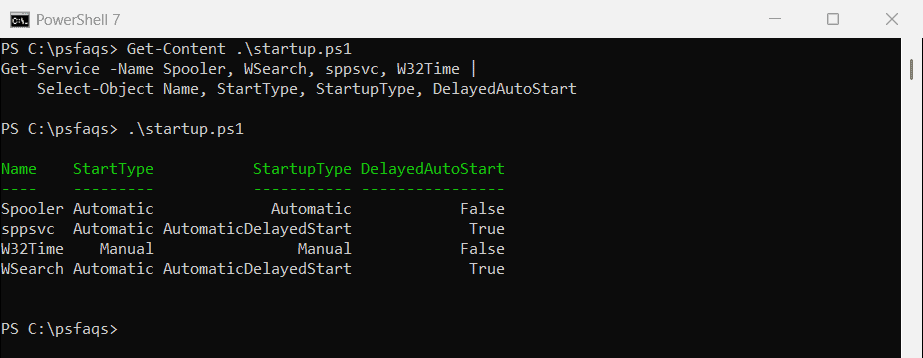
WSearch and sppsvc are delayed, yet StartType says Automatic for them. Only StartupType and DelayedAutoStart, added in PowerShell 6.0, show the difference.
In Windows PowerShell 5.1 those two columns came back empty, because the 5.1 service objects don’t have them. Get-CimInstance gives the same answer in both shells:
$filter = "Name='Spooler' OR Name='WSearch' OR Name='sppsvc'"
Get-CimInstance -ClassName Win32_Service -Filter $filter |
    Sort-Object Name |
    Select-Object Name, StartMode, DelayedAutoStart, State
Output: