PowerShell Script to Delete Files Older Than 30 Days
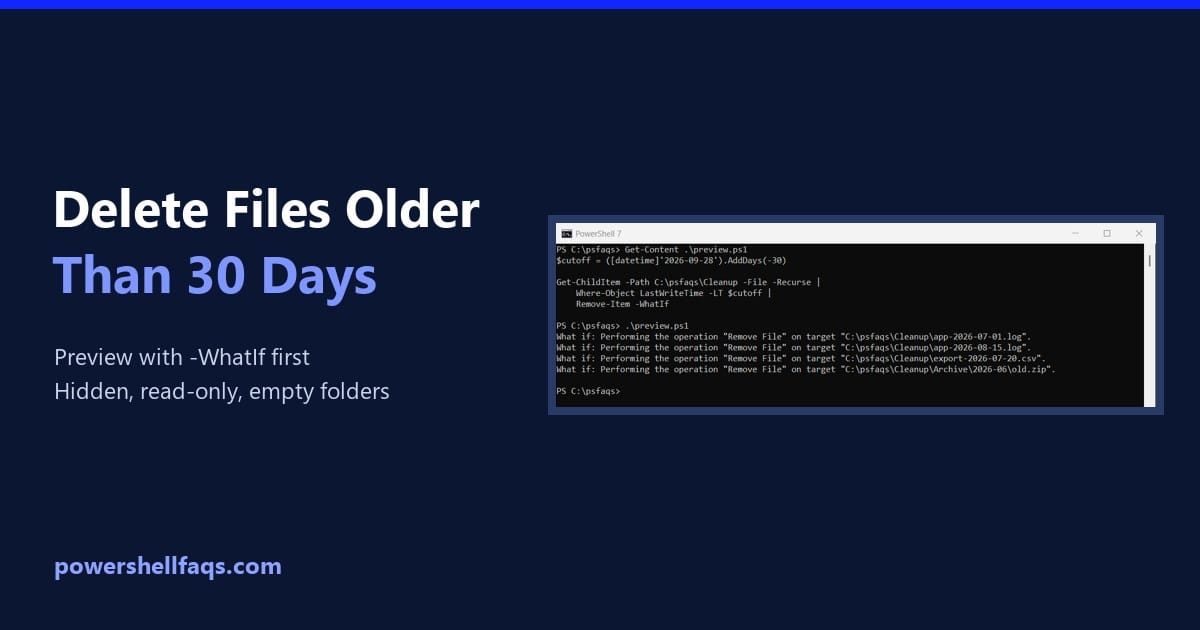
PowerShell delete files older than 30 days

To delete files older than 30 days with PowerShell, list the files with Get-ChildItem, keep the ones whose LastWriteTime is before a cutoff date, and pipe them to Remove-Item. Run it with -WhatIf first: Output: In a real script, set the cutoff with (Get-Date).AddDays(-30). I used a fixed date and a sample folder so the … Read more
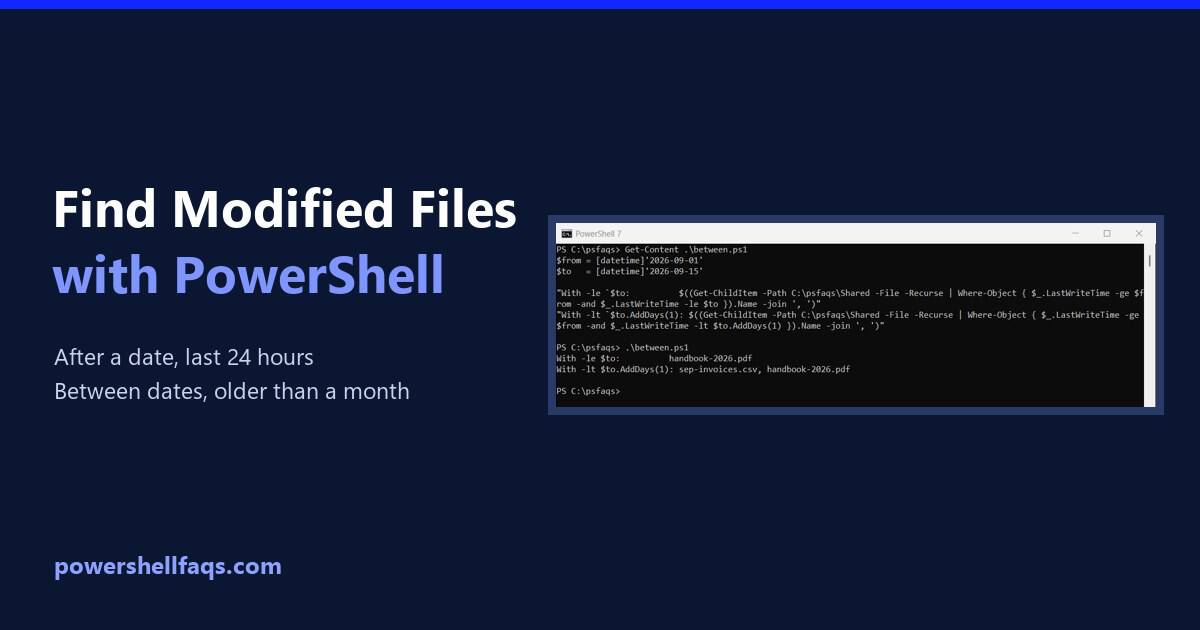
PowerShell: Find Files Modified After a Date (or in the Last 24 Hours)

PowerShell find files modified after a date

To find files modified after a date in PowerShell, pipe Get-ChildItem -File -Recurse to Where-Object and compare LastWriteTime with the date: Output: LastWriteTime is the “Date modified” column in File Explorer. I used a sample folder with fixed dates, and I ran every example in PowerShell 7.6 and Windows PowerShell 5.1, with the same results. … Read more

How to List Hidden Files in PowerShell

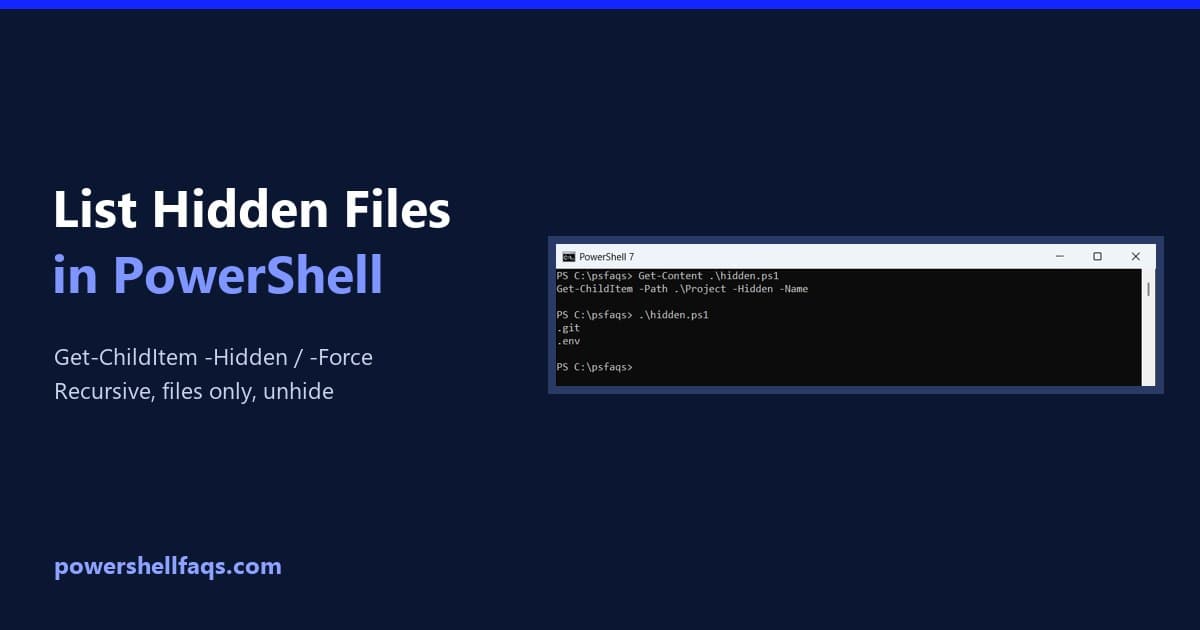
List hidden files in PowerShell

To list hidden files in PowerShell, run Get-ChildItem with the -Hidden switch. It returns only the items that have the Hidden attribute: Use -Force instead to see hidden and normal items together. Below I show both, how to read the Mode column, how to get hidden files only, search subfolders and unhide a file. For … Read more

Fix “Running Scripts Is Disabled on This System” in PowerShell

Fix PowerShell running scripts is disabled on this system

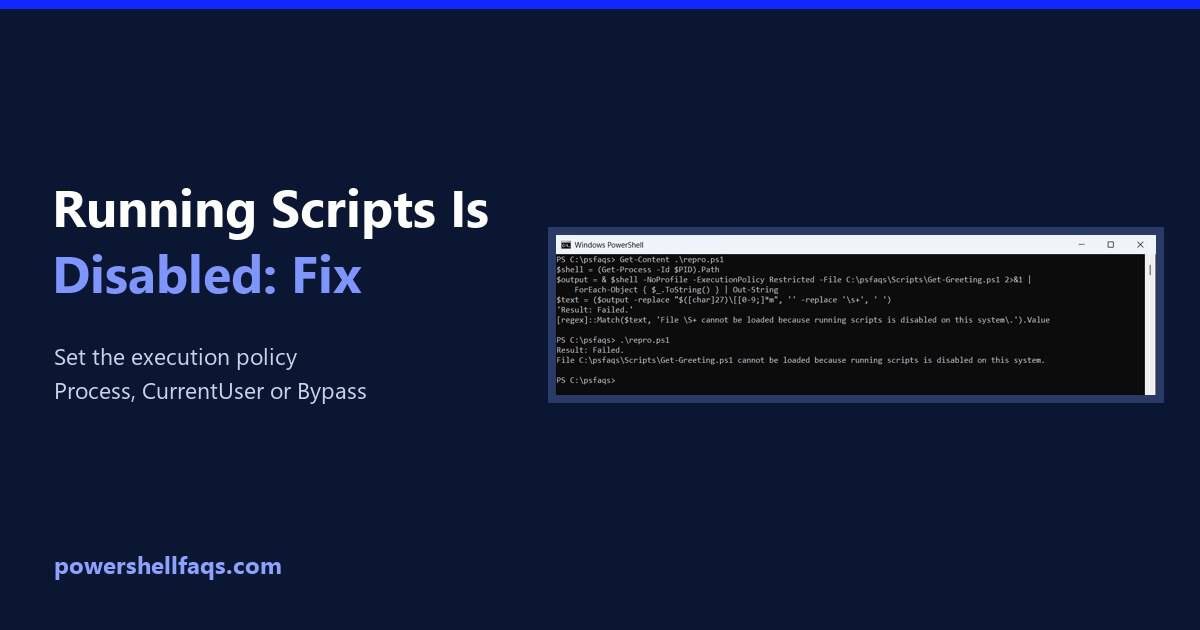
To fix “running scripts is disabled on this system” in PowerShell, set the execution policy to RemoteSigned for your account. It doesn’t need admin rights: The error means the effective policy is Restricted, which is the default on Windows client PCs. Below I reproduce it, check every policy scope, and show fixes from a single … Read more

How to Get the Type of an Object in PowerShell

Get the type of an object in PowerShell

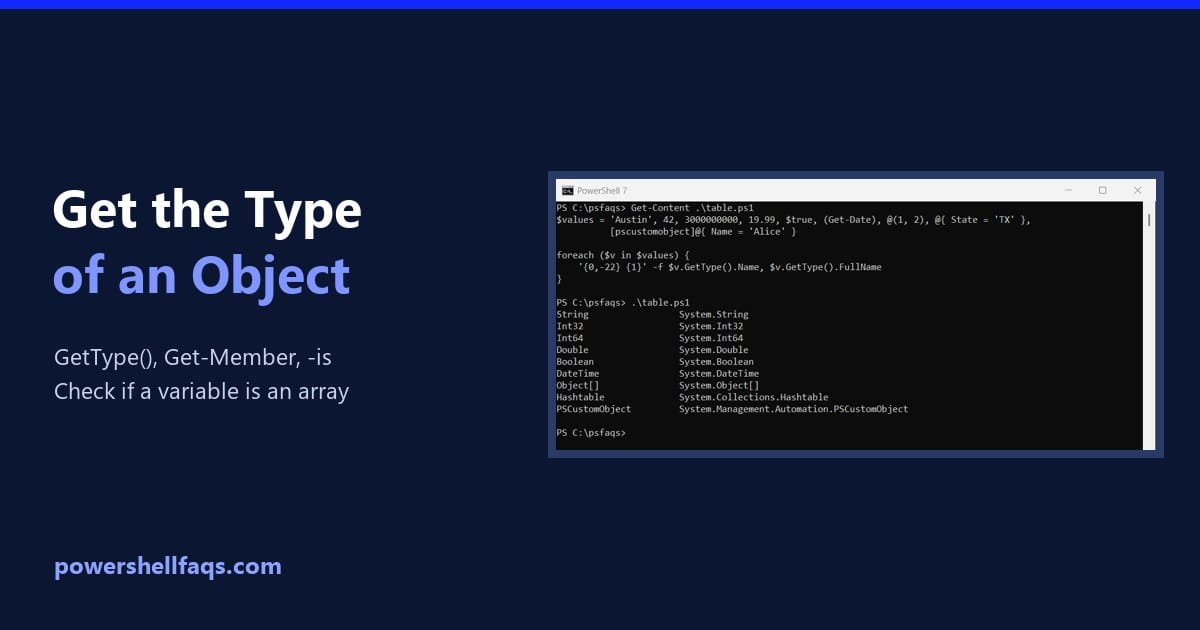
To get the type of an object or variable in PowerShell, call its GetType() method. .Name gives the short name and .FullName the full .NET name: Output: To test for a type instead of reading it, use the -is operator, covered below. I ran every example in PowerShell 7.6 and Windows PowerShell 5.1, with the … Read more

PowerShell Round to 2 Decimal Places (and Whole Numbers)

PowerShell round to 2 decimal places

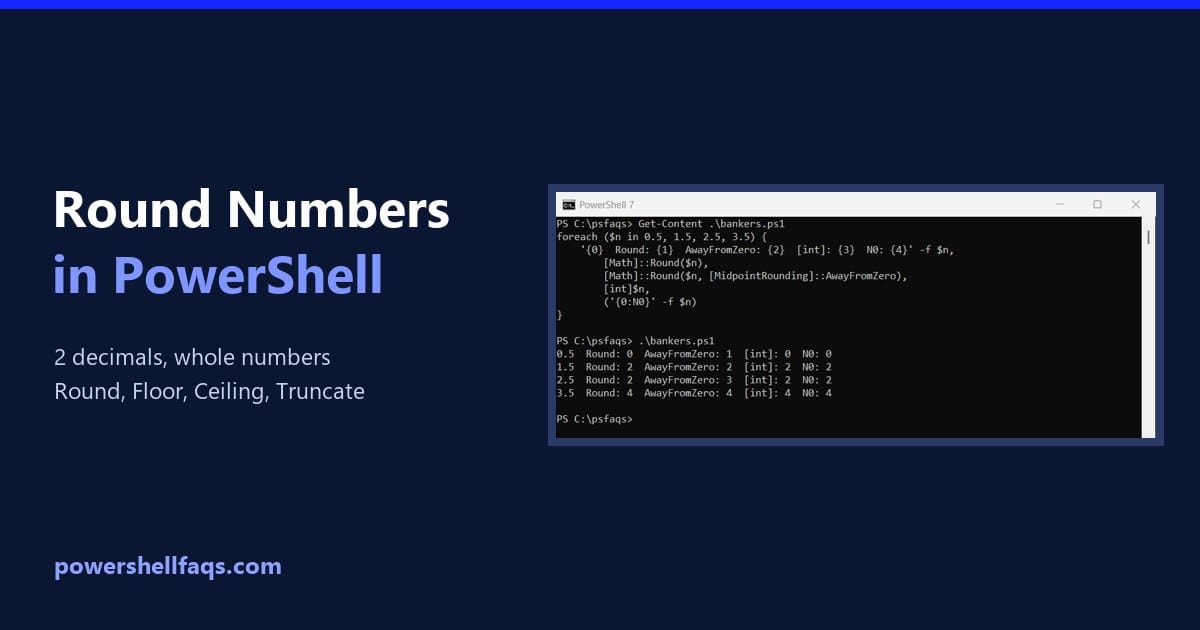
To round a number to 2 decimal places in PowerShell, use [Math]::Round($number, 2). To display it with exactly two decimals, use the format operator, ‘{0:N2}’ -f $number, or .ToString(‘0.00′): Output: They look the same here, but they don’t return the same kind of value, and they don’t always round the same way. I ran every … Read more

PowerShell Get-ChildItem Filter Examples

PowerShell Get-ChildItem filter examples

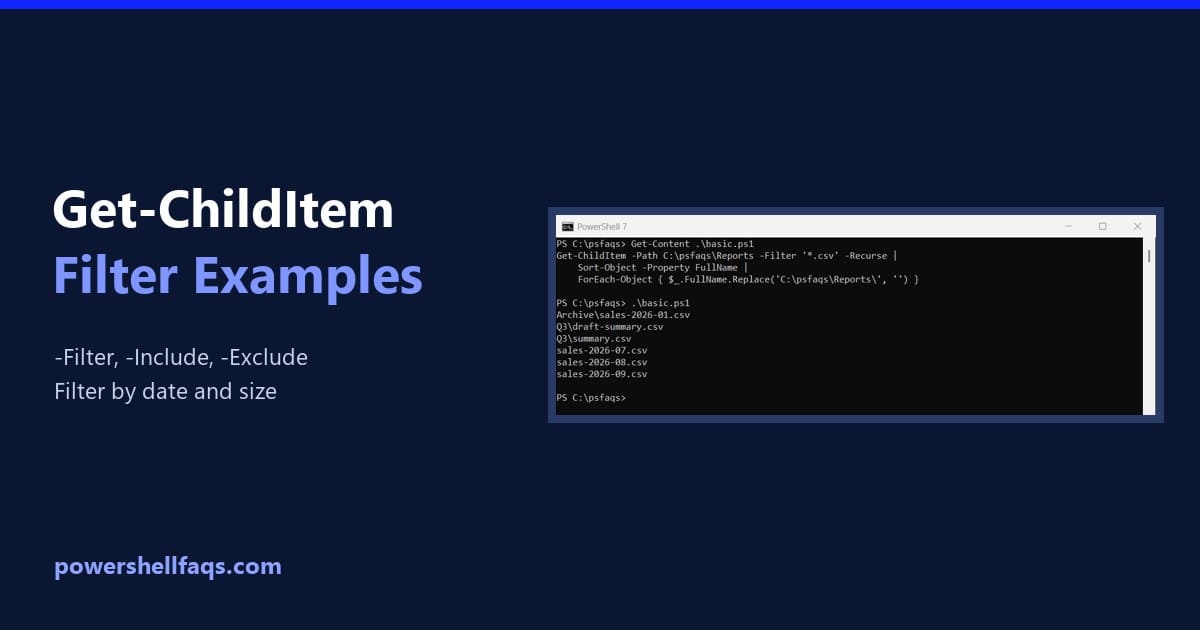
To filter files with Get-ChildItem, pass a wildcard pattern to -Filter. Add -Recurse to search subfolders too: Output: -Filter is the fastest option because the file system does the matching. Below I compare it with -Include and -Exclude, show a gotcha that returns nothing, and filter by date and size. All of it runs in … Read more

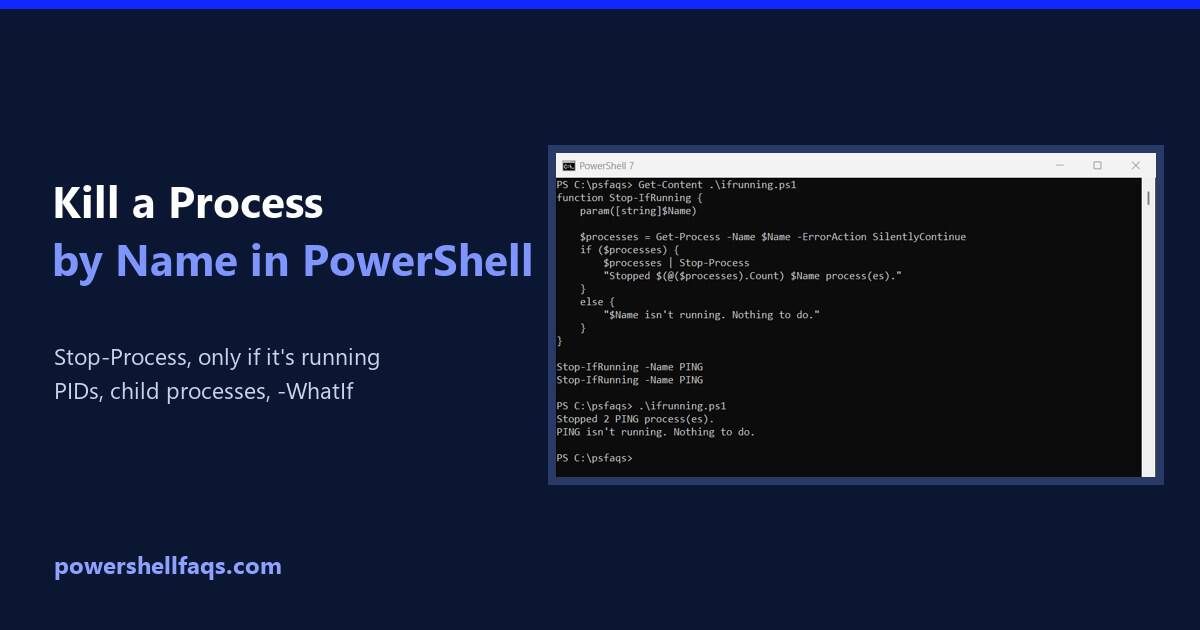
How to Kill a Process by Name in PowerShell

Kill a process by name in PowerShell

To kill a process by name in PowerShell, run Stop-Process -Name followed by the process name, without .exe. It stops every running process with that name: For the tests in this guide, I started a few hidden ping.exe processes, so nothing real was harmed. Here the command stops two of them: Output: I ran every … Read more

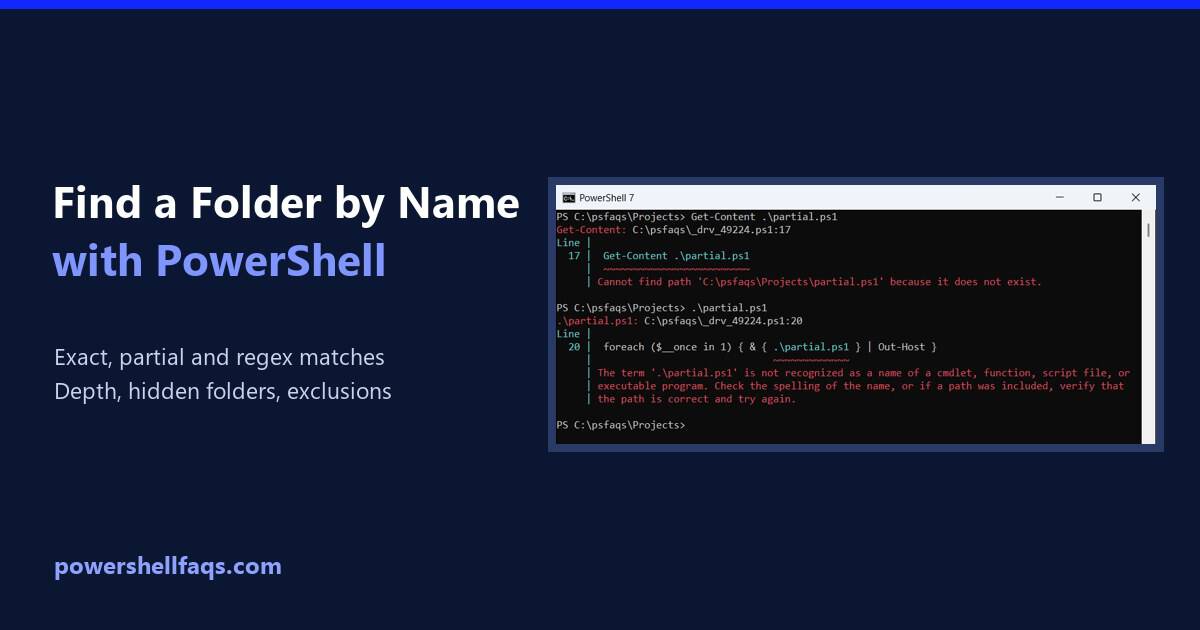
How to Find a Folder by Name in PowerShell

Find a folder by name in PowerShell

To find a folder by name in PowerShell, run Get-ChildItem with -Directory, -Recurse and the folder name in -Filter. The match ignores case: Output: I searched a sample Projects folder so the output stays the same. Every example ran in PowerShell 7.6 and Windows PowerShell 5.1 with the same results. Find folders by partial name … Read more

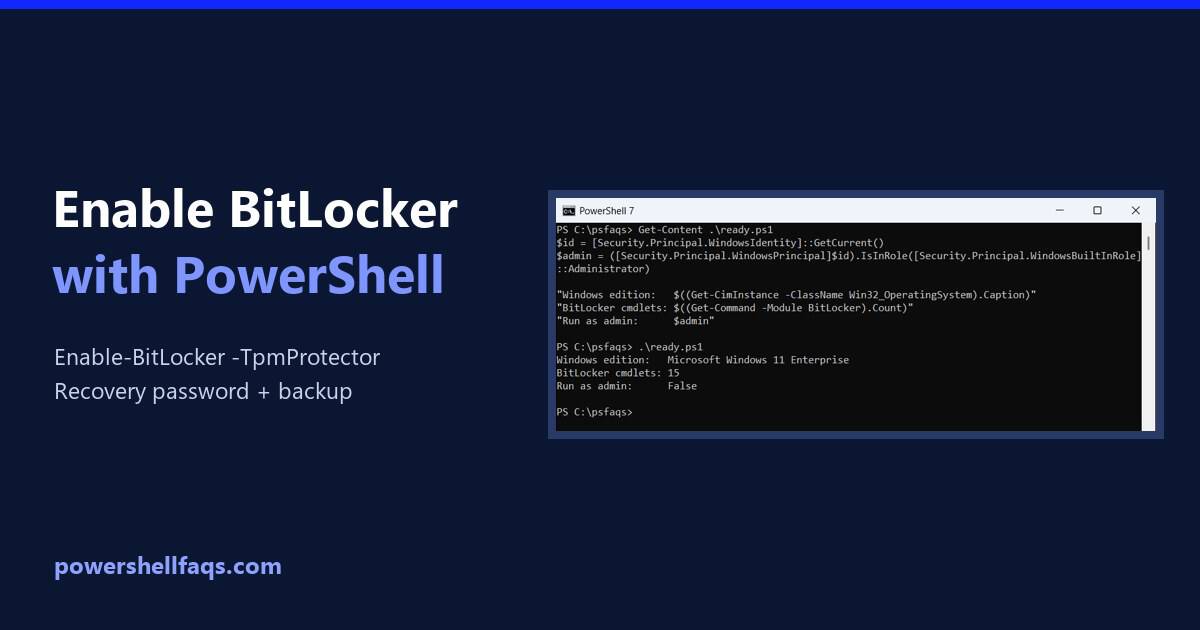
How to Enable BitLocker with PowerShell (Step by Step)

Enable BitLocker with PowerShell

To enable BitLocker with PowerShell, open PowerShell as administrator, add a recovery password, back it up, then run Enable-BitLocker with a TPM protector: Encryption then runs in the background. Below I cover the checks to do first, every protector type, data drives, backing up the recovery key and tracking progress. I ran the read-only checks … Read more