
To get the first element of an array in PowerShell, use index 0: $array[0]. For the last element, use -1: $array[-1]. Negative numbers count back from the end:
$cities = 'Austin', 'Boston', 'Chicago', 'Denver', 'Miami'

"First:  $($cities[0])"
"Last:   $($cities[-1])"
"Second to last: $($cities[-2])"
Output:
First:  Austin
Last:   Miami
Second to last: Denver
Below I cover getting several items at once, Select-Object, and the cases where these give surprising results. I ran every example in PowerShell 7.6 and Windows PowerShell 5.1, with the same results.
Get the first or last few items
Put a range inside the brackets to get a slice, or a comma-separated list for specific positions:
$cities = 'Austin', 'Boston', 'Chicago', 'Denver', 'Miami'

"First three: $($cities[0..2] -join ', ')"
"Last two:    $($cities[-2..-1] -join ', ')"
"First and last: $($cities[0, -1] -join ', ')"
Output:
First three: Austin, Boston, Chicago
Last two:    Denver, Miami
First and last: Austin, Miami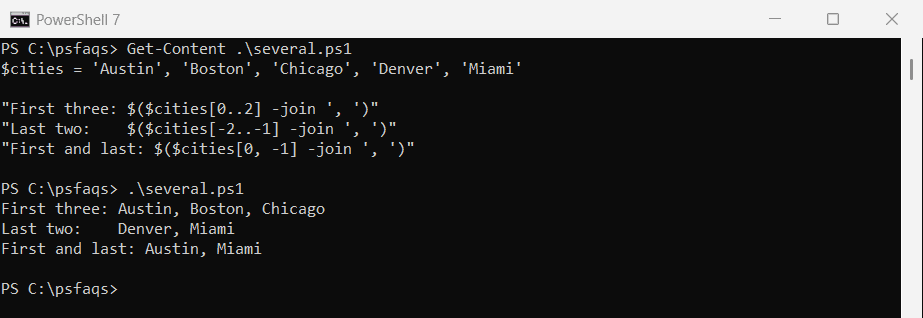
Ranges work in both directions, so $cities[-2..-1] gives the last two in their original order. Microsoft covers ranges in about_Arrays.
The same first-and-last idea works on text, too, as shown in getting the first and last line of a string.
If you need an item because of what it contains rather than where it sits, read how to find an array element by value.
Use Select-Object -First and -Last
Select-Object does the same in a pipeline, which is handy when the data comes straight from a command:
$cities = 'Austin', 'Boston', 'Chicago', 'Denver', 'Miami'

"-First 2:    $(($cities | Select-Object -First 2) -join ', ')"
"-Last 2:     $(($cities | Select-Object -Last 2) -join ', ')"
"-SkipLast 1: $(($cities | Select-Object -SkipLast 1) -join ', ')"
Output:
-First 2:    Austin, Boston
-Last 2:     Denver, Miami
-SkipLast 1: Austin, Boston, Chicago, Denver
-SkipLast drops items from the end, and -Skip drops them from the start. The Select-Object reference lists them all.
Select-Object -First stops the pipeline early
Once it has the items it needs, Select-Object -First tells the commands before it to stop. It doesn’t wait for 50 million numbers here:
$sw = [Diagnostics.Stopwatch]::StartNew()
$first = 1..50000000 | Select-Object -First 1
"Select-Object -First 1 returned $first in under a second: $($sw.Elapsed.TotalSeconds -lt 1)"
Output:
Select-Object -First 1 returned 1 in under a second: TrueThat makes Get-ChildItem -Recurse | Select-Object -First 1 much faster than collecting every file and taking [0].
Empty arrays return $null, not an error
An index past the end quietly returns $null, so a typo or an empty result can slip through. Strict mode turns it into an error:
$empty = @()

"Index 0 of an empty array: [$($empty[0])]"
"Index -1:                  [$($empty[-1])]"

Set-StrictMode -Version Latest
try { $empty[0] } catch { 'With strict mode on, the same index throws an error' }
Output:
Index 0 of an empty array: []
Index -1:                  []
With strict mode on, the same index throws an error
Check $array.Count before you index, or turn on Set-StrictMode while you test a script.
The “all but the last” range bug
A common way to drop the last item is $array[0..($array.Count - 2)]. With one item, the range becomes 0..-1, which means index 0 and then index -1:
$one = @('Austin')

"All but the last, with 0..(Count-2): $($one[0..($one.Count - 2)] -join ', ')"
"All but the last, with -SkipLast 1:  [$(($one | Select-Object -SkipLast 1) -join ', ')]"
Output:
All but the last, with 0..(Count-2): Austin, Austin
All but the last, with -SkipLast 1:  []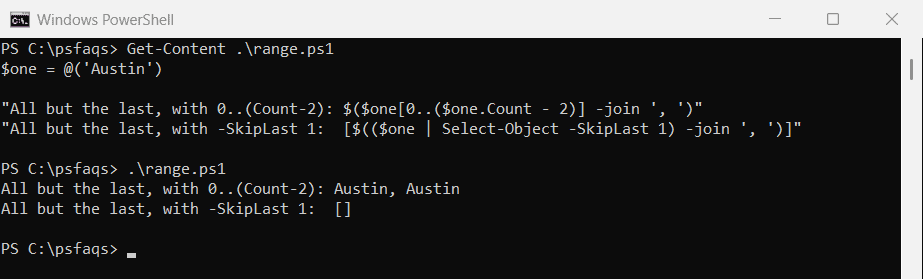
With two or more items the range works, which is why this bug hides until a list has exactly one entry. Select-Object -SkipLast 1 handles every size correctly.
One result isn’t an array
When a command returns a single item, you get the item itself. Indexing a string then returns a character instead of the whole value:
$result = 'Houston'
"Without @(): first item is [$($result[0])]"

$result = @('Houston')
"With @():    first item is [$($result[0])]"
Output:
Without @(): first item is [H]
With @():    first item is [Houston]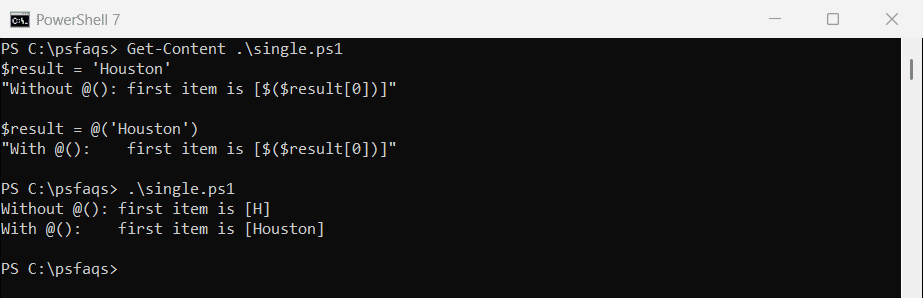
Wrap command results in @() whenever you plan to index them. Reading a file line by line shows the same issue with one-line files.
First and last items of sorted objects
For objects, sort first and then take the first or last item. This finds the newest and the largest order:
$orders = @(
    [pscustomobject]@{ Id = 1001; Date = [datetime]'2026-09-02'; Total = 250.00 }
    [pscustomobject]@{ Id = 1002; Date = [datetime]'2026-09-27'; Total = 980.50 }
    [pscustomobject]@{ Id = 1003; Date = [datetime]'2026-09-15'; Total = 75.25 }
)

$newest = ($orders | Sort-Object -Property Date)[-1]
"Newest order: $($newest.Id) on $($newest.Date.ToString('MMM d, yyyy'))"

$largest = $orders | Sort-Object -Property Total -Descending | Select-Object -First 1
"Largest order: $($largest.Id) for $($largest.Total.ToString('C'))"
Output:
Newest order: 1002 on Sep 27, 2026
Largest order: 1002 for $980.50
Either style works. I use [-1] after