
To prompt for yes/no input in PowerShell, ask with Read-Host and check the answer with -in 'y', 'yes'. The -in operator ignores case, so Y, y and YES all count:
$reply = Read-Host -Prompt 'Restart the print spooler now? (y/n)'

if ($reply -in 'y', 'yes') { 'Restarting the spooler...' } else { 'Skipped. Nothing was restarted.' }
Output (I typed Y):
Restart the print spooler now? (y/n): Y
Restarting the spooler...
That’s enough for a quick script. Below are sturdier options: a loop that rejects bad answers, a reusable function with a default, PowerShell’s built-in choice menu, and -Confirm support.
I ran every example in PowerShell 7.6 and Windows PowerShell 5.1, with the same results.
Keep asking until you get a yes or no
People type “sure”, press Enter by accident, or add spaces. A do/until loop asks again until the answer is valid, and .Trim() drops the extra spaces:
do {
    $reply = (Read-Host -Prompt 'Archive the 2025 invoices? (y/n)').Trim()
    $valid = $reply -in 'y', 'yes', 'n', 'no'
    if (-not $valid) { 'Please answer y or n.' }
} until ($valid)

if ($reply -like 'y*') { 'Archiving 318 invoices...' } else { 'Cancelled.' }
Output (I typed sure, then nothing, then ” no “):
Archive the 2025 invoices? (y/n): sure
Please answer y or n.
Archive the 2025 invoices? (y/n):
Please answer y or n.
Archive the 2025 invoices? (y/n):  no
Cancelled.
-like 'y*' works for the final check because the loop has already limited the answer to y, yes, n or no. PowerShell while and do loops covers the loop types in more detail.
A reusable Confirm-Action function with a default
Most command-line tools show the default in capitals, like [y/N], and use it when you just press Enter. This function does the same and returns $true or $false:
function Confirm-Action {
    param(
        [Parameter(Mandatory)] [string]$Question,
        [switch]$DefaultYes
    )
    $hint = if ($DefaultYes) { '[Y/n]' } else { '[y/N]' }
    while ($true) {
        $reply = (Read-Host -Prompt "$Question $hint").Trim()
        if ($reply -eq '')         { return [bool]$DefaultYes }
        if ($reply -in 'y', 'yes') { return $true }
        if ($reply -in 'n', 'no')  { return $false }
    }
}

if (Confirm-Action -Question 'Delete 12 temp files') { 'Deleting...' } else { 'Kept the files.' }
if (Confirm-Action -Question 'Email the summary to IT' -DefaultYes) { 'Sending...' } else { 'Not sent.' }
Output (I pressed Enter at both prompts):
Delete 12 temp files [y/N]:
Kept the files.
Email the summary to IT [Y/n]:
Sending...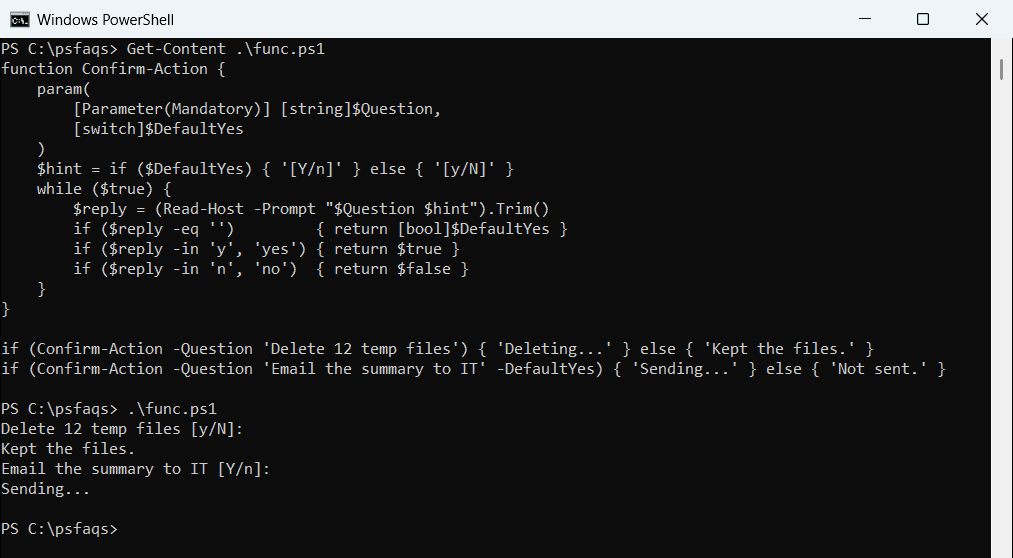
Default to No for anything destructive, like deleting files. Save Yes as the default for safe steps, like sending a report.
Use PowerShell’s built-in choice prompt
$Host.UI.PromptForChoice() shows the same [Y] Yes [N] No menu that PowerShell’s own cmdlets use. It returns the index of the choice, so 0 is Yes here:
$yes = [System.Management.Automation.Host.ChoiceDescription]::new('&Yes', 'Disable the account now')
$no  = [System.Management.Automation.Host.ChoiceDescription]::new('&No', 'Leave the account as it is')

$answer = $Host.UI.PromptForChoice('Disable account', 'Disable the account for jsmith?', @($yes, $no), 1)
if ($answer -eq 0) { 'Account disabled.' } else { 'No change made.' }
Output (I typed ? for help, then y):
Disable account
Disable the account for jsmith?
[Y] Yes  [N] No  [?] Help (default is "N"): ?
Y - Disable the account now
N - Leave the account as it is
[Y] Yes  [N] No  [?] Help (default is "N"): y
Account disabled.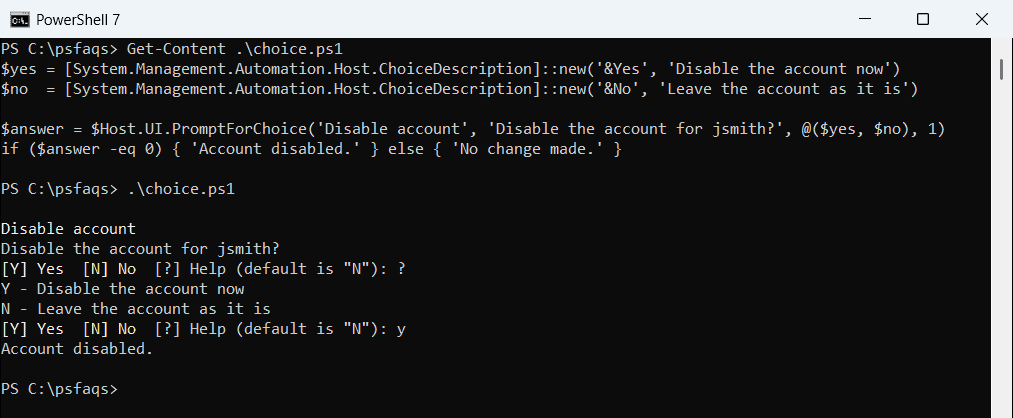
The last argument is the default index, so 1 makes No the default. The PromptForChoice reference covers the other overloads.
Add -Confirm and -WhatIf to your own function
If your script changes something, the most PowerShell-like way to ask is ShouldProcess. You get -Confirm and -WhatIf for free, and callers can skip the prompt in automation:
function Remove-OldReport {
    [CmdletBinding(SupportsShouldProcess, ConfirmImpact = 'High')]
    param([Parameter(Mandatory)] [string]$Name)

    if ($PSCmdlet.ShouldProcess($Name, 'Delete report')) {
        "Deleted $Name"
    }
}

Remove-OldReport -Name 'q1-sales.csv'
Remove-OldReport -Name 'q2-sales.csv' -Confirm:$false
Output (I typed n):
Confirm
Are you sure you want to perform this action?
Performing the operation "Delete report" on target "q1-sales.csv".
[Y] Yes  [A] Yes to All  [N] No  [L] No to All  [S] Suspend  [?] Help (default is "Y"): n
Deleted q2-sales.csv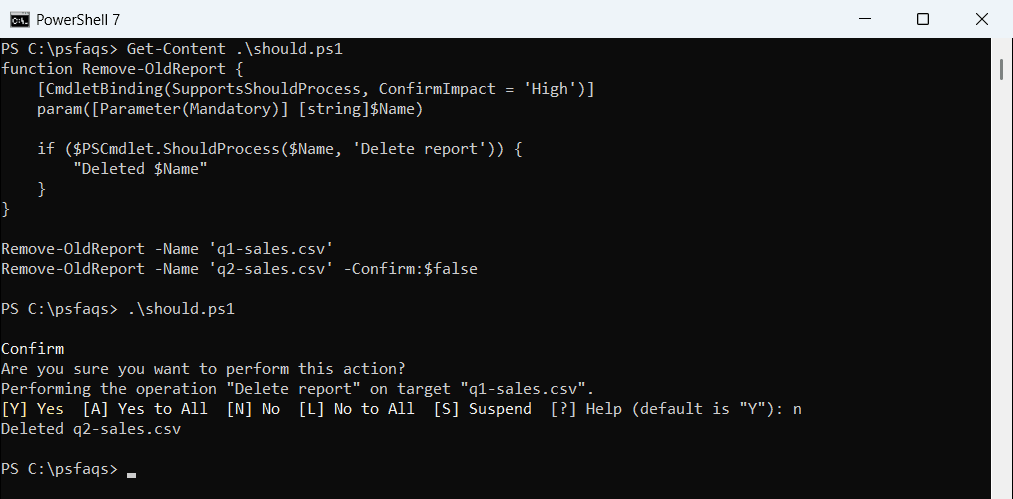
Watch out: this prompt defaults to Yes, so pressing Enter deletes the file. ConfirmImpact = ‘High’ is what makes it ask without -Confirm.
Preview changes with -WhatIf
The same function also supports -WhatIf, which only describes what would happen:
function Remove-OldReport {
    [CmdletBinding(SupportsShouldProcess, ConfirmImpact = 'High')]
    param([Parameter(Mandatory)] [string]$Name)

    if ($PSCmdlet.ShouldProcess($Name, 'Delete report')) {
        "Deleted $Name"
    }
}

Remove-OldReport -Name 'q3-sales.csv' -WhatIf
Output:
What if: Performing the operation "Delete report" on target "q3-sales.csv".Microsoft’s guide to ShouldProcess explains ConfirmImpact and $ConfirmPreference in more depth.
Use choice.exe for a single keypress with a timeout
Windows’ choice command takes one keypress without Enter and can pick a default after a timeout. It sets $LASTEXITCODE to the position of the key pressed:
choice /C YN /D N /T 3 /M 'Install the update'
if ($LASTEXITCODE -eq 1) { 'Installing...' } else { 'Update skipped.' }
Output (no key pressed for 3 seconds):
Install the update [Y,N]?N
Update skipped.
/D sets the default and /T the seconds to wait, which keeps an unattended script from hanging forever. The choice command reference lists every switch.