
To trim a string in PowerShell, call .Trim() to remove spaces from both ends, or .TrimStart() and .TrimEnd() for one side only:
$name = '   Alice Johnson   '

"Trim():      [$($name.Trim())]"
"TrimStart(): [$($name.TrimStart())]"
"TrimEnd():   [$($name.TrimEnd())]"
"Tabs and line breaks go too: [$("`tAlice Johnson`r`n".Trim())]"
Output:
Trim():      [Alice Johnson]
TrimStart(): [Alice Johnson   ]
TrimEnd():   [   Alice Johnson]
Tabs and line breaks go too: [Alice Johnson]
Below I cover trimming specific characters, the first or last few characters, and text before or after a character. I ran every example in PowerShell 7.6 and Windows PowerShell 5.1, and I point out the one place they differ.
Trim specific characters
Pass the characters you want removed. Trim keeps removing them from the ends until it reaches a different character:
$sku  = '---TX-1042---'
$path = 'C:\Reports\2026\'
$code = '000078701'

"Trim('-'):       $($sku.Trim('-'))"
"TrimEnd('\'):    $($path.TrimEnd('\'))"
"TrimStart('0'):  $($code.TrimStart('0'))"
"Trim(' ', '-'):  $('  --TX-1042--  '.Trim(' ', '-'))"
Output:
Trim('-'):       TX-1042
TrimEnd('\'):    C:\Reports\2026
TrimStart('0'):  78701
Trim(' ', '-'):  TX-1042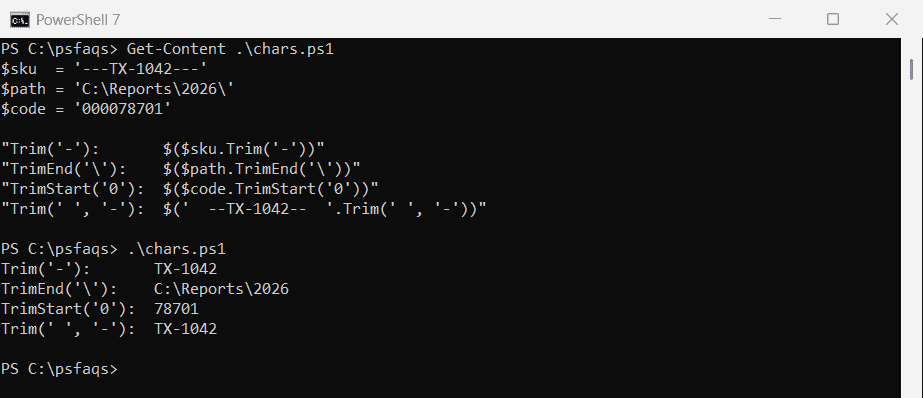
TrimStart(‘0’) is handy for IDs that were padded with zeros, and TrimEnd(‘\’) cleans up folder paths before you join them.
Trim works on characters, not words
TrimEnd(‘.csv’) doesn’t remove the text “.csv”. It removes any of the characters ., c, s and v from the end, which eats letters from the file name:
'orders.csv'.TrimEnd('.csv')
'reports.csv'.TrimEnd('.csv')
'reports.csv' -replace '\.csv$', ''
Output:
order
report
reports
To remove a suffix, anchor it with -replace, as in the last line. Removing characters from a string has more examples.
Remove extra spaces inside a string
Trim only touches the ends. To collapse runs of spaces inside the text, replace \s+ with a single space:
$address = '  1600   Pennsylvania    Ave  '

"Trim only:       [$($address.Trim())]"
"Trim + collapse: [$(($address -replace '\s+', ' ').Trim())]"
Output:
Trim only:       [1600   Pennsylvania    Ave]
Trim + collapse: [1600 Pennsylvania Ave]
Hidden characters that Trim() misses
Text pasted from web pages or Excel can carry invisible characters. Trim removes the non-breaking space, but not the zero-width space:
$nbsp  = "Austin$([char]0x00A0)"
$zwsp  = "Austin$([char]0x200B)"

"Non-breaking space: length $($nbsp.Length), after Trim() $($nbsp.Trim().Length)"
"Zero-width space:   length $($zwsp.Length), after Trim() $($zwsp.Trim().Length)"
"After -replace:     length $(($zwsp -replace '[\s\u200B\uFEFF]', '').Length)"
Output:
Non-breaking space: length 7, after Trim() 6
Zero-width space:   length 7, after Trim() 7
After -replace:     length 6
The -replace pattern removes whitespace plus the zero-width space (U+200B) and byte order mark (U+FEFF), the two I run into most.
PowerShell 7 hides the problem in comparisons
In my tests, PowerShell 7’s -eq treated the value with a zero-width space as equal to ‘Austin’, while 5.1 didn’t. .Equals() compares exactly in both:
$zwsp = "Austin$([char]0x200B)"

"-eq 'Austin':      $($zwsp -eq 'Austin')"
".Equals('Austin'): $($zwsp.Equals('Austin'))"
Output in PowerShell 7:
-eq 'Austin':      True
.Equals('Austin'): False
Output in Windows PowerShell 5.1:
-eq 'Austin':      False
.Equals('Austin'): False
So a value can pass an -eq check in 7 and still fail as a hashtable key or in another system. Clean imported text before you use it.
Trim every string in an array
Call .Trim() on the array itself. PowerShell runs it on each item and gives back a new array:
$states = '  Texas', 'Ohio  ', ' Utah '

$trimmed = $states.Trim()
$trimmed -join '|'
Output:
Texas|Ohio|UtahThis is also the quickest way to clean a column after splitting a string.
Remove the first or last characters
Remove the first N characters
Substring(4) returns everything from position 4, and Remove(0, 4) deletes the first four. Both drop the INV- prefix here:
$invoice = 'INV-20260928-0042'

$invoice.Substring(4)
$invoice.Remove(0, 4)
Output:
20260928-0042
20260928-0042
Remove the last N characters
Subtract from the length to keep everything except the end. This removes the five-character .xlsx extension:
$file = 'budget-2026.xlsx'

$file.Substring(0, $file.Length - 5)
$file.Remove($file.Length - 5)
Output:
budget-2026
budget-2026
For file names, [IO.Path]::GetFileNameWithoutExtension() is safer because extensions vary in length.
Handle strings shorter than N
Substring throws an error when the string is shorter than the start position. A regex or a Math.Min guard handles short strings:
$id = 'TX'

try { $id.Substring(4) } catch { "Substring(4) failed, 'TX' has only $($id.Length) characters" }
"Regex version: [$($id -replace '^.{0,4}', '')]"
"Safe version:  [$($id.Substring([Math]::Min(4, $id.Length)))]"
Output:
Substring(4) failed, 'TX' has only 2 characters
Regex version: []
Safe version:  []