
To set a variable in PowerShell, type a dollar sign, the name, an equals sign and the value, like $state = 'Texas'. PowerShell creates the variable the first time you assign it:
$state      = 'Texas'
$population = 30503301
$cities     = 'Austin', 'Dallas', 'Houston'

"$state has $($cities.Count) cities in this list and a population of $population"
Output:
Texas has 3 cities in this list and a population of 30503301That’s how you’ll set almost every variable. The cmdlets New-Variable and Set-Variable are for special cases, which I cover below. I ran every example in PowerShell 7.6 and Windows PowerShell 5.1, with the same results.
Set several variables at once
Assign a list to several variables, or chain assignments to give them all the same value:
$first, $last = 'Alice', 'Johnson'
$total = $tax = 0
$State = 'Colorado'

"First: $first, last: $last"
"Total: $total, tax: $tax"
"Names ignore case: `$state = $state"
Output:
First: Alice, last: Johnson
Total: 0, tax: 0
Names ignore case: $state = Colorado
Variable names aren’t case-sensitive, so $State and $state are the same variable. Microsoft covers naming rules in about_Variables.
Give a variable a type
Put a type in square brackets before the name, and PowerShell converts the value and keeps enforcing that type for later assignments:
[int]$count = '5'
"count is $count, type $($count.GetType().Name)"

try { $count = 'five' } catch { "Assigning 'five' failed, the variable only takes numbers" }

[ValidateSet('Dev', 'Test', 'Prod')][string]$stage = 'Dev'
try { $stage = 'Staging' } catch { "Assigning 'Staging' failed, it isn't in the ValidateSet list" }
Output:
count is 5, type Int32
Assigning 'five' failed, the variable only takes numbers
Assigning 'Staging' failed, it isn't in the ValidateSet list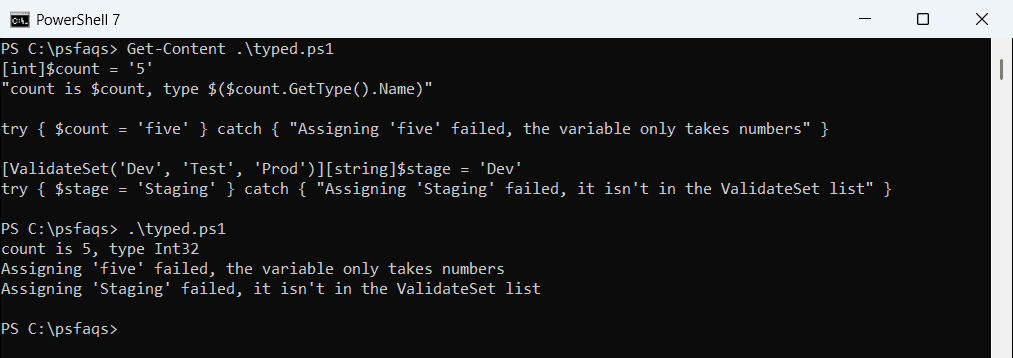
[ValidateSet()] limits a variable to a list of values, which catches typos in settings like the environment name.
New-Variable vs Set-Variable
New-Variable creates a variable and fails if it already exists. Set-Variable creates it or updates it:
New-Variable -Name region -Value 'West'
try { New-Variable -Name region -Value 'East' -ErrorAction Stop } catch { 'New-Variable again failed, region already exists' }

Set-Variable -Name region -Value 'East'
"After Set-Variable: $region"
Output:
New-Variable again failed, region already exists
After Set-Variable: East
That makes New-Variable useful when you want to be sure you’re not overwriting something. The New-Variable documentation lists its other parameters, like -Description and -Scope.
Read-only and constant variables
-Option ReadOnly protects a value from accidental changes. -Option Constant can’t be changed at all:
New-Variable -Name taxRate  -Value 0.0825 -Option ReadOnly
New-Variable -Name maxUsers -Value 50     -Option Constant

try { $taxRate = 0.09 } catch { 'ReadOnly: plain assignment blocked' }
Set-Variable -Name taxRate -Value 0.09 -Force
"ReadOnly with -Force: $taxRate"

try { Set-Variable -Name maxUsers -Value 60 -Force -ErrorAction Stop } catch { 'Constant: blocked even with -Force' }
"maxUsers is still $maxUsers"
Output:
ReadOnly: plain assignment blocked
ReadOnly with -Force: 0.09
Constant: blocked even with -Force
maxUsers is still 50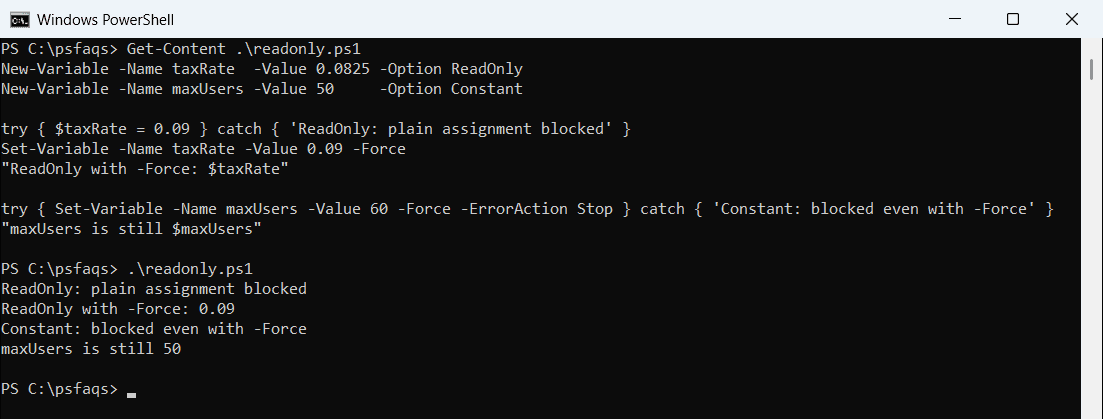
A constant stays until you close the session, so keep it for values that truly never change, like a tax rate in a script run.
Create variables with dynamic names
When the variable name is built at run time, use Set-Variable, then read them back with Get-Variable:
foreach ($i in 1..3) {
    Set-Variable -Name "server$i" -Value "WEB0$i"
}

"server2 = $server2"
Get-Variable -Name server* | ForEach-Object { '{0} = {1}' -f $_.Name, $_.Value }
Output:
server2 = WEB02
server1 = WEB01
server2 = WEB02
server3 = WEB03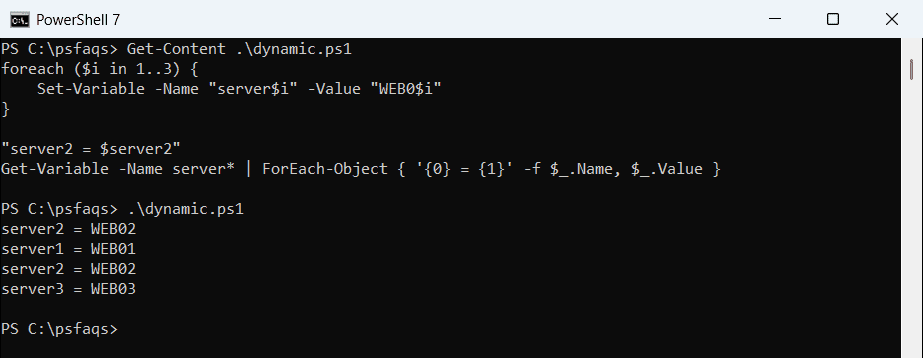
For most scripts, a hashtable is cleaner than numbered variables: $servers = @{ 1 = 'WEB01'; 2 = 'WEB02' }.
Set an environment variable
Environment variables use the $env: prefix. Values set this way last only for the current PowerShell session:
$env:APP_STAGE = 'Test'
"APP_STAGE in this session: $env:APP_STAGE"

Remove-Item -Path Env:\APP_STAGE
"After removing it: [$env:APP_STAGE]"
Output:
APP_STAGE in this session: Test
After removing it: []
To keep a value for all new sessions, use [Environment]::SetEnvironmentVariable('APP_STAGE', 'Test', 'User'). For variables shared between functions and scripts, see PowerShell global variables and scopes.
Frequently Asked Questions
How do I set a variable in PowerShell?
Assign it with an equals sign: $state = 'Texas'. PowerShell creates the variable the first time you assign a value.
What’s the difference between New-Variable and Set-Variable?
New-Variable creates a variable and fails if it already exists. Set-Variable creates it or changes its value.
How do I make a variable read-only in PowerShell?
Use New-Variable -Name taxRate -Value 0.0825 -Option ReadOnly. Use -Option Constant if it must never change.
How do I create a variable with a dynamic name?
Use Set-Variable -Name "server$i" -Value $value, and read it with Get-Variable. A hashtable is often a simpler choice.