
To find and replace text in a file with PowerShell, read the file with Get-Content in parentheses, use -replace, and write it back with Set-Content:
(Get-Content -Path C:\psfaqs\app.config) -replace 'SQL01', 'SQL02' |
    Set-Content -Path C:\psfaqs\app.config

Get-Content -Path C:\psfaqs\app.config
Output (the new file content):
Server=SQL02
Database=Orders
Port=1433
The parentheses matter, and so do a few other details that quietly damage files. I ran every example in PowerShell 7.6 and Windows PowerShell 5.1 and note where they differ.
Why the parentheses matter
Without them, Get-Content still has the file open when Set-Content tries to write it:
try {
    Get-Content -Path C:\psfaqs\app.config |
        ForEach-Object { $_ -replace 'SQL01', 'SQL02' } |
        Set-Content -Path C:\psfaqs\app.config -ErrorAction Stop
}
catch { "Failed. $($_.Exception.Message)" }

"Server line is still: $(Get-Content -Path C:\psfaqs\app.config -TotalCount 1)"
Output:
Failed. The process cannot access the file 'C:\psfaqs\app.config' because it is being used by another process.
Server line is still: Server=SQL01
Parentheses make PowerShell read the whole file first and close it, so the write can succeed. The failed version leaves the file untouched, at least.
Replace text with -Raw without adding blank lines
-Raw reads the file as one string, which you need for patterns that span lines. But the string keeps the file’s last line break, and Set-Content adds another:
$path = 'C:\psfaqs\app.config'

foreach ($run in 1..3) {
    (Get-Content -Path $path -Raw) -replace 'SQL01', 'SQL02' | Set-Content -Path $path
    "After run ${run}: $((Get-Content -Path $path).Count) lines"
}
Output:
After run 1: 4 lines
After run 2: 5 lines
After run 3: 6 lines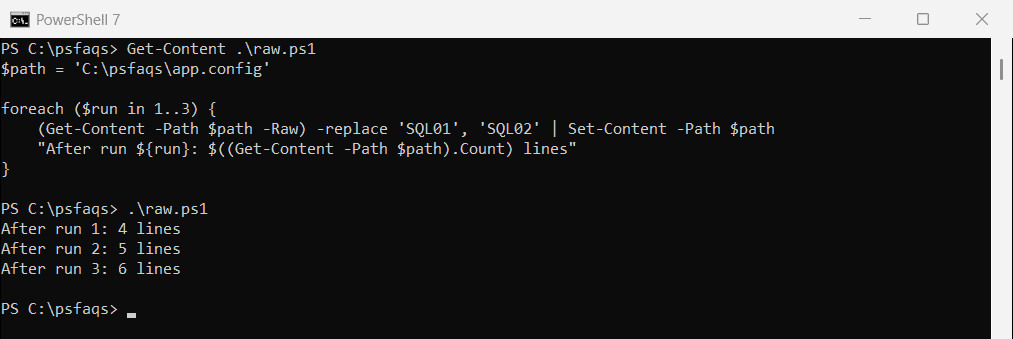
Add -NoNewline to Set-Content whenever you read with -Raw. Now the script can run as often as you like:
$path = 'C:\psfaqs\app.config'

foreach ($run in 1..3) {
    (Get-Content -Path $path -Raw) -replace 'SQL01', 'SQL02' | Set-Content -Path $path -NoNewline
    "After run ${run}: $((Get-Content -Path $path).Count) lines"
}
Output:
After run 1: 3 lines
After run 2: 3 lines
After run 3: 3 lines
Without -Raw, Get-Content returns lines and Set-Content rebuilds them, so the count stays right. That’s why the first example didn’t need -NoNewline.
Replace multiple strings in a file
Keep the old and new values in an ordered hashtable and loop through it. [regex]::Escape() makes -replace treat each key as plain text, so dots or dollar signs in it can’t misfire:
$replacements = [ordered]@{
    'SQL01'  = 'SQL02'
    'Orders' = 'Orders2026'
    '1433'   = '14330'
}

$text = Get-Content -Path C:\psfaqs\app.config -Raw
foreach ($key in $replacements.Keys) {
    $text = $text -replace [regex]::Escape($key), $replacements[$key]
}
Set-Content -Path C:\psfaqs\app.config -Value $text -NoNewline

Get-Content -Path C:\psfaqs\app.config
Output:
Server=SQL02
Database=Orders2026
Port=14330
The order matters when one replacement creates text that a later key matches, which is why I used [ordered]. Replacing text in strings covers -replace and .Replace() in more depth.
-replace vs -creplace
-replace ignores case, so ‘sql01’ and ‘SQL01’ both match. -creplace is the case-sensitive version, handy for fixing capitalization, like replacing ‘ny’ with ‘NY’ without touching ‘Ny’.
Replace a whole line in a file
To replace a line that starts with a known key, match from the start of the line with ^ and let .* take the rest:
(Get-Content -Path C:\psfaqs\app.config) -replace '^Server=.*', 'Server=SQL02.contoso.com' |
    Set-Content -Path C:\psfaqs\app.config

Get-Content -Path C:\psfaqs\app.config
Output:
Server=SQL02.contoso.com
Database=Orders
Port=1433
This works line by line, because Get-Content without -Raw strips the line breaks first.
Watch the line endings with -Raw
With -Raw and the (?m) multiline flag, .*$ also swallows the carriage return at the end of a Windows line:
$text = Get-Content -Path C:\psfaqs\app.config -Raw
$new  = $text -replace '(?m)^Server=.*$', 'Server=SQL02'
$safe = $text -replace '(?m)^Server=[^\r\n]*', 'Server=SQL02'

function Get-LineEnd($s) { if ($s.Split("`n")[0].EndsWith("`r")) { 'CRLF' } else { 'LF only' } }
'Pattern .*$      -> line 1 ends with ' + (Get-LineEnd $new)
'Pattern [^\r\n]* -> line 1 ends with ' + (Get-LineEnd $safe)
Output:
Pattern .*$      -> line 1 ends with LF only
Pattern [^\r\n]* -> line 1 ends with CRLF
Many Windows tools don’t mind a mix of CRLF and LF, but diff tools and some parsers do. Use [^\r\n]* instead of .* when you work on the whole file.
Find and replace in multiple files
Preview first. Select-String shows every file and line that will change:
Select-String -Path C:\psfaqs\Sites\*\web.config -Pattern 'SQL01' |
    ForEach-Object { '{0} line {1}' -f $_.Path.Replace('C:\psfaqs\Sites\', ''), $_.LineNumber }
Output:
Austin\web.config line 1
Austin\web.config line 2
Seattle\web.config line 1
Then replace, but only write files that actually changed, and keep a .bak copy of each one:
Get-ChildItem -Path C:\psfaqs\Sites -Filter web.config -Recurse | ForEach-Object {
    $old = Get-Content -Path $_.FullName -Raw
    $new = $old -replace 'SQL01\.', 'SQL02.'

    if ($new -cne $old) {
        Copy-Item -Path $_.FullName -Destination "$($_.FullName).bak"
        Set-Content -Path $_.FullName -Value $new -NoNewline
        "Updated $($_.Directory.Name)\web.config"
    }
}
Output:
Updated Austin\web.config
Updated Seattle\web.config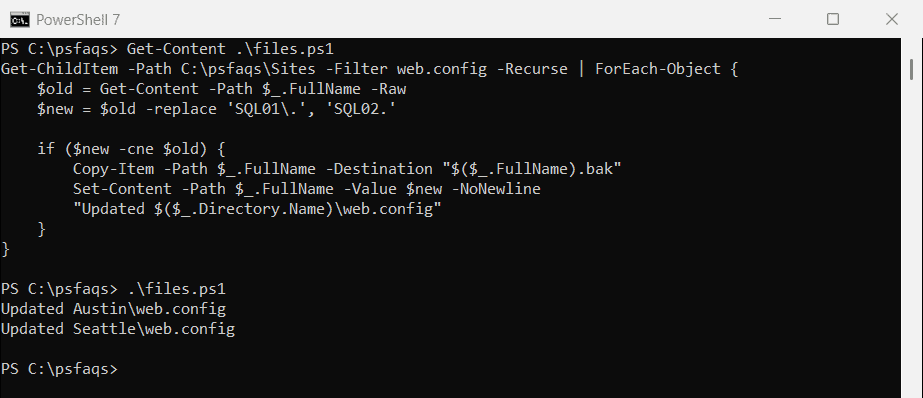
Set-Content rewrites a file even when nothing changed, which updates its LastWriteTime and can trigger backups or deployments. I used -cne because -ne ignores case, so a change like sql01 to SQL01 wouldn’t count.