
To create an array of objects in PowerShell, put [pscustomobject]@{ ... } entries inside @( ), one per line. Each object’s keys become its properties:
$users = @(
    [pscustomobject]@{ Name = 'Alice Johnson'; State = 'TX'; Licenses = 3 }
    [pscustomobject]@{ Name = 'Bob Smith';     State = 'CO'; Licenses = 1 }
    [pscustomobject]@{ Name = 'Carol Diaz';    State = 'TX'; Licenses = 2 }
)

$users | Format-Table
Output:
Name          State Licenses
----          ----- --------
Alice Johnson TX           3
Bob Smith     CO           1
Carol Diaz    TX           2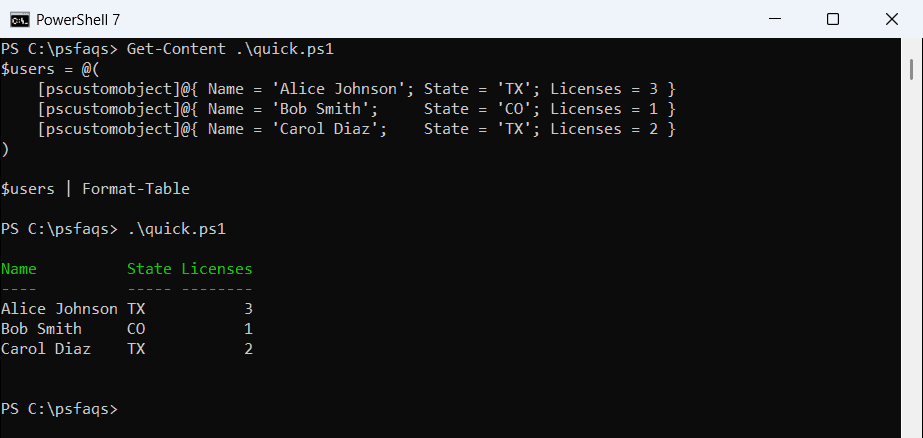
PowerShell shows the array as a table, with one row per object. I ran every example in PowerShell 7.6 and Windows PowerShell 5.1 and note the two places they differ.
Access and filter the objects
Index into the array for one object, use dot notation on the array to get a property from every object, and filter with Where-Object:
$users = @(
    [pscustomobject]@{ Name = 'Alice Johnson'; State = 'TX'; Licenses = 3 }
    [pscustomobject]@{ Name = 'Bob Smith';     State = 'CO'; Licenses = 1 }
    [pscustomobject]@{ Name = 'Carol Diaz';    State = 'TX'; Licenses = 2 }
)

"First user:       $($users[0].Name)"
"All names:        $($users.Name -join ', ')"
"Texas users:      $(($users | Where-Object State -eq 'TX').Name -join ', ')"
"Total licenses:   $(($users | Measure-Object -Property Licenses -Sum).Sum)"
Output:
First user:       Alice Johnson
All names:        Alice Johnson, Bob Smith, Carol Diaz
Texas users:      Alice Johnson, Carol Diaz
Total licenses:   6
Getting $users.Name from the whole array is called member enumeration. Where-Object covers filtering in more depth.
Change properties in the array
Objects are passed by reference, so changing a property inside a foreach loop updates the object in the array:
$users = @(
    [pscustomobject]@{ Name = 'Alice Johnson'; State = 'TX'; Licenses = 3 }
    [pscustomobject]@{ Name = 'Bob Smith';     State = 'CO'; Licenses = 1 }
    [pscustomobject]@{ Name = 'Carol Diaz';    State = 'TX'; Licenses = 2 }
)

foreach ($user in $users) {
    if ($user.State -eq 'TX') { $user.Licenses += 1 }
}
$users | ForEach-Object { '{0,-14} {1}' -f $_.Name, $_.Licenses }
Output:
Alice Johnson  4
Bob Smith      1
Carol Diaz     3
That’s different from an array of strings, where the loop variable is only a copy. Replacing values in an array explains that case.
Create an empty array and add objects
For a list you’ll add to and remove from, use a generic List. Its Add and RemoveAt methods change the list in place:
$servers = [System.Collections.Generic.List[pscustomobject]]::new()

$servers.Add([pscustomobject]@{ Name = 'WEB01'; Role = 'Web' })
$servers.Add([pscustomobject]@{ Name = 'SQL01'; Role = 'Database' })

"Servers in the list: $($servers.Count)"
$servers.RemoveAt(0)
"After RemoveAt(0):   $($servers.Name)"
Output:
Servers in the list: 2
After RemoveAt(0):   SQL01
Build the array from a loop instead of +=
Often you don’t need an empty array at all. Assign the loop itself to a variable, and PowerShell collects every object it outputs:
$report = foreach ($state in 'TX', 'CO', 'FL') {
    [pscustomobject]@{
        State   = $state
        Checked = [datetime]'2026-09-28'
        Status  = 'OK'
    }
}

"Type: $($report.GetType().Name), items: $($report.Count)"
$report | ForEach-Object { '{0}  {1:yyyy-MM-dd}  {2}' -f $_.State, $_.Checked, $_.Status }
Output:
Type: Object[], items: 3
TX  2026-09-28  OK
CO  2026-09-28  OK
FL  2026-09-28  OK
Avoid $list += $object in loops. It copies the whole array each time:
$plusEquals = Measure-Command {
    $list = @()
    foreach ($i in 1..20000) { $list += [pscustomobject]@{ Id = $i } }
}
$collect = Measure-Command {
    $list = foreach ($i in 1..20000) { [pscustomobject]@{ Id = $i } }
}

"Collecting loop output was more than 10 times faster: $($plusEquals.TotalMilliseconds / $collect.TotalMilliseconds -gt 10)"
Output:
Collecting loop output was more than 10 times faster: TrueWith 20,000 objects, += was about 18 times slower in PowerShell 7.6 and about 110 times slower in 5.1 on my PC. Array vs ArrayList explains why.
Use [pscustomobject], not New-Object -Property
Older scripts create objects with New-Object PSObject -Property. The hashtable it takes doesn’t keep your property order, while [pscustomobject] does:
$old = New-Object -TypeName PSObject -Property @{ Name = 'Alice'; State = 'TX'; Id = 1001 }
$new = [pscustomobject]@{ Name = 'Alice'; State = 'TX'; Id = 1001 }

"New-Object -Property: $($old.PSObject.Properties.Name -join ', ')"
"[pscustomobject]:     $($new.PSObject.Properties.Name -join ', ')"
Output in Windows PowerShell 5.1:
New-Object -Property: State, Name, Id
[pscustomobject]:     Name, State, Id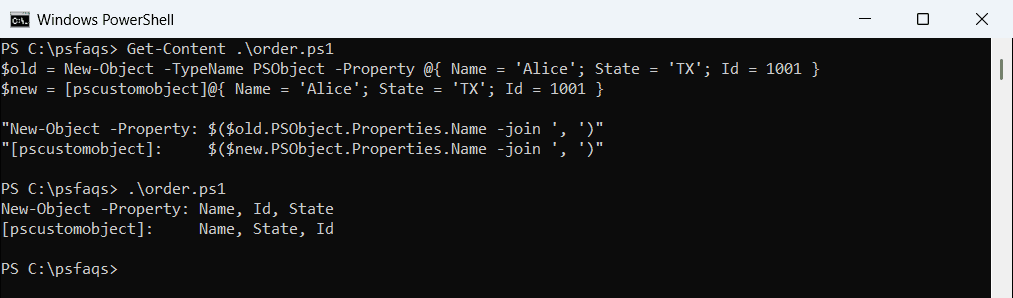
In PowerShell 7, the New-Object order follows the hashtable and can change from run to run. The column order matters for tables and CSV files, so stick with [pscustomobject], as Microsoft’s PSCustomObject guide also shows.
Export an array of objects to CSV
Export-Csv takes its columns from the first object only. If a later object has an extra property, that column is dropped without a warning:
$contacts = @(
    [pscustomobject]@{ Name = 'Alice Johnson'; State = 'TX' }
    [pscustomobject]@{ Name = 'Bob Smith';     State = 'CO'; Phone = '303-555-0187' }
)

$contacts | Export-Csv -Path C:\psfaqs\contacts.csv -NoTypeInformation
"Columns written: $(Get-Content -Path C:\psfaqs\contacts.csv -TotalCount 1)"

$contacts | Select-Object -Property Name, State, Phone | Export-Csv -Path C:\psfaqs\contacts.csv -NoTypeInformation
"With Select-Object: $(Get-Content -Path C:\psfaqs\contacts.csv -TotalCount 1)"
Output:
Columns written: "Name","State"
With Select-Object: "Name","State","Phone"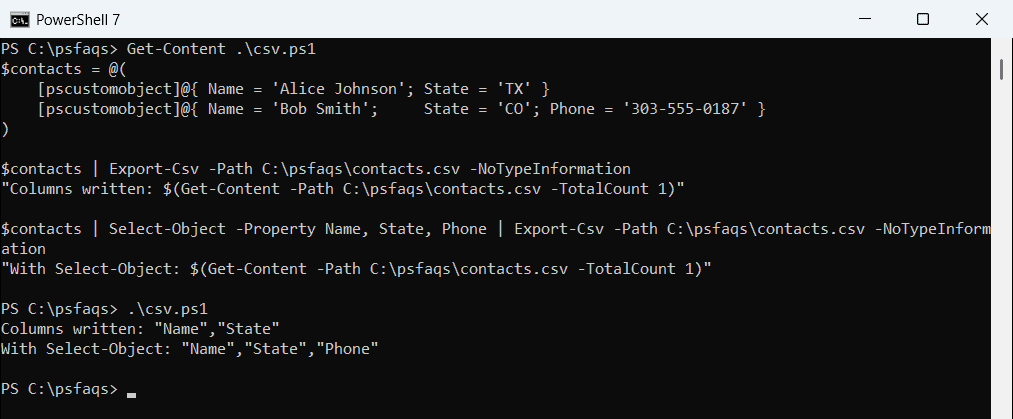
List every column with Select-Object before exporting whenever your objects don’t all have the same properties. The Export-Csv documentation covers -Append and -Force.
Add a calculated property to every object
Select-Object with * keeps the existing properties and adds a new one:
$users = @(
    [pscustomobject]@{ Name = 'Alice Johnson'; State = 'TX'; Licenses = 3 }
    [pscustomobject]@{ Name = 'Bob Smith';     State = 'CO'; Licenses = 1 }
    [pscustomobject]@{ Name = 'Carol Diaz';    State = 'TX'; Licenses = 2 }
)

$users | Select-Object -Property *, @{ Name = 'Cost'; Expression = { '{0:C0}' -f ($_.Licenses * 12) } } |
    Format-Table
Output:
Name          State Licenses Cost
----          ----- -------- ----
Alice Johnson TX           3 $36
Bob Smith     CO           1 $12
Carol Diaz    TX           2 $24
Microsoft’s guide to arrays has more on arrays of objects and member enumeration.
Frequently Asked Questions
How do I create an array of objects in PowerShell?
Put [pscustomobject] entries inside @(): $users = @( [pscustomobject]@{ Name = 'Alice' }, [pscustomobject]@{ Name = 'Bob' } ).
How do I create an empty array of objects?
Use $list = [System.Collections.Generic.List[pscustomobject]]::new() and add items with $list.Add($object).
How do I add an object to an array in a loop?
Assign the loop to a variable: $result = foreach ($x in $items) { [pscustomobject]@{ ... } }. It’s much faster than +=.
How do I get one property from every object in the array?
Use dot notation on the array: $users.Name returns every Name value.
Why is a column missing from my exported CSV?
Export-Csv uses the first object’s properties as columns. Add Select-Object -Property Name, State, Phone before exporting.
Related guides on objects and collections:

Bijay Kumar is an esteemed author and the mind behind PowerShellFAQs.com, where he shares his extensive knowledge and expertise in PowerShell, with a particular focus on SharePoint projects. Recognized for his contributions to the tech community, Bijay has been honored with the prestigious Microsoft MVP award. With over 15 years of experience in the software industry, he has a rich professional background, having worked with industry giants such as HP and TCS. His insights and guidance have made him a respected figure in the world of software development and administration. Read more.