If you’re working with PowerShell, you’ve probably run into situations where your script behaves weirdly because PowerShell treated your data as the wrong type. Maybe you tried to add two numbers and got “1020” instead of “30”.
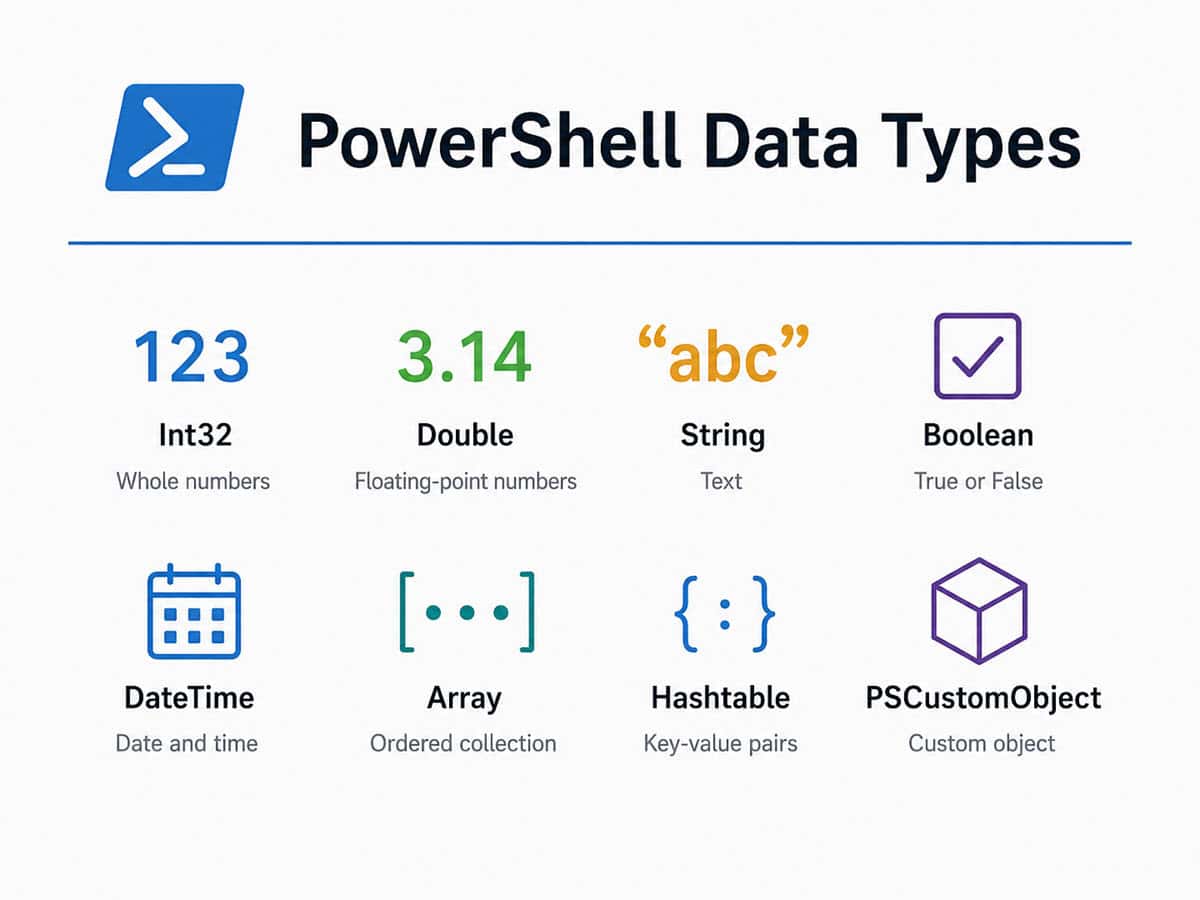
I’m going to walk you through everything you need to know about PowerShell data types – from the basics to advanced techniques. Here, we’ll explore everything you need to know about data types in PowerShell, including primitive types, complex types, type conversion, type casting, and best practices.
What Are Data Types in PowerShell?
A data type defines the kind of value a variable can hold and the operations that can be performed on it. PowerShell is built on the .NET Framework, which means it inherits a rich type system from .NET. This gives PowerShell access to hundreds of built-in data types that you can use directly in your scripts.
Unlike strongly typed languages such as C# or Java, PowerShell is a dynamically typed language. This means you don’t need to explicitly declare the type of a variable before using it. PowerShell automatically determines the type based on the value assigned. However, you can also explicitly declare types when needed, which is considered a best practice for production scripts.
Here’s a simple example of dynamic typing in PowerShell:
$number = 42 # PowerShell automatically assigns Int32
$text = "Hello" # PowerShell automatically assigns String
$decimal = 3.14 # PowerShell automatically assigns DoubleTo check the data type of any variable, use the GetType() method:
$number = 42
$number.GetType().FullName
# Output: System.Int32Categories of PowerShell Data Types
PowerShell data types can be broadly categorized into two main groups:
- Value Types (Primitive Types) — These store the actual data directly in memory. These are self-contained. When you copy a value type, you get a completely independent copy. Examples include:
int(integers)bool(true/false)char(single characters)datetime(dates and times)decimal,float,double(numbers with decimals)
- Reference Types (Complex Types) — These store a reference (memory address) to the actual data. These store a reference to the actual data. When you copy a reference type, you’re copying the reference, not the actual data. Examples include:
string(yes, strings are reference types in PowerShell!)array(collections of items)hashtable(key-value pairs)PSCustomObject(custom objects)
Let’s explore both categories in detail.
Primitive Data Types in PowerShell
Primitive data types are the building blocks of any PowerShell script. They represent simple values such as numbers, characters, and Boolean values.
1. Integer Types
Integers are whole numbers without decimals. You’ll use these constantly for counting, IDs, quantities, and any whole number calculations.
$employeeId = 1001
$quantityOrdered = 42
$negativeBalance = -150
$millionDollars = 1000000PowerShell supports several integer types, each with a different range and storage size.
Int32 (Integer)
The Int32 type is the default integer type in PowerShell. It can hold values from -2,147,483,648 to 2,147,483,647.
[int]$age = 30
$age.GetType().FullName
# Output: System.Int32Int64 (Long)
For larger numbers, use the Int64 type, which can hold values from -9,223,372,036,854,775,808 to 9,223,372,036,854,775,807.
[long]$bigNumber = 9999999999999
$bigNumber.GetType().FullName
# Output: System.Int64Byte
The Byte type holds unsigned 8-bit integers (0 to 255).
[byte]$smallNumber = 200
$smallNumber.GetType().FullName
# Output: System.ByteImportant note: PowerShell integers are 32-bit by default ([int32]), which means they can hold values from -2,147,483,648 to 2,147,483,647. For very large numbers (like big transaction IDs or social security numbers you might work with), use [long] (64-bit):
$largeTransactionId = [long]987654321012345
$ssn = [long]"123456789" # Store as string actually, but long works for numbersHere is a real example of integers in PowerShell: calculating inventory levels:
$initialStock = 500
$unitsSold = 127
$unitsReceived = 75
$currentStock = $initialStock - $unitsSold + $unitsReceived
Write-Host "Current inventory: $currentStock units"
# Output: Current inventory: 448 units
# Check if reorder is needed
$reorderThreshold = 200
if ($currentStock -lt $reorderThreshold) {
Write-Host "REORDER ALERT: Stock is low!"
} else {
Write-Host "Stock levels are adequate."
}You can check out the exact output in the screenshot below:

2. Floating-Point Types
When you need to work with decimal numbers, PowerShell provides several floating-point types.
Double
The Double type is the default floating-point type. It provides approximately 15-16 significant digits of precision.
[double]$pi = 3.14159265358979
$pi.GetType().FullName
# Output: System.DoubleSingle (Float)
The Single type uses less memory than Double but provides only 7 significant digits of precision.
[single]$temperature = 98.6
$temperature.GetType().FullName
# Output: System.SingleDecimal
The Decimal type is ideal for financial calculations because it provides 28-29 significant digits and avoids the rounding errors common with Double.
[decimal]$price = 19.99
$price.GetType().FullName
# Output: System.Decimal- Convert Scientific Notation to Decimal using PowerShell
- PowerShell Round to 2 Decimal Places
- PowerShell Measure-Object 2 Decimal Places
3. String Type
The String type in PowerShell represents a sequence of characters and is one of the most commonly used data types in PowerShell. Strings are text values enclosed in single or double quotes. This is probably the data type you’ll use most frequently.
[string]$name = "PowerShell"
$name.GetType().FullName
# Output: System.StringPowerShell supports two types of string literals:
Single-quoted strings (literal strings):
$literal = 'Hello $name'
Write-Output $literal
# Output: Hello $nameDouble-quoted strings (interpolated strings):
$name = "World"
$interpolated = "Hello $name"
Write-Output $interpolated
# Output: Hello WorldKey difference: Double quotes allow variable expansion and escape sequences; single quotes treat everything literally.
$employeeName = "Sarah Johnson"
$department = "Marketing"
$greeting1 = "Hello, $employeeName!" # Output: Hello, Sarah Johnson!
$greeting2 = 'Hello, $employeeName!' # Output: Hello, $employeeName!You can also use here-strings for multi-line text:
$multiLine = @"
This is line one.
This is line two.
This is line three.
"@4. Character Type
The Char type represents a single Unicode character.
[char]$letter = 'A'
$letter.GetType().FullName
# Output: System.CharYou can convert between characters and their ASCII values:
[int][char]'A' # Output: 65
[char]65 # Output: A5. Boolean Type
The Boolean type represents a logical value: either $true or $false. Booleans represent logical values – either $true or $false. These are essential for conditionals, flags, and decision-making in your scripts.
$isEmployeeActive = $true
$isSubscriptionExpired = $false
$hasPermission = $trueBoolean values are essential for conditional statements and comparisons:
$age = 25
$isAdult = $age -ge 18
Write-Output $isAdult
# Output: TrueHere is a real example of using Boolean in PowerShell: employee access control:
$employeeId = 1001
$isActive = $true
$hasManagerRole = $false
$isOnLeave = $false
# Check if employee can access the system
if ($isActive -and -not $isOnLeave) {
Write-Host "Employee can access the system"
# Check if they can approve expenses
if ($hasManagerRole) {
Write-Host "Employee can approve expenses up to $10,000"
} else {
Write-Host "Employee can submit expenses only"
}
} else {
Write-Host "Employee access is denied"
}Here is the exact output in the screenshot below:

6. DateTime Type
This is one of the most powerful types in PowerShell. The DateTime type stores dates and times. PowerShell provides extensive functionality for working with dates.
When you use [datetime], you get access to tons of built-in methods for date manipulation. This is critical for any business automation involving deadlines, schedules, or time-based reporting.
[datetime]$today = Get-Date
$today.GetType().FullName
# Output: System.DateTimeYou can perform arithmetic on DateTime values:
$now = Get-Date
$tomorrow = $now.AddDays(1)
$difference = $tomorrow - $now
Write-Output $difference.TotalHours
# Output: 24Here are some essential datetime properties you’ll use daily:
$today = Get-Date
$today.Year # 2026
$today.Month # 6 (June)
$today.Day # 7
$today.DayOfYear # 158 (day number of the year)
$today.Hour # Current hour (7 in the morning)
$today.Minute # Current minute
$today.Second # Current second
$today.DayOfWeek # Saturday
$today.MonthName # JuneHere are some date and time methods that you will work in your day-to-day life:
$now = Get-Date
# Add time - perfect for calculating deadlines
$deadline = $now.AddDays(14) # 14 days from now
$meetingTime = $now.AddHours(-3) # 3 hours ago
$nextMonth = $now.AddMonths(1) # 1 month from now
$nextYear = $now.AddYears(1) # 1 year from now
# Calculate time difference
$projectStart = [datetime]"2027-01-01"
$projectEnd = [datetime]"2027-12-31"
$duration = $projectEnd - $projectStart
$duration.Days # 365 days
# Find business days between two dates (excluding weekends)
$startDate = Get-Date "2027-06-01"
$endDate = Get-Date "2027-06-30"
$businessDays = 0
foreach ($date in (0..($endDate - $startDate).Days | ForEach-Object { $startDate.AddDays($_) })) {
if ($date.DayOfWeek -ne 'Saturday' -and $date.DayOfWeek -ne 'Sunday') {
$businessDays++
}
}
Write-Host "Business days in June 2027: $businessDays"Here you can do some date formatting in PowerShell:
$today = Get-Date
# US date formats
$today.ToString("MM/dd/yyyy") # "06/07/2026"
$today.ToString("MMMM dd, yyyy") # "June 07, 2026"
$today.ToString("dddd, MMMM dd, yyyy") # "Saturday, June 07, 2026"
$today.ToString("h:mm tt") # "7:15 AM"
$today.ToString("hh:mm:ss tt") # "07:15:30 AM"
# ISO format (good for international)
$today.ToString("yyyy-MM-dd") # "2026-06-07"Check out all the PowerShell Datetime tutorials.
Complex Data Types in PowerShell
Complex data types are more sophisticated structures that can hold multiple values or objects.
1. Array
Arrays store multiple values in a single variable. They’re zero-indexed (first item is at position 0). You’ll use arrays constantly for storing lists of employees, products, orders, or any collection of data.
# Create arrays
$fruits = @("apple", "banana", "cherry")
$employeeIds = @(1001, 1002, 1003, 1004, 1005)
$states = @("California", "Texas", "Florida", "New York")
$mixed = @(1, "text", $true, Get-Date) # Arrays can hold mixed typesYou can also create arrays using the comma operator:
$numbers = 1, 2, 3, 4, 5To check the type:
$colors.GetType().FullName
# Output: System.Object[]Arrays support many useful operations:
$numbers = 1..10 # Range operator creates an array
$numbers.Length # Output: 10
$numbers += 11 # Add an element
$numbers -contains 5 # Output: TrueFor better performance with large datasets, consider using strongly typed arrays:
[int[]]$strongArray = 1, 2, 3, 4, 5Here are some examples to get array elements in PowerShell.
$employees = @("Alice", "Bob", "Charlie", "Diana", "Eve")
$employees # "Alice" (first item)
$employees # "Bob"[1]
$employees[-1] # "Eve" (last item - negative indices work!)
$employees[-2] # "Diana" (second to last)
$employees[1..3] # "Bob", "Charlie", "Diana" (range)
$employees[0..2] # "Alice", "Bob", "Charlie" (first three)Here are some array operations:
$numbers = @(1, 2, 3)
# Add items to array
$numbers += 4 # @(1, 2, 3, 4)
$numbers += @(5, 6) # @(1, 2, 3, 4, 5, 6)
# Get count of items
$numbers.Count # 6
$numbers.Length # 6 (alternative)
# Check if array contains a value
$numbers -contains 3 # True
$numbers -contains 7 # False
# Find index of a value
$numbers.IndexOf(3) # 2 (position of value 3)
# Sort array
$unsorted = @(3, 1, 4, 1, 5, 9, 2, 6)
$sorted = $unsorted | Sort-Object # @(1, 1, 2, 3, 4, 5, 6, 9)
# Sort descending
$sortedDescending = $unsorted | Sort-Object -Descending
# Filter array with Where-Object
$numbers = @(1, 2, 3, 4, 5, 6, 7, 8, 9, 10)
$evenNumbers = $numbers | Where-Object { $_ -mod 2 -eq 0 } # @(2, 4, 6, 8, 10)
$numbersGreaterThan5 = $numbers | Where-Object { $_ -gt 5 } # @(6, 7, 8, 9, 10)Check out all the PowerShell arrays tutorials.
2. Hashtable
Hashtables (also called dictionaries) store data as key-value pairs. A Hashtable stores key-value pairs and is one of the most useful data structures in PowerShell. They’re incredibly useful for storing configuration data, named values, or any data where you need to look up values by name. This is one of my favorite data types for business automation.
# Create a hashtable
$employee = @{
EmployeeId = 1001
Name = "John Doe"
Department = "Marketing"
Salary = 75000
IsActive = $true
HireDate = [datetime]"2020-03-15"
}To check the type:
$person.GetType().FullName
# Output: System.Collections.HashtableYou can access hashtable values like below:
$employee = @{ Name = "John"; Age = 30; Department = "IT" }
# Member notation (cleaner, recommended)
$employee.Name # "John"
$employee.Age # 30
$employee.Department # "IT"
# Array index notation (works when keys have spaces)
$employee["Name"] # "John"
$employee["Age"] # 303. Ordered Dictionary
Unlike a regular hashtable, an ordered dictionary maintains the order of insertion.
$ordered = [ordered]@{
First = "A"
Second = "B"
Third = "C"
}
$ordered.GetType().FullName
# Output: System.Collections.Specialized.OrderedDictionary4. PSCustomObject
Custom objects let you create your own data structures with named properties. This is how you create structured data that’s easy to work with, export, and display.
# Method 1: Using [PSCustomObject] (recommended, modern approach)
$employee = [PSCustomObject]@{
FirstName = "Jane"
LastName = "Smith"
EmployeeId = 1001
Department = "Engineering"
Salary = 95000
HireDate = [datetime]"2019-06-15"
IsActive = $true
}
# Method 2: Using New-Object (older approach, still works)
$employee2 = New-Object -TypeName PSObject -Property @{
FirstName = "John"
LastName = "Doe"
EmployeeId = 1002
}You can access PSCustomObject properties like below:
$employee.FirstName # "Jane"
$employee["LastName"] # "Smith"
$employee.EmployeeId # 1001
$employee | Get-Member # See all properties and methodsHere is an example of exporting custom objects to CSV in PowerShell.
$employees = @(
[PSCustomObject]@{ FirstName = "Jane"; LastName = "Smith"; Department = "Engineering"; Salary = 95000 },
[PSCustomObject]@{ FirstName = "John"; LastName = "Doe"; Department = "Marketing"; Salary = 75000 },
[PSCustomObject]@{ FirstName = "Alice"; LastName = "Johnson"; Department = "Sales"; Salary = 80000 }
)
# Export to CSV
$employees | Export-Csv -Path "C:\Reports\EmployeeSalaries.csv" -NoTypeInformation
# Import back
$importedEmployees = Import-Csv -Path "C:\Reports\EmployeeSalaries.csv"
$importedEmployees | Format-Table -AutoSize5. ArrayList
The ArrayList is a dynamic collection that provides better performance than regular arrays when you need to add or remove items frequently.
$list = New-Object System.Collections.ArrayList
$list.Add("Apple") | Out-Null
$list.Add("Banana") | Out-Null
$list.Add("Cherry") | Out-Null
$list.Remove("Banana")
$list.GetType().FullName
# Output: System.Collections.ArrayListUnlike standard arrays, ArrayList items can be added without recreating the entire collection in memory, making it ideal for large datasets.
6. Generic List
The Generic List (List<T>) is a strongly typed collection that offers excellent performance and type safety.
$intList = New-Object System.Collections.Generic.List[int]
$intList.Add(10)
$intList.Add(20)
$intList.Add(30)
$intList.GetType().FullName
# Output: System.Collections.Generic.List`1[[System.Int32, System.Private.CoreLib]]Generic lists are highly recommended over ArrayList in modern PowerShell scripts because they enforce type consistency and offer better performance.
7. Generic Dictionary
Similar to a hashtable, but strongly typed:
$dict = New-Object 'System.Collections.Generic.Dictionary[string,int]'
$dict.Add("Apples", 10)
$dict.Add("Oranges", 25)
$dict["Apples"] # Output: 10Type Conversion in PowerShell
Type conversion (also called type casting) is the process of converting a value from one data type to another. PowerShell supports both implicit and explicit type conversion.
Implicit Type Conversion
PowerShell automatically converts data types when necessary. For example, when you add a string and a number, PowerShell might convert one to match the other.
$result = "5" + 5
Write-Output $result
# Output: 55 (string concatenation)
$result = 5 + "5"
Write-Output $result
# Output: 10 (numeric addition)The conversion depends on the type of the left operand. If the left operand is a string, PowerShell performs concatenation. If it’s a number, PowerShell tries to convert the string to a number.
Explicit Type Conversion
You can explicitly convert a value to a specific type using type accelerators (square brackets).
$stringNumber = "42"
$intNumber = [int]$stringNumber
$intNumber.GetType().FullName
# Output: System.Int32Common type conversions include:
[int]"100" # Convert string to integer
[string]100 # Convert integer to string
[double]"3.14" # Convert string to double
[datetime]"2026-01-01" # Convert string to DateTime
[bool]1 # Convert integer to Boolean (True)
[bool]0 # Convert integer to Boolean (False)Using the -as Operator
The -as operator performs type conversion without throwing an error if the conversion fails. Instead, it returns $null.
$value = "abc" -as [int]
Write-Output $value
# Output: (nothing - null value)
$value = "123" -as [int]
Write-Output $value
# Output: 123This makes -as ideal for safe type conversions in scripts where you want to handle invalid input gracefully.
Type Accelerators in PowerShell
Type accelerators are shortcuts for .NET type names. They make your code shorter and easier to read. Here are some of the most commonly used type accelerators:
| Accelerator | .NET Type |
|---|---|
[int] | System.Int32 |
[long] | System.Int64 |
[string] | System.String |
[bool] | System.Boolean |
[double] | System.Double |
[decimal] | System.Decimal |
[datetime] | System.DateTime |
[array] | System.Array |
[hashtable] | System.Collections.Hashtable |
[regex] | System.Text.RegularExpressions.Regex |
[xml] | System.Xml.XmlDocument |
[guid] | System.Guid |
[timespan] | System.TimeSpan |
[pscustomobject] | System.Management.Automation.PSCustomObject |
You can view all available type accelerators using:
[PSObject].Assembly.GetType('System.Management.Automation.TypeAccelerators')::GetSpecial Data Types in PowerShell
PowerShell includes several specialized data types that are useful in specific scenarios.
1. RegEx (Regular Expression)
The [regex] type allows you to work with regular expressions for pattern matching.
[regex]$pattern = "\d+"
$matches = $pattern.Matches("There are 123 apples and 456 oranges")
foreach ($match in $matches) {
Write-Output $match.Value
}
# Output:
# 123
# 4562. XML
The [xml] type allows you to parse and work with XML data.
[xml]$xmlData = @"
<users>
<user>
<name>Alice</name>
<age>30</age>
</user>
<user>
<name>Bob</name>
<age>25</age>
</user>
</users>
"@
$xmlData.users.user | ForEach-Object { Write-Output "$($_.name) is $($_.age) years old" }3. GUID
The [guid] type represents a globally unique identifier, often used for unique identifiers in applications and databases.
[guid]$id = [guid]::NewGuid()
Write-Output $id
# Output: A unique GUID like 3f2504e0-4f89-11d3-9a0c-0305e82c33014. TimeSpan
The [timespan] type represents a duration of time.
[timespan]$duration = New-TimeSpan -Hours 5 -Minutes 30
Write-Output $duration.TotalMinutes
# Output: 3305. URI
The [uri] type represents a Uniform Resource Identifier.
[uri]$website = "https://www.example.com/path?query=value"
Write-Output $website.Host
# Output: www.example.com
Write-Output $website.Scheme
# Output: httpsStrongly Typed Variables
While PowerShell is dynamically typed, you can declare strongly typed variables for better performance, type safety, and code clarity.
[int]$age = 30
[string]$name = "John"
[datetime]$birthDate = "1990-01-01"When you declare a variable with a specific type, PowerShell enforces that type. Attempting to assign an incompatible value will result in an error:
[int]$age = 30
$age = "Hello"
# Error: Cannot convert value "Hello" to type "System.Int32"Strongly typed variables are especially valuable in production scripts where data integrity is critical.
Null Values in PowerShell
The $null value represents the absence of a value. It is not the same as zero, empty string, or $false. It is important to handle $null values correctly to avoid unexpected behavior.
$variable = $null
if ($null -eq $variable) {
Write-Output "Variable is null"
}Best practice: Always place $null on the left side of comparisons. This is because PowerShell treats arrays differently when $null is on the right side.
Empty String vs $null in PowerShell
An empty string is a valid string with zero characters:
$a = $null
$b = ""
$nullmeans “no value at all”.""means “a value exists, but it is empty”.
In validation logic, decide whether you treat these as equivalent or distinguish them, depending on your business rules.
Type Checking and Validation in PowerShell
You can check whether a variable is of a specific type using the -is and -isnot operators in PowerShell.
$value = 42
if ($value -is [int]) {
Write-Output "Value is an integer"
}
$text = "Hello"
if ($text -isnot [int]) {
Write-Output "Text is not an integer"
}This is particularly useful when writing functions that need to validate input parameters before processing them.
Parameter Validation in Functions
PowerShell provides powerful parameter validation attributes that leverage data types to ensure input correctness:
function Get-UserInfo {
param(
[Parameter(Mandatory=$true)]
[string]$Username,
[ValidateRange(1, 120)]
[int]$Age,
[ValidateSet("Admin", "User", "Guest")]
[string]$Role,
[ValidatePattern("^[a-zA-Z0-9._%+-]+@[a-zA-Z0-9.-]+\.[a-zA-Z]{2,}$")]
[string]$Email
)
Write-Output "User: $Username, Age: $Age, Role: $Role, Email: $Email"
}
Get-UserInfo -Username "john" -Age 30 -Role "Admin" -Email "john@example.com"These validation attributes work hand-in-hand with data types to enforce strict input rules in your scripts.
Working with Enums in PowerShell
Enumerations (enums) are a special data type that represents a set of named constants. PowerShell allows you to create and use enums for more readable and maintainable code.
Create an Enum
Here is how to create an Enum in PowerShell.
enum DayOfWeek {
Monday = 1
Tuesday = 2
Wednesday = 3
Thursday = 4
Friday = 5
Saturday = 6
Sunday = 7
}
[DayOfWeek]$today = [DayOfWeek]::Wednesday
Write-Output $today
# Output: Wednesday
Write-Output ([int]$today)
# Output: 3Using Built-in Enums
PowerShell and .NET provide many built-in enums you can use directly:
[System.DayOfWeek]::Monday
[System.ConsoleColor]::Red
[System.IO.FileMode]::OpenEnums improve code readability and reduce errors caused by typos or invalid values.
Performance Considerations for Data Types
Choosing the right data type can significantly affect the performance of your PowerShell scripts. Here are some key performance tips:
1. Use Generic Lists Instead of Arrays for Frequent Modifications
Arrays in PowerShell are immutable, meaning that adding items to an array creates a new array each time. For large datasets, this can be extremely slow.
# Slow approach with array
$array = @()
1..10000 | ForEach-Object { $array += $_ }
# Fast approach with Generic List
$list = New-Object System.Collections.Generic.List[int]
1..10000 | ForEach-Object { $list.Add($_) }The Generic List approach can be hundreds of times faster for large collections.
2. Choose the Right Numeric Type
Using Int32 for small numbers is generally more efficient than Int64, but Int64 is necessary for large numbers. For financial calculations, always use Decimal to avoid floating-point precision issues.
3. Use Strongly Typed Variables
Strongly typed variables eliminate the need for PowerShell to determine the type at runtime, which can improve performance in loops and repetitive operations.
4. Avoid Unnecessary Type Conversions
Each type conversion has a performance cost. If you find yourself converting a value multiple times, consider storing it in a variable of the target type once and reusing it.
Real-World Examples of PowerShell Data Types
Let’s look at some practical examples that demonstrate how to use PowerShell data types in real-world scenarios.
Example 1: Processing Server Inventory
This example demonstrates how to use PSCustomObject, arrays, and various data types to manage a server inventory.
$servers = @(
[PSCustomObject]@{
Name = "WebServer01"
IPAddress = "192.168.1.10"
OS = "Windows Server 2022"
IsOnline = $true
LastReboot = [datetime]"2026-05-15"
MemoryGB = [int]32
DiskUsagePercent = [decimal]65.4
}
[PSCustomObject]@{
Name = "DBServer01"
IPAddress = "192.168.1.20"
OS = "Windows Server 2019"
IsOnline = $true
LastReboot = [datetime]"2026-04-22"
MemoryGB = [int]64
DiskUsagePercent = [decimal]82.7
}
[PSCustomObject]@{
Name = "AppServer01"
IPAddress = "192.168.1.30"
OS = "Ubuntu 22.04"
IsOnline = $false
LastReboot = [datetime]"2026-03-10"
MemoryGB = [int]16
DiskUsagePercent = [decimal]45.2
}
)
# Find servers with high disk usage
$servers | Where-Object { $_.DiskUsagePercent -gt 70 } |
Select-Object Name, IPAddress, DiskUsagePercent |
Format-Table -AutoSize
# Find servers that haven't rebooted in over 30 days
$thirtyDaysAgo = (Get-Date).AddDays(-30)
$servers | Where-Object { $_.LastReboot -lt $thirtyDaysAgo } |
Select-Object Name, LastRebootExample 2: Log File Analysis with Hashtables
This example demonstrates how to use hashtables to count occurrences and analyze data efficiently.
$logEntries = @(
"ERROR: Database connection failed",
"WARNING: High CPU usage detected",
"INFO: User login successful",
"ERROR: Authentication failed",
"ERROR: Database connection failed",
"INFO: Service started",
"WARNING: Low disk space"
)
$errorCounts = @{}
foreach ($entry in $logEntries) {
$logLevel = ($entry -split ":")[0].Trim()
if ($errorCounts.ContainsKey($logLevel)) {
$errorCounts[$logLevel]++
} else {
$errorCounts[$logLevel] = 1
}
}
$errorCounts.GetEnumerator() | Sort-Object Value -Descending |
Format-Table @{Label="Log Level"; Expression={$_.Key}}, @{Label="Count"; Expression={$_.Value}}Example 3: User Account Management
This example shows how to use multiple data types together to build a complete user account management script.
function New-UserAccount {
param(
[Parameter(Mandatory=$true)]
[ValidatePattern("^[a-zA-Z0-9]{3,20}$")]
[string]$Username,
[Parameter(Mandatory=$true)]
[ValidatePattern("^[a-zA-Z0-9._%+-]+@[a-zA-Z0-9.-]+\.[a-zA-Z]{2,}$")]
[string]$Email,
[ValidateSet("Admin", "User", "Guest")]
[string]$Role = "User",
[ValidateRange(18, 120)]
[int]$Age,
[bool]$IsActive = $true
)
$user = [PSCustomObject]@{
UserId = [guid]::NewGuid()
Username = $Username
Email = $Email
Role = $Role
Age = $Age
IsActive = $IsActive
CreatedDate = Get-Date
LastLogin = $null
}
return $user
}
# Create new users
$user1 = New-UserAccount -Username "alice123" -Email "alice@example.com" -Role "Admin" -Age 32
$user2 = New-UserAccount -Username "bob456" -Email "bob@example.com" -Age 28
$user1 | Format-List
$user2 | Format-ListExample 4: Working with Dates and Times
This example demonstrates the power of the DateTime and TimeSpan types for time-based operations.
function Get-EmployeeTenure {
param(
[Parameter(Mandatory=$true)]
[string]$EmployeeName,
[Parameter(Mandatory=$true)]
[datetime]$HireDate
)
$today = Get-Date
[timespan]$tenure = $today - $HireDate
$years = [math]::Floor($tenure.TotalDays / 365)
$months = [math]::Floor(($tenure.TotalDays % 365) / 30)
$days = [math]::Floor($tenure.TotalDays % 30)
return [PSCustomObject]@{
Employee = $EmployeeName
HireDate = $HireDate.ToString("yyyy-MM-dd")
Years = $years
Months = $months
Days = $days
TotalDays = [int]$tenure.TotalDays
}
}
Get-EmployeeTenure -EmployeeName "John Smith" -HireDate "2020-03-15"Example 5: Exporting Data to JSON and CSV
PowerShell data types work seamlessly with data serialization formats like JSON and CSV.
$products = @(
[PSCustomObject]@{ Id = 1; Name = "Laptop"; Price = [decimal]999.99; InStock = $true }
[PSCustomObject]@{ Id = 2; Name = "Mouse"; Price = [decimal]25.50; InStock = $true }
[PSCustomObject]@{ Id = 3; Name = "Keyboard"; Price = [decimal]75.00; InStock = $false }
)
# Export to JSON
$products | ConvertTo-Json | Out-File "products.json"
# Export to CSV
$products | Export-Csv -Path "products.csv" -NoTypeInformation
# Import from JSON
$importedProducts = Get-Content "products.json" | ConvertFrom-Json
$importedProducts | Format-TableAdvanced Topics: Custom Classes in PowerShell
Modern PowerShell (5.0 and later) supports the creation of custom classes, which act as user-defined data types.
class Employee {
[string]$Name
[int]$Age
[string]$Department
[decimal]$Salary
[datetime]$HireDate
# Constructor
Employee([string]$name, [int]$age, [string]$department, [decimal]$salary) {
$this.Name = $name
$this.Age = $age
$this.Department = $department
$this.Salary = $salary
$this.HireDate = Get-Date
}
# Method
[string] GetSummary() {
return "$($this.Name) works in $($this.Department) and earns $($this.Salary)"
}
# Method with parameters
[decimal] CalculateAnnualBonus([decimal]$percentage) {
return $this.Salary * ($percentage / 100)
}
}
# Create instances
$emp1 = [Employee]::new("Alice Johnson", 30, "Engineering", 85000)
$emp2 = [Employee]::new("Bob Williams", 45, "Marketing", 72000)
Write-Output $emp1.GetSummary()
Write-Output "Annual Bonus: $($emp1.CalculateAnnualBonus(10))"Custom classes are extremely useful when you need to create reusable, strongly typed structures with associated behavior.
Best Practices for Working with PowerShell Data Types
To write clean, efficient, and maintainable PowerShell code, follow these best practices:
1. Use Strongly Typed Variables When Possible
Strongly typed variables make your code more predictable and easier to debug. They also improve performance by reducing runtime type checks.
[string]$serverName = "Server01"
[int]$port = 8080
[bool]$isSecure = $true2. Use Meaningful Variable Names
Combine appropriate data types with descriptive variable names to make your code self-documenting.
[datetime]$accountCreationDate = Get-Date
[string]$userEmailAddress = "user@example.com"3. Validate Input Data
Always validate input data, especially in functions that accept user input or read from external sources.
function Set-UserAge {
param(
[ValidateRange(0, 150)]
[int]$Age
)
Write-Output "Setting age to $Age"
}4. Use PSCustomObject for Structured Data
When working with structured data, prefer PSCustomObject over hashtables because it provides better property access and is more compatible with PowerShell cmdlets.
$user = [PSCustomObject]@{
Name = "Alice"
Department = "IT"
Email = "alice@example.com"
}5. Handle Type Conversion Errors Gracefully
Use the -as operator or try/catch blocks to handle conversion errors gracefully.
$input = Read-Host "Enter a number"
$number = $input -as [int]
if ($null -eq $number) {
Write-Warning "Invalid number entered"
} else {
Write-Output "You entered: $number"
}6. Use Pipelines Efficiently
PowerShell pipelines work best when the data types of objects passing through them are consistent. Avoid mixing incompatible types in a pipeline.
Get-Process | Where-Object { $_.CPU -gt 100 } | Sort-Object CPU -Descending7. Document Expected Types
Use comment-based help or inline comments to document the expected data types for function parameters and return values.
<#
.SYNOPSIS
Calculates the total price.
.PARAMETER Quantity
[int] The number of items.
.PARAMETER UnitPrice
[decimal] The price per unit.
.OUTPUTS
[decimal] The total price.
#>
function Get-TotalPrice {
param(
[int]$Quantity,
[decimal]$UnitPrice
)
return $Quantity * $UnitPrice
}Here’s a quick reference of the data types of PowerShell.
| Type | Accelerator | Example | Use Case |
|---|---|---|---|
| String | [string] | "hello" | Text data, names, addresses |
| Integer | [int] | 42 | Whole numbers, counts, IDs |
| Boolean | [bool] | $true | True/false flags, conditions |
| DateTime | [datetime] | Get-Date | Dates, times, deadlines |
| Array | @() | @(1,2,3) | Lists, collections, arrays |
| Hashtable | @{} | @{key=value} | Config, key-value pairs |
| Custom Object | [PSCustomObject] | [PSCustomObject]@{} | Structured data, reports |
| Long | [long] | 1000000000000L | Large integers, big IDs |
| Double | [double] | 3.14 | Decimal numbers (not money) |
| Decimal | [decimal] | 19.99m | Financial calculations |
| Version | [version] | "1.2.3" | Software version comparison |
| XML | [xml] | [xml]$(Get-Content) | XML files, configurations |
Conclusion
I hope you got an idea of data types in PowerShell. From simple primitive types like Int32, String, and Boolean to complex types like PSCustomObject, Hashtable, and Generic List, each data type has its specific use case and advantages.
In this tutorial, we covered:
- The two main categories of data types: value types and reference types
- Primitive data types including integers, floats, strings, characters, Booleans, and DateTime
- Complex data types such as arrays, hashtables, ordered dictionaries, PSCustomObjects, ArrayLists, Generic Lists, and Generic Dictionaries
- Type conversion techniques, including implicit and explicit conversions, and the use of the
-asoperator - Type accelerators that simplify .NET type references
- Specialized data types like RegEx, XML, GUID, TimeSpan, and URI
- Strongly typed variables and their performance benefits
- Null value handling and best practices for null comparisons
- Type checking and validation using
-is,-isnot, and parameter validation attributes - Enumerations for creating named constants
- Performance considerations when choosing data types
- Common pitfalls like integer overflow, floating-point precision errors, and array unwrapping
- Best practices for writing clean, professional PowerShell code
- Real-world examples demonstrating practical applications of data types
- Custom classes for creating user-defined data types in PowerShell 5.0 and later
Key Takeaways
- Choose the right data type for the job. Using the appropriate data type improves performance, prevents errors, and makes your code more readable.
- Use strongly typed variables in production scripts. While dynamic typing is convenient for quick scripts, strongly typed variables provide better reliability and performance for production code.
- Validate input data. Always validate input parameters using PowerShell’s built-in validation attributes and type constraints.
- Prefer modern data structures. For large datasets, use
Generic Listinstead of arrays, and usePSCustomObjectinstead of hashtables for structured data. - Handle conversions safely. Use the
-asoperator or try/catch blocks to handle type conversion errors gracefully. - Understand the .NET foundation. Since PowerShell is built on .NET, understanding .NET data types opens up a vast world of possibilities for your scripts.
You may also like:
| Tutorial (link text) | Description |
|---|---|
| PowerShell Functions: Return Values and Multiple Values | Explains how to design functions that return single and multiple values. Covers pipeline output vs explicit return usage. Helps you encapsulate logic cleanly and reuse it. |
| How to Get the Type of an Object in PowerShell? | Shows how to inspect an object’s type and underlying .NET class. Useful for understanding available members and debugging type issues. Helps when working with complex objects. |
| How to Create a Credential Object in PowerShell? | Shows how to create secure credential objects using username and password input. Demonstrates passing them to cmdlets that require authentication. Central to secure automation. |
| How to Create a PowerShell Module? | Explains how to package scripts and functions into reusable modules. Covers folder structure, .psm1 files, and importing. Useful when building sharable toolkits. |
| PowerShell Convert XML to Object | Demonstrates converting XML content into rich PowerShell objects. Shows how to load, navigate nodes, and extract values easily. Great for working with XML-based configuration or responses. |
| How to Convert Unicode to ASCII using PowerShell | Explains how to convert strings from Unicode to ASCII encoding. Covers handling unsupported characters and common scenarios. Useful when integrating with legacy systems. |
| How to Get JSON Data from a URL in PowerShell | Teaches how to call HTTP endpoints and parse JSON into objects. Covers using web cmdlets and ConvertFrom-Json. Essential for REST API and cloud automation. |