PowerShell Cannot Convert Value to Type System.Int32 — Fix Guide

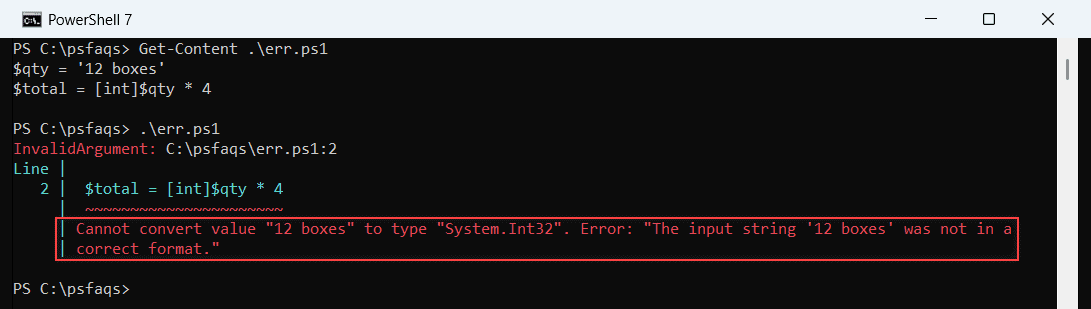
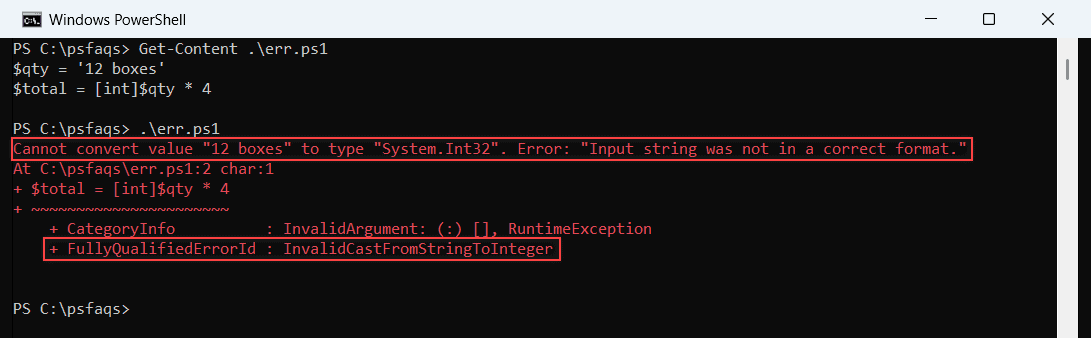
The error “Cannot convert value to type System.Int32” is one of the most common type errors in PowerShell. It occurs when PowerShell tries to cast or assign a value as an integer, but the value contains non-numeric characters, is too large, is null, or is in the wrong format entirely.

In this tutorial, I will explain the root cause of the error: PowerShell cannot convert the value to the type System.Int32 with clear fixes.

PowerShell: Cannot Convert Value to Type System.Int32

You’ll see this error in several forms:

Cannot convert value "17 %" to type "System.Int32". Error: "Input string was not in a correct format."
Cannot convert value "4294901760" to type "System.Int32". Error: "Value was either too large or too small for an Int32."
Cannot convert value "NaN" to type "System.Int32". Error: "Value was either too large or too small for an Int32."
Cannot convert the "System.Object[]" value of type "System.Object[]" to type "System.Int32".
Cannot convert value " " to type "System.Int32". Error: "Input string was not in a correct format."

All share the same family: the value cannot be interpreted as a valid 32-bit integer.

Understanding Int32 Limits in PowerShell

System.Int32 is a 32-bit signed integer. It has strict boundaries:

PropertyValue
Minimum value-2,147,483,648
Maximum value2,147,483,647
Accepts decimalsNo
Accepts textNo
Accepts nullNo
Accepts symbols (%$)No

Any value outside these constraints — strings with symbols, decimals, large numbers, null, or whitespace — will throw this error.

Check out Fix “PowerShell Running Scripts is Disabled on This System” Error

Root Cause 1: String Contains Non-Numeric Characters

This is the most common cause. A string that looks like a number but contains extra characters — units, symbols, currency markers, or whitespace — cannot be directly cast to [int].

# These all fail
[int]"17 %" # ERROR — has " %" suffix
[int]"$1,500" # ERROR — has "$" and ","
[int]"3.14" # ERROR — has decimal point
[int]" 42 " # Works after trim in some cases, not always
[int]"NaN" # ERROR — not a number
[int]"1,000" # ERROR — has comma

You can see the exact error messages in the screenshot below:

powershell cannot convert value to type system_int32 error

Fix: Strip non-numeric characters before casting

Before converting the value to an integer, remove unwanted characters such as %, $, spaces, or commas. This ensures only numeric digits remain.

# Remove everything except digits (and optionally minus sign)
$raw = "17 %"
$cleaned = $raw -replace '[^0-9\-]', ''
$value = [int]$cleaned
Write-Host $value # 17

Fix: Use regex to extract the numeric part

If the string contains additional text, you can use regex to extract only the numeric portion before converting it to an integer.

$raw = "CPU Usage: 87 %"

if ($raw -match '\d+') {
$value = [int]$matches[0]
Write-Host "Extracted: $value" # 87
}

Fix: For CSV data with units or symbols

CSV files often contain formatted values such as "17 %" or "1,200". Clean the column values before performing comparisons or calculations.

# CSV column "Utilization" contains values like "17 %", "83 %"
Import-Csv "C:\Data\report.csv" | Where-Object {
$cleaned = $_.Utilization -replace '[^0-9\-]', ''
[int]$cleaned -gt 80
}

Check out PowerShell Error Variables

Root Cause 2: Value Is Too Large or Too Small for Int32

PowerShell’s [int] type is a 32-bit signed integer (Int32). It supports values only between -2,147,483,648 and 2,147,483,647. If a value exceeds this range, PowerShell throws a conversion error.

Int32 caps at 2,147,483,647. Values like IP address calculations, registry DWORDs, large file sizes, or bitmask values often exceed this limit.

# ERROR — exceeds Int32.MaxValue
[int]"4294901760"
[int]4294967295

When you run the PowerShell script above, you can see the exact error message in the screenshot below.

powershell cannot convert value to type system_int32 solution

Fix: Use [int64] for larger values

When working with very large numbers such as file sizes, timestamps, or calculations, use [int64] (or its alias [long]) to avoid overflow errors.

[int64]"4294901760"   # Works — 64-bit signed integer (up to 9.2 quintillion)
[long]4294967295 # [long] is an alias for [int64]

Fix: Use [uint32] for unsigned 32-bit values (registry DWORDs)

Some values, especially registry DWORD values, are unsigned and can exceed the positive range of a signed Int32. In these cases, use [uint32].

# Registry DWORD values are unsigned 32-bit
[uint32]"4294901760" # Works — unsigned Int32 (0 to 4,294,967,295)

Fix: Use [uint32] hex literals for registry operations

Hexadecimal values are commonly used in registry and low-level system scripts. Casting them to [uint32] helps when the value exceeds the signed Int32 limit.

# Common in registry scripts
$val = 0x7fffff # Hex literal — works as [int32]
$val = [uint32]0xFFFF0000 # For values exceeding signed Int32 range

Read How to Handle Errors with Try-Catch in PowerShell?

Root Cause 3: Value Is $null or Empty String

When a variable contains $null, an empty string (""), or only whitespace, PowerShell may fail to convert it to an integer. This commonly happens when working with optional parameters, user input, CSV data, or API responses.

This issue is especially common in advanced functions that use strongly typed [int] parameters.

[int]$null    # Returns 0 (PowerShell is lenient here)
[int]"" # ERROR in some contexts
[int]" " # ERROR — whitespace only

function Set-Timeout {
param (
[Parameter(Mandatory)]
[int]$Seconds
)
Write-Host "Timeout: $Seconds"
}

$value = $null
Set-Timeout -Seconds $value # ERROR
Set-Timeout -Seconds "" # ERROR

Fix: Guard with null/empty check

Before converting the value or passing it to a typed parameter, validate that the variable actually contains usable data.

if ($null -ne $value -and $value -ne '') {
Set-Timeout -Seconds $value
}

Fix: Provide a default value

If the value is missing or empty, you can assign a safe fallback value to prevent script failures.

$seconds = if ($null -ne $rawValue -and $rawValue -ne '') { [int]$rawValue } else { 30 }

Fix: Use [int]::TryParse() for safe conversion

TryParse() safely attempts the conversion without throwing an exception. This is one of the best approaches when handling unpredictable input.

$raw      = $null
$result = 0

if ([int]::TryParse($raw, [ref]$result)) {
Write-Host "Parsed: $result"
} else {
Write-Host "Could not parse — using default"
$result = 30
}

Check out PowerShell Get Difference Between Two Dates in Minutes

Root Cause 4: Decimal Values Being Cast to Int32

Decimal numbers like 3.14 or 99.9 cannot be directly cast with [int] when they come as strings — though numeric decimal variables can be cast (they get truncated).

# String decimal — ERROR
[int]"3.14" # ERROR: Input string was not in a correct format

# Numeric decimal — Works (truncates, not rounds)
[int]3.14 # Returns 3
[int]3.99 # Returns 4 (rounds to nearest)

Fix: Convert string decimal to double first, then int

A decimal value stored as a string cannot be directly converted to [int]. Convert it to [double] first, then cast it to [int] to safely remove the decimal portion.

$raw     = "3.14"
$value = [int][double]$raw
Write-Host $value # 3

Fix: Use [Math]::Round() for controlled rounding

Direct integer conversion truncates the decimal part instead of rounding it. If you want proper mathematical rounding, use [Math]::Round() before converting to [int].

$raw     = "3.75"
$value = [int][Math]::Round([double]$raw)
Write-Host $value # 4

Root Cause 5: Array Passed Instead of Single Integer

When a variable holds multiple values (an array), casting the whole thing to [int] fails.

This error occurs when a variable contains multiple values (an array) but is treated as a single integer. PowerShell cannot convert an entire array (System.Object[]) into a single [int], so the cast fails.

$values = @(10, 20, 30)
[int]$values # ERROR: Cannot convert System.Object[] to System.Int32

Fix: Access a specific element

If you only need one value from the array, reference the specific index before casting it to [int].

[int]$values[0]   # 10 — first element only

Fix: Iterate and convert each item

If you need to process all values, loop through the array and convert each element individually.

$values | ForEach-Object { [int]$_ }

Check out PowerShell Cannot Index into a Null Array

Root Cause 6: Parameter Decorator Syntax Error

A less obvious cause — incorrect use of [Parameter()] attributes where PowerShell misinterprets an integer value as a parameter attribute object.

This issue occurs when parameter attributes like [Parameter()] or validation decorators are written without parentheses. PowerShell then misinterprets the attribute definition, leading to confusing type conversion errors where an integer is incorrectly treated as an attribute object.

# WRONG — missing parentheses on [Parameter]
function Test-It {
param (
[Parameter] # Missing ()
[ValidateNotNullOrEmpty] # Missing ()
[int]$Wait
)
}

Error:

Cannot convert the "30" value of type "System.Int32" to type "System.Management.Automation.ValidateNotNullOrEmptyAttribute".

Fix: Always include parentheses on parameter attributes

Ensure that all parameter decorators are properly invoked with () so PowerShell recognizes them as attributes rather than types or values.

function Test-It {
param (
[Parameter()]
[ValidateNotNullOrEmpty()]
[int]$Wait
)
Start-Sleep -Seconds $Wait
}

Check out Find the Index of a String in an Array in PowerShell

Root Cause 7: CSV Import — Numeric Columns Read as Strings

When using Import-Csv, PowerShell treats every column as a [string], even if the values look numeric. This becomes a problem when the column contains mixed formats like units, text, or missing values, leading to conversion errors when casting to [int].

# CSV column "Score" contains "85", "92 pts", "N/A", "77"
Import-Csv "C:\Data\scores.csv" | ForEach-Object {
[int]$_.Score # ERROR on "92 pts" and "N/A"
}

Fix: Use [int]::TryParse() for safe CSV processing

The safest approach is to validate each value before converting it. This avoids runtime errors and allows you to handle invalid rows gracefully.

Import-Csv "C:\Data\scores.csv" | ForEach-Object {
$parsed = 0
if ([int]::TryParse($_.Score, [ref]$parsed)) {
[PSCustomObject]@{
Name = $_.Name
Score = $parsed
}
} else {
Write-Warning "Skipped non-numeric score: $($_.Score) for $($_.Name)"
}
}

Fix: Strip units, then convert

If your CSV values contain extra characters like pts, %, or other symbols, you can clean the string first before casting it to [int].

Import-Csv "C:\Data\scores.csv" | ForEach-Object {
$cleaned = $_.Score -replace '[^0-9\-]', ''
if ($cleaned -ne '') {
[PSCustomObject]@{
Name = $_.Name
Score = [int]$cleaned
}
}
}

Root Cause 8: “Utc” or Non-Numeric String from Date/Time Operations

A specific variant when date/time or timezone string values accidentally flow into an integer context.

# This fails in PowerShell 7.3+ when timezone string is passed as int
[int]"Utc" # ERROR
[int]"EST" # ERROR

This typically happens when a date format string or timezone identifier gets passed to a parameter expecting milliseconds or seconds. Always extract the numeric component explicitly:

# Extract numeric value from a datetime difference
$ts = New-TimeSpan -Start $startDate -End $endDate
$seconds = [int]$ts.TotalSeconds # Safe — TotalSeconds is already numeric

Read Add Value to an Array in a Function in PowerShell

How to Diagnose the Error

Run these checks immediately when you hit the error:

Check 1: What is the actual value and type?

Write-Host "Value : '$myVar'"
Write-Host "Type : $($myVar.GetType().FullName)"

Check 2: Does it contain non-numeric characters?

if ($myVar -match '[^0-9\-\.]') {
Write-Warning "Contains non-numeric characters: $myVar"
}

Check 3: Is it within Int32 range?

$num = [double]$myVar
if ($num -gt [int]::MaxValue -or $num -lt [int]::MinValue) {
Write-Warning "Out of Int32 range — use [int64] instead"
}

Check 4: Safe parse test

$result = 0
if ([int]::TryParse($myVar, [ref]$result)) {
Write-Host "Safe to cast: $result"
} else {
Write-Host "Cannot parse as Int32: '$myVar'"
}

A Reusable Safe Integer Conversion Function

function ConvertTo-SafeInt {
<#
.SYNOPSIS
Safely converts a value to Int32 with cleaning, validation, and fallback.
.PARAMETER Value
The input value to convert.
.PARAMETER Default
Value to return if conversion fails. Default is 0.
.PARAMETER StripNonNumeric
If set, removes non-numeric characters before converting.
.EXAMPLE
ConvertTo-SafeInt -Value "17 %" -StripNonNumeric
# Returns: 17
.EXAMPLE
ConvertTo-SafeInt -Value "N/A" -Default -1
# Returns: -1
#>

[CmdletBinding()]
param (
[Parameter(Mandatory, ValueFromPipeline)]
[object]$Value,

[int]$Default = 0,

[switch]$StripNonNumeric
)

process {
# Handle null
if ($null -eq $Value) {
Write-Verbose "Value is null — returning default: $Default"
return $Default
}

$raw = $Value.ToString().Trim()

# Handle empty
if ([string]::IsNullOrWhiteSpace($raw)) {
Write-Verbose "Value is empty/whitespace — returning default: $Default"
return $Default
}

# Optionally strip non-numeric characters
if ($StripNonNumeric) {
$raw = $raw -replace '[^0-9\-]', ''
}

# Check Int32 range
$dblResult = 0.0
if ([double]::TryParse($raw, [ref]$dblResult)) {
if ($dblResult -gt [int]::MaxValue -or $dblResult -lt [int]::MinValue) {
Write-Warning "Value '$raw' exceeds Int32 range — returning default. Consider [int64]."
return $Default
}
}

# Safe parse
$intResult = 0
if ([int]::TryParse($raw, [ref]$intResult)) {
return $intResult
}

# Try via double (for decimal strings)
if ([double]::TryParse($raw, [ref]$dblResult)) {
return [int][Math]::Round($dblResult)
}

Write-Warning "Cannot convert '$raw' to Int32 — returning default: $Default"
return $Default
}
}

Usage Examples

Here it is how you can use the above function.

# Basic conversions
ConvertTo-SafeInt -Value "42" # 42
ConvertTo-SafeInt -Value "17 %" -StripNonNumeric # 17
ConvertTo-SafeInt -Value "N/A" -Default -1 # -1
ConvertTo-SafeInt -Value $null -Default 0 # 0
ConvertTo-SafeInt -Value "3.75" # 4 (rounded)
ConvertTo-SafeInt -Value "4294967295" # Warning + 0 (out of range)

# Pipeline from CSV
Import-Csv "C:\Data\report.csv" | ForEach-Object {
[PSCustomObject]@{
Name = $_.Name
Score = ConvertTo-SafeInt -Value $_.Score -StripNonNumeric -Default 0
}
}

# Array pipeline
@("10", "N/A", "85 pts", "92") | ConvertTo-SafeInt -StripNonNumeric -Default 0
# 10, 0, 85, 92

Here is a summary of all the methods we saw.

Error ScenarioRoot CauseFix
"17 %" → Int32String has unit suffix$raw -replace '[^0-9\-]', '' then cast
"3.14" → Int32String decimal[int][double]"3.14"
4294901760 → Int32Exceeds Int32 maxUse [int64] or [uint32]
$null → Int32Null valueGuard with null check or use default
"" → Int32Empty string[string]::IsNullOrEmpty() guard
Array → Int32Array instead of scalarAccess $arr[0] or iterate
[Parameter] (no ())Syntax errorAdd parentheses: [Parameter()]
CSV decimal stringCSV fields are strings[int][double]$_.Column
"NaN" → Int32Not-a-number stringUse [int]::TryParse()
"Utc" → Int32Date/timezone stringExtract numeric value from TimeSpan

Check out PowerShell Round to Nearest Whole Number

Prevention Best Practices

1. Always use [int]::TryParse() for external data

Any value coming from CSV, APIs, registry, event logs, or user input should go through TryParse() rather than a direct cast. Direct casts are fine only for values you fully control.

$result = 0
[int]::TryParse($externalValue, [ref]$result)

2. Strip non-numeric characters before casting

Whenever values come with units, currency symbols, or formatting:

$clean = $raw -replace '[^0-9\-]', ''
[int]$clean

3. Use the right integer type for the right range

[int]    # -2,147,483,648 to 2,147,483,647  (default, most common)
[uint32] # 0 to 4,294,967,295 (registry DWORDs, unsigned)
[int64] # -9.2 quintillion to +9.2 quintillion (large values)
[long] # Alias for [int64]

4. Always use parentheses on parameter attributes

# Correct — always include ()
[Parameter()]
[ValidateNotNullOrEmpty()]
[ValidateRange(1, 100)]

5. Cast CSV columns explicitly

# Always cast when doing arithmetic on CSV fields
[int]$_.Count -gt 10
[double]$_.Score * 1.1

6. Use [ValidateRange()] to catch bad values early in functions

param (
[Parameter(Mandatory)]
[ValidateRange(0, 3600)]
[int]$TimeoutSeconds
)

Conclusion

The “Cannot convert value to type System.Int32” error in PowerShell always comes down to one of a few clear causes — a string with non-numeric characters, a value outside the Int32 range, a null or empty input, a decimal string, or an array where a single integer is expected.

The single most reliable fix is replacing direct [int] casts on external data with [int]::TryParse() — it never throws, always gives you a safe fallback, and makes your scripts resilient to dirty real-world data.

The reusable ConvertTo-SafeInt function in this tutorial wraps all of this logic in one clean, pipeline-friendly utility you can drop into any script.

Do let me know in the comments below if these fixes help you.

You may also like the following tutorials:

100 PowerShell cmdlets download free

100 POWERSHELL CMDLETS E-BOOK

FREE Download an eBook that contains 100 PowerShell cmdlets with complete script and examples.