
To show logged-in users with PowerShell, run quser (short for query user). It lists every user signed in to the computer, including Remote Desktop sessions, with their session ID, state, idle time and logon time.
Two other commands answer slightly different questions:
| Command | What it returns | Remote PCs |
|---|---|---|
quser | Every signed-in user and session, active or disconnected | Yes, with /server: |
(Get-CimInstance Win32_ComputerSystem).UserName | Only the user at the physical console | Yes, with -ComputerName |
$env:USERNAME | The account running your script | No |
I tested all of these on Windows 11 in PowerShell 7.6 and Windows PowerShell 5.1. In the outputs, I replaced my account and computer names with alice and PC-01, and covered them in the screenshots.
Show all logged-in users with quser
quser is a Windows command, so it works the same in every PowerShell version. Type it on its own:
quserOutput:
 USERNAME              SESSIONNAME        ID  STATE   IDLE TIME  LOGON TIME
>alice                 console             1  Active      none   23-09-2026 07:21 AM
The > sign marks your own session. STATE is Active for a user who’s working and Disc for a disconnected Remote Desktop session.
A disconnected user is still signed in. Their apps keep running and they still count as logged on.
One gotcha: LOGON TIME uses the regional date format of the PC. On a typical US setup, you’ll see something like 9/23/2026 7:21 AM. That matters when you parse the text, which is the next step.
Microsoft documents every switch in the query user reference.
Convert quser output into PowerShell objects
quser returns plain text, so you can’t sort or filter it like normal PowerShell output. This function splits each line into properties and turns LOGON TIME into a real date:
function Get-LoggedOnUser {
    [CmdletBinding()]
    param([string]$ComputerName = $env:COMPUTERNAME)

    $lines = quser /server:$ComputerName 2>$null
    if (-not $lines) { return }                    # nobody signed in, or the PC isn't reachable

    # quser prints the logon time in the user's regional short date/time format
    $intl = Get-ItemProperty 'HKCU:\Control Panel\International'
    $format = "$($intl.sShortDate) $($intl.sShortTime)"

    foreach ($line in $lines | Select-Object -Skip 1) {
        $parts = $line.Substring(1).Trim() -split '\s{2,}'
        if ($parts.Count -eq 6) { $name, $session, $id, $state, $idle, $logon = $parts }
        else { $name, $id, $state, $idle, $logon = $parts; $session = $null }   # disconnected session

        $time = [datetime]::MinValue
        $ok = [datetime]::TryParseExact($logon, $format, [cultureinfo]::InvariantCulture,
                                        [Globalization.DateTimeStyles]::None, [ref]$time)

        [pscustomobject]@{
            ComputerName = $ComputerName
            UserName     = $name
            SessionName  = $session
            Id           = [int]$id
            State        = $state
            IdleTime     = $idle
            LogonTime    = if ($ok) { $time } else { $logon }
        }
    }
}

Get-LoggedOnUser | Format-List
Output:
ComputerName : PC-01
UserName     : alice
SessionName  : console
Id           : 1
State        : Active
IdleTime     : none
LogonTime    : 9/23/2026 7:21:00 AM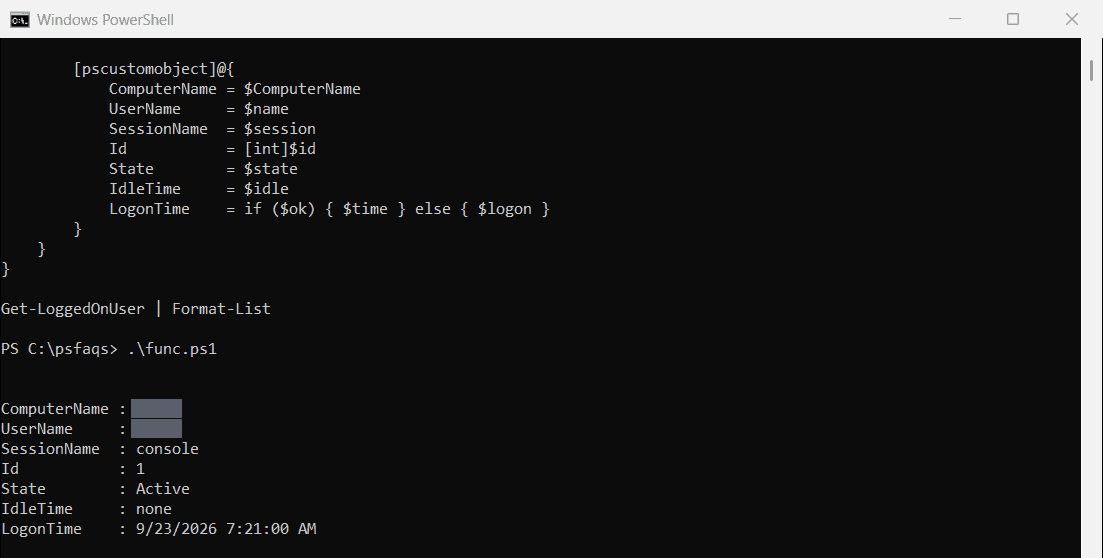
Two details make it reliable. Disconnected sessions have no session name, so the function counts the columns before assigning them.
It also reads your regional date format from the registry instead of assuming one, so the LogonTime column parses on US and non-US PCs alike.
Now you can filter like any other object, for example Get-LoggedOnUser | Where-Object State -eq 'Disc' to find sessions you could log off.
How do I get the user logged in at the console?
When you only care about the person sitting at the machine, read the UserName property of Win32_ComputerSystem:
(Get-CimInstance -ClassName Win32_ComputerSystem).UserNameOutput:
PC-01\aliceIt returns DOMAIN\user, or nothing when no one is signed in at the console. Users connected only through Remote Desktop don’t show up here, so use quser on a terminal server.
Older articles use Get-WmiObject for this. That cmdlet doesn’t exist in PowerShell 7, so stick with Get-CimInstance.
How do I get the current user in PowerShell?
Sometimes you need the account that’s running the script, not everyone who’s signed in. Here are three ways:
$env:USERNAME
whoami
[Security.Principal.WindowsIdentity]::GetCurrent().Name
Output:
alice
alice
PC-01\alice
They usually agree. They differ when a script runs as another account, for example with Run as different user or as a scheduled task under SYSTEM.
In those cases, all three report the account running the script. That’s why you’d use quser or Win32_ComputerSystem to find the person at the keyboard.
Find logged-in users from explorer.exe owners
Every interactive user runs their own copy of explorer.exe. Ask Windows who owns those processes and you get the list of people with a desktop:
Get-CimInstance -ClassName Win32_Process -Filter "Name = 'explorer.exe'" |
    ForEach-Object {
        $owner = Invoke-CimMethod -InputObject $_ -MethodName GetOwner
        "$($owner.Domain)\$($owner.User)"
    } |
    Sort-Object -Unique
Output:
PC-01\alice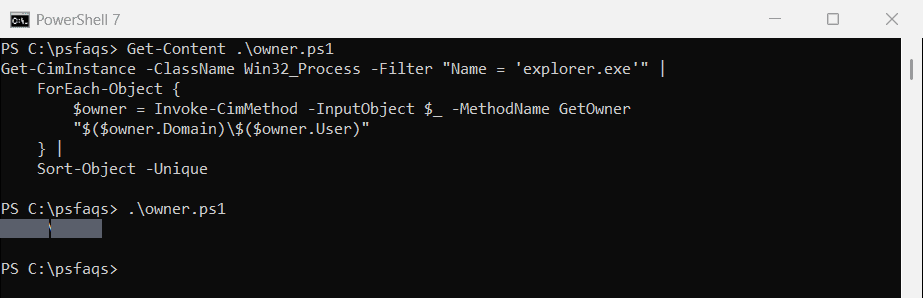
This works in both versions without admin rights for your own session. To see other users’ processes, run it elevated.
You’ll also see Get-Process -IncludeUserName in many scripts. It worked without elevation in PowerShell 7.6 on my PC:
Get-Process -Name explorer -IncludeUserName | Select-Object UserName, Id, StartTimeOutput in PowerShell 7:
UserName       Id StartTime
--------       -- ---------
PC-01\alice 10964 9/23/2026 7:21:24 AM
PC-01\alice 36892 9/25/2026 12:34:50 AM
Windows PowerShell 5.1 refuses to run it unless the console is elevated:
Get-Process -Name explorer -IncludeUserName | Select-Object UserName, Id, StartTimeOutput in Windows PowerShell 5.1:
Get-Process : The 'IncludeUserName' parameter requires elevated user rights. Try running the command again in a
session that has been opened with elevated user rights (that is, Run as Administrator).
At C:\psfaqs\incl51.ps1:1 char:1
+ Get-Process -Name explorer -IncludeUserName | Select-Object UserName, ...
+ ~~~~~~~~~~~~~~~~~~~~~~~~~~~~~~~~~~~~~~~~~~~
    + CategoryInfo          : InvalidOperation: (:) [Get-Process], InvalidOperationException
    + FullyQualifiedErrorId : IncludeUserNameRequiresElevation,Microsoft.PowerShell.Commands.GetProcessCommand
See the Get-Process documentation for the full parameter list.
Check if a specific user is logged in
Build on Get-LoggedOnUser to get a simple $true or $false. That’s useful before you restart a server or push an update:
# Get-LoggedOnUser from the previous section must be loaded first

function Test-UserLoggedOn {
    param([Parameter(Mandatory)][string]$UserName, [string]$ComputerName = $env:COMPUTERNAME)
    [bool](Get-LoggedOnUser -ComputerName $ComputerName | Where-Object UserName -eq $UserName)
}

Test-UserLoggedOn -UserName $env:USERNAME
Test-UserLoggedOn -UserName 'mjohnson'
Output:
True
False
The first call checks my own account, so it returns True. Nobody called mjohnson is signed in, so the second one returns False.
Show logged-on users on a remote computer
Pass a computer name to the same function. It runs quser /server:NAME behind the scenes:
Get-LoggedOnUser -ComputerName 'SRV01' | Format-Table UserName, State, IdleTime, LogonTime

# several computers at once
'SRV01', 'SRV02', 'RDS01' | ForEach-Object { Get-LoggedOnUser -ComputerName $_ } |
    Format-Table ComputerName, UserName, State, LogonTime
I ran it against my own computer name to test the remote code path. For a real remote PC, you need admin rights there, and Remote Desktop Services must allow the query.
For just the console user, Get-CimInstance Win32_ComputerSystem -ComputerName SRV01 works over WinRM instead. I cover that approach in detail in get the current logged-on user on a remote computer.
What about users who logged in earlier?
Everything above shows who’s signed in right now. To get a list of users who have logged into a computer in the past, you need the Security event log (event ID 4624).
I walk through that in how to track user login history with PowerShell.
Frequently Asked Questions
What is the PowerShell command to see who is logged on?
Run quser. It shows every signed-in user, their session ID, state, idle time and logon time. It works in Windows PowerShell 5.1 and PowerShell 7.
Why does Win32_ComputerSystem return an empty UserName?
It only reports the user at the physical console. If people are connected only through Remote Desktop, the property is empty. Use quser to see those sessions.
Do I need admin rights to see logged-in users?
Not for quser on your own PC. You need admin rights to query a remote computer and to see other users’ processes with Get-Process -IncludeUserName in Windows PowerShell 5.1.
What does Disc mean in the quser output?
It’s a disconnected session. The user closed Remote Desktop without signing out, so their programs are still running.
How do I log off a disconnected user with PowerShell?
Get the session ID from quser, then run logoff <ID>, for example logoff 3. Add /server:NAME for a remote PC.
More Windows user management tutorials:
- List local users with PowerShell
- Check if a user account is locked in PowerShell
- Track user login history with PowerShell
- Restart a computer using PowerShell

Bijay Kumar is an esteemed author and the mind behind PowerShellFAQs.com, where he shares his extensive knowledge and expertise in PowerShell, with a particular focus on SharePoint projects. Recognized for his contributions to the tech community, Bijay has been honored with the prestigious Microsoft MVP award. With over 15 years of experience in the software industry, he has a rich professional background, having worked with industry giants such as HP and TCS. His insights and guidance have made him a respected figure in the world of software development and administration. Read more.