
To restart a computer using PowerShell, run Restart-Computer. It restarts the local PC right away, so save your work first:
Restart-ComputerAdd -ComputerName to restart remote PCs. Below I preview restarts safely, restart remote servers and wait for them to come back, check for a pending restart and schedule one for later.
Preview a restart with -WhatIf
I didn’t want my PC to restart while writing this, so I ran Restart-Computer with -WhatIf. It shows the target and does nothing:
Restart-Computer -WhatIfOutput:
What if: Performing the operation "Enable the Local shutdown access rights and restart the computer." on target "localhost (DESKTOP-4T7K2QX)".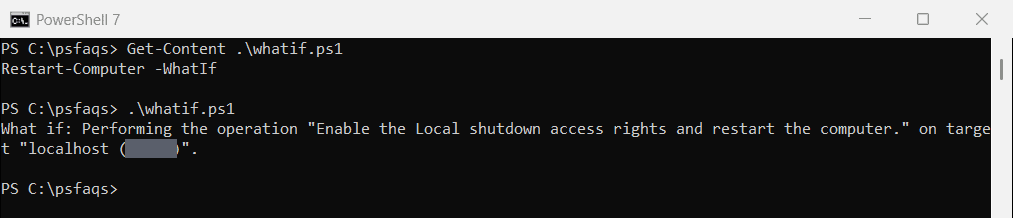
I hid my PC name in the screenshot and replaced it with DESKTOP-4T7K2QX in the text. When a script builds the list of computers, -WhatIf is a cheap way to confirm the list before anything happens.
After the restart, you can confirm when it happened with the last reboot time.
Restart the local computer
Restart-Computer works in a normal PowerShell window on your own PC, because standard users can usually shut down their own computer. If other people are signed in, it fails unless you add -Force:
Restart-Computer -Force-Force restarts immediately and doesn’t wait for apps to close, so unsaved work is lost.
Restart a remote computer
Pass one or more names to -ComputerName. You need admin rights on each remote PC:
Restart-Computer -ComputerName 'NYC-SRV01', 'DAL-SRV02' -Credential (Get-Credential) -ForceRestart-Computer checks every name first, even with -WhatIf. A typo or a server that isn’t in DNS fails before anything restarts:
try { Restart-Computer -ComputerName 'NYC-SRV01' -WhatIf -ErrorAction Stop }
catch { "Failed. $($_.Exception.Message)" }
Output:
Failed. Computer name NYC-SRV01 cannot be resolved with the exception: One or more errors occurred. (No such host is known.).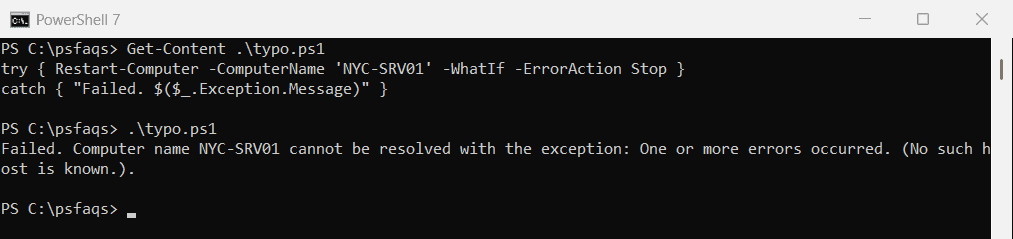
Windows PowerShell 5.1 shows the same message without the No such host is known part. To restart a list of servers from a file, pipe it: Get-Content -Path .\servers.txt | Restart-Computer -Force.
Restart and wait until the computer is back
In a maintenance script you usually want to wait for the server before the next step. -Wait blocks until the restart finishes, and -For says what to wait for:
Restart-Computer -ComputerName 'NYC-SRV01' -Force -Wait -For PowerShell -Timeout 300 -Delay 2This waits up to 300 seconds until PowerShell remoting works again, checking every 2 seconds. -For also accepts WMI and WinRM. -Wait doesn’t work for the local computer, for an obvious reason.
Check if a restart is pending
Windows Update and component installs set registry keys when they need a restart. Checking them is read-only and doesn’t need admin rights:
$keys = 'HKLM:\SOFTWARE\Microsoft\Windows\CurrentVersion\WindowsUpdate\Auto Update\RebootRequired',
        'HKLM:\SOFTWARE\Microsoft\Windows\CurrentVersion\Component Based Servicing\RebootPending'
$pending = @($keys | Where-Object { Test-Path -Path $_ })
"Restart pending: $($pending.Count -gt 0)"
Output:
Restart pending: False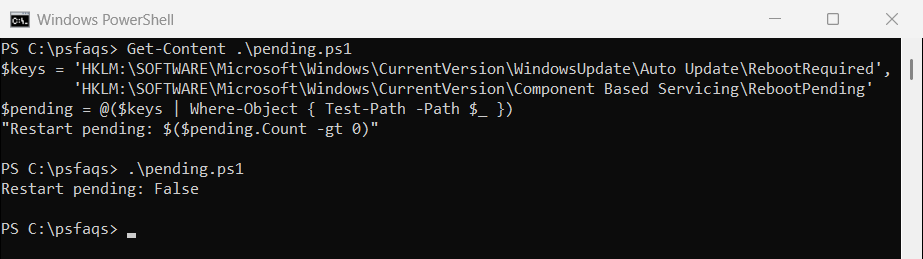
If it says True, schedule a restart. To see when the PC last started, read getting the last reboot time with PowerShell.
Schedule a restart or warn users with shutdown.exe
Restart-Computer has no delay option, since -Delay only sets how often -Wait checks. I use shutdown.exe for that. This restarts in 10 minutes and shows users a message:
shutdown.exe /r /t 600 /c "Restarting for updates at 10:30 PM. Please save your work."Run shutdown.exe /a to cancel it before the time runs out. Add /m \\NYC-SRV01 for a remote PC.
For a restart at a fixed time every week, a scheduled task is the better fit. Listing scheduled tasks with PowerShell shows how to check what’s already scheduled.
PowerShell 7 vs Windows PowerShell 5.1
Restart-Computer has fewer parameters in PowerShell 7. These are the ones each version accepts:
$common = [System.Management.Automation.PSCmdlet]::CommonParameters +
          [System.Management.Automation.PSCmdlet]::OptionalCommonParameters
(Get-Command -Name Restart-Computer).Parameters.Keys |
    Where-Object { $_ -notin $common } | Sort-Object
Output:
ComputerName
Credential
Delay
For
Force
Timeout
Wait
WsmanAuthentication
Windows PowerShell 5.1 also has AsJob, DcomAuthentication, Impersonation, Protocol and ThrottleLimit. If an old script uses -Protocol or -AsJob, run it in 5.1. The Restart-Computer reference covers both versions.
Frequently Asked Questions
How do I restart a computer with PowerShell?
Run Restart-Computer. Add -Force if other users are signed in or apps block the restart.
How do I restart a remote computer with PowerShell?
Run Restart-Computer -ComputerName 'NYC-SRV01' -Credential (Get-Credential) -Force with an account that’s an admin on that PC.
How do I wait for a remote computer to restart?
Add -Wait -For PowerShell -Timeout 300. The command returns once remoting works again or the timeout ends.