
To check CPU usage in PowerShell, read the processor counter with Get-Counter. Its CookedValue is the percent of time the CPU was busy:
(Get-Counter '\Processor(_Total)\% Processor Time').CounterSamples[0].CookedValueBelow I average samples, compare Win32_Processor, turn the Get-Process CPU column into a real percentage, find busy processes, log usage and tame a runaway process, in PowerShell 7 and Windows PowerShell 5.1.
Get the current CPU usage with Get-Counter
Get-Counter reads Windows performance counters. Without -MaxSamples it takes one sample, and the _Total instance covers every processor:
$sample = Get-Counter '\Processor(_Total)\% Processor Time'
$cpu = $sample.CounterSamples[0].CookedValue
'CPU usage: {0:N1} %' -f $cpu
Output:
CPU usage: 10.1 %Your number will differ, since it’s live data. The cmdlet works only on Windows, and counter names are localized on non-English systems. The same counters help you check free memory in PowerShell.
Average several CPU samples
One reading can catch a spike. Take a sample every second and let Measure-Object work out the average and the peak:
$data = Get-Counter '\Processor(_Total)\% Processor Time' -SampleInterval 1 -MaxSamples 3
$values = $data.CounterSamples.CookedValue
$i = 0
foreach ($v in $values) { $i++; 'Sample {0}: {1,5:N1} %' -f $i, $v }
$stats = $values | Measure-Object -Average -Maximum
'Average: {0:N1} %   Peak: {1:N1} %' -f $stats.Average, $stats.Maximum
Output:
Sample 1:  23.5 %
Sample 2:  45.9 %
Sample 3:  37.4 %
Average: 35.6 %   Peak: 45.9 %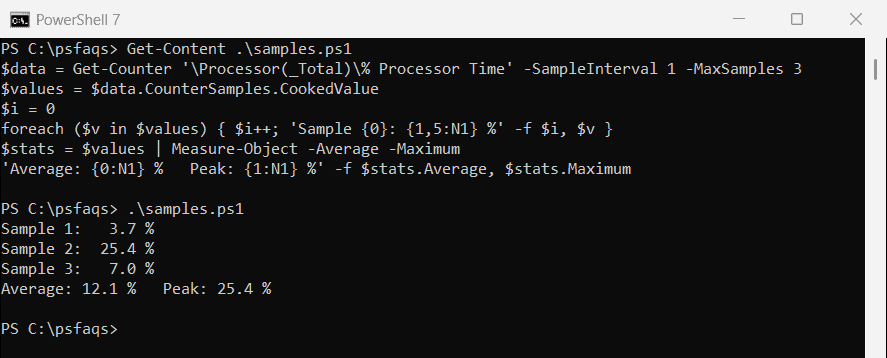
Add -Continuous instead of -MaxSamples to keep sampling until you press Ctrl+C. More statistics options are in Measure-Object in PowerShell.
Fix “Internal performance counter API call failed” (800007d6)
While testing, both versions sometimes failed with “Internal performance counter API call failed. Error: 800007d6”, and the next run worked. Microsoft’s PDH error list calls 0x800007D6 a negative denominator value. A retry wrapper handles it:
function Get-CpuSample ([int]$Count = 1) {
    foreach ($try in 1..3) {
        try {
            $set = Get-Counter '\Processor(_Total)\% Processor Time' -MaxSamples $Count -ErrorAction Stop
            return $set.CounterSamples.CookedValue
        }
        catch { Start-Sleep -Milliseconds 500 }
    }
    throw "The CPU counter failed 3 times"
}

$cpu = Get-CpuSample -Count 3
'Got {0} samples, average {1:N1} %' -f $cpu.Count, ($cpu | Measure-Object -Average).Average
Output:
Got 3 samples, average 16.3 %-ErrorAction Stop is what makes the failure catchable in a try catch in PowerShell block.
Get CPU load with Get-CimInstance Win32_Processor
Win32_Processor has a LoadPercentage property, which Microsoft describes as the load of each processor averaged to the last second. There’s one instance per physical processor, so average them:
$load = Get-CimInstance -ClassName Win32_Processor |
    Measure-Object -Property LoadPercentage -Average
"LoadPercentage: $($load.Average) %"
Output:
LoadPercentage: 11 %It returns a whole number and needs no counter path. More CIM classes are in getting computer information with PowerShell.
Is the Get-Process CPU column a percentage?
No. The CPU property is the total processor time in seconds since the process started. To prove it, I start a hidden test process that spins in an endless loop and read it after three seconds:
$exe  = (Get-Process -Id $PID).Path     # pwsh.exe or powershell.exe
$busy = Start-Process $exe '-NoProfile -Command while($true){}' -WindowStyle Hidden -PassThru
try {
    Start-Sleep -Seconds 3
    Get-Process -Id $busy.Id
    $p = Get-Process -Id $busy.Id
    "CPU property: $([math]::Round($p.CPU, 2)) seconds of processor time"
}
finally { Stop-Process -Id $busy.Id }
Output:
 NPM(K)    PM(M)      WS(M)     CPU(s)      Id  SI ProcessName
 ------    -----      -----     ------      --  -- -----------
     61    25.91      81.08       3.05   56648   1 pwsh
CPU property: 3.08 seconds of processor time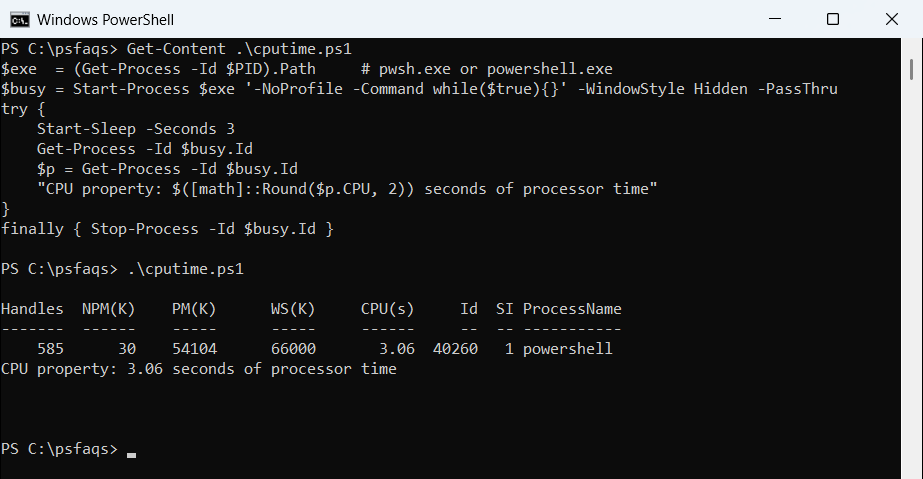
Three seconds of a busy loop gave about three CPU seconds. Windows PowerShell 5.1 also shows Handles and memory in KB. PowerShell 7 drops Handles and shows PM(M) and WS(M) in megabytes.
So sorting by CPU finds long-running processes, not the ones busy right now. The full property list is in PowerShell Get-Process.
Find the processes using the most CPU right now
To get a real percentage, read CPU twice, divide the difference by the elapsed seconds, then by the logical processor count. I measure a busy and an idle test process here:
$exe  = (Get-Process -Id $PID).Path     # pwsh.exe or powershell.exe
$busy = Start-Process $exe '-NoProfile -Command while($true){}' -WindowStyle Hidden -PassThru
$idle = Start-Process $exe '-NoProfile -Command Start-Sleep 60' -WindowStyle Hidden -PassThru
try {
    Start-Sleep -Seconds 3                           # let both finish starting
    $procs = Get-Process -Id $busy.Id, $idle.Id      # Get-Process alone = every process
    $cores = [Environment]::ProcessorCount
    $before = @{}
    foreach ($p in $procs) { $before[$p.Id] = $p.CPU }
    Start-Sleep -Seconds 2
    $procs | ForEach-Object {
        $_.Refresh()
        [pscustomobject]@{
            Id      = $_.Id
            'CPU(s)' = [math]::Round($_.CPU, 1)
            'CPU %'  = [math]::Round(($_.CPU - $before[$_.Id]) / 2 / $cores * 100, 1)
        }
    } | Sort-Object 'CPU %' -Descending | Format-Table -AutoSize
}
finally { Stop-Process -Id $busy.Id, $idle.Id }
Output:
   Id CPU(s) CPU %
   -- ------ -----
35596  5.400 6.300
42688  1.500 0.100