
To disable Windows Defender real-time protection using PowerShell, run Set-MpPreference in an elevated window, after turning off Tamper Protection in Windows Security:
Set-MpPreference -DisableRealtimeMonitoring $trueMicrosoft Defender Antivirus is the current name for Windows Defender. Turning it off leaves the PC unprotected, so do it only briefly while troubleshooting. Below I cover checking the status, why the command often seems to do nothing, and a safer alternative.
Check Defender’s current status
Get-MpComputerStatus shows whether real-time protection and Tamper Protection are on. It works in a normal PowerShell window:
$status = Get-MpComputerStatus

"Running mode:          $($status.AMRunningMode)"
"Antivirus enabled:     $($status.AntivirusEnabled)"
"Real-time protection:  $($status.RealTimeProtectionEnabled)"
"Tamper protection:     $($status.IsTamperProtected)"
"Definitions updated:   $($status.AntivirusSignatureLastUpdated.ToString('yyyy-MM-dd'))"
Output:
Running mode:          Normal
Antivirus enabled:     True
Real-time protection:  True
Tamper protection:     True
Definitions updated:   2026-09-28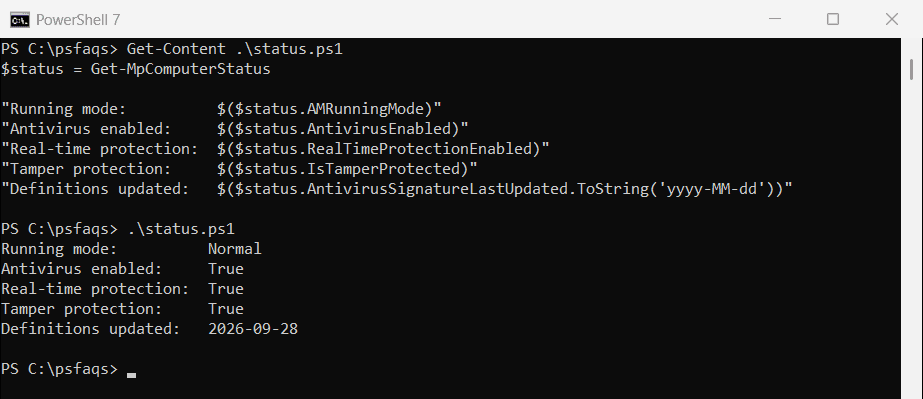
A running mode of Normal means Defender is your active antivirus. If you install another antivirus product, Defender switches to Passive Mode on its own.
Defender also writes its events to the event log, which you can read with PowerShell event log commands.
Why Set-MpPreference seems to do nothing
Tamper Protection is on by default on most Windows 11 PCs. While it’s on, Microsoft says changes to protected settings “might appear to succeed”, but they’re blocked. That includes turning off real-time protection, adding exclusions and editing Defender’s registry keys.
So check both requirements before you try. This script stops early if either one isn’t met:
$status = Get-MpComputerStatus
$isAdmin = ([Security.Principal.WindowsPrincipal][Security.Principal.WindowsIdentity]::GetCurrent()).IsInRole(
    [Security.Principal.WindowsBuiltInRole]::Administrator)

if (-not $isAdmin) { 'Stop: open PowerShell as administrator first' }
elseif ($status.IsTamperProtected) { 'Stop: turn off Tamper Protection in Windows Security first' }
else { 'Ready: Set-MpPreference changes will take effect' }
Output:
Stop: open PowerShell as administrator first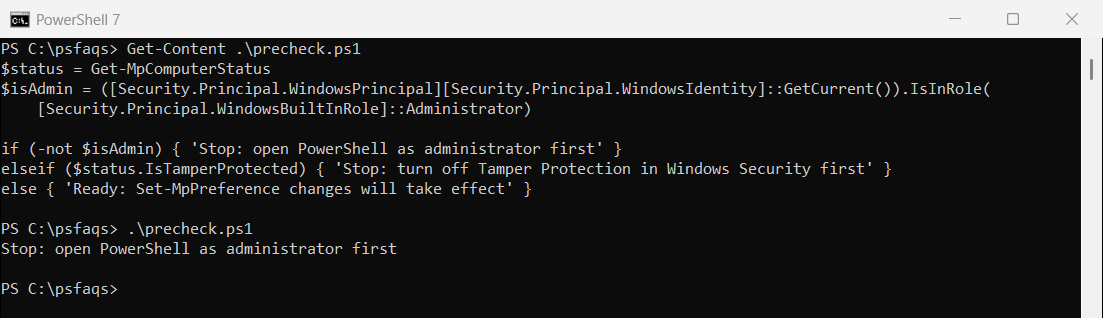
To turn Tamper Protection off, open Windows Security, select Virus & threat protection, then Manage settings, and switch off Tamper Protection. On work PCs it’s usually managed by your IT team, and you can’t change it. Microsoft’s tamper protection overview explains what it covers.
Before changing exclusions, make sure the path exists with Test-Path.
Turn off real-time protection
In an elevated PowerShell window, with Tamper Protection off, run:
Set-MpPreference -DisableRealtimeMonitoring $true
(Get-MpComputerStatus).RealTimeProtectionEnabled
The second line should now print False. If it still says True, Tamper Protection or a policy from your organization is overriding the change.
Turn it back on
Set-MpPreference -DisableRealtimeMonitoring $falseThen turn Tamper Protection back on in Windows Security. You can confirm the setting any time with Get-MpPreference:
$preferences = Get-MpPreference

"DisableRealtimeMonitoring: $($preferences.DisableRealtimeMonitoring)"
"Exclusion paths:           $($preferences.ExclusionPath)"
Output:
DisableRealtimeMonitoring: False
Exclusion paths:           N/A: Must be an administrator to view exclusions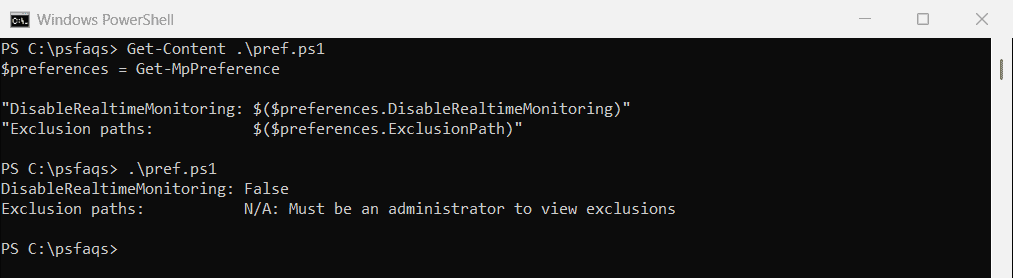
The Defender service status shows up in the list of running services too.
Safer: exclude a folder instead
If Defender slows down or blocks a build tool, excluding its folder is safer than switching everything off. The rest of the PC stays protected:
Add-MpPreference -ExclusionPath 'C:\Build\Output'
(Get-MpPreference).ExclusionPath
Exclude only folders you trust, never a Downloads folder. Remove it later with Remove-MpPreference -ExclusionPath 'C:\Build\Output'. Exclusions also need admin rights and Tamper Protection turned off.
What about the registry?
Older guides set a DisableAntiSpyware registry value to turn Defender off permanently. Microsoft deprecated that value, and Tamper Protection blocks registry changes to Defender settings, so it no longer works on current Windows 11.
Permanent control belongs in Group Policy or Intune on managed PCs. Microsoft lists every Set-MpPreference option in the Set-MpPreference reference.
Frequently Asked Questions
How do I disable Windows Defender with PowerShell?
Turn off Tamper Protection in Windows Security, then run Set-MpPreference -DisableRealtimeMonitoring $true in an elevated PowerShell window.
Why doesn’t Set-MpPreference turn off real-time protection?
Tamper Protection is on, or the window isn’t elevated. With Tamper Protection on, the change can look successful but is blocked.
How do I turn Windows Defender back on?
Run Set-MpPreference -DisableRealtimeMonitoring $false, then turn Tamper Protection back on in Windows Security.
How do I check if real-time protection is on?
Run (Get-MpComputerStatus).RealTimeProtectionEnabled. It returns True when protection is on.