
Format-Table is the PowerShell cmdlet that shows command output as a table. Pipe objects to it and list the properties you want as columns. All the examples below use this small list of servers:
$servers = @(
    [pscustomobject]@{ Name = 'WEB01'; Site = 'Austin'; CPU = 72; MemoryGB = 16; Notes = 'Front-end web server for the customer portal' }
    [pscustomobject]@{ Name = 'SQL01'; Site = 'Dallas'; CPU = 91; MemoryGB = 64; Notes = 'Primary SQL Server for billing' }
    [pscustomobject]@{ Name = 'WEB02'; Site = 'Austin'; CPU = 35; MemoryGB = 16; Notes = 'Standby web server' }
)
With no properties listed, Format-Table shows every property that fits:
$servers | Format-TableOutput:
Name  Site   CPU MemoryGB Notes
----  ----   --- -------- -----
WEB01 Austin  72       16 Front-end web server for the customer portal
SQL01 Dallas  91       64 Primary SQL Server for billing
WEB02 Austin  35       16 Standby web server
I ran the examples in real PowerShell 7.6 and Windows PowerShell 5.1 consoles, 100 characters wide. The tables matched except for a few details I point out below.
Choose the columns
List the properties after -Property, in the order you want the columns:
$servers | Format-Table -Property Name, Site, CPUOutput:
Name  Site   CPU
----  ----   ---
WEB01 Austin  72
SQL01 Dallas  91
WEB02 Austin  35
Only the listed properties appear. The objects themselves don’t change, so a later command in the script still has every property.
Select-Object picks columns too, and it keeps real objects, as shown in PowerShell Select-Object.
How do I sort a table in PowerShell?
Sort first, then format. Format-Table doesn’t sort anything, so put Sort-Object before it in the pipeline:
$servers | Sort-Object -Property CPU -Descending | Format-Table -Property Name, Site, CPUOutput:
Name  Site   CPU
----  ----   ---
SQL01 Dallas  91
WEB01 Austin  72
WEB02 Austin  35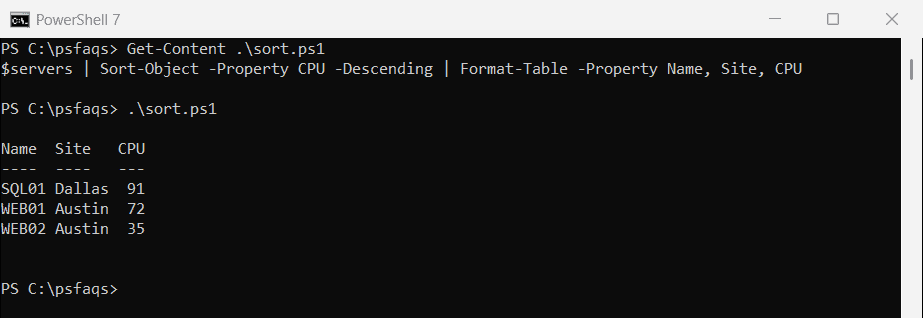
To sort by more than one column, list them: Sort-Object -Property Site, Name. That also keeps the order predictable in 5.1, whose Sort-Object can shuffle rows that have equal values.
Rename and format columns
A hashtable in the property list creates a calculated column. Label sets the header, Expression builds the value, and Align lines it up:
$servers | Format-Table -Property Name,
    @{ Label = 'CPU %'; Expression = { $_.CPU }; Align = 'Right' },
    @{ Label = 'Memory'; Expression = { '{0} GB' -f $_.MemoryGB }; Align = 'Right' }
Output:
Name  CPU % Memory
----  ----- ------
WEB01    72  16 GB
SQL01    91  64 GB
WEB02    35  16 GB
Build the text inside the expression, as with '{0} GB' -f here. The underlying objects stay the same, so this only changes what you see.
Long text and column width
A value that doesn’t fit the window is cut off. I used Out-String -Width 100 here so you get the same result at any window size:
$server = [pscustomobject]@{
    Name  = 'WEB01'
    Notes = 'Front-end web server for the customer portal. ' +
            'Patched on September 28, 2026. Next patch window: October 26, 2026.'
}

$server | Format-Table -Property Name, Notes | Out-String -Width 100
Output in PowerShell 7:
Name  Notes
----  -----
WEB01 Front-end web server for the customer portal. Patched on September 28, 2026. Next patch windo…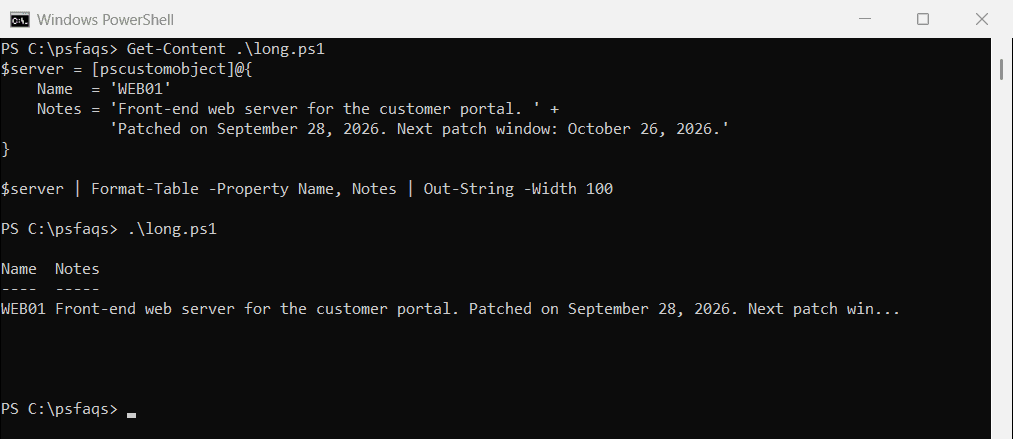
PowerShell 7 marks the cut with a single … character, and 5.1 uses three dots. Add -Wrap to show the whole value on extra lines:
$server = [pscustomobject]@{
    Name  = 'WEB01'
    Notes = 'Front-end web server for the customer portal. ' +
            'Patched on September 28, 2026. Next patch window: October 26, 2026.'
}

$server | Format-Table -Property Name, Notes -Wrap | Out-String -Width 100
Output:
Name  Notes
----  -----
WEB01 Front-end web server for the customer portal. Patched on September 28, 2026. Next patch
      window: October 26, 2026.
Why Width doesn’t shorten a column
Many guides say you can limit a column by adding Width to a calculated property. In my tests, it didn’t shorten the column in either version when the table had room for the full text:
$servers | Format-Table -Property Name, @{ Label = 'Notes'; Expression = { $_.Notes }; Width = 20 }Output:
Name  Notes
----  -----
WEB01 Front-end web server for the customer portal
SQL01 Primary SQL Server for billing
WEB02 Standby web server
The Notes column is still as wide as its longest value. What does work is shortening the text yourself inside the expression:
$servers | Format-Table -Property Name, @{
    Label      = 'Notes'
    Expression = { if ($_.Notes.Length -gt 20) { $_.Notes.Substring(0, 17) + '...' } else { $_.Notes } }
}
Output:
Name  Notes
----  -----
WEB01 Front-end web ser...
SQL01 Primary SQL Serve...
WEB02 Standby web server
Group rows and hide headers
-GroupBy starts a new table for each value of a property. Sort by that property first, or you’ll get a new group every time the value changes:
$servers | Sort-Object -Property Site, Name | Format-Table -Property Name, CPU -GroupBy SiteOutput in PowerShell 7:
   Site: Austin

Name  CPU
----  ---
WEB01  72
WEB02  35

   Site: Dallas

Name  CPU
----  ---
SQL01  91
Windows PowerShell 5.1 prints the same groups with an extra blank line between them. For a plain list without the header rows, use -HideTableHeaders:
$servers | Format-Table -Property Name, Site -HideTableHeadersOutput:
WEB01 Austin
SQL01 Dallas
WEB02 Austin
Don’t pipe Format-Table to Export-Csv
This is the most common Format-Table mistake. It turns objects into formatting instructions for the console, so anything after it gets those instead of your data:
$servers | Format-Table -Property Name, CPU | Export-Csv -Path C:\psfaqs\servers.csv -NoTypeInformation
Get-Content -Path C:\psfaqs\servers.csv -TotalCount 2
Output:
"ClassId2e4f51ef21dd47e99d3c952918aff9cd","pageHeaderEntry","pageFooterEntry","autosizeInfo","shapeInfo","groupingEntry"
"033ecb2bc07a4d43b5ef94ed5a35d280",,,,"Microsoft.PowerShell.Commands.Internal.Format.TableHeaderInfo",