
For the last few days, I have been using a MacBook Pro laptop. There, I wanted to get the current username using PowerShell. There are different methods to do so. In this tutorial, I will explain how to get the current username in PowerShell on a MacBook Pro.
Now, let me show you how to retrieve the current username on macOS using PowerShell.
Note: You need PowerShell 7 or later installed on your MacBook Pro.
Method 1: Using Environment Variables
The quickest way to get the current username on a MacBook Pro with PowerShell is through environment variables. On macOS, the USER variable stores the active username.
Environment variables are built into every operating system. On macOS, $env:USER will always return the username of the person running the PowerShell session
$CurrentUsername = $env:USER
Write-Output $CurrentUsername
I executed the above PowerShell cmdlet in my macOS and you can see the exact output in the screenshot below:

This method is fast and reliable. It’s ideal for scripts that require identifying the user context or personalizing output for different organizations.
Check out How to List Local Users with PowerShell
Method 2: Using .NET’s System.Security.Principal.WindowsIdentity (Cross-Platform Note)
Traditionally, on Windows, you might use the .NET class System.Security.Principal.WindowsIdentity to retrieve the username. However, on macOS, this class is not available. Instead, you can use [System.Environment]::UserName for a cross-platform approach.
The [System.Environment]::UserName property works on both Windows and macOS, making your scripts portable across platforms.
$CurrentUsername = [System.Environment]::UserName
Write-Output $CurrentUsername
I often use this method in cross-platform scripts, as it ensures compatibility and consistency.
Read Delete User Profiles Using PowerShell in Windows 11
Method 3: Using Unix Commands within PowerShell
PowerShell on macOS can execute native Unix commands. The whoami command is a classic way to get the current username.
By calling whoami directly from PowerShell, you leverage the underlying Unix system to fetch the active user.
$CurrentUsername = whoami
Write-Output $CurrentUsername
You can see the exact output in the screenshot below:
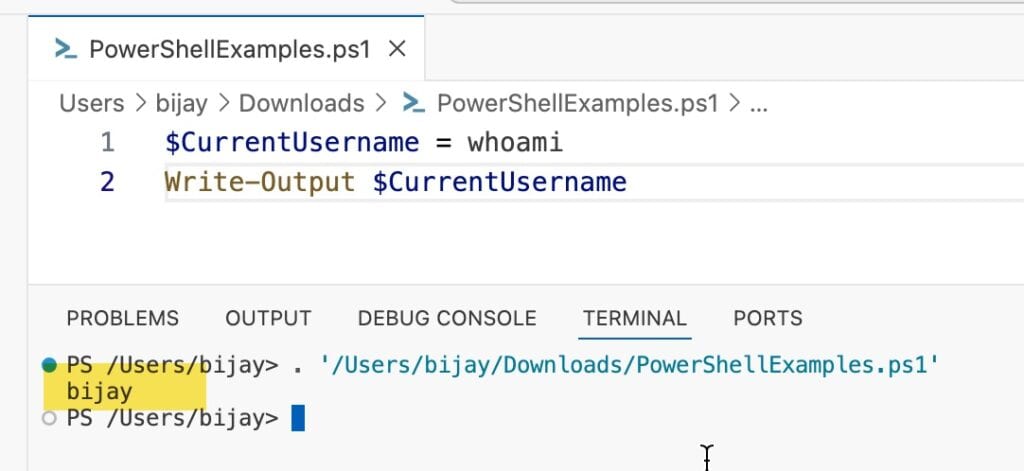
This approach is particularly useful if you’re integrating PowerShell with other shell scripts or legacy Unix tools commonly found in enterprise environments.
Check out Track User Login History on Windows Using PowerShell
Method 4: Listing All Logged-In Users
Sometimes, you need to see all users logged into the system, not just the one running the script. This can be helpful for IT audits or multi-user MacBook Pro setups.
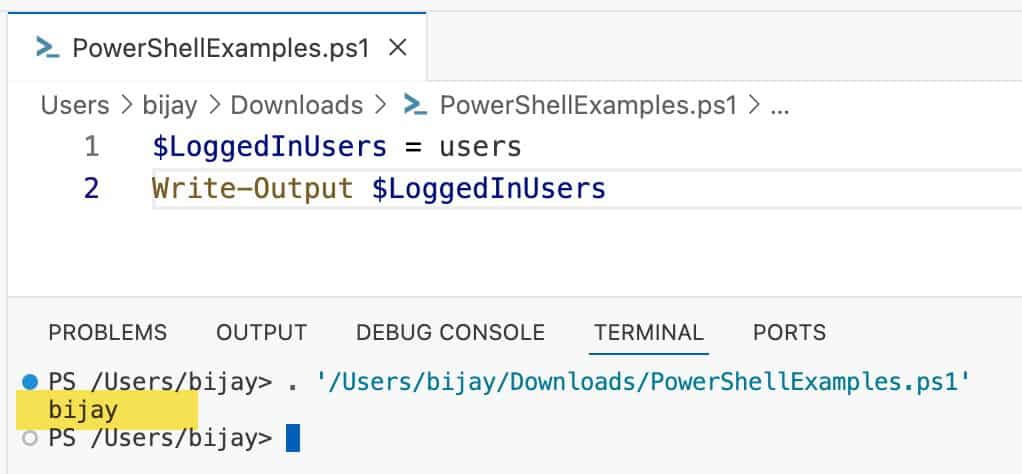
The users command lists all users currently logged in. You can capture and process this in PowerShell.
$LoggedInUsers = users
Write-Output $LoggedInUsers
This gives you a snapshot of active user sessions, which is valuable for security and compliance in various organizations.
Here is the output in the screenshot below:
Check out Show Logged-In Users with PowerShell
Here is a summary:
| Method | Command Example | Cross-Platform | Recommended For |
|---|---|---|---|
| Environment Variable | $env:USER | Yes | Simplicity, speed |
| .NET Environment Property | [System.Environment]::UserName | Yes | Portability |
| Unix Command | whoami | Yes | Unix integration |
| List All Logged-In Users | users | Yes | Audits, multi-user systems |
In this tutorial, I explain how to retrieve the current username on a MacBook Pro using PowerShell. We saw several methods with examples.
You may also like the following tutorials:
- Set Password Never Expires for Local User Using PowerShell
- Set Password for Local User in Windows 11 Using PowerShell
- Delete User Profiles Older Than 30 Days Using PowerShell
- Disable Local User Computer Accounts Using PowerShell
- PowerShell Get MacBook Pro Serial Number

Bijay Kumar is an esteemed author and the mind behind PowerShellFAQs.com, where he shares his extensive knowledge and expertise in PowerShell, with a particular focus on SharePoint projects. Recognized for his contributions to the tech community, Bijay has been honored with the prestigious Microsoft MVP award. With over 15 years of experience in the software industry, he has a rich professional background, having worked with industry giants such as HP and TCS. His insights and guidance have made him a respected figure in the world of software development and administration. Read more.
