
To find files modified after a date in PowerShell, pipe Get-ChildItem -File -Recurse to Where-Object and compare LastWriteTime with the date:
Get-ChildItem -Path C:\psfaqs\Shared -File -Recurse |
    Where-Object LastWriteTime -GT '2026-09-01' |
    Sort-Object -Property LastWriteTime |
    ForEach-Object { '{0:yyyy-MM-dd HH:mm}  {1}' -f $_.LastWriteTime, $_.Name }
Output:
2026-09-01 09:00  handbook-2026.pdf
2026-09-15 16:20  sep-invoices.csv
2026-09-27 18:05  timesheet-week39.xlsx
2026-09-28 08:30  notes.txt
LastWriteTime is the “Date modified” column in File Explorer. I used a sample folder with fixed dates, and I ran every example in PowerShell 7.6 and Windows PowerShell 5.1, with the same results.
Find files modified between two dates
Use -ge for the start date. For the end date, a common bug is -le, which stops at midnight at the start of that day and misses anything saved later that day:
$from = [datetime]'2026-09-01'
$to   = [datetime]'2026-09-15'

"With -le `$to:          $((Get-ChildItem -Path C:\psfaqs\Shared -File -Recurse | Where-Object { $_.LastWriteTime -ge $from -and $_.LastWriteTime -le $to }).Name -join ', ')"
"With -lt `$to.AddDays(1): $((Get-ChildItem -Path C:\psfaqs\Shared -File -Recurse | Where-Object { $_.LastWriteTime -ge $from -and $_.LastWriteTime -lt $to.AddDays(1) }).Name -join ', ')"
Output:
With -le $to:          handbook-2026.pdf
With -lt $to.AddDays(1): sep-invoices.csv, handbook-2026.pdf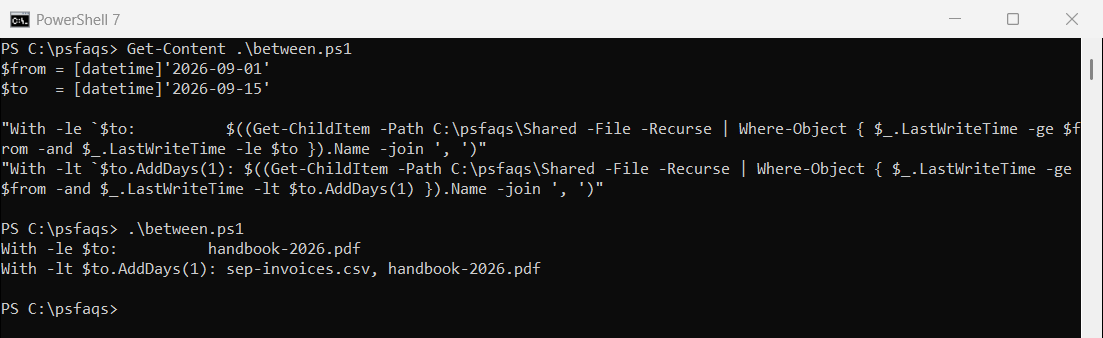
Use -lt $to.AddDays(1) so the whole last day counts. Comparing dates in PowerShell explains why dates without a time mean midnight.
Find files modified in the last 24 hours
Subtract 24 hours from now and keep the files changed since then. I fixed “now” at 4 PM on September 28, 2026 so the output stays the same:
$now    = [datetime]'2026-09-28 16:00'
$cutoff = $now.AddHours(-24)

Get-ChildItem -Path C:\psfaqs\Shared -File -Recurse |
    Where-Object LastWriteTime -GE $cutoff |
    ForEach-Object { '{0}  changed {1:N1} hours ago' -f $_.Name, ($now - $_.LastWriteTime).TotalHours }
Output:
notes.txt  changed 7.5 hours ago
timesheet-week39.xlsx  changed 21.9 hours ago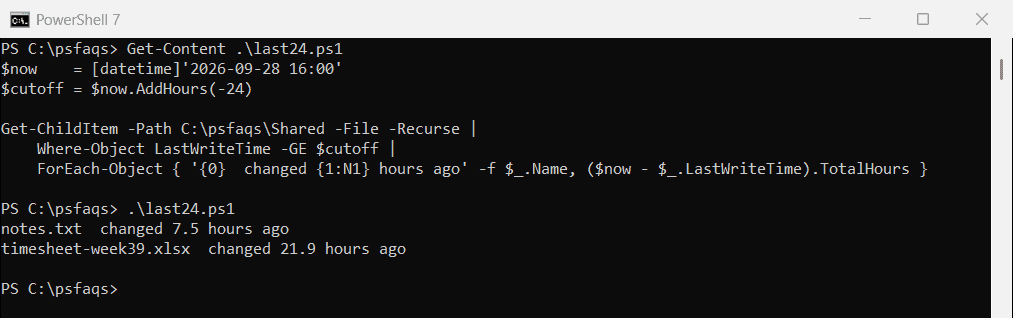
In a real script, use (Get-Date).AddHours(-24). If you mean “since the start of yesterday” instead, use (Get-Date).Date.AddDays(-1).
Check if one file was modified in the last 24 hours
$file = Get-Item -Path C:\psfaqs\Shared\HR\timesheet-week39.xlsx
$now  = [datetime]'2026-09-28 16:00'

if ($file.LastWriteTime -gt $now.AddDays(-1)) { "$($file.Name) was modified in the last 24 hours" }
else { "$($file.Name) wasn't modified in the last 24 hours" }
Output:
timesheet-week39.xlsx was modified in the last 24 hoursFind files older than one month
“One month” and “30 days” aren’t the same cutoff. AddMonths(-1) goes to the same day last month, while AddDays(-30) counts exactly 30 days:
$today = [datetime]'2026-09-28'

"Older than one month (AddMonths): $((Get-ChildItem -Path C:\psfaqs\Shared -File -Recurse | Where-Object LastWriteTime -LT $today.AddMonths(-1)).Name -join ', ')"
"Older than 30 days (AddDays):     $((Get-ChildItem -Path C:\psfaqs\Shared -File -Recurse | Where-Object LastWriteTime -LT $today.AddDays(-30)).Name -join ', ')"
Output:
Older than one month (AddMonths): q2-budget.xlsx
Older than 30 days (AddDays):     aug-invoices.csv, q2-budget.xlsx
The August invoice file falls between the two cutoffs. Pick the one that matches your retention policy, and see deleting files older than X days for the cleanup step.
LastWriteTime vs CreationTime
Copying a file keeps its LastWriteTime, but the copy gets a new CreationTime. That’s why CreationTime can be later than LastWriteTime:
Copy-Item -Path C:\psfaqs\Shared\Finance\q2-budget.xlsx -Destination C:\psfaqs\Shared\q2-budget-copy.xlsx
$copy = Get-Item -Path C:\psfaqs\Shared\q2-budget-copy.xlsx

"LastWriteTime: $($copy.LastWriteTime.ToString('yyyy-MM-dd'))  (kept from the original)"
"CreationTime is today: $($copy.CreationTime.Date -eq (Get-Date).Date)"
Output:
LastWriteTime: 2026-06-30  (kept from the original)
CreationTime is today: True
For “what changed”, use LastWriteTime. CreationTime tells you when a file arrived in that folder, which is useful for downloads and drop folders.
Include hidden files
Get-ChildItem skips hidden files unless you add -Force, so a recently changed hidden file can slip past your check:
$since = [datetime]'2026-09-20'

"Without -Force: $((Get-ChildItem -Path C:\psfaqs\Shared\HR -File | Where-Object LastWriteTime -GT $since).Name -join ', ')"
"With -Force:    $((Get-ChildItem -Path C:\psfaqs\Shared\HR -File -Force | Where-Object LastWriteTime -GT $since).Name -join ', ')"
Output:
Without -Force: timesheet-week39.xlsx
With -Force:    .salary-draft.xlsx, timesheet-week39.xlsx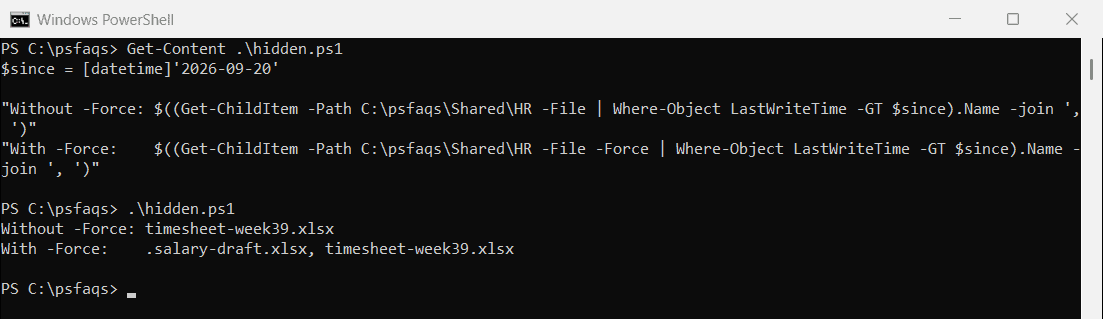
The Get-ChildItem documentation lists -Force, -Hidden and -Attributes for finer control.
Export the list of changed files
Select the columns you need and export them to CSV for a report or an audit:
Get-ChildItem -Path C:\psfaqs\Shared -File -Recurse |
    Where-Object LastWriteTime -GT '2026-09-01' |
    Select-Object -Property Name, @{ Name = 'Folder'; Expression = { $_.Directory.Name } }, LastWriteTime |
    Export-Csv -Path C:\psfaqs\changed-since-sep-1.csv -NoTypeInformation

Import-Csv -Path C:\psfaqs\changed