
To list hidden files in PowerShell, run Get-ChildItem with the -Hidden switch. It returns only the items that have the Hidden attribute:
Get-ChildItem -Path C:\Projects -HiddenUse -Force instead to see hidden and normal items together. Below I show both, how to read the Mode column, how to get hidden files only, search subfolders and unhide a file.
For the examples, I made a sample Project folder with a hidden .env file, a hidden .git folder and a hidden .cache file in a subfolder.
Hidden files don’t show up by default
A plain Get-ChildItem skips anything marked Hidden:
Get-ChildItem -Path .\Project -NameOutput:
src
budget-2026.xlsx
README.md
The folder actually has six items. .env and .git are missing here, just as they are in File Explorer with hidden items turned off.
List only hidden items with -Hidden
-Hidden flips the view and shows only the hidden items, both files and folders:
Get-ChildItem -Path .\Project -Hidden -NameOutput:
.git
.env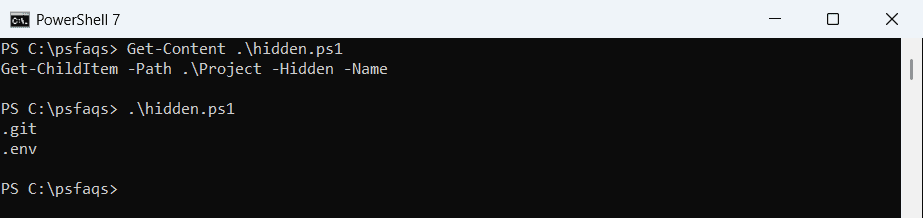
-Hidden doesn’t change the files. It only changes what Get-ChildItem returns, so it’s safe to run anywhere.
List everything with -Force
-Force includes hidden and system items along with the normal ones. The h in the Mode column marks the hidden ones:
Get-ChildItem -Path .\Project -Force | Select-Object -Property Mode, NameOutput:
Mode  Name
----  ----
d--h- .git
d---- src
-a-h- .env
-a--- budget-2026.xlsx
-a--- README.md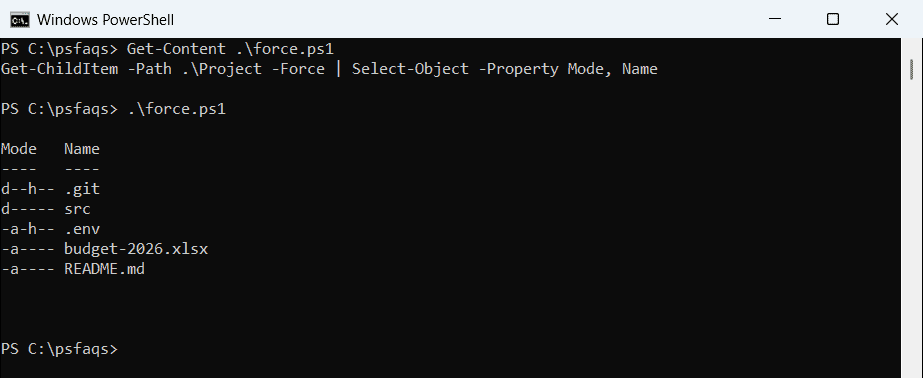
Mode letters are d for directory, a for archive, r for read-only, h for hidden and s for system. Windows PowerShell 5.1 adds a sixth position, l, for links. PowerShell 7 shows five and puts the l in the first position instead.
Get hidden files only, including subfolders
-Attributes takes a filter expression. Hidden+!Directory means hidden and not a folder, and -Recurse searches the whole tree:
Get-ChildItem -Path .\Project -Attributes 'Hidden+!Directory' -Recurse -NameOutput:
.env
src\.cache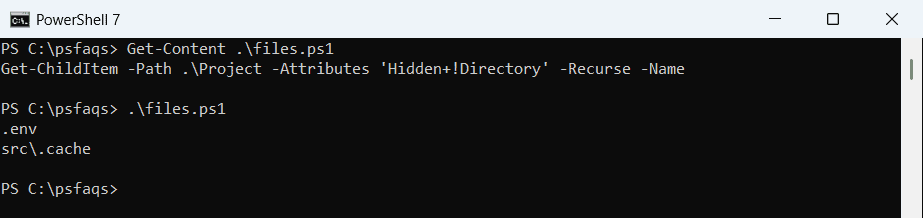
In -Attributes, + means and, a comma means or, and ! means not. So ‘Hidden,System’ finds items that are hidden or system.
Filter on the attribute with Where-Object
When you already have a list of files, test the Attributes property with -band. You need -Force so the hidden items are in the list at all:
Get-ChildItem -Path .\Project -Force -Recurse |
    Where-Object { $_.Attributes -band [System.IO.FileAttributes]::Hidden } |
    Select-Object -Property Name, Attributes
Output:
Name          Attributes
----          ----------
.git   Hidden, Directory
.env     Hidden, Archive
.cache   Hidden, Archive
The same pattern works for ReadOnly, System or any other flag in the FileAttributes enum. For more filters, see the Get-ChildItem filter guide.
Unhide a file
Remove the Hidden flag and keep the other attributes with -band and -bnot:
$file = Get-Item -Path .\Project\.env -Force
$file.Attributes = $file.Attributes -band -bnot [System.IO.FileAttributes]::Hidden

"Attributes now: $((Get-Item -Path .\Project\.env).Attributes)"
Get-ChildItem -Path .\Project -Name -File
Output:
Attributes now: Archive
.env
budget-2026.xlsx
README.md
.env now appears in a normal listing. To hide a file, add the flag instead with -bor. The attrib command does the same from cmd: attrib -h .env.
Frequently Asked Questions
How do I list hidden files in PowerShell?
Run Get-ChildItem -Path C:\Projects -Hidden. Add -Recurse to search subfolders.
What is the difference between -Hidden and -Force?
-Hidden returns only hidden items. -Force returns hidden, system and normal items together.
How do I list only hidden files, not folders?
Use Get-ChildItem -Attributes 'Hidden+!Directory', or add -File to Get-ChildItem -Hidden.
What does h mean in the Mode column?
h means the item has the Hidden attribute. d is directory, a is archive, r is read-only and s is system.
How do I unhide a file with PowerShell?
Run $f = Get-Item .\.env -Force; $f.Attributes = $f.Attributes -band -bnot [IO.FileAttributes]::Hidden. See Microsoft’s Get-ChildItem reference.
Working with files and folders? You’ll also like:

Bijay Kumar is the author behind PowerS