
To install Git on Windows using PowerShell, run one winget command. winget is the Windows Package Manager, built into Windows 11 and current Windows 10 releases:
winget install --id Git.Git -e --source wingetThat’s the command the Git project itself recommends. -e matches the ID exactly, so winget can’t pick a similarly named package. Below I cover checking the install, updating, setting up Git, and fixing “git is not recognized”.
Before you install: is Git already there?
Many developer tools install Git along the way, so check first. Run this in any PowerShell window:
if (Get-Command -Name git -ErrorAction SilentlyContinue) { git --version }
else { 'Git is not installed, or not on the PATH yet' }
Output:
git version 2.47.1.windows.2If you get a version number, Git is installed. My PC had an older version, so the next check compares it with the latest release, 2.56.0 from September 28, 2026:
$latest = [version]'2.56.0'
$installed = [version]((git --version) -replace '^git version (\d+\.\d+\.\d+).*$', '$1')

"Installed: $installed"
"Latest:    $latest"
"Update available: $($installed -lt $latest)"
Output:
Installed: 2.47.1
Latest:    2.56.0
Update available: True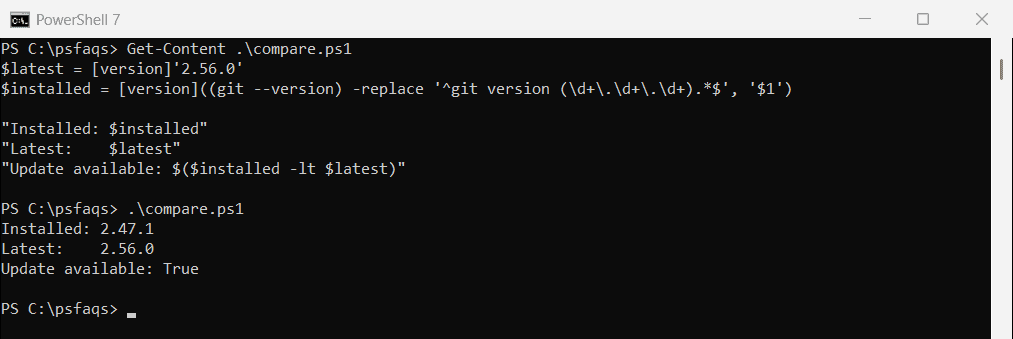
Change the $latest value when a newer version comes out. The current version is always listed on the Git for Windows download page.
The install below uses winget, so check installing winget if it’s missing.
Install or update Git with winget
Open PowerShell and run the install command from the top. winget downloads the official installer and runs it silently. To update an existing Git, use upgrade instead:
winget upgrade --id Git.Git -e --source wingetThe first time you use winget, it may ask you to accept the source agreement. Type Y to continue.
Without winget
On servers or PCs without winget, download the 64-bit installer from the Git website and run it. The installer accepts silent switches, so you can script it:
.\Git-2.56.0-64-bit.exe /VERYSILENT /NORESTART“git is not recognized” after installing
The installer adds Git to the system PATH, but windows that were already open keep the old PATH. Close PowerShell and open a new window. Then confirm Git’s folder is on the system PATH:
$machinePath = [Environment]::GetEnvironmentVariable('Path', 'Machine')
$gitFolders = ($machinePath -split ';') | Where-Object { $_ -like '*\Git\*' }

"Git folders on the system PATH: $($gitFolders -join ', ')"
Output:
Git folders on the system PATH: C:\Program Files\Git\cmd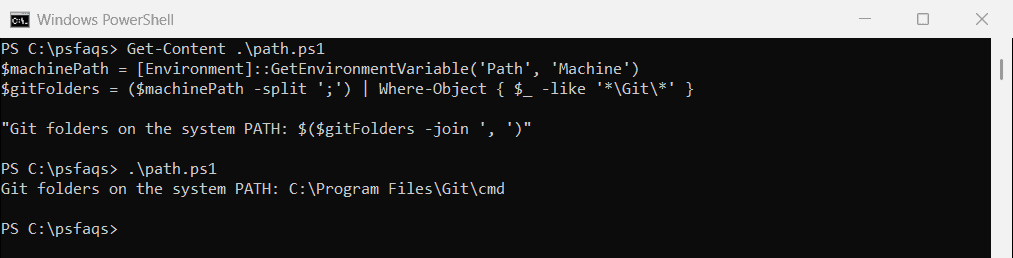
If the folder is missing, rerun the installer and keep the recommended PATH option. Listing environment variables shows more ways to inspect the PATH.
Set your name and email
Git records a name and email with every commit. Set them once for your Windows account:
git config --global user.name "Emma Carter"
git config --global user.email "emma.carter@contoso.com"
Use the email you use on GitHub or Azure DevOps, so your commits link to your account. Run git config --global --list to check what’s set.
Create your first repository
With Git installed, these commands create a repository, add a file and make the first commit. I passed the name and email with -c here so the example works on any PC:
Remove-Item -Path C:\psfaqs\demo-repo -Recurse -Force -ErrorAction SilentlyContinue
New-Item -Path C:\psfaqs\demo-repo -ItemType Directory | Out-Null
Set-Location -Path C:\psfaqs\demo-repo

git init --quiet --initial-branch=main
Set-Content -Path README.md -Value '# Demo repo'
git add README.md
git -c user.name='Emma Carter' -c user.email='emma.carter@contoso.com' commit --quiet -m 'Add README'

git log --format='%an | %s'
"Branch: $(git branch --show-current)"
Output:
Emma Carter | Add README
Branch: main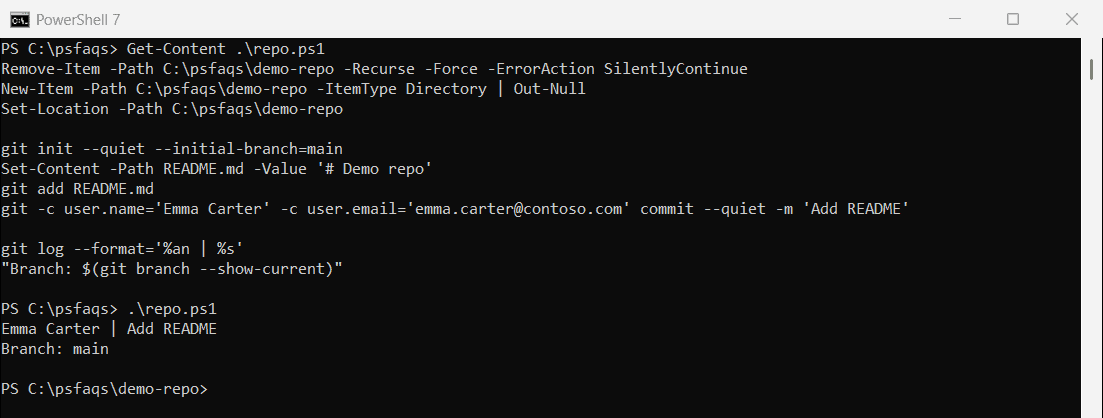
–initial-branch=main names the first branch main. Creating files with content covers Set-Content and the other ways to write files.
Optional: Git status in your prompt
The posh-git module shows the current branch and file changes in the PowerShell prompt. Install it for your account only:
Install-Module -Name posh-git -Scope CurrentUser
Add-PoshGitToProfile
Add-PoshGitToProfile loads it in every new window. It’s a community module from the PowerShell Gallery.
Frequently Asked Questions
How do I install Git on Windows with PowerShell?
Run winget install --id Git.Git -e --source winget, then open a new PowerShell window and check with git --version.
How do I update Git on Windows?
Run winget upgrade --id Git.Git -e --source winget. It installs the newest version over the old one.
Why does PowerShell say git is not recognized?
The window was opened before Git was installed. Close it and open a new one so it picks up the updated PATH.
How do I check which version of Git is installed?
Run git --version. It prints the version, like git version 2.56.0.windows.1.