
If you’ve ever needed to find files modified after a certain date, delete old backup files, or clean up temporary folders based on when files were last changed, you’re in the right place.
Today, I’m going to show you exactly how to use PowerShell to check if a file’s LastWriteTime is greater than (or less than) a specific date. No fluff, just practical examples you can use right away.
What is LastWriteTime in PowerShell?
Let’s quickly understand what the LastWriteTime in PowerShell is.
Every file on your Windows computer has three main timestamps:
- CreationTime: When the file was first created
- LastWriteTime: When the file was last modified
- LastAccessTime: When the file was last opened or read
For most practical purposes, LastWriteTime is what you want. It tells you when someone (or some program) last made changes to the file.
You can see this timestamp in File Explorer when you look at the “Date modified” column. That’s exactly what we’re working with in PowerShell.
PowerShell LastWriteTime Syntax
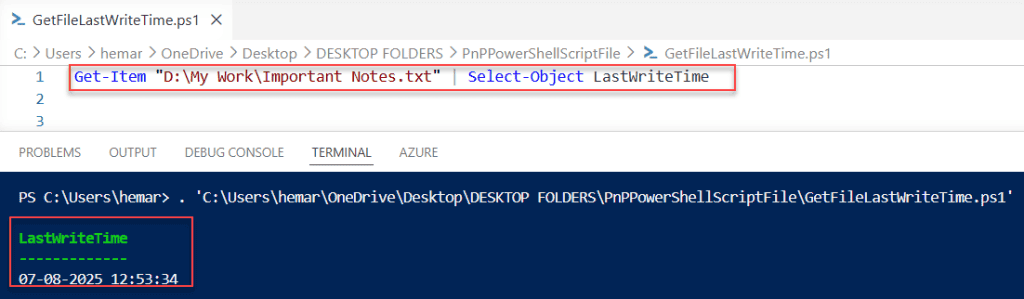
Here’s the simplest way to get a file’s LastWriteTime:
Get-Item "C:\Bijay\file.txt" | Select-Object LastWriteTimeThis shows you when the file was last modified. But we want to do more than just look at it – we want to compare it with a specific date.
Here is an example below, shown in the screenshot I have provided. You can see the exact output.
Check if LastWriteTime is Greater Than a Date
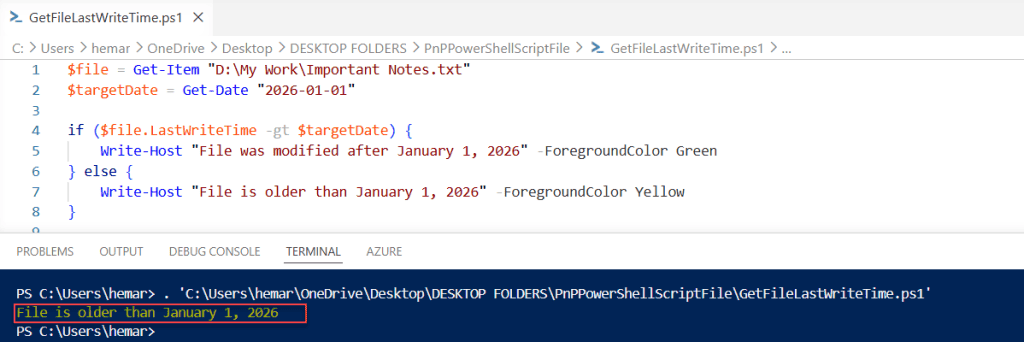
Let’s say you want to find files modified after January 1, 2026. Here’s how you do it:
$file = Get-Item "D:\My Work\Important Notes.txt"
$targetDate = Get-Date "2026-01-01"

if ($file.LastWriteTime -gt $targetDate) {
    Write-Host "File was modified after January 1, 2026" -ForegroundColor Green
} else {
    Write-Host "File is older than January 1, 2026" -ForegroundColor Yellow
}
Let me break this down:
$file = Get-Itemgets the file object$targetDate = Get-Datecreates a date object for comparison-gtmeans “greater than”- The if statement compares the two dates
Simple, right?
You can see the exact output in the screenshot below:
Check out How to Kill a Process If It Is Running in PowerShell?
PowerShell has several comparison operators for dates:
- -gt: Greater than
- -ge: Greater than or equal to
- -lt: Less than
- -le: Less than or equal to
- -eq: Equal to
- -ne: Not equal to
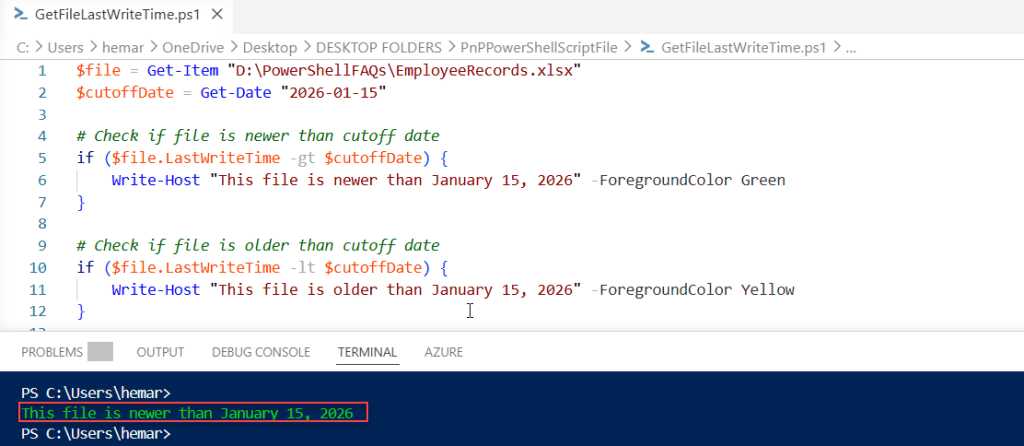
Here’s a quick example using different operators:
$file = Get-Item "D:\PowerShellFAQs\EmployeeRecords.xlsx"
$cutoffDate = Get-Date "2026-01-15"

# Check if file is newer than cutoff date
if ($file.LastWriteTime -gt $cutoffDate) {
    Write-Host "This file is newer than January 15, 2026" -ForegroundColor Green
}

# Check if file is older than cutoff date
if ($file.LastWriteTime -lt $cutoffDate) {
    Write-Host "This file is older than January 15, 2026" -ForegroundColor Yellow
}
Below is an example, follow the screenshot.
Find Multiple Files Modified After a Date
Now let’s get practical. You usually don’t want to check just one file – you want to check an entire folder.
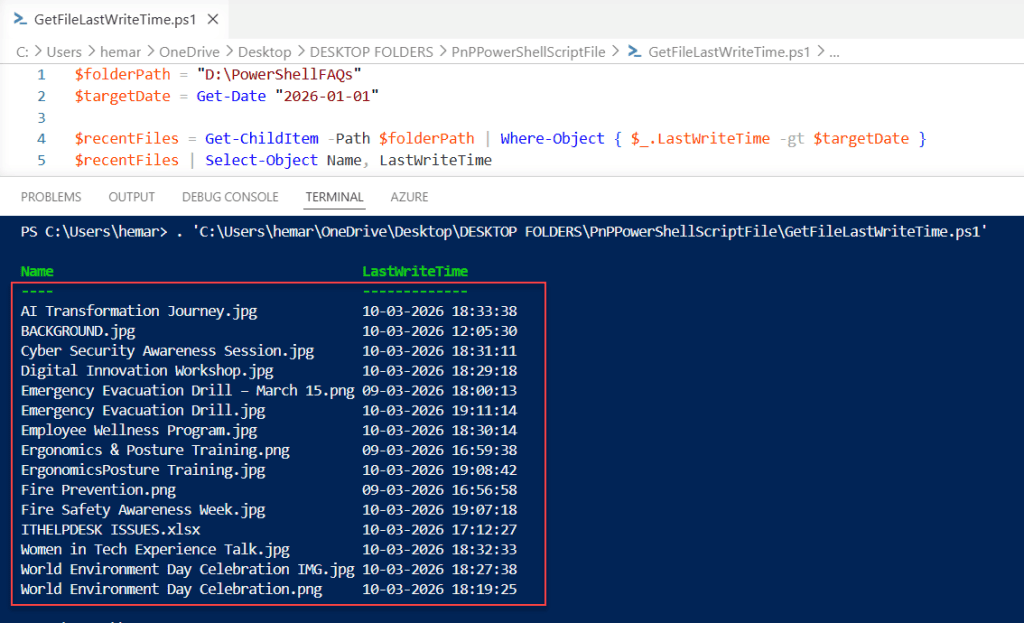
Here’s how to find all files in a folder modified after a specific date:
$folderPath = "D:\PowerShellFAQs"
$targetDate = Get-Date "2026-01-01"

$recentFiles = Get-ChildItem -Path $folderPath | Where-Object { $_.LastWriteTime -gt $targetDate }
$recentFiles | Select-Object Name, LastWriteTime
This script:
- Sets your folder path
- Sets your target date
- Gets all items in the folder
- Filters only those with LastWriteTime greater than your date
- Shows you the name and modification date
Check out PowerShell Start-Process
Working with Relative Dates
Sometimes you don’t want to hardcode a specific date. You want to find files modified in the last 7 days or the last 30 days.
Here’s how to do that:
# Find files modified in the last 7 days
$cutoffDate = (Get-Date).AddDays(-7)
$recentFiles = Get-ChildItem -Path "C:\Documents" | Where-Object { $_.LastWriteTime -gt $cutoffDate }
Let me show you more examples:
# Files modified in the last 24 hours
$yesterday = (Get-Date).AddDays(-1)

# Files modified in the last 30 days
$lastMonth = (Get-Date).AddDays(-30)

# Files modified in the last 3 months
$threeMonthsAgo = (Get-Date).AddMonths(-3)

# Files modified in the last year
$lastYear = (Get-Date).AddYears(-1)
The AddDays(), AddMonths(), and AddYears() methods make this really easy. Use negative numbers to go back in time.
Searching Subfolders Too
By default, Get-ChildItem only looks in the folder you specify. To search all subfolders, add the -Recurse parameter:
$targetDate = (Get-Date).AddDays(-30)
$allRecentFiles = Get-ChildItem -Path "C:\Documents" -Recurse | Where-Object { $_.LastWriteTime -gt $targetDate }

$allRecentFiles | Select-Object FullName, LastWriteTime | Format-Table -AutoSize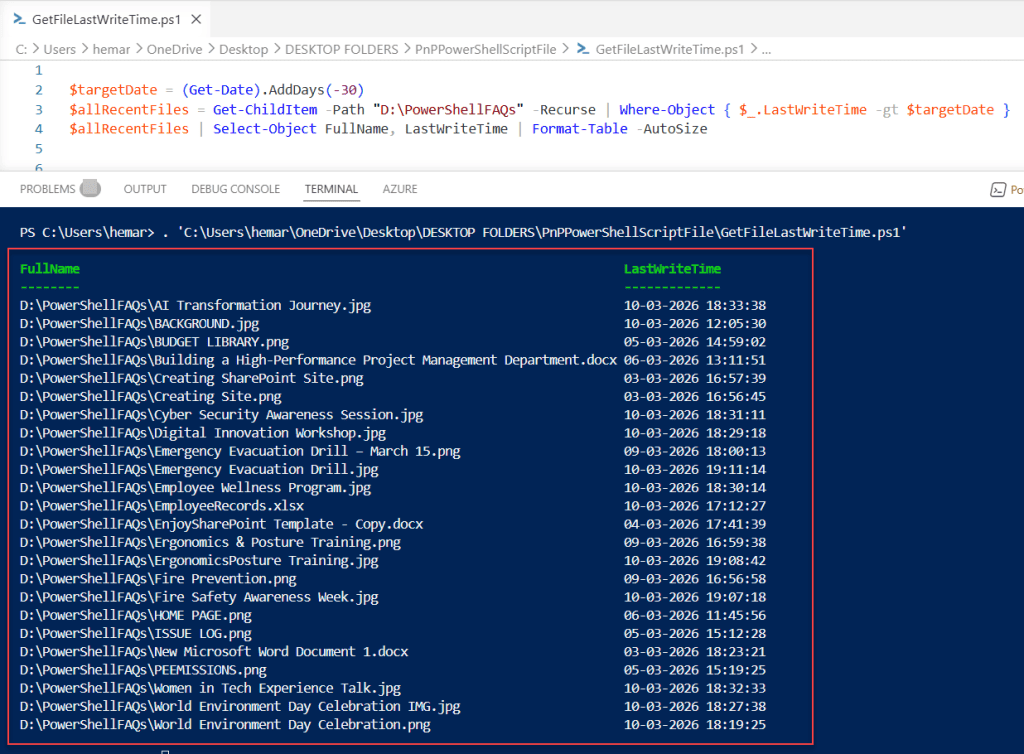
This searches through every subfolder and finds all files modified in the last 30 days.
Read How to Use PowerShell Get-Process?
Practical Example: Delete Old Backup Files
Here’s a real-world scenario. Let’s say you have a backup folder and you want to delete any backup files older than 90 days:
$backupFolder = "D:\PowerShellFAQs"
$cutoffDate = (Get-Date).AddDays(-90)

# Find old backup files
$oldBackups = Get-ChildItem -Path $backupFolder | Where-Object { $_.LastWriteTime -lt $cutoffDate }

# Show what would be deleted
Write-Host "The following files are older than 90 days:"
$oldBackups | Select-Object Name, LastWriteTime

# Actually delete them (be careful!)
# Uncomment the line below when you're ready
# $oldBackups | Remove-Item -Force
Notice I used -lt (less than) this time, because we want files older than the cutoff date.
If you want to delete the backup files older than 90 days uncomment the last line in above code.
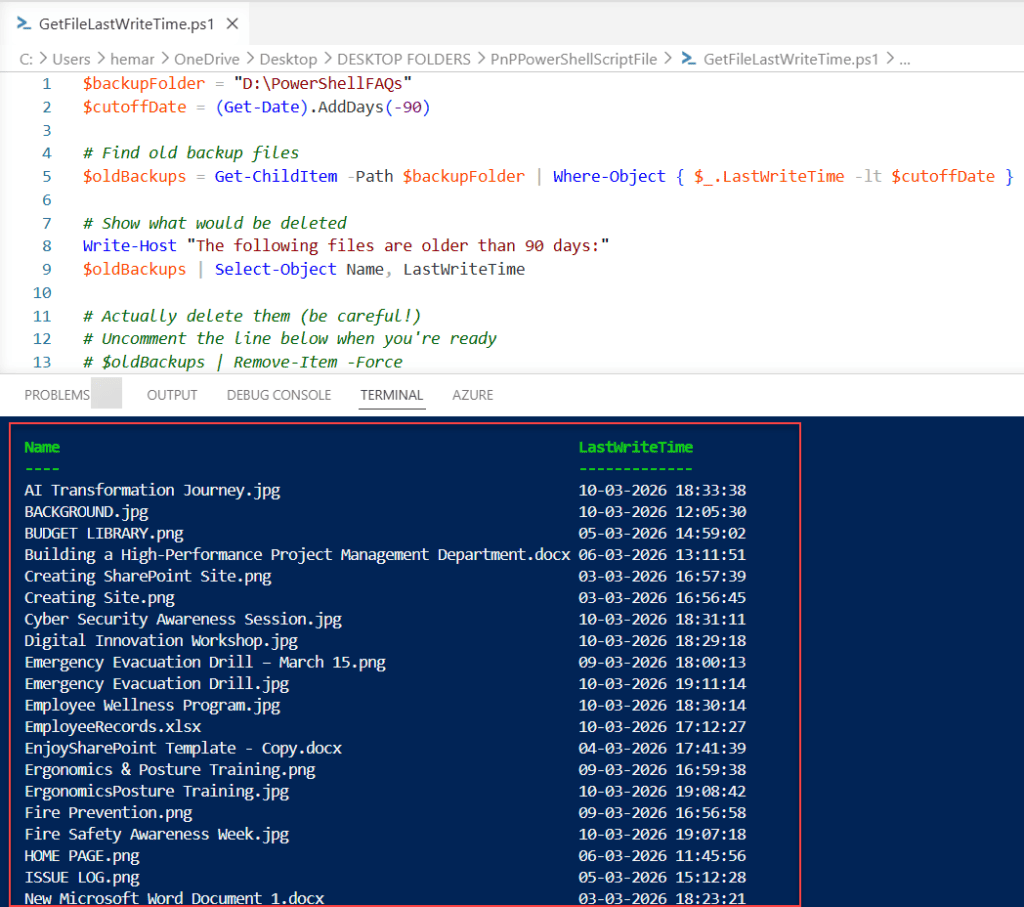
Important: Always test your script first before deleting anything. Run it without the Remove-Item line to see what would be deleted.
Filter by File Type
You can combine LastWriteTime checks with file type filters:
# Find Excel files modified in the last week
$lastWeek = (Get-Date).AddDays(-7)
$recentExcelFiles = Get-ChildItem -Path "C:\Documents" -Filter "*.xlsx" -Recurse | Where-Object { $_.LastWriteTime -gt $lastWeek }

# Find text files modified in the last 24 hours
$yesterday = (Get-Date).AddDays(-1)
$recentTextFiles = Get-ChildItem -Path "C:\Logs" -Filter "*.txt" | Where-Object { $_.LastWriteTime -gt $yesterday }
The -Filter parameter makes the search faster because it filters at the file system level.
Export Results to CSV
When you’re checking lots of files, you might want to save the results:
$targetDate = Get-Date "2026-01-01"
$files = Get-ChildItem -Path "D:\PowerShellFAQs" -Recurse | Where-Object { $_.LastWriteTime -gt $targetDate }

$files | Select-Object FullName, LastWriteTime, Length | Export-Csv -Path "D:\results.csv" -NoTypeInformation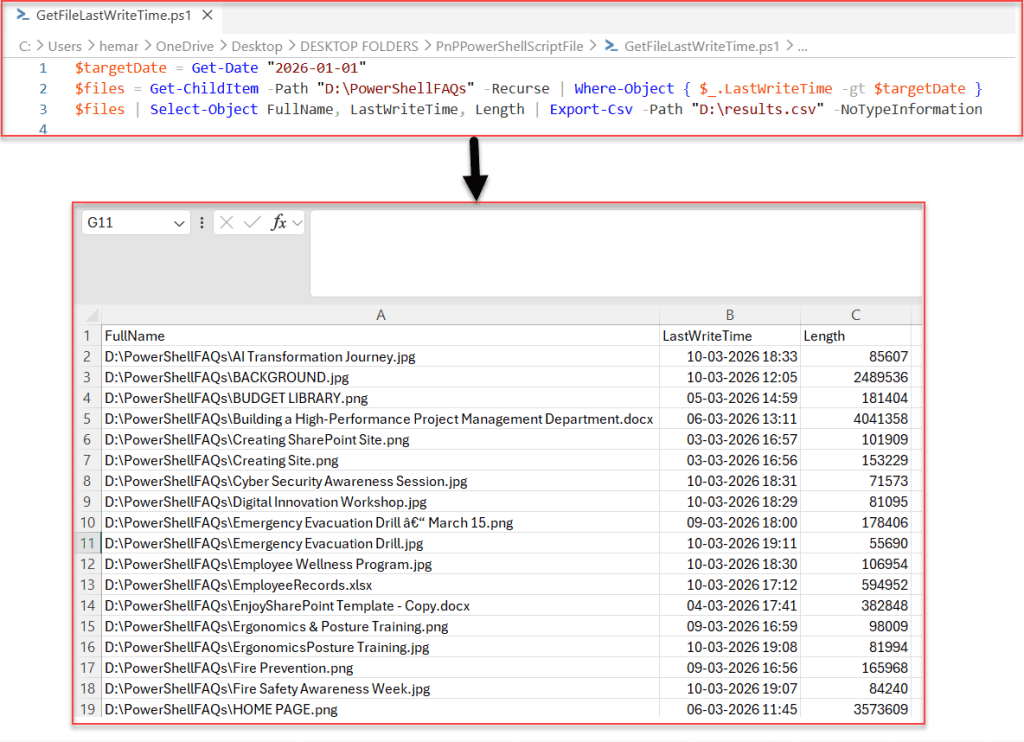
This creates a CSV file with the file path, modification date, and file size. You can open it in Excel for further analysis.
Check Files vs. Folders
By default, Get-ChildItem returns both files and folders. If you only want files:
$targetDate = (Get-Date).AddDays(-30)
$recentFiles = Get-ChildItem -Path "C:\Documents" -Recurse -File | Where-Object { $_.LastWriteTime -gt $targetDate }
The -File parameter ensures you only get files, not directories.
Similarly, use -Directory if you only want folders.
Handle Errors Gracefully
Sometimes you might not have permission to access certain folders. Here’s how to handle that:
$targetDate = (Get-Date).AddDays(-7)

try {
    $recentFiles = Get-ChildItem -Path "C:\Documents" -Recurse -ErrorAction Stop | Where-Object { $_.LastWriteTime -gt $targetDate }
    Write-Host "Found $($recentFiles.Count) recent files"
} catch {
    Write-Host "Error accessing files: $($_.Exception.Message)"
}
Combine Multiple Conditions
You can check multiple conditions at once; below is an example:
$startDate = Get-Date "2026-01-01"
$endDate = Get-Date "2026-12-31"

# Find files modified during 2026
$files2026 = Get-ChildItem -Path "C:\Documents" | Where-Object {
    $_.LastWriteTime -gt $startDate -and $_.LastWriteTime -lt $endDate
}

# Find large files modified recently
$lastWeek = (Get-Date).AddDays(-7)
$largeSizeBytes = 10MB
$recentLargeFiles = Get-ChildItem -Path "C:\Documents" -Recurse | Where-Object {
    $_.LastWriteTime -gt $lastWeek -and $_.Length -gt $largeSizeBytes
}
Use -and to require both conditions, or -or if either condition is enough.
Quick Tips
Here are some things to watch out for:
Date formats: PowerShell is pretty flexible with date formats. These all work:
Get-Date "2026-01-01"Get-Date "January 1, 2026"Get-Date "01/01/2026"
Time zones: LastWriteTime is stored in local time, so you don’t usually need to worry about time zone conversions.
Hidden files: By default, Get-ChildItem includes hidden files. Add -Force if you want to be absolutely sure you’re seeing everything.
Performance: Searching large folder structures can take time. Use the -Filter parameter when possible to speed things up.
Wrapping Up
Checking if a file’s LastWriteTime is greater than a specific date is incredibly useful for file management tasks. Whether you’re cleaning up old files, finding recent changes, or automating backups, these techniques will save you tons of time.
In this tutorial, I explained how to check if a file’s LastWriteTime is greater than a specific date in PowerShell. I would suggest starting with the basic examples and building up from there. Test your scripts carefully before running them on important files, especially if you’re deleting anything.
Also, you may like:
- How to Kill a Process If It Is Running in PowerShell?
- PowerShell Find File by Name Wildcard Examples

Bijay Kumar is an esteemed author and the mind behind PowerShellFAQs.com, where he shares his extensive knowledge and expertise in PowerShell, with a particular focus on SharePoint projects. Recognized for his contributions to the tech community, Bijay has been honored with the prestigious Microsoft MVP award. With over 15 years of experience in the software industry, he has a rich professional background, having worked with industry giants such as HP and TCS. His insights and guidance have made him a respected figure in the world of software development and administration. Read more.