
To create a folder with the current date in PowerShell, format today’s date as text and pass it to New-Item with -ItemType Directory:
$today = Get-Date -Date '2026-09-29'
$folder = New-Item -Path "C:\psfaqs\Archive\$($today.ToString('yyyy-MM-dd'))" -ItemType Directory

"Created: $($folder.FullName)"
Output:
Created: C:\psfaqs\Archive\2026-09-29I used a fixed date so the output doesn’t change. In a real script, use $today = Get-Date. Every example ran in PowerShell 7.6 and Windows PowerShell 5.1, with the same results.
Run it twice without an error
Scripts that run on a schedule often create the same day’s folder more than once. New-Item fails the second time, unless you add -Force:
$today = Get-Date -Date '2026-09-29'
$path = "C:\psfaqs\Archive\$($today.ToString('yyyy-MM-dd'))"

New-Item -Path $path -ItemType Directory | Out-Null
try { New-Item -Path $path -ItemType Directory -ErrorAction Stop | Out-Null }
catch { 'Second New-Item: Failed. The folder already exists' }

$again = New-Item -Path $path -ItemType Directory -Force
"With -Force: returned $($again.Name) without an error"
Output:
Second New-Item: Failed. The folder already exists
With -Force: returned 2026-09-29 without an error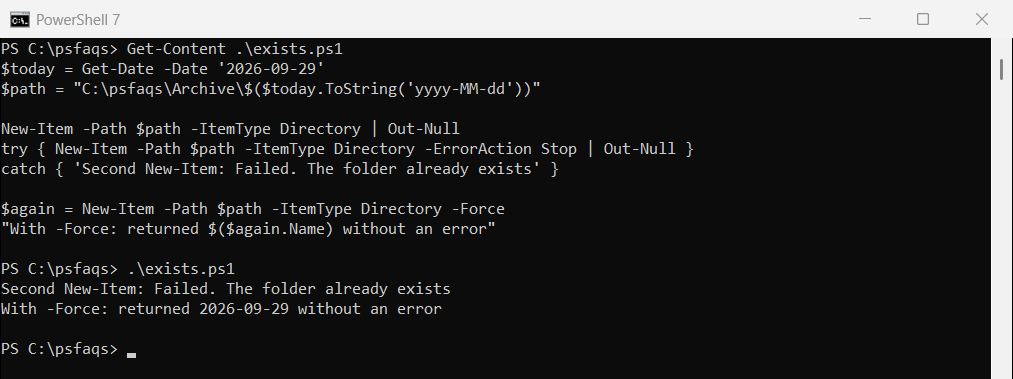
With -Force, New-Item returns the existing folder and leaves its contents alone, so it’s safe to use every time. Test-Path is the alternative when you want to know whether it existed.
Create year, month and day folders
Put backslashes in the date format to get nested folders. New-Item creates every missing level in one step:
$today = Get-Date -Date '2026-09-29'
$path = Join-Path -Path C:\psfaqs\Archive -ChildPath $today.ToString('yyyy\\MM\\dd')

New-Item -Path $path -ItemType Directory -Force | Out-Null
Get-ChildItem -Path C:\psfaqs\Archive -Recurse -Directory |
    ForEach-Object { $_.FullName.Replace('C:\psfaqs\', '') }
Output:
Archive\2026
Archive\2026\09
Archive\2026\09\29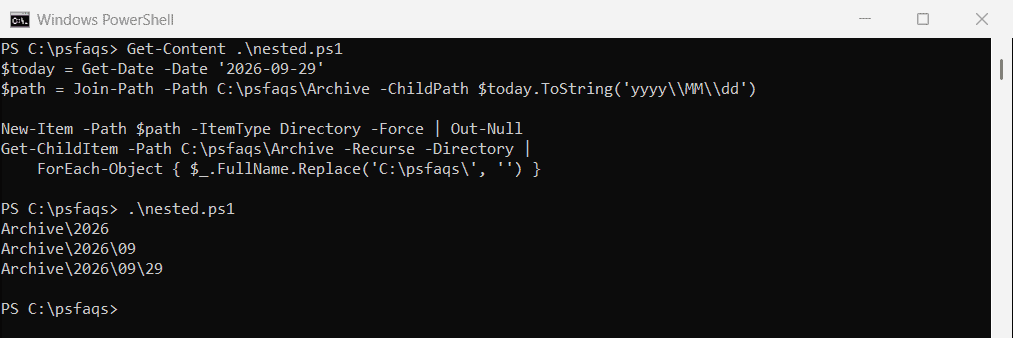
Double each backslash in the format string. A single \ tells ToString to treat the next letter as plain text, so ‘yyyy\MM\dd’ gives 2026M9d29 instead of 2026\09\29.
Create a folder for every month of the year
A loop creates all twelve at once. Numbering them keeps them in calendar order in File Explorer:
$year = 2026
foreach ($month in 1..12) {
    $name = '{0:D2}-{1}' -f $month, (Get-Culture).DateTimeFormat.GetMonthName($month)
    New-Item -Path "C:\psfaqs\Archive\$year\$name" -ItemType Directory -Force | Out-Null
}

(Get-ChildItem -Path "C:\psfaqs\Archive\$year" -Directory).Name -join ', '
Output:
01-January, 02-February, 03-March, 04-April, 05-May, 06-June, 07-July, 08-August, 09-September, 10-October, 11-November, 12-DecemberMonth names come from the current culture, so they match the language of the PC running the script.
Create today’s folder and copy files into it
Build the folder, then copy the files you want into it. Here only CSV files changed today are copied:
$today = Get-Date -Date '2026-09-29'
$folder = New-Item -Path "C:\psfaqs\Archive\$($today.ToString('yyyy-MM-dd'))" -ItemType Directory -Force

Get-ChildItem -Path C:\psfaqs\Exports -Filter *.csv -File |
    Where-Object { $_.LastWriteTime.Date -eq $today.Date } |
    Copy-Item -Destination $folder.FullName

"Copied into $($folder.Name): $((Get-ChildItem -Path $folder.FullName).Name -join ', ')"
"Still in Exports:     $((Get-ChildItem -Path C:\psfaqs\Exports).Count) files"
Output:
Copied into 2026-09-29: orders.csv, returns.csv
Still in Exports:     4 files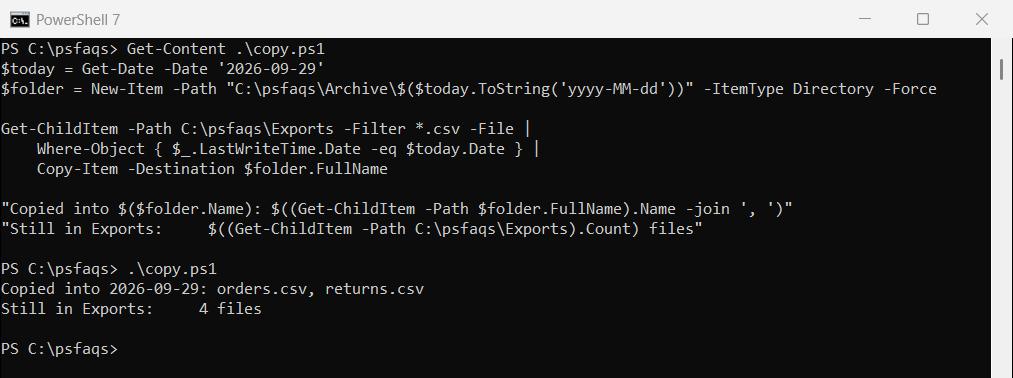
Use Move-Item instead of Copy-Item to archive the files rather than duplicate them. Moving files to a folder covers Move-Item.
Add the time for more than one run a day
If a backup runs several times a day, add hours, minutes and seconds so each run gets its own folder. Use no colons, since Windows doesn’t allow them in names:
$now = Get-Date -Date '2026-09-29 14:05:09'
$folder = New-Item -Path "C:\psfaqs\Archive\backup_$($now.ToString('yyyy-MM-dd_HHmmss'))" -ItemType Directory

$folder.Name
Output:
backup_2026-09-29_140509Adding a date to a file name lists more formats that are safe for names.
Find the newest dated folder
Folders named yyyy-MM-dd sort by date when you sort them by name. That makes the latest folder easy to find, without checking any timestamps:
foreach ($day in '2026-09-29', '2026-08-31', '2026-10-01', '2025-12-15') {
    New-Item -Path "C:\psfaqs\Archive\$day" -ItemType Directory -Force | Out-Null
}

$latest = Get-ChildItem -Path C:\psfaqs\Archive -Directory | Sort-Object -Property Name | Select-Object -Last 1
"Folders by name: $((Get-ChildItem -Path C:\psfaqs\Archive -Directory | Sort-Object -Property Name).Name -join ', ')"
"Latest folder:   $($latest.Name)"
Output:
Folders by name: 2025-12-15, 2026-08-31, 2026-09-29, 2026-10-01
Latest folder:   2026-10-01
The New-Item documentation covers the other item types, and Microsoft lists every format letter in Custom date and time format strings.
Frequently Asked Questions
How do I create a folder with today’s date in PowerShell?
Run New-Item -Path "C:\Archive\$(Get-Date -Format 'yyyy-MM-dd')"